Clearing the browser cache is the most repeated fix for a Wi-Fi landing page that won't load, and it's the first thing I'd stop doing. By the time a guest reports Wi-Fi landing page not loading, the radio has already done its job. What hasn't happened is the chain between the device and the portal: an address, a hint that a portal exists, a name that resolves, a probe that gets redirected, and a login that authorises traffic.
That's why the same complaint covers at least four different faults, and why a cache clear fixes exactly one of them, by accident, on a device that was already fine.
Match the Blank Page to the Broken Layer
Full signal bars are a red herring. Association with the guest SSID only proves the radio link came up; everything a captive portal needs to do happens afterwards. The IETF frames a captive portal as a network where a device is connected but access stays restricted until conditions such as accepting terms, viewing information, or submitting credentials are met, which is precisely the state a blank page sits in.
The standards moved a while back. The current model is set out in RFC 8952, and in September 2020 the IETF published RFC 8908 for the HTTP-based Captive Portal API plus RFC 8910 for the DHCPv4, DHCPv6, and IPv6 Router Advertisement options that tell a client a portal exists and where to find it. Older setups intercepted an arbitrary HTTP request and redirected it, which falls over when DNS is missing, the requested site is HTTPS, the certificate can't be validated after interception, or the operating system ignores the redirect.
Diagnostic rule: if the device got an address, the radio, the SSID, and the association are not your problem. Start at discovery and work forward.
Read the symptom down this table and stop at the first row that matches.
| Symptom | Layer | What the guest sees | First check |
|---|---|---|---|
| No address at all | DHCP on the guest VLAN | Connected with no portal and no usable IP | Scope, gateway, and VLAN on the SSID |
| Address but no sign-in window | OS captive-portal probe | Device acts online or never opens a login sheet | Probe host, status code, and redirect |
| Blank or half-drawn splash | Pre-auth DNS and walled garden | Spinner, missing images, or a certificate warning | Splash FQDN, cert chain, CDN, and identity provider |
| Login succeeds but internet stays blocked | Authorization | Page or social login finishes and traffic still drops | RADIUS or Meraki success path and policy |
| Works on one phone only | Client detection differences | iPhone mini-browser opens and a laptop does not | Repeat the probe on each OS |
A guest with no address at all usually has a scope, gateway, or VLAN problem on the SSID, and a DHCP server that has stopped answering is the first thing I'd check rather than the access point. An address with no sign-in window means the probe was blocked or answered as if the internet were already open. A page shell that loads without images or hangs on a spinner means the splash hostname, its certificate, a CDN, or the social login provider sits outside the pre-auth path. A portal that accepts a click, an SMS code, or a password and then leaves the guest offline is an authorization fault, not a design fault.
Clients that work on one platform and not another are a detection difference, and that's the row most helpdesk scripts miss entirely. Where a guest's own machine drops Wi-Fi everywhere, at home and on the train, the fault is on the device, and Steel City IT's walkthrough for a computer that won't connect is a fair thing to send them. For everyone else, the fix sits in the rows below, nowhere near a cache clear.
Apple Android and Windows Probes Compared
A student's iPhone opens the sign-in sheet on the campus guest network while the staff laptop beside it shows full bars and a browser that insists it's already online. Same SSID, same minute, same access point. That's a probe mismatch, and it's the most common reason a guest wifi landing page loads for exactly one person in the room.
Every modern client asks a quiet question before it offers a sign-in window, and each platform expects its own answer. Huawei's enterprise documentation on portal captive-adaptive detection lays out the endpoints and the diagnostic method behind them: reproduce the failure on each target platform, capture the probe, then compare the status code, body, DNS answer, redirect location, and certificate against what that platform treats as success.
What each platform expects back
| Device family | Probe | Success looks like | If the probe is wrong |
|---|---|---|---|
| Apple iOS and macOS | captive.apple.com | Ordinary connectivity response | Mini-browser never opens |
| Android and Chromebook | connectivitycheck.gstatic.com or clients3.google.com/generate_204 | HTTP 204 No Content | Assistant assumes already online |
| Windows | msftconnecttest.com/connecttest.txt | Expected connect-test text | No captive prompt |
| Firefox | Firefox detection endpoint | Its own success signal | Hang or blank page only in Firefox |
| IoT smart TV or e-reader | Often no usable probe | Nothing automatic | Needs a manual HTTP URL, QR or voucher |
If the gateway blocks the probe, drops it, or answers with a false success, the operating system concludes the internet is open and never shows the sheet. That is why "no captive prompt" is a network-side fault even when the device looks perfectly connected.
Keep the probe path boring. A splash page that needs JavaScript, third-party cookies, or an outside identity provider to render will stall inside a sandboxed sign-in assistant, even when it looks flawless in a normal browser tab.
Where client support allows, advertise the portal API with DHCP Option 114 or IPv6 Router Advertisement Option 37, and keep a scoped HTTP detection path for the legacy kit. Android deserves its own test run, because captive portal behaviour on Android differs between the system assistant and a manual Chrome request.
Devices that never send a probe
Smart TVs, e-readers, handheld tills, and plenty of building sensors either send nothing or send something no portal recognises. That spread isn't niche: the Wi-Fi Alliance reported approximately 2 billion Wi-Fi devices sold in 2013 and forecast annual device sales exceeding 4 billion by 2020. For anything without a usable probe, print the manual HTTP address at the desk, put a QR code on the wall, or hand out a voucher.
How to Trace the Portal Before It Loads
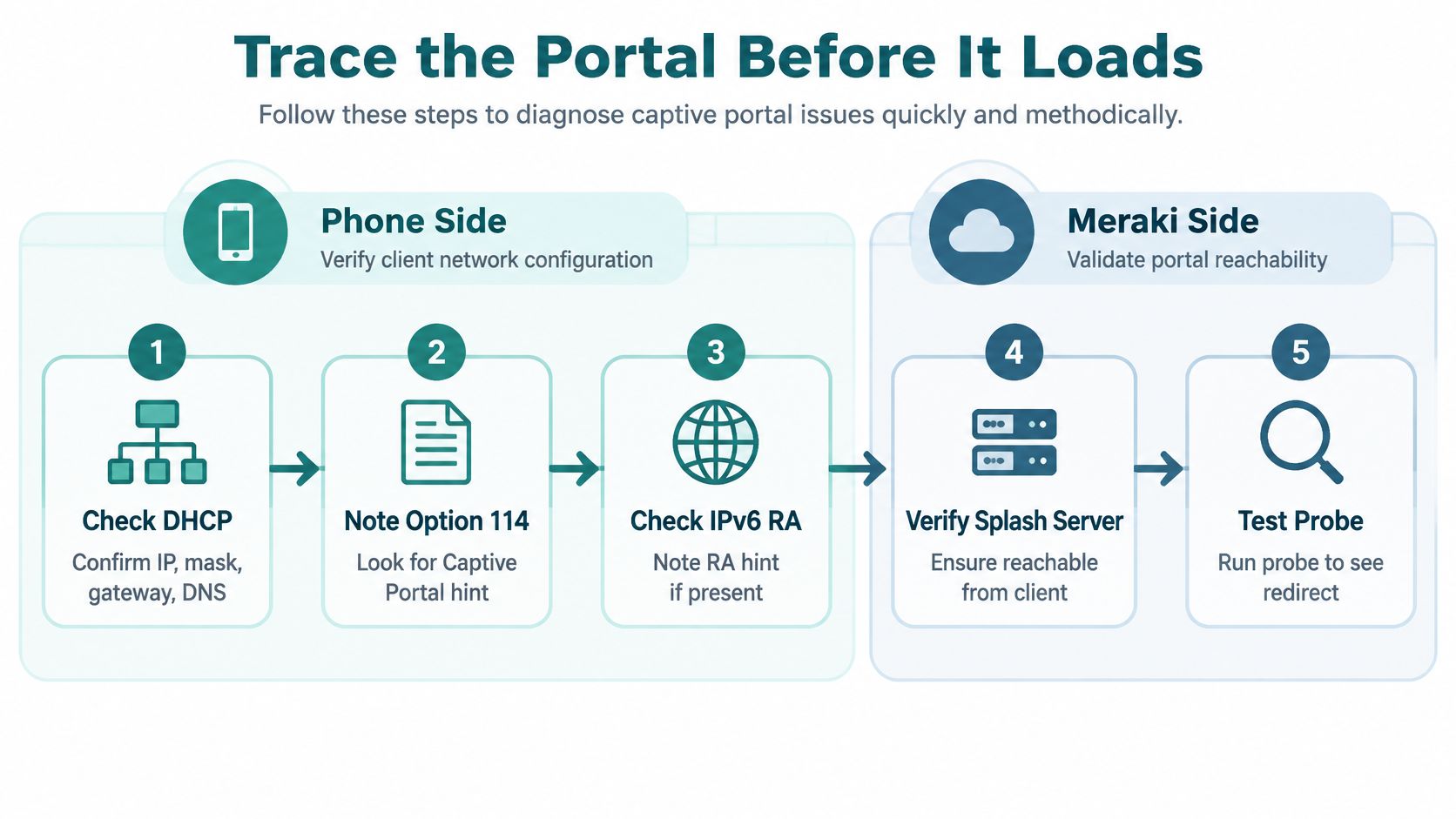
Run this trace once on the failing phone and once from the Meraki side of the guest SSID. Stop at the first step that fails, fix that hop, then start again from the top. The discovery order in the IETF's RFC 8910 guidance maps cleanly onto how a Cisco Meraki guest network behaves on a busy morning.
The flow below is the same sequence drawn for two sides of the same failure, the client and the controller.
The six-step trace
- Confirm the address. Check address, mask, gateway, and DNS servers, plus any Captive Portal API hint from DHCP Option 114 or an IPv6 RA. Pass signal: the client holds a usable address, mask, gateway, and DNS server on the guest VLAN. Usual miss: a lease with no DNS server, so the page looks dead while the access point is fine.
- Resolve the splash hostname. Test it from the guest VLAN, then reach the returned address before anyone logs in. Pass signal: the hostname resolves to an address that answers from the guest VLAN. Usual miss: a name that resolves only from the corporate side of the firewall.
- Watch a plain HTTP probe. Not an HSTS-protected site. Pass signal: the probe returns a redirect to the splash host instead of the normal probe body. Usual miss: testing only https addresses, which can't be intercepted, so nothing appears to happen and the page gets blamed.
- Capture the TLS handshake. Confirm the certificate chain completes pre-auth. Pass signal: the handshake finishes with a valid chain before login. Usual miss: an intermediate certificate the guest can't fetch until after authentication.
- Allow every pre-auth host. DHCP, DNS, NTP, the splash host and its chain, the identity provider behind social login, and any CDN the page calls. Pass signal: each required host answers before authentication. Usual miss: a social wifi button that spins because the provider was never added to the walled garden.
- Finish the login. Submit the click-through, voucher, or directory login and watch for the success URL. Pass signal: the success URL loads and the session is granted. Usual miss: a success page that renders while the policy never applies.
Where the trace usually stops
The most common stop is steps one and two together, an address with no usable DNS answer. The page looks dead, the front desk hears "Wi-Fi landing page not loading" for the fifth time, and the access point is doing exactly what it was told.
The other frequent stop is step three. If a typed HTTP address opens the portal but the automatic sheet never appears, the fault is the probe response or the controller policy, not the HTML. Capture the exchange in Wireshark before you touch the page, because rewriting a splash page that was never requested fixes nothing.
When the Meraki Splash Stops Mid Login
A blank page after the guest has already reached the portal is a named hop, not a browser cache to clear. Once the probe lands, a Cisco Meraki captive portal runs a fixed sequence and fails at a specific hop. The Meraki captive portal solution guide walks the chain the access point follows, and knowing that chain turns "wifi landing page not loading" into a host you can test.
Here's the guest view you're troubleshooting.
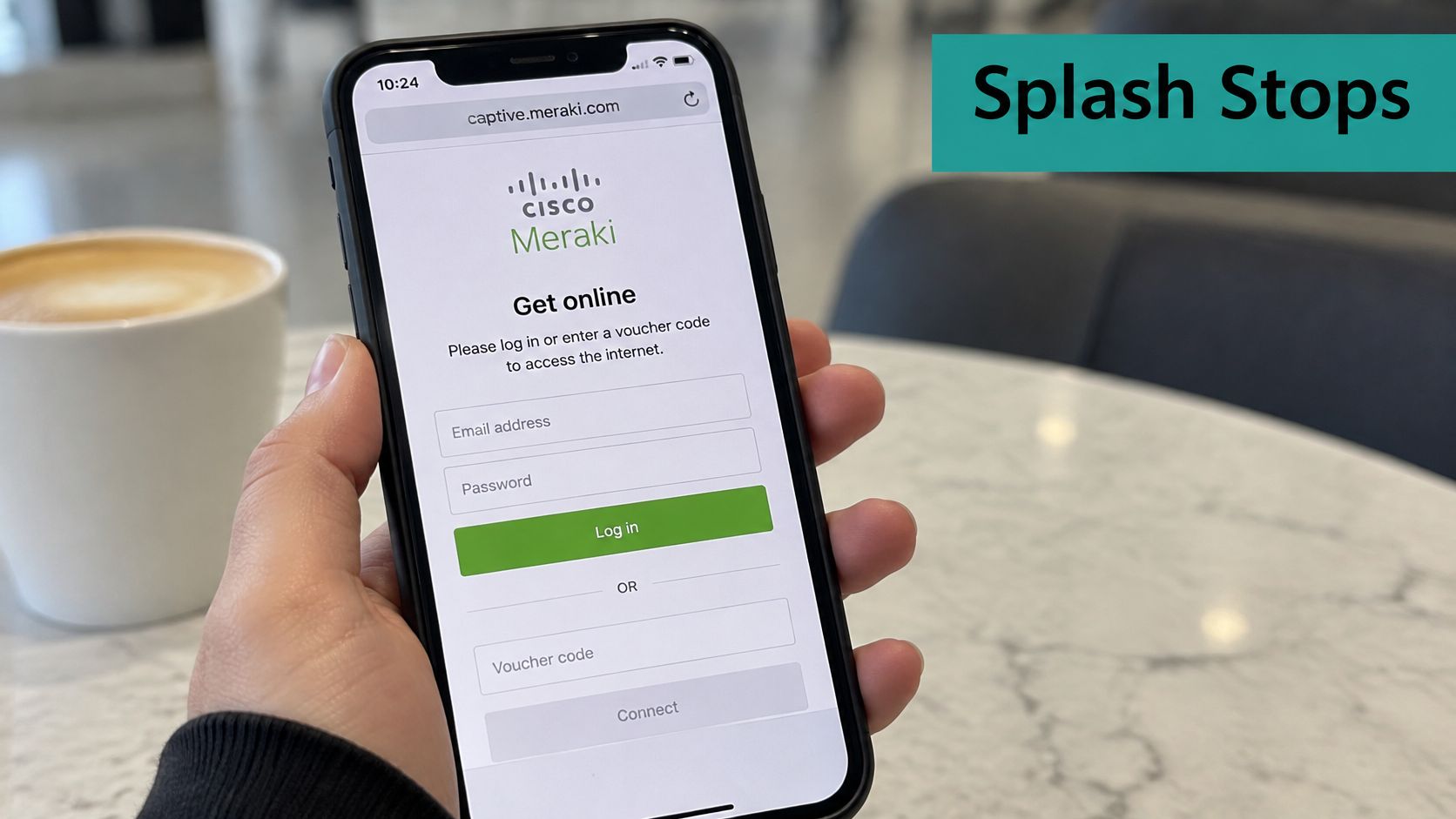
The access point redirects the client to the splash server and passes connection parameters in the URL. The visitor submits credentials, enters a voucher, or completes an approved flow such as OAuth, SMS, or social login. Meraki then sends the authentication request to the configured Meraki Authentication service or an external RADIUS server. A successful response grants network access and sends the browser to the success URL, with a logout URL kept available for the session.
One guest click, four places to break
The page dies mid-flow when the redirect host, the authentication endpoint, the success URL, or the logout URL is not reachable before login. Each one is a walled-garden entry. From the front desk they look identical: a spinner, then a shrug.
A login that hangs after the password is accepted is almost never a wrong password. The request left the page; the answer never came back.
I would not ask the guest to clear cookies here. The radio already delivered the page. The grant never returned, which is an authentication path problem, not a client cache problem.
Central Web Authentication with Cisco ISE adds another moving part. Meraki's ISE integration documentation describes MAC-based authentication and URL redirection, Meraki honouring the custom URL-redirect attribute ISE sends, and change of authorization applying the right policy once the user's status changes. The ISE server itself has to be permitted through the splash-page walled garden, or the flow dies before anyone can type a character.
Why the walled garden decides
These are the hosts that must answer before a guest signs in.
| Host or service | Purpose before login | Symptom if blocked |
|---|---|---|
| DHCP, DNS, and NTP | Address, name resolution, and time for the client | No address or no name answer, so the page never loads |
| Splash hostname and certificate chain | Serves the portal page over TLS | Spinner or certificate warning on a blank shell |
| Meraki Authentication service or external RADIUS (or Cisco ISE) | Receives the login request and returns the grant | Login stays on a blank page or fails silently |
| Social login identity provider | Completes OAuth or social sign-in for social wifi | Social button spins forever |
| CDN, fonts, and analytics called by the page | Renders images, scripts, and styles | Missing images and a half-drawn splash |
If guests must open a browser by hand, check whether Apple and Android captive-portal detection is allowed on the SSID's splash settings, since a config change there can stop the sign-in sheet from appearing. That is a detection setting. Rebuilding the HTML will not bring the sheet back.
A shared guest password is the weak option on a busy SSID. A RADIUS-backed session can time-limit a shopper or keep a visitor away from staff resources. Individual pre-shared keys such as IPSK and EasyPSK give each person or device its own key, so you are not chasing a shared secret that ended up on the break room whiteboard. If the page fails after the password is accepted, the login authentication checklist covers the authorization side.
Fallbacks for Classrooms Shops and BYOD
Everything so far assumes someone can tap a notification and finish a form. Plenty of guests can't. A school Chromebook may block changes to private DNS, a retail handheld or a conference room display has no useful browser, and a visitor using a screen reader, zoom, or keyboard navigation still has to complete the same portal as everyone else.
Three sectors, three fallbacks
Education. Students should sign in with their own campus credentials on any device rather than a hallway password passed around in a group chat. Keep a printed voucher and a wall QR code that lands on the same portal for the device that won't cooperate, because the alternative is a queue at the IT desk before first period.
Retail. Social login and social wifi can greet a returning shopper and save them typing, but only if the identity provider is allowed before authentication. When it isn't, the button spins forever and the till queue grows while a customer stares at their phone.
Corporate BYOD. Visitors get a guest VLAN and a voucher; staff devices get their own keys. A broken splash then inconveniences one person instead of exposing internal systems to a lobby full of contractors.
Where the portal controls internet provisioning, session duration, or bandwidth, Cisco's captive portal rule guidance recommends RADIUS authentication and states that RADIUS is mandatory for those functions in Cisco Spaces workflows. After authentication, the platform asks the wireless network, Meraki included, to provision access for that particular device. That distinction separates a click-through page from a policy-driven authentication solution.
The retest list
- VPN off, then on. A tunnel hides the probe from the network, so test both states before calling the portal fixed.
- Every walled-garden edit gets a full retest on iOS, Android, and Windows, plus one awkward device such as a TV or an e-reader.
- Keyboard and screen reader pass. Tab through the page once; if the submit button is unreachable without a mouse, the page isn't finished.
- A short staff card with the QR code, the voucher steps, and who to call beats another speech about forgetting the Wi-Fi.
Automatic detection is a convenience, not a universal interface. Build the human path first and let the operating system help when it can.
Move the Portal Onto a Managed Meraki Flow
If the trace shows a healthy access point and a fragile splash, stop rebuilding the page and start with where the portal lives. We build captive portals that deploy straight into the Meraki Cloud, so the portal, redirect, and walled garden configuration sit in one managed setup instead of three half-documented places.
Matching guest types to a path
- Open visitors get a click-through or a social wifi login, which is enough for a lobby or a cafe queue.
- Staff-issued access uses a voucher from the desk, printed or sent, so reception can solve it in one step.
- Known devices belong on individual keys. Our product list includes a Cisco Meraki IPSK solution and EasyPSK for large deployments, so students, staff, or residents with a registered device can join without the splash at all.
- Optional guest access authorises users onto the Meraki network and collects details such as name and email where you need them.
Once the change is live, run the same trace on Apple, Android, and Windows and confirm the sign-in window appears on each before the next open day. A landing page that loads reliably comes from sound discovery and authentication design, not a more attractive graphic.
Splash Access builds captive portals that deploy directly into the Meraki Cloud, so guest wifi, social login, voucher access, and per-device IPSK or EasyPSK keys live in one place rather than four. If your splash page opens on the iPhone at the front desk and nowhere else, we can help you trace the failing hop and get every device onto the right authentication path. Visit Splash Access to see how the deployment works for campuses, retail floors, and corporate guest networks.