At 9 p.m., a hotel guest is standing at reception with a phone that shows full signal and a browser tab that keeps spinning. The splash page never finishes loading. The concierge has already rebooted the router twice, and the guest is certain the room number and access code are correct.
That scene is familiar in hotels, schools, retail floors, and corporate offices. A Wi-Fi login authentication problem often starts after the device has joined the SSID and before the user has done anything wrong. The failure may sit in captive portal detection, DNS, redirect handling, RADIUS, IPSK mapping, group policy, or the handoff from authentication to authorization. Modern Wi-Fi platforms track these incidents closely. HPE Aruba's captive portal analytics expose failure counts and percentages by reason and site, which is a useful reminder that portal failures are an operational category, not just a helpdesk anecdote.
When Wi-Fi Login Fails Before Anyone Types a Password
The guest's phone has associated with the access point, but that doesn't mean the phone has a usable network path. The AP may have failed to provide a DHCP lease, the client may have received an address but can't resolve the portal hostname, or the captive portal detection request may never have reached the redirect service.
That spinning browser tab is a valuable symptom. It usually means the device is waiting for a response from a layer that sits before credential validation.
What can fail before the form appears
A captive portal depends on several small exchanges:
- Wireless association: The device sees the SSID and negotiates the radio connection with the AP. A security mismatch or unstable association can prevent the portal process from starting.
- DHCP: The client needs network configuration before it can contact the detection endpoint or portal. A missing lease often appears as “cannot connect” or a network that never becomes usable.
- DNS: The phone must resolve the portal and any permitted splash-page assets. If DNS is unavailable or the walled garden blocks required hostnames, the page may remain blank.
- Redirect handling: The operating system probes for internet access and expects a response that indicates whether it should open a captive portal. A bad redirect URL, an unreachable controller, or a certificate mismatch can stop the flow.
- Portal assets: Fonts, scripts, identity-provider content, and images may load from separate domains. If those domains aren't allowed before authentication, the page can look broken even though the main portal is available.
The signing certificate also matters. If the certificate presented by the portal doesn't match the expected hostname, Safari, Chrome, or the operating system's captive network assistant may reject the connection or suppress the login view. HSTS policies can make that failure less forgiving because the client insists on secure transport before it will accept the page.
Practical rule: If the login form never appears, don't start by changing the guest's password. Prove association, DHCP, DNS, redirect reachability, and certificate validity first.
For operators, captive portal detection is a useful concept to keep separate from authentication itself. The device first has to recognize that the network requires sign-in. Only then can the user submit a social login, social WiFi form, voucher, or other credential.
The same pattern appears in education and retail. A student may join the campus guest SSID but see no prompt because the device's detection request is blocked. A shopper may reach the splash page but lose the script that renders the social login button. In both cases, the user experiences an authentication problem even though no identity has yet been checked.
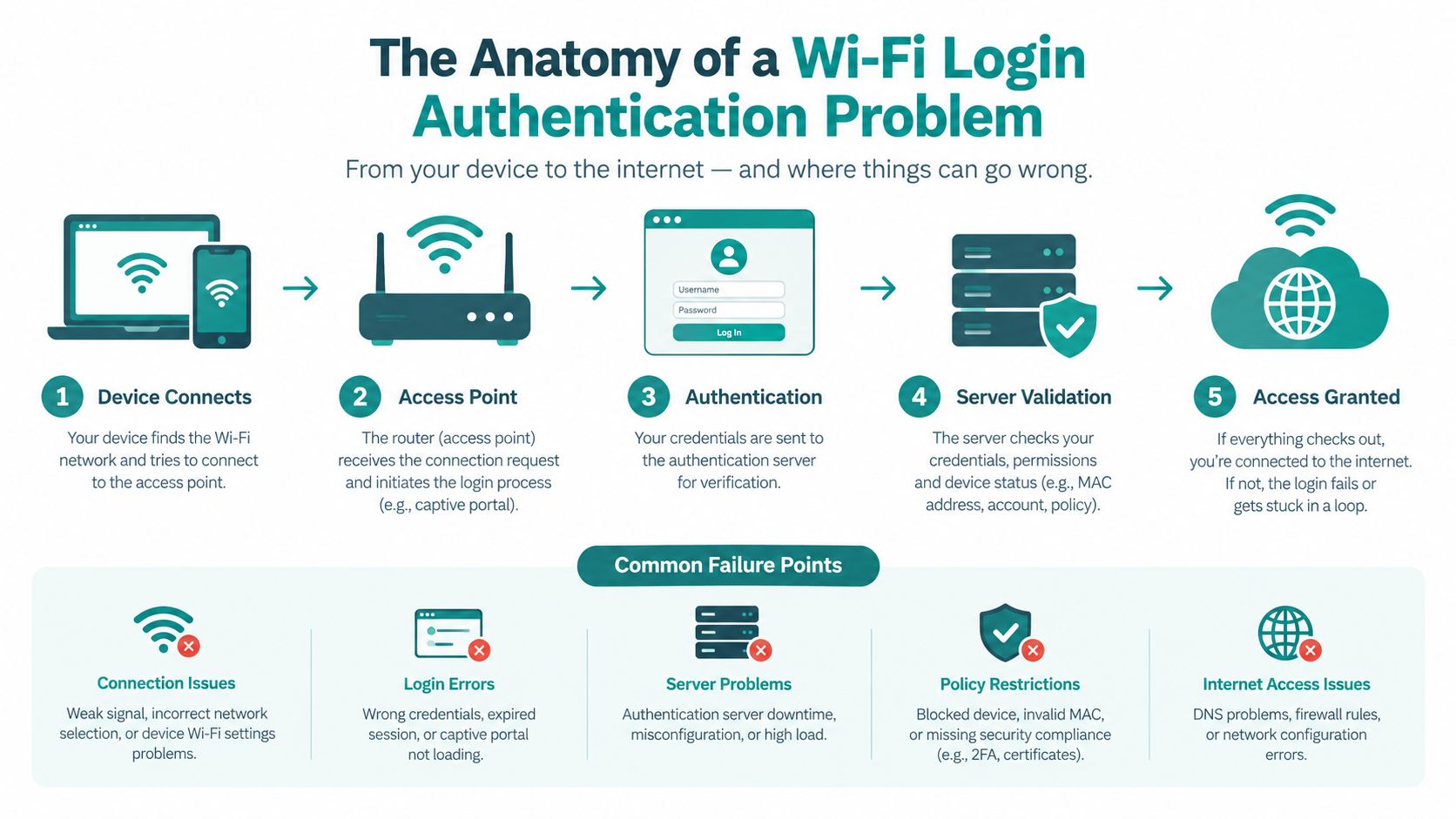
The Anatomy of a Wi-Fi Login Authentication Problem
A reliable diagnosis follows the connection path in order. Wireless authentication isn't one event. It's a chain that moves from radio association to IP configuration, portal discovery, identity validation, policy assignment, and authorized traffic.
Follow the client's symptoms
Association happens first. The device negotiates with the AP and joins the SSID. If this fails, the user usually sees an immediate connection error, a repeated attempt to join, or an authentication message before any browser opens. On a WPA2-Personal SSID, a wrong PSK, stale saved credential, or incompatible security mode tends to appear.
DHCP follows association. The client needs an IP configuration, gateway, and DNS information. A device that joins but has no lease may show “connected, no internet,” although the failure isn't necessarily authentication. Check the client record and DHCP counters before touching the portal.
DNS-based captive portal detection lets the operating system decide whether the network is open or restricted. Apple devices commonly open a captive portal assistant automatically. Android behavior varies by version and configuration, and Android 10 and later may not present the login in the same way as Apple devices. Firefox can also handle detection differently from Chrome because browser behavior and operating-system detection aren't identical.
HTTP probing and redirection come next. The client requests a known connectivity-check endpoint, receives an unexpected response, and is directed to the splash page. A failed probe, blocked redirect, invalid certificate, or missing walled-garden exception can produce a blank page or a browser loop.
Authentication is not authorization
The portal may submit credentials to a RADIUS front end or identity provider. In an enterprise design, the RADIUS server evaluates an Access-Request and returns an Access-Accept or Access-Reject. In an IPSK design, the platform may look up a device-specific key, correlate it with the client MAC address, and return the associated policy.
A successful key exchange still doesn't guarantee internet access. The controller or AP may need to apply a group policy, assign a VLAN, or wait for the authorization backend to confirm the client. This is why a device can accept a credential, associate to the SSID, and remain blocked at Layer 3.
| Layer | Typical failure | What the user sees |
|---|---|---|
| Association | PSK or security mismatch | “Cannot connect” or repeated join attempts |
| DHCP | No usable lease | Connected, no internet |
| DNS and detection | Portal hostname or probe unavailable | No pop-up or spinning page |
| Portal and identity | Redirect, SAML, social login, or RADIUS failure | Repeated prompts or an error page |
| Authorization | Policy, VLAN, or backend delay | Wi-Fi connected, internet still blocked |
For a plain-language view of the difference between everyday apartment connectivity and managed guest access, the nomad apartment WiFi guide provides useful context. In managed venues, operators also need to understand the broader relationship between authentication, authorization, and accounting, because the login result alone doesn't describe the complete access decision.
Captive Portal and WPA2 Troubleshooting the Friendly Way
Start with the device behavior, not the dashboard. Ask whether the client can join the SSID, whether it receives network configuration, and whether a normal browser can reach the portal. That simple separation prevents a WPA2-Personal problem from being confused with a captive portal problem.
Test detection on the device
Apple devices often open a small captive network window automatically. If that window closes, loops, or stays blank, open Safari and test the portal manually. Clear the current network session by forgetting the SSID, disable any active VPN or proxy temporarily for comparison, and reconnect with a clean profile. Don't leave privacy or security controls disabled as a permanent fix.
Android 10 and later may not show a portal prompt in the same way as Apple devices. Open Chrome manually, forget and rejoin the network, and check whether the client has a valid DHCP lease and can resolve the portal hostname. Firefox can behave differently again, especially where enhanced tracking protection, cached redirects, or certificate handling affects the page.
Check WPA2-Personal before the splash page
A WPA2-Personal failure occurs before web authentication. Confirm the exact SSID, forget the saved profile, and enter the current PSK again. Check the passphrase carefully, including special characters and any spaces that may have been copied from a password manager.
Also review wireless features that affect returning devices. Fast transition settings using 802.11r, assisted roaming through 802.11k, and neighbor reports through 802.11v must be compatible with the client population. A device that previously joined may retain PMK cache material while the SSID security settings have changed, producing behavior that looks like a bad password.
Repair the redirect path
On the Cisco Meraki dashboard, review the SSID splash-page mode, walled-garden entries, authentication provider, and certificate configuration. Confirm that the redirect hostname matches the certificate name. If the portal uses external JavaScript, stylesheets, identity-provider content, or tracking resources, verify that the required domains are reachable before authorization.
HSTS-preloaded domains can cause trouble when a portal expects an HTTP probe to redirect to HTTPS but presents the wrong certificate or hostname. Test with a clean device profile and a second browser so cached cookies and previous portal state don't hide the fault.
A practical test sequence is:
- Forget the SSID and reconnect.
- Confirm association and DHCP in the client details.
- Resolve the portal hostname from the client network.
- Open the portal in Safari, Chrome, and Firefox where available.
- Check the Meraki event log for redirect, DHCP, and authentication events.
- Compare the result on a clean device that hasn't previously used the venue's guest WiFi.
If several devices fail at the same point, stop changing browser settings. The fault is more likely in DNS, the walled garden, the portal service, or the authorization path.
Meraki IPSK and EasyPSK Fixes That Actually Work
Cisco Meraki IPSK changes the troubleshooting question from “Is the shared password correct?” to “Did this specific device receive the correct key and policy?” Meraki's documented Identity PSK design uses a unique PSK correlated with a device MAC address and authenticated through RADIUS, allowing different group policies on one SSID without requiring certificates or 802.1X. See the Meraki Identity PSK product guide for the documented model.
That distinction matters for BYOD Corporate networks, schools, retail devices, and guest WiFi. A visitor's phone can use one key and policy, a point-of-sale device another, and a managed corporate device a third, while all remain on the same SSID.
Start with the individual client
In the Meraki dashboard, open Wireless > Clients and search for the device MAC address. Confirm that the client is associated with the expected SSID, note the assigned group policy, and check the connection history around the failure time.
If the device joins and immediately disconnects, look for key lifecycle issues. An IPSK or EasyPSK credential may have been rotated, revoked, or replaced while the phone still has the previous profile saved. Delete the old wireless profile, force a fresh key delivery, and reconnect. If the client record remains stuck, remove or clear the stale client entry through the dashboard workflow available in the deployment, then allow the device to be learned again.
Confirm the policy path
Meraki's Wi-Fi Personal Network workflow separates the SSID configuration from the per-device policy. Administrators create a group policy, select Identity PSK without RADIUS where appropriate, add the Identity PSK, enable Wi-Fi Personal Network, and confirm that the key is pushed from the cloud service into the Meraki dashboard. The Meraki Wi-Fi Personal Network documentation) describes that operational split.
With Splash Access or EasyPSK, verify that the intended key was delivered to the intended MAC address. A typo in the MAC, a randomized private address, or a policy mapped to the wrong device can create a clean Layer 2 association followed by a blocked client.
Important distinction: Layer 2 association proves that the radio and key exchange completed. It doesn't prove that Meraki applied the correct Layer 3 policy or granted internet access.
When IPSK is centralized through RADIUS, inspect Accounting-Request messages as well as authentication messages. Accounting data can reveal whether the AP reported the same client identity, session state, and policy context that the authentication service expected. If the access point sends an Access-Request but never receives an Access-Accept, investigate reachability, shared secrets, RADIUS policy, and key lookup rather than the splash page.
For deeper implementation detail, review IPSK with RADIUS authentication. The useful operational habit is to test one known MAC, one known key, and one known policy before testing the entire BYOD or guest population.
SAML, Social Login and Azure AD When the Identity Side Breaks
Some portal failures look healthy until the identity provider takes over. The guest reaches the splash page, selects social login or enterprise SSO, and then lands in an endless loop or an opaque “unable to connect” message. At that point, the AP may be doing exactly what it should. The rejection can be inside the SAML transaction.
Validate the SAML trust
For an Azure AD integration, now commonly managed through Microsoft Entra ID, compare the service-provider and identity-provider settings character by character. Check the entity ID, ACS URL, reply URL, certificate chain, and the metadata currently loaded into the portal or RADIUS front end.
Azure sign-in logs can identify the mismatch. A message such as SAML response signature validation failed points toward the signing certificate, trust chain, or uploaded metadata. AudienceUri mismatch generally indicates that the assertion's audience doesn't match the configured relying-party identifier. Those messages map to different configuration fields, so don't treat both as generic password errors.
A clean repair sequence is:
- Re-upload current IdP metadata to the captive portal or authentication service.
- Confirm the ACS URL exactly matches the registered reply URL.
- Enforce the expected NameID format and attribute mapping.
- Check that the signing certificate hasn't changed without a corresponding metadata update.
- Compare timestamps across the AP, portal controller, RADIUS service, and Azure AD.
Clock skew can invalidate an otherwise correct assertion. If the portal accepts the user but rejects the returned assertion, synchronize time across every system participating in the exchange.
Social login has its own dependencies
Social WiFi is convenient for guests, but each provider introduces its own attributes, consent flow, redirect rules, and policy changes. A Google Workspace login can reach the provider successfully and still fail if the hosted domain attribute isn't returned or if the portal expects a different identity field.
Facebook WiFi also requires careful expectation management because older integration patterns may no longer behave as they once did. If a button disappears, loops, or returns an unsupported-flow error, inspect the provider integration and portal configuration rather than asking the guest to retry the same password.
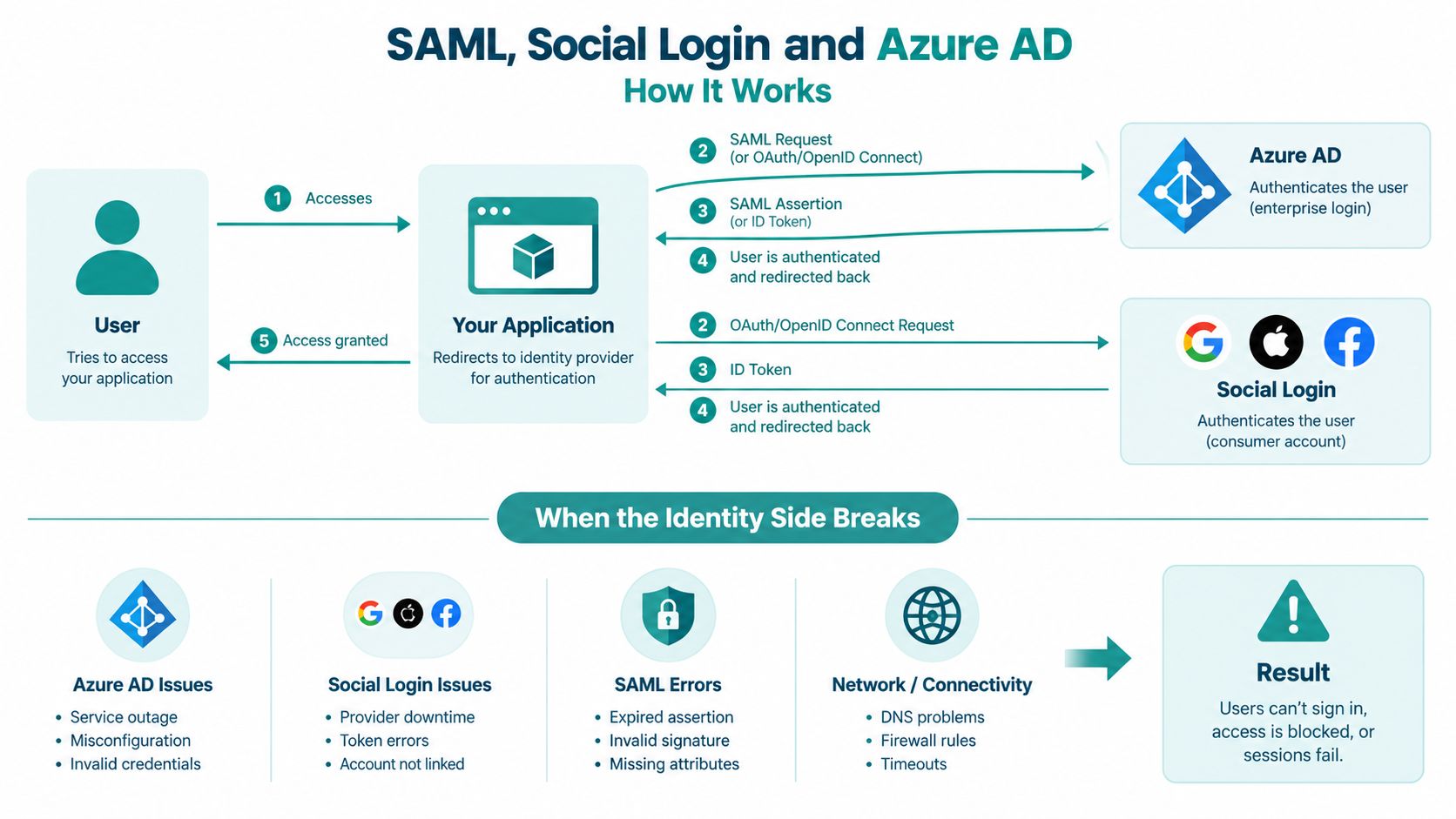
The Azure AD SAML integration guidance is relevant when a guest WiFi portal must connect a Meraki environment with enterprise identity. Test the flow with a controlled account, capture the exact sign-in timestamp, and compare the portal event with the provider log. If the provider records a successful sign-in but the client remains blocked, move downstream to the assertion consumer response, RADIUS authorization, group policy, and VLAN assignment.
Reading the Logs on Meraki and Splash Access Like a Pro
The fastest diagnosis usually comes from correlating timestamps, not from staring at the splash page. Ask the user for the exact minute the failure occurred, the SSID, device type, and whether the page loaded. Then compare that moment across the Meraki Event Log, client history, RADIUS records, and portal reporting.
Build a three-source timeline
In Cisco Meraki, filter the Event Log for association, authentication, DHCP, deauthentication, and client policy events. A deauthentication reason code 1 indicates an unspecified reason, while reason code 4 indicates inactivity. Those codes don't prove the root cause by themselves, but they help separate a radio or session event from a credential rejection.
In Splash Access reporting, locate the corresponding RADIUS accounting record and read the failure reason column rather than relying on the browser message. A portal redirect followed by a RADIUS timeout means something different from an Access-Reject caused by policy. If needed, enable AP debug logging temporarily and export a packet capture filtered to UDP 1812 and 1813. The key observation is whether an Access-Request leaves the AP and whether an Access-Accept returns.
| Log Source | Sample Entry | What It Tells You |
|---|---|---|
| Meraki Event Log | Client associated to the guest SSID | The radio connection completed |
| Meraki Event Log | DHCP failure or no lease | The client may not have usable Layer 3 access |
| Splash Access report | Portal submission with a failure reason | The identity or authorization service rejected or failed the request |
| Packet capture | Access-Request sent, no Access-Accept returned | Investigate RADIUS reachability, shared secret, or policy |
| AP event log | Deauthentication with a reason code | Correlate session termination with the portal and client timeline |
A common worked pattern looks like this. At the first timestamp, Meraki records a captive portal redirect. Shortly afterward, the packet capture shows an Access-Request with no response, and the AP log records a client session ending. If the RADIUS shared secret expired or no longer matches between the AP and service, the portal can load perfectly while authorization fails behind it.
For structured troubleshooting, Splash Access error logging gives operators a useful place to organize portal-side evidence. Keep the capture narrow and temporary. Debug logging can be noisy, and leaving it enabled during normal operations makes later incidents harder to read.
A Field-Tested Checklist for the Next Time It Happens
Start at the client and move inward. Confirm the device joined the intended SSID, received DHCP information, and can resolve the portal or identity-provider hostname. If the splash page is stuck, inspect captive portal detection, DNS, walled-garden access, redirect URL, and certificate behavior before reviewing credentials.
If the portal loads but the user remains in a loop, check the portal transaction and RADIUS response. An Access-Reject points toward identity, policy, or key mapping. An Access-Request with no response points toward RADIUS reachability, shared secret, or backend availability. If the user is connected but has no internet, inspect the applied Meraki group policy, VLAN, DHCP scope, and upstream routing.
Test one clean device and one known-good account. Then compare the failing MAC address, SSID, AP, timestamp, policy, and authentication result with the successful session. That comparison is usually more useful than rebooting equipment or changing a password for everyone.
For education and BYOD Corporate environments, confirm whether the device uses the expected 802.1X profile, IPSK, or guest portal flow. For retail and hospitality, verify the guest WiFi redirect and social login path separately from staff or operational device access.
Escalate to the identity team when SAML, Azure AD, certificate, or account-policy logs show rejection. Escalate to the ISP or upstream network owner when DHCP, DNS, portal reachability, or external service connectivity fails across multiple APs and clients.
Splash Access provides captive portal workflows for guest WiFi on Cisco Meraki, including social login, voucher access, IPSK, EasyPSK, and identity integrations that help separate onboarding from network authorization. If your hotel, school, retail floor, or BYOD Corporate network keeps failing between the splash page and final access, visit Splash Access to review an authentication approach suited to your deployment.