The coffee has gone cold, the room key is in your pocket, and your laptop insists it's connected to the hotel Wi-Fi. You open a browser and nothing loads. No error, no sign-in box, just a spinning tab and the quiet realization that you'll be working from a phone hotspot tonight.
That gap between connected and online is a captive portal at work. The network lets your device connect, then stops it at the door until you accept terms, enter a room number, or tap through a splash page. Getting that page to appear is usually a short routine. Knowing why it fails is what keeps you calm when it does.
Open the Login Page in Four Steps
Public networks put a captive portal between association and authorization. Your device joins the access point, picks up an address, and then every request gets held until you finish a step. Full signal bars and a dead browser are the usual result.
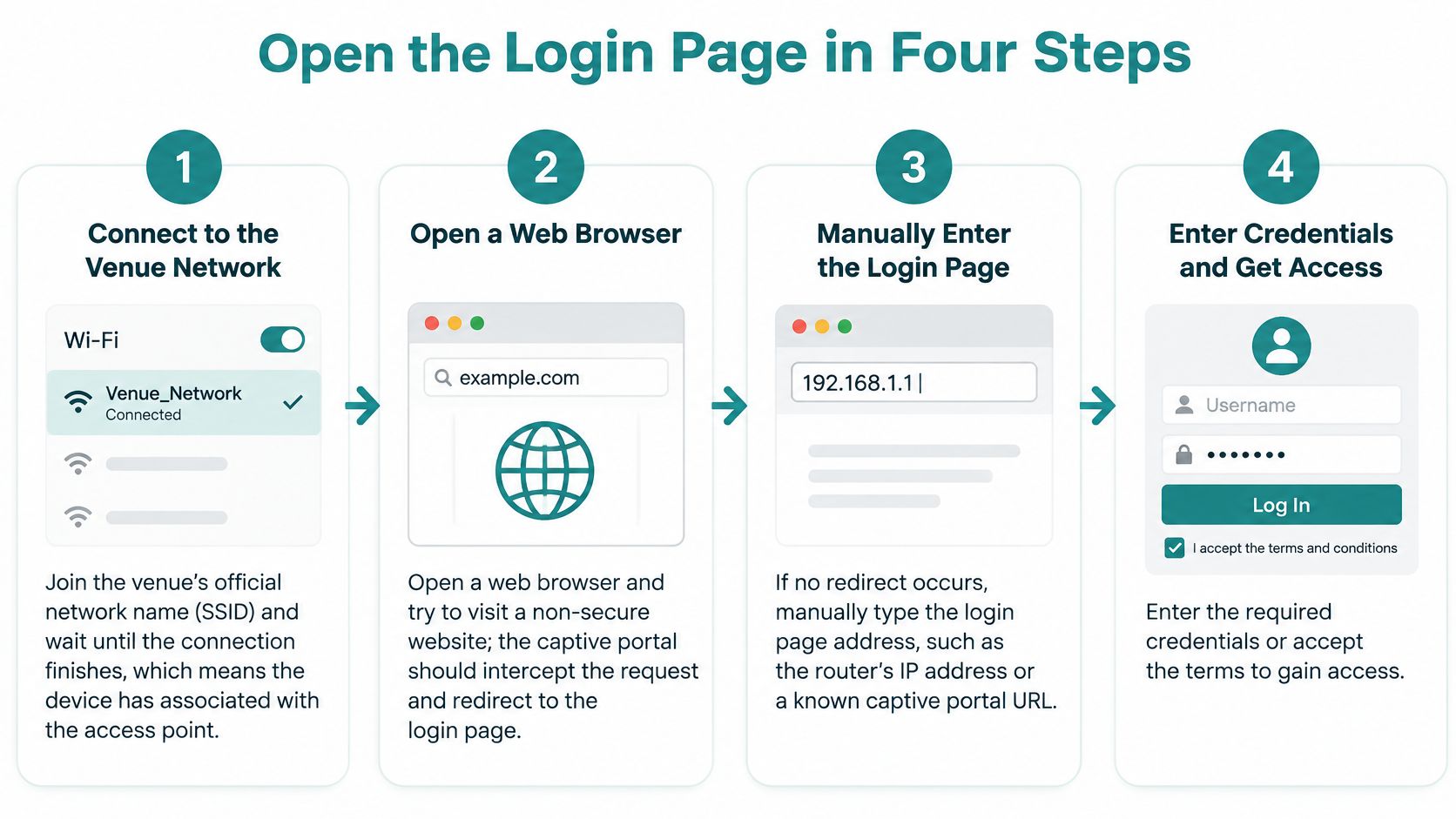
The safe order is short. Confirm the venue, open the page, sign in, then put back the one privacy setting you changed.
- Join the venue's own network name and wait. Pick the SSID on the key card or the counter card, not the one with an extra word bolted on. The wait matters: your device still needs an IP address, a DNS server, and a default gateway via DHCP, and in a hotel lobby at check-in time a full minute is normal.
- Take the automatic prompt if it appears. Phones and laptops often raise a small sign-in sheet within a few seconds of joining. Tap it and you land on the portal, with no typing and no guessing.
- Open a browser and type http://neverssl.com. Plain HTTP is the trick. A gateway can intercept a plain HTTP request and answer with a redirect or a 200 page containing the portal. It generally cannot do that to HTTPS without a certificate and hostname warning.
- Disable only the feature that blocks the check, then restore it. If the page never shows, leave the VPN on unless that tunnel is what swallows the probe. I turn off just that one blocker, often private DNS, a proxy, or cellular-data fallback, then disconnect and rejoin. Sign in. Switch the setting back on before you open mail or a payment page.
A bookmarked HTTPS site often throws a certificate error because the browser refused a redirect it could not verify. The radio link is still up. Use the plain HTTP address and the portal can answer.
One check comes before you type a room number, email, or password into that page.
Check the address bar first. A genuine portal sits on the venue's own domain, something like portal.hotelname.com or guest.campusname.edu. If the bar shows a scrambled string or a name that has nothing to do with where you're standing, close the tab and ask staff for the correct page.
How Each Device Shows the Login Page
Your operating system runs its own captive-portal check, so the prompt looks different everywhere. Here's the quick reference.
| Device | Automatic prompt | Manual fallback |
|---|---|---|
| iPhone or iPad | Sign-in prompt for the network after joining | Open Safari and visit http://neverssl.com |
| Android phone | "Sign in to network" notification in the status bar | Open Chrome and visit http://neverssl.com |
| Windows laptop | Network notification after connecting | Open Edge and visit http://neverssl.com |
| Mac | Captive network assistant window opens automatically | Open Safari and visit http://neverssl.com |
| Tablet or other device | None on most tablets, consoles, and e-readers | Open any browser and visit http://neverssl.com |
iPhone and iPad
Apple's flow is the tidiest of the bunch. Tap the network in Settings, and a Welcome sheet appears over the Wi-Fi screen. Enter the code, room number, or email the venue asks for, and you're through. On newer Android phones the equivalent prompt can land faster because the network can hand the portal address to the phone directly instead of waiting for an intercepted request. If you're debugging an Android device specifically, the walkthrough for captive portal behaviour on Android covers the notification, the manual trigger, and the settings that suppress it.
Windows and Mac
Windows checks a Microsoft endpoint in the background and shows a toast notification when the reply doesn't match what it expects. Click it, or open Edge and hit the plain HTTP page. Macs run the Captive Network Assistant, a small standalone window that floats above Safari. It sometimes fails to render a complex portal, so the browser route is the dependable one.
A campus library is the classic split case. A student's phone pops the sign-in sheet immediately, while the laptop next to it sits silent until someone types the HTTP address. Same network, same credentials, two different check routines.
Success looks the same everywhere. The portal loads, you accept terms or enter a code, and ordinary browsing works without a restart.
Fixing a Login Page That Will Not Appear
Almost every failure maps to a symptom you can name. Match the symptom, apply the fix, and note whether it costs you seconds or a full rejoin.
| Symptom | Likely cause | Fix |
|---|---|---|
| Nothing appears after joining | DHCP still assigning an address | Wait a full minute, then toggle Wi-Fi off and on |
| Certificate warning on a bookmarked site | Browser tried an HTTPS address | Visit http://neverssl.com instead |
| Blank page or timeout | VPN, private DNS or proxy blocking the check | Disable these for the session, then re-enable after sign-in |
| Signed in but no internet | Stale session or old network profile | Forget the network, rejoin, then sign in again |
| Portal loads but sign-in fails | Mobile data taking over the connection | Turn off mobile data and retry |
| Ordinary sites do not resolve | DNS failure | Use the gateway address from network details as a last resort |
The two-second fixes
Toggling Wi-Fi off and on costs nothing and resolves more stuck sessions than any other step, because it restarts DHCP and the connectivity check together. Turning off mobile data is just as quick, and it matters more than people expect: a phone with a strong cellular signal will happily route traffic over cellular while the Wi-Fi portal waits, so the sign-in request never reaches the gateway.
The fixes that need a rejoin
Forgetting the network in your device settings is the heavy tool, and it's the right one for a stale session. Your phone remembered an old login profile from a previous visit, the venue's gateway has since expired it, and the two now disagree. Forget, rejoin, sign in fresh. On a laptop that keeps failing, a private or incognito window gives you a clean slate without clearing cookies that sign you out of everything else.
When nothing resolves at all
If no domain resolves, you're looking at a DNS problem rather than a portal problem. Check whether a well-known site answers. When it doesn't, grab the gateway address from the network details panel and paste it into the browser as a last resort. It's not elegant, but it gets you to the door.
One habit worth keeping: don't resubmit credentials while the page is still spinning. Repeated posts during a slow load are how people lock themselves out of a portal that was about to work.
If you're staring at a detection error rather than a blank page, the explanation of what the captive portal detected message means walks through the redirect loop and how to break out of it.
How Captive Portals Detect Your Connection
The older detection method is a probe. Your device requests a small, predictable test resource. Apple hardware asks for captive.apple.com/hotspot-detect.html and expects a page containing the word "Success." Android devices built around Google's checks request generate_204 and expect an HTTP 204 status with an empty body. If the gateway returns a redirect or an altered reply, the operating system concludes that sign-in is required and raises the login window.
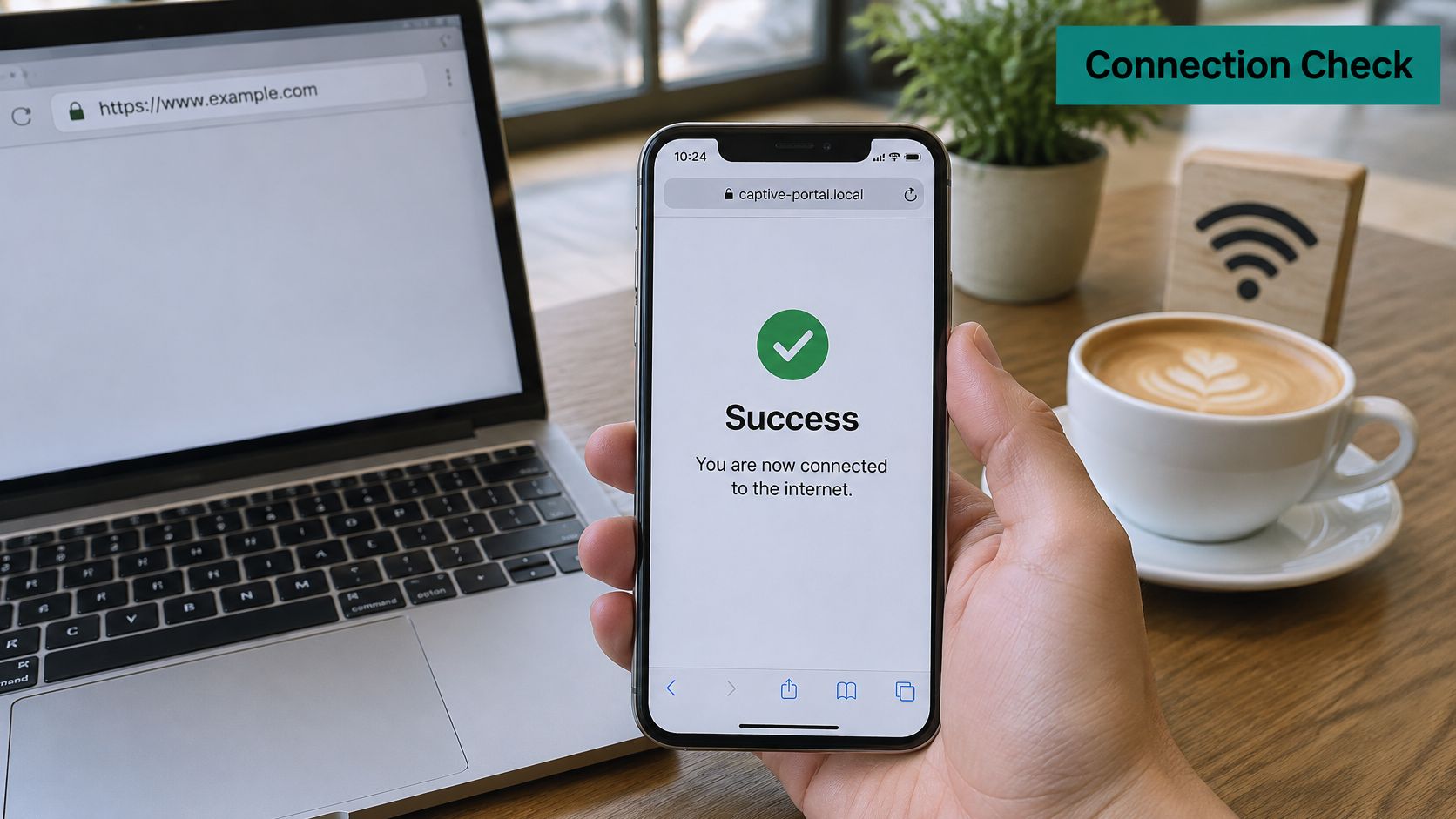
Newer networks skip the guessing. The RFC 8908 captive portal API specification defines an HTTP interface a client can query to learn whether it's still captive and where the user portal lives, while RFC 8910, published in 2020, adds the DHCPv4, DHCPv6, and Router Advertisement options that announce a portal and its API endpoint during address configuration. The IANA registry requires that portal URL to be served over TLS, which hardens the discovery channel itself.
The RFC 8910 DHCP and router advertisement options also explain a frustrating edge case. Android 11 and later can read the portal location through DHCP option 114 and show the login interface the moment the API reports a captive state. But when plain HTTP succeeds and HTTPS fails, the device can settle into a partial connectivity state and never display the login app at all.
That's the split-screen scenario. One phone signs in without a hiccup, and a laptop on the same SSID stays stuck, because the laptop's check was blocked or answered inconsistently. The chain from association to authorization is worth understanding end to end, and this breakdown of how guest Wi-Fi works follows the request from the moment a device joins to the moment the gateway opens.
For automatic launch to work, a venue has to allow DHCP and DNS before authentication, serve a valid certificate chain for the portal, and leave the operating system check hosts reachable. Blocking those hosts to force a splash page is a shortcut that breaks the very detection it depends on.
Staying Safe on Public Login Pages
Here's the trade-off nobody mentions in the usual advice. The plain HTTP address that opens the portal is deliberately unencrypted. The redirect you get could point at the venue's real page or at a convincing copy sitting on the same network. You can't tell from the fact that it loaded.
So before you type, confirm the domain matches the venue and that the page switches to HTTPS once it settles. A legitimate portal usually asks for a room number, a voucher code, your name, or an email address.
Never type into a splash page: banking credentials, your email password, or social media logins. No hotel, airport, or campus needs them to give you internet access.
Privacy tools are the other half of the problem, and the standard advice to "just turn off your VPN" is careless. A VPN, encrypted DNS, a relay service, or an ad blocker can block the connectivity check, but disabling them on an untrusted network exposes your traffic in exactly the place you wanted protection.
The safe sequence is short and specific.
- Join only the official SSID. Skip look-alike names with extra words or numbers.
- Disable the one feature blocking the portal. Not all of them. Identify the blocker and switch off only that.
- Sign in, then restore the setting immediately. Before you open a single work tab.
Your data also has a life after you leave. Personal data collected through our Wi-Fi service is configured by the venue operators, and their privacy policy governs how it's used. Accounts with no login activity across our venues for more than 24 months are deleted. If phishing is your main worry on shared networks, this guide to compare phishing protection for guest WiFi is a sensible next read.
Accessibility deserves a line too. Captive portal mini-windows sometimes fail with screen readers or on locked-down devices. Open the full browser instead, and if that fails, ask staff for a QR code or a printed access code. For a deeper look at keeping sessions clean, see public Wi-Fi security practices.
Pick the Right Login Method for Your Venue
A café guest wants the menu. A student needs a key that stays with their laptop. I would not put those two jobs on the same login. If you run the network, the page is a design decision, and the wrong one creates support tickets all afternoon.
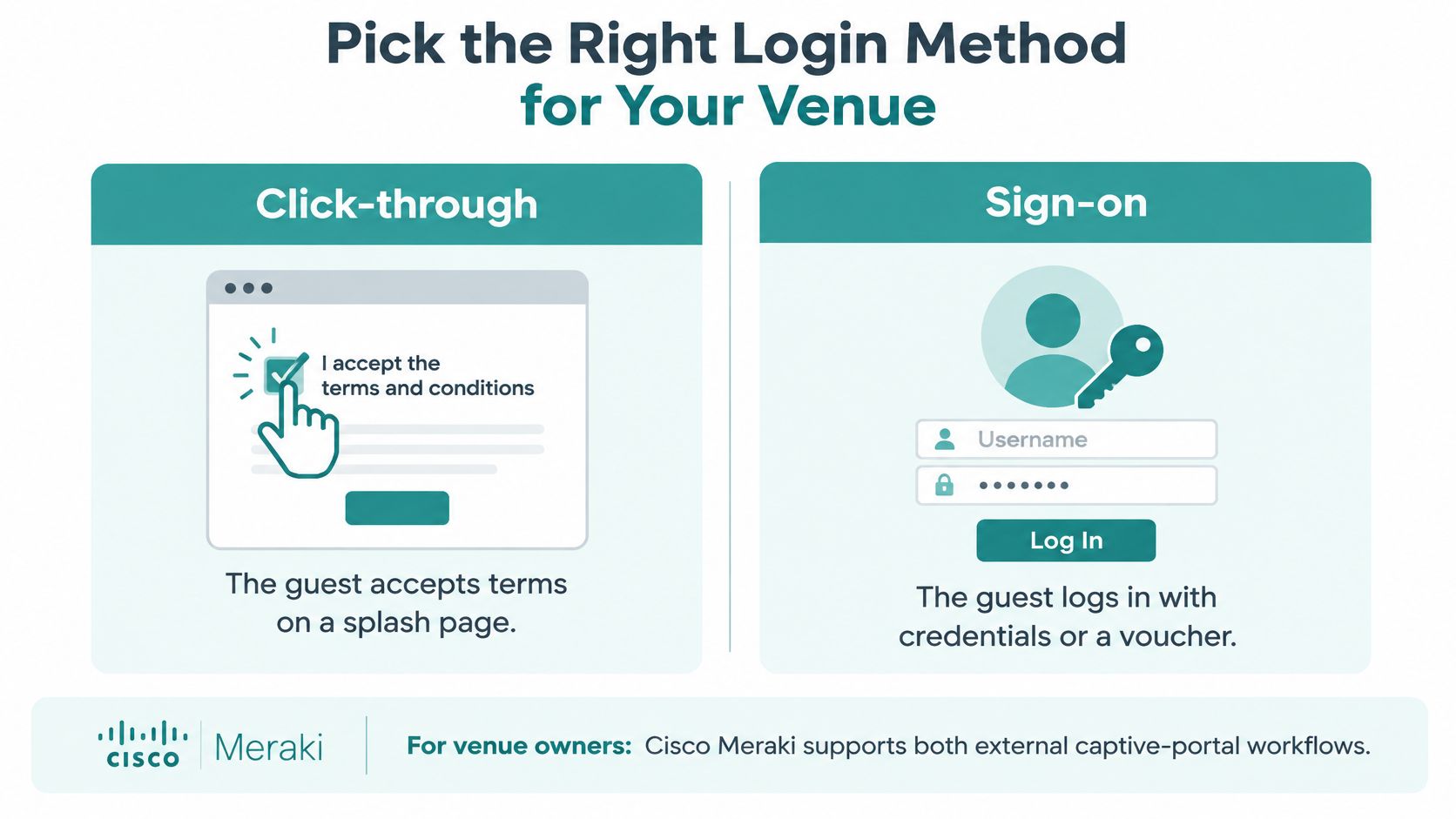
Cisco Meraki supports two external captive portal workflows. Click-through lets a visitor in after they complete the configured acceptance step. Sign-on sends submitted credentials to a backend service such as RADIUS, Active Directory, LDAP, or Azure AD and SAML. The Meraki external captive portal solution guide documents how the redirect and login handoff work.
| Method | How it works | Best fit |
|---|---|---|
| Click-through | Guest accepts terms and gets access | Cafés, short retail visits |
| SMS or email verification | Guest confirms a contact detail | Retail marketing, event guests |
| Social login or social Wi-Fi | Guest signs in with a social account | Retail, hospitality |
| Sign-on with RADIUS, AD, LDAP or Azure AD | Credentials checked by a backend service | Corporate and staff access |
| IPSK or EasyPSK | Each user or device gets an individual preshared key | Education, corporate BYOD |
| Visitor IPSK QR code | Guest scans a QR code carrying an individual key | Events, walk-in guests |
Click-through versus credential sign-on
Click-through wins on speed. Nobody wants a form between them and a coffee. The trade-off is thin identity: you know a device accepted the terms, not who is holding it. Cisco's documentation on captive portal behaviour sets out the wider menu, including terms acceptance, SMS verification, email verification, and social authentication. The portal service then asks the wireless network to provision access for that specific device. Access goes to that one client. The rest of the SSID stays closed.
Credential sign-on is slower at the counter and stronger at the door. Use it when the person should already have an account.
Where IPSK and EasyPSK earn their keep
Shared passwords are the weak point of guest and BYOD networks. One leaked passphrase is everyone's passphrase. Individual preshared keys give every user or device its own credential. Meraki group policies can follow the key a device presents, so a student device and a contractor laptop can land on different rules. Meraki networks can fall back to a default passphrase for devices that have no client-specific key. That fallback is convenient for a forgotten phone and careless if the default key is posted at the front desk. A school can hand each student a key tied to their device group. A corporate BYOD programme can put contractors on a different policy without a second SSID.
Pick by sector, not by fashion. Education and corporate BYOD need per-device identity. Retail and hospitality usually want contact data and a branded splash page. Events want a QR code and nothing else.
Splash Access runs captive portals that deploy inside the Meraki Cloud, authorises guests quickly while optionally collecting details such as name and email, and manages visitor IPSK QR codes so a guest gets secure access by scanning a code that carries an individual key. This addresses the education, retail, and corporate BYOD cases in the table. Compare the full set of guest Wi-Fi authentication methods before you commit to one.
Choose the method that matches your sector. Test it on three devices with different operating systems, then ask Splash Access for a walkthrough to confirm the configuration before you roll it out across the venue.
Splash Access builds captive portals that drop straight into your Meraki Cloud dashboard, so the login page guests see is branded, quick to deploy, and paired with secure onboarding options like individual preshared keys and visitor QR codes. Hotels, campuses, retail floors, and corporate guest networks can all use that same dashboard. Visit Splash Access to see how the portal and authentication pieces fit together.