You're staring at the Mailchimp dashboard, clicking through menus, and wondering where the API key has gone. You need it for a guest Wi-Fi integration, a signup form, or another connected tool, but the dashboard doesn't put the credential in an obvious place.
The good news is that the process is straightforward once you know the path. This guide shows you how to find, create, copy, use, and protect a Mailchimp API key, with practical examples for Cisco and Meraki captive portals, social login, social Wi-Fi, and authentication solutions such as IPSK and EasyPSK.
Why You Need Your Mailchimp API Key
A Mailchimp API key works like a password for an external application. It allows an approved app, script, or integration to communicate with your Mailchimp account and perform permitted tasks on your behalf. That connection might add a new subscriber, apply a tag, or trigger an automation after someone completes a signup form.
Without the key, a connected system can't pass subscriber information to Mailchimp. That can interrupt workflows such as a coffee shop adding a guest to a marketing audience after a Wi-Fi login, a university sending event information after a student joins campus Wi-Fi, or a retail store syncing loyalty subscribers from a social Wi-Fi splash page.
Practical rule: Treat an API key like a password. Anyone who can use it may be able to access the Mailchimp functions allowed by the integration.
The same principle applies to guest Wi-Fi. A Cisco Meraki captive portal can collect consent and contact details before granting internet access. Once the portal connects to Mailchimp, the submitted information can enter the appropriate audience or automation instead of remaining in a disconnected dashboard.
For a Cisco deployment, the surrounding access design may also include IPSK authentication, EasyPSK, click-through access, or sign-on authentication. These tools control how a visitor joins the network, while Mailchimp handles what happens to the marketing contact after the visitor gives permission to receive communications.
The key itself doesn't create a campaign strategy or decide whether a person has consented. Your form and captive portal still need clear permission language, appropriate audience settings, and a reliable way to handle unsubscribes. The key enables the systems to exchange data.
By the end of this guide, you'll know where to find the API Keys page, how to create a clearly labeled credential, how to copy it safely, and what to check when an integration returns an authentication error.
Account Requirements Before You Start
Before searching for the key, make sure you're signed in to the correct Mailchimp account. This matters when a company has multiple accounts, brands, audiences, or workspaces and a corporate login automatically opens a different dashboard.
You'll also need an account role that permits API key management. Mailchimp's account access model distinguishes between administrative users and users with more limited access, so a missing button may be a permission issue rather than a dashboard problem.
| Role | Can Create API Key | Can View Key List | Can Revoke Key |
|---|---|---|---|
| Owner | Yes | Yes | Yes |
| Admin | Yes | Yes | Yes |
| Author | No | No | No |
| Viewer | No | No | No |
If you're unsure of your role, open the profile menu and inspect the account or user details. If you're an Author or Viewer and the API Keys option isn't available, ask the account Owner or an Admin to create and manage the credential. Keep the person who owns the integration involved, because replacing a key later requires updates in every connected system.
Enable two-factor authentication before generating a sensitive credential. It adds another check to the sign-in process and is a sensible safeguard for accounts connected to email marketing and guest Wi-Fi collection.
A corporate single sign-on session can also send you to the wrong account or preserve an outdated login state. If the dashboard looks unfamiliar, sign out, clear the relevant browser session, or open an incognito window and sign in again. For teams learning how connected systems exchange data, this overview of API connectivity fundamentals provides useful context.
Once you're in the right account with the right permissions, the API key menu should be much easier to locate.
Locating and Copying Your API Key in Mailchimp
Mailchimp keeps the full API key visible immediately after generation, so have a secure place ready before you click the final button. A password manager is preferable to a text file, shared spreadsheet, email draft, or chat message.
Follow the dashboard path
Start in the top-right corner of the Mailchimp dashboard.
- Click your profile icon.
- Choose Account & billing.
- In the left sidebar, select Extras.
- Click API keys.
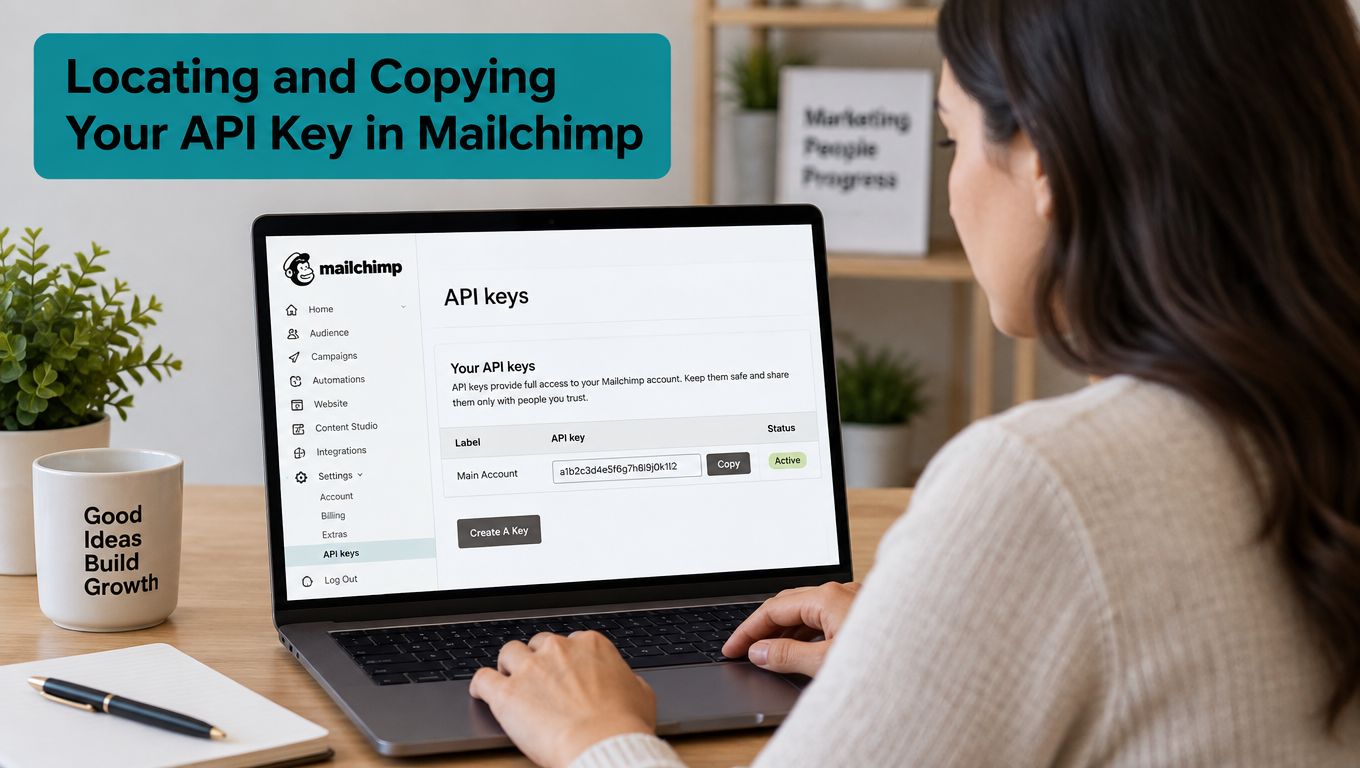
You should now see the Your API keys panel. Existing credentials appear in a list, usually with their names and partial identifying information. If you need a new credential, select Create A Key.
Give the key a name that explains its purpose. Guest-WiFi-Captive-Portal is clearer than Key 1, especially when several people maintain the account or when the network serves different locations. Other useful labels might identify a campus, retail location, staging environment, or corporate guest network.
Click Generate Key. Mailchimp displays a warning because the full value is available only at that point. Select Copy to clipboard immediately, then paste the value into your password manager or the secure credential field provided by your integration.
What happens if you lose it
Mailchimp states that after the initial display, it shows only the key's name and first four digits. If you lose the full value, you'll need to generate a new key and update the integration that used the old one. The dashboard also provides options to label, disable, or delete keys, depending on the credential's status and your account permissions. See Mailchimp's API key management guidance for the current handling and rotation rules.
You may notice a datacenter suffix at the end of the key, such as us21. Preserve the complete value when copying it. Integrations may use that suffix to identify the account's Mailchimp region, so don't remove or edit any characters.
A careful naming system helps later. Use labels that tell you which system uses the key, which environment it belongs to, and who should maintain it. That small bit of organization prevents a future administrator from disabling the wrong credential.
Putting the Key to Work in Guest Wi-Fi Setups
A visitor joins a guest SSID, sees a branded captive portal, and chooses a sign-in method. They might complete a form, use social login, or accept a click-through flow. After the visitor grants the required permission, the Wi-Fi platform sends the submitted details through its Mailchimp connector.
In a built-in integration, you usually paste the API key into a configuration field, select the relevant Mailchimp audience, and map the available fields. You might then apply a tag for a retail location, identify a campus visitor, or separate a corporate guest from a public event attendee.
The next steps depend on your campaign design. A welcome email can introduce the brand, a voucher can support an in-store offer, and an automation can send relevant information to a visitor who opted in. The key enables the connection, but your audience settings determine what Mailchimp does with the contact.
How Cisco and Meraki fit in
Cisco Spaces Captive Portal presents a branded web experience when guests connect to a configured SSID. For Meraki networks, the guest SSID, splash page, RADIUS, and walled-garden settings need to align between the dashboard and portal configuration, as described in the Cisco Spaces Captive Portal setup guide.
Meraki's Captive Portal API supports Click-through and Sign-on onboarding methods. It also gives administrators control over branded content and the authentication workflow, which suits programs using social login or other sign-on approaches while keeping visitors away from internal network resources. The Meraki Captive Portal API documentation describes those methods.
Education teams can use this pattern for campus events and student services. Retail teams can connect social Wi-Fi to location-aware audience tags. Corporate environments can combine guest access with controlled authentication solutions such as IPSK and EasyPSK. The result is a joined-up experience, with network access, consent capture, and email communication working as connected parts of the visitor journey.
Common Mistakes When Handling API Keys
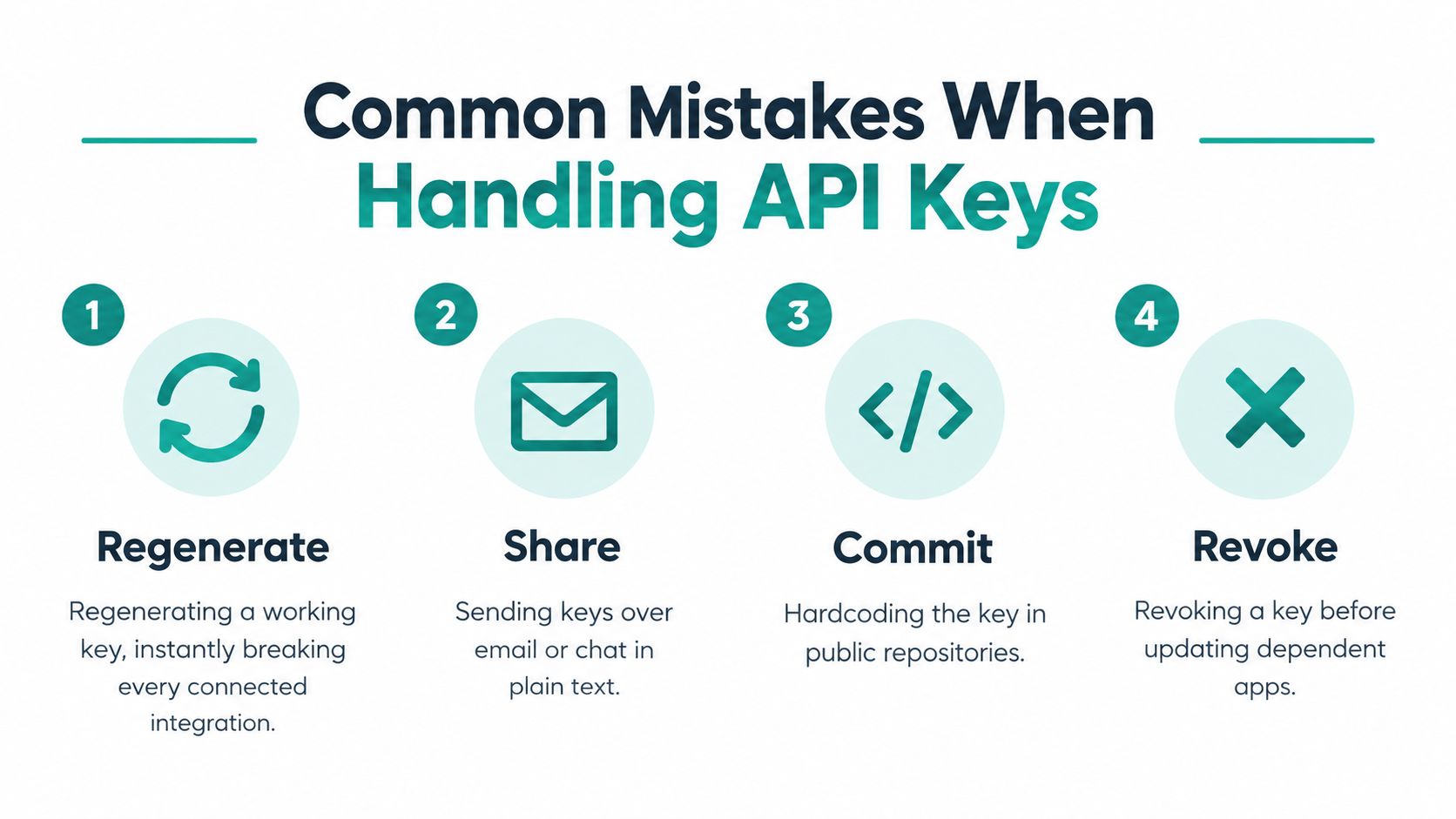
A working key doesn't need to be replaced just because someone opened the API Keys page. Regenerating a key immediately breaks every integration still using the previous value, including a captive portal, a signup form, or a background automation.
The safest approach is to plan the change. Create the replacement, store it securely, update each dependent system, test the connection, and only then disable or revoke the old credential when you're confident nothing still relies on it.
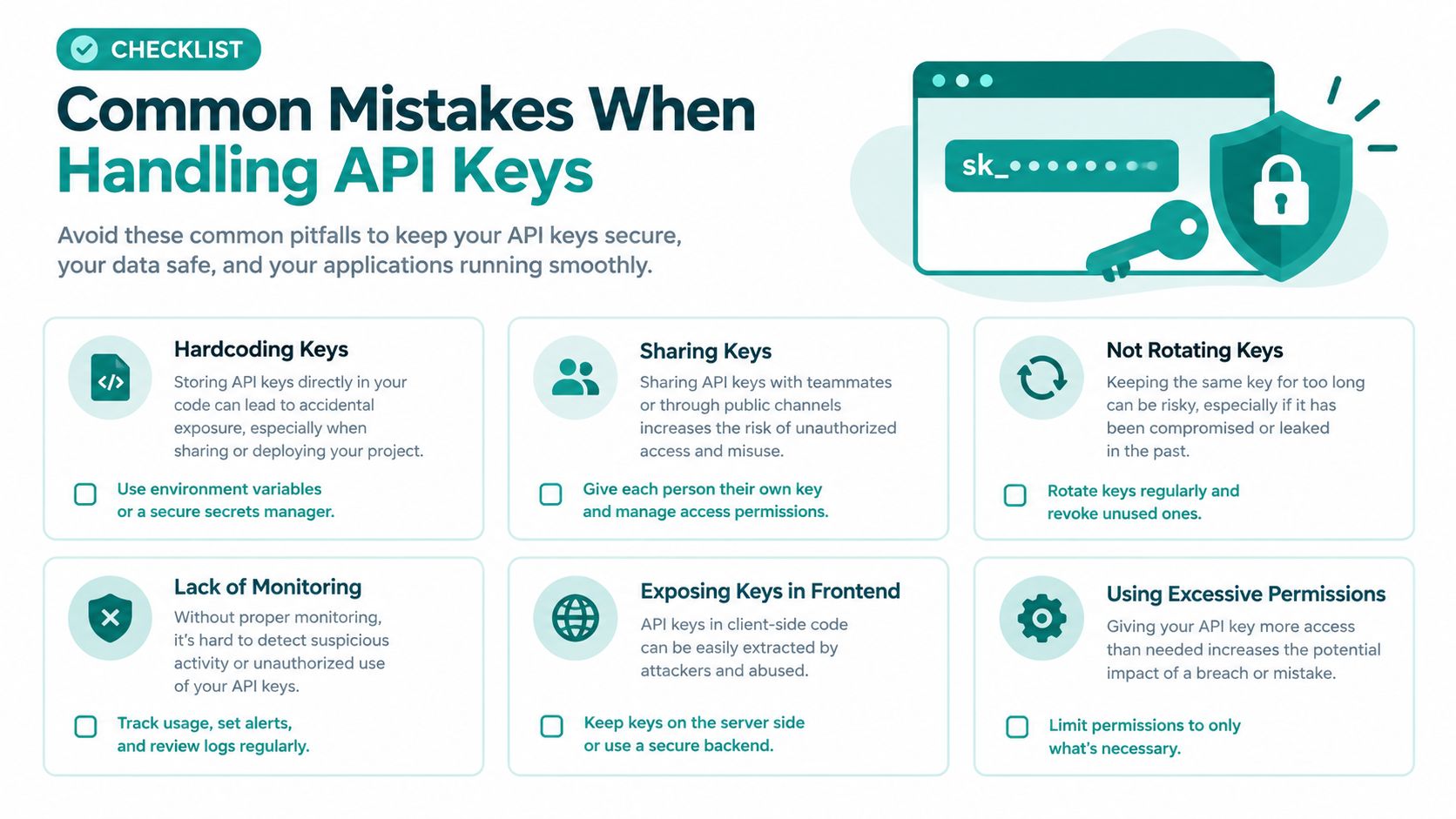
Watch for these habits:
- Plain-text sharing: Don't send the key through email, chat, or a ticket that broadens access to the credential.
- Public code exposure: Never hardcode the key in a public repository, a browser-side script, or a screenshot that other people can access.
- Unclear ownership: A label such as
Guest-WiFi-Captive-Portalgives the team a reason for the key and makes later review easier. - Unplanned access changes: Review who can manage the integration when staff roles change, and remove access that is no longer appropriate.
- Missed expiry planning: Mailchimp states that new API keys created from June 22, 2026 expire one year after creation, while keys created before that date aren't affected by this change. Mailchimp also recommends rotating keys at least once a year and revoking old keys when they're no longer needed, according to its API key security guidance.
Ask yourself one question: if the person who maintains this integration left today, could another authorised administrator identify the key, replace it safely, and update every connected system?
Troubleshooting the Most Frequent Errors
A guest Wi-Fi signup can stop reaching Mailchimp because of one misplaced character. Start with the exact error, then check the credential, account, and connected portal in that order. A 401 Unauthorized response usually means the pasted key has leading or trailing spaces, missing characters, accidental line breaks, or has been replaced or disabled. It can also belong to a different Mailchimp account.
| Error | Likely Cause | Fix |
|---|---|---|
| 401 Unauthorized | The value is incorrect, inactive, or belongs to another account | Copy the credential carefully, confirm its status, and test the correct account |
| Create A Key is missing | Your user role doesn't allow key management | Ask the Owner or an Admin to review permissions |
| Guest signups stop syncing | The integration still uses an old or changed key | Update the credential in the connected portal or application |
| Audience data doesn't appear | The audience or field mapping is incomplete | Check the selected audience, consent field, and integration settings |
| Authentication works but the workflow fails | The connected application has another configuration issue | Review its logs and confirm the Mailchimp connection details |
If Create A Key is not visible, check the signed-in account and user role before looking through other menus. An Owner or Admin may need to create the key while you finish configuring the captive portal. This commonly affects education, retail, and corporate Wi-Fi programs where different people manage the Mailchimp account and the on-site network.
A credential change requires an update everywhere the old key was saved. Check the Cisco or Meraki guest Wi-Fi portal, CRM connector, custom signup form, and marketing automation service. Save the new value, run one controlled signup, and confirm that the contact reaches the intended Mailchimp audience. If audience data still does not appear, review the email capture forms and field settings to confirm that the portal sends the expected fields and consent choice.
Mailchimp Marketing API authentication can use an API key or an OAuth access token, depending on the use case. Mailchimp describes OAuth 2 as the secure option for accessing data on behalf of other Mailchimp users. An API key is commonly used for an integration connected to its own account. Its Marketing API authentication documentation explains the available approaches.
If the key looks correct but the connection still fails, record the exact error, affected audience, failed test time, and integration settings. Share those details with Mailchimp support or the connected Wi-Fi platform's support team. Do not include the full secret in the request.
Keeping Your Key Safe and Your Campaigns Running
Treat your Mailchimp API key like a spare building badge. Store it in a password manager or dedicated secret store, never in a shared spreadsheet. Label it by purpose and environment, such as a production guest Wi-Fi connection or a staging form, so administrators can see which systems depend on it.
Separate credentials for guest Wi-Fi, email synchronization, and analytics can make ownership clearer. Each key still needs an accountable administrator and a review process. If one credential must be disabled, fewer connected services need updating.
Rotate keys according to your organisation's security policy and Mailchimp's guidance. Review access after a team member leaves, a key may have been exposed, or an integration changes hands. Record scheduled rotations and test every dependent system after updating the credential.
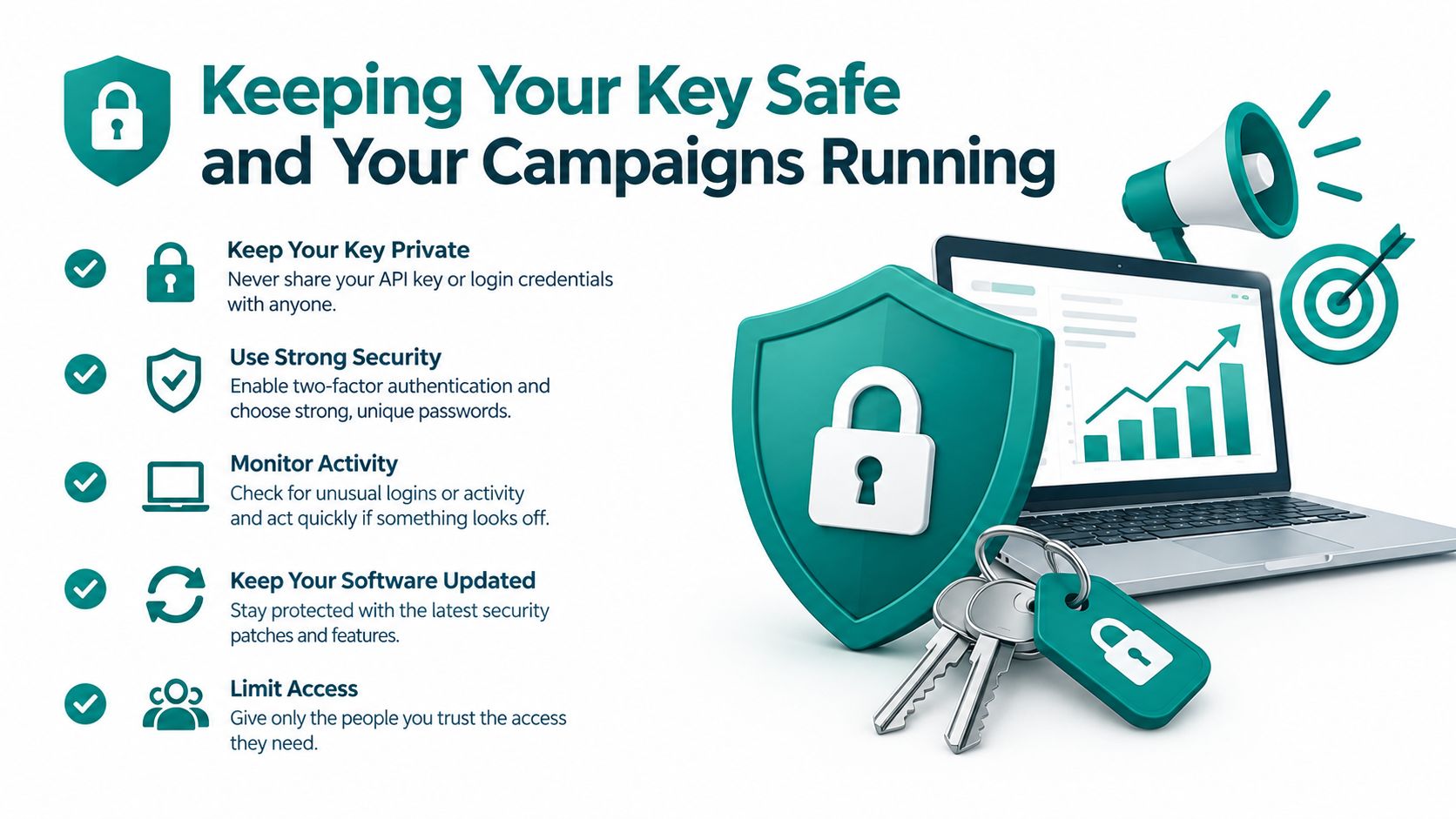
Good key hygiene keeps guest Wi-Fi signup flows, social login, audience tags, and follow-up messages connected. A leaked or disabled key can stop campaign signups and break the link between a visitor's Wi-Fi experience and your email workflow.
For teams connecting guest Wi-Fi onboarding with Mailchimp, this Mailchimp configuration guide shows where the credential belongs. Teams that sync contacts through automation can also use the SplashAccess Zapier integration to reduce manual updates and avoid hardcoding credentials in multiple tools.
Splash Access offers Cisco Meraki guest Wi-Fi captive portals with branded onboarding, social Wi-Fi, social login, IPSK, and EasyPSK for education, retail, BYOD, and corporate environments. Visit Splash Access to explore its Mailchimp connection for consent-based guest signup and follow-up campaigns.