Most guest Wi-Fi failures come from captive portal redirect logic, DHCP exhaustion, or modern device privacy settings, not hardware outages. In South Korea, a 2026 government review found 1,643 of 47,089 public Wi-Fi facilities had no users or data traffic during the previous three months, showing how easily public connectivity can remain effectively unusable.
You're connected to the network, but every webpage says there's no internet. The Wi-Fi icon looks healthy, yet the login page never appears, authentication loops, or your phone reconnects and asks for the same details again. That “connected but no internet” paradox usually points to a failure between the device, the captive portal, and the access policy, not a dead access point.
Why Guest Wi-Fi Fails and What It Costs You
A guest walks into a hotel, retail store, campus, or office, joins the correct SSID, and waits for the welcome page. Nothing happens. They try another browser, turn Wi-Fi off and on, and eventually use mobile data. From their perspective, your Wi-Fi is broken, regardless of whether the access point is transmitting perfectly.
The hospitality data makes the risk clear. A 2023 hotel technology survey found that 29% of guests experienced login problems, 23% encountered spotty signal coverage, and 21% said insufficient bandwidth affected their stay. More recent hospitality reporting on the same page states that over 80% of hotel guests experienced poor Wi-Fi during the previous 12 months, while nearly one-third of negative hotel reviews mentioned connectivity problems.

Reliable Wi-Fi is now a baseline expectation. The same hospitality reporting says 92% of travelers expect fast, reliable Wi-Fi as a standard feature rather than a premium amenity. That changes how you should classify a guest Wi-Fi outage. It isn't a minor convenience issue. It affects reviews, staff workload, customer satisfaction, and the credibility of the venue.
Public networks can also fail at operational scale. A 2026 South Korean government review recorded 3,653 public Wi-Fi outage incidents from 2024 through August 2026. Of those, 802 incidents, or 22%, took more than three days to restore. Average repair times ranged from 26 to 40 hours, and maximum repair times reached 110 to 164 hours, depending on the operator. Complaints increased from 994 in 2024 to 1,417 in 2025, while 1,242 complaints had already been filed by August 2026. More than 90% concerned connection failures.
Operational rule: Treat “guest Wi-Fi not working” as a customer-experience incident first and a network fault second.
A useful guest Wi-Fi total-cost perspective includes more than equipment. Count support calls, front-desk interruptions, abandoned logins, negative reviews, and the staff time spent manually issuing access. The cheapest network is the one guests can reliably use.
How to Diagnose the Root Cause First
Don't restart every router before identifying the failure domain. Start with one affected device and answer a precise question: does the portal fail to appear, does login repeat, or does the client authenticate but receive no usable internet? Each symptom points to a different layer.
Start at the client
Connect to the intended guest SSID and inspect what happens:
- The portal never appears. Check whether the device received an IP address and whether unauthenticated DNS works. If it received no address, investigate DHCP before touching the portal.
- The portal appears but login loops. Look at redirect rules, cookies, private MAC behavior, VPNs, and the session handoff between the portal and controller.
- The device connects and authenticates but has no internet. Check post-authentication policy, DNS responses, firewall rules, and the walled garden.
- Only one device fails. Test another phone or laptop. A device-specific VPN, ad blocker, private address, or browser policy may be responsible.
- Every device fails. Move upstream. Check the SSID, VLAN assignment, DHCP scope, DNS path, portal service, and gateway policy.
A captive portal depends on more than a splash page. Before authentication, the client needs enough access to resolve names, reach the portal, and complete the authorization flow. An incomplete pre-auth allowlist can make a healthy network look offline.
Use a controlled test sequence
Run the same test from the same location:
- Confirm the device associates with the intended SSID.
- Verify that it receives a valid network address.
- Check whether DNS returns a response before login.
- Open a plain, unencrypted HTTP test page to trigger redirection.
- Test the portal certificate if the login page uses a custom HTTPS domain.
- Review controller, RADIUS, and portal logs for the exact client session.
The HTTP test matters because modern browsers often prefer HTTPS, while HSTS policies can prevent an old-style HTTP redirect from being followed safely. If the device starts with an HTTPS destination, the portal may never get a chance to present itself.
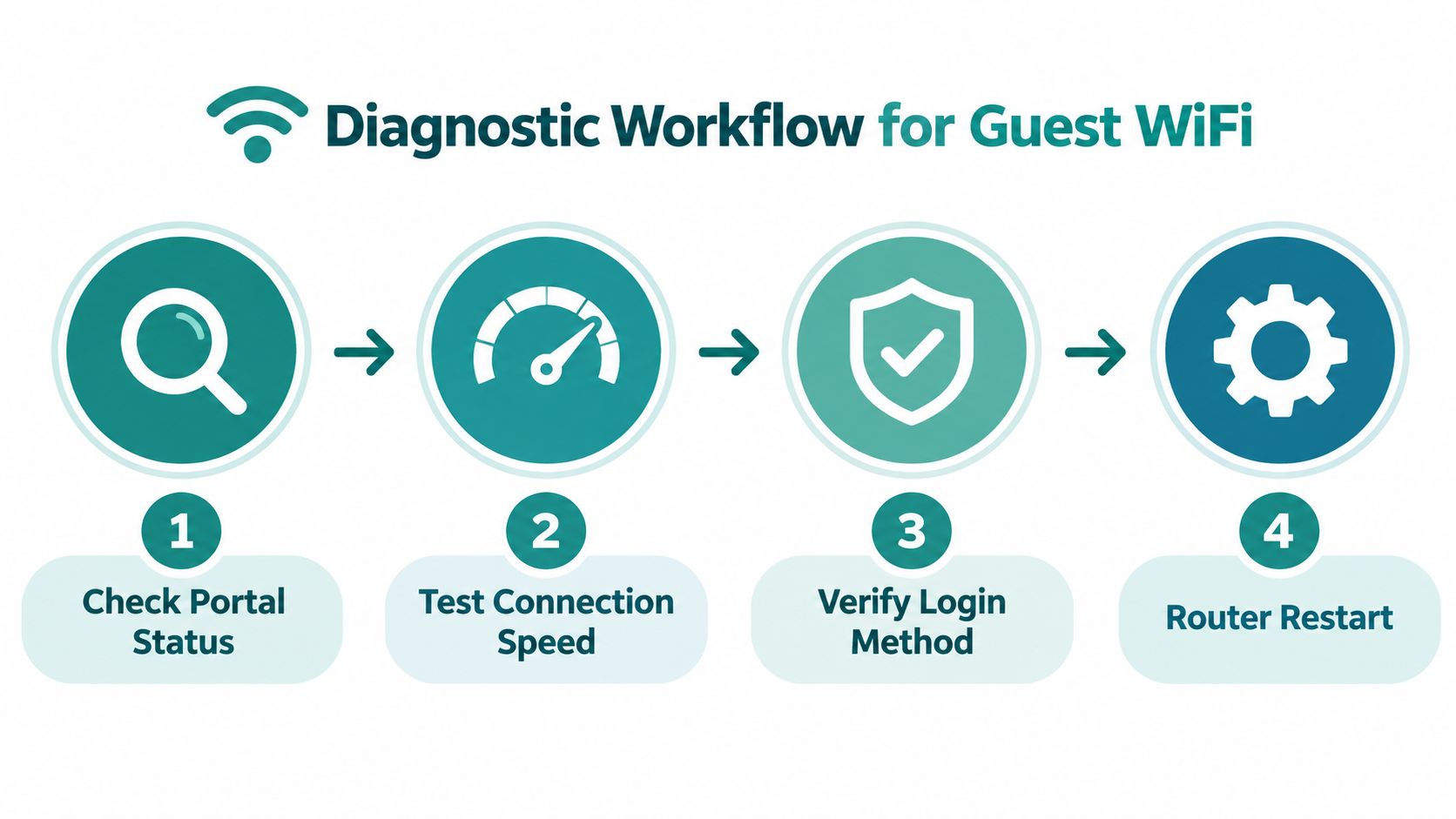
The guest network troubleshooting steps should follow this order because it reduces guesswork. Don't assume weak signal because the browser says “no internet.” Signal quality, address assignment, name resolution, redirection, authentication, and authorization are separate checks.
Read the evidence correctly
If the client has no IP address, focus on DHCP. If it has an address but can't resolve names, focus on DNS. If it resolves names but can't reach the portal, inspect the walled garden and redirect policy. If it authenticates and immediately loses access, inspect the authorization result and session persistence.
That sequence prevents the most common waste of time, replacing access points when the defect is a certificate, allowlist, or client privacy setting.
Fixing DHCP, DNS, and Browser Hardening Issues
The most common “connected but no internet” failures sit between basic network assignment and browser behavior. A client can associate with an access point successfully while lacking an address, receiving blocked DNS responses, or refusing the captive portal redirect.
Fix DHCP exhaustion before blaming the access point
Busy guest networks create address churn. Visitors arrive, reconnect, leave, and return with devices that may use different private addresses. If the DHCP pool is exhausted, new clients can associate at the wireless layer but won't receive the information needed to reach the gateway.
Check the scope's available leases, abandoned entries, and utilization during the busiest operating period. The practical benchmark is to reduce guest lease duration to 15 to 30 minutes where devices reconnect frequently. This doesn't repair a badly sized network, but it can reduce exhaustion risk by releasing stale leases sooner.
Also check whether the controller is placing clients in the intended guest VLAN. A healthy DHCP server cannot help if the SSID maps to the wrong segment or if relay traffic is blocked.
Permit unauthenticated DNS and portal traffic
Before login, clients need DNS access and a route to the portal's required domains. A restrictive walled garden that allows the page but blocks DNS creates a familiar failure: the device says it joined Wi-Fi, yet the login page remains blank.
Review the pre-auth policy for:
- DNS queries, which must be permitted before authentication.
- Portal domains, including every hostname used by branding, scripts, identity services, and social login.
- Certificate validation, especially when a custom HTTPS domain is used.
- Redirect destinations, which must match the controller and portal configuration.
- Post-auth rules, so successful login changes authorization rather than leaving the client trapped in pre-auth access.
The DNS and DHCP server guidance is useful when the portal appears inconsistently across locations. Test with an unauthenticated client, then compare DNS and policy results before and after login.
Account for HTTPS-first behavior and private MAC addresses
Old captive portals relied on intercepting an HTTP request and redirecting it to a login page. Browser hardening, HTTPS-first behavior, and HSTS can prevent that pattern from working. When the first request uses HTTPS, the browser may reject interception instead of displaying the portal, even though the wireless network is functioning.
Use an HTTP-only test page during diagnosis, confirm that the portal certificate is valid, and avoid treating browser security errors as proof of an access-point failure. Disable a VPN or ad blocker temporarily during testing because both can block detection and redirection.
Private MAC addresses create a separate problem. iOS 14+ and Android 10+ can randomize the address presented to the network, which may break session persistence and cause repeated logins. Test with the privacy setting understood and documented, not casually disabled across the venue. Your policy should tolerate normal private-address behavior where possible, while your portal should avoid relying on an unchanging hardware identifier for trust.
Practical rule: Fix DHCP, pre-auth DNS, certificate validity, and redirect logic before replacing hardware.
Choosing the Right Authentication for Your Venue
Authentication should match the venue's risk, audience, and operating model. A hotel lobby, university residence, retail promotion, and corporate BYOD network don't need the same onboarding flow.
| Authentication approach | Best fit | Main operational trade-off |
|---|---|---|
| Social login or Social WiFi | Retail, hospitality, and marketing-led venues | Smooth onboarding, but the portal must allow every required identity and tracking domain before login |
| Voucher access | Hotels, events, and controlled visitor access | Easy to issue and limit, but staff need a reliable process for printing, replacing, and explaining codes |
| Shared WPA2 password | Simple low-risk environments | Fast to deploy, but one leaked secret affects everyone and changing it creates avoidable support work |
| IPSK, Private PSK, or EasyPSK | Education, corporate BYOD, and managed device access | Each user or device receives a unique key, so revocation doesn't require replacing the entire network password |
IPSK, individual PSK, private PSK, and EasyPSK describe the same broad family of per-user or per-device Wi-Fi keys. The strength is administrative control. A school can revoke one student's key, a corporate team can remove one contractor, and a BYOD administrator can isolate one device without disrupting every other connection.
Cisco Meraki deployments can use an EASYPSK approach while keeping a standard WPA2-PSK SSID on the client side and managing unique keys centrally. The referenced Cisco Meraki solution claims support for over 5,000 unique device keys, making it a concrete option for larger education, retail, and corporate environments that need individual credentials without creating a maze of separate SSIDs.
For a quick onboarding flow, especially in a public retail or event setting, a WiFi QR code generator tool can reduce typing and help visitors join the intended network. Use QR codes alongside a clear captive portal policy, not as a replacement for authentication or segmentation.

A platform such as Splash Access can provide Cisco Meraki-oriented captive portals, WPA2 and IPSK authentication, voucher flows, QR-code onboarding, and integrations for Azure AD, SAML, G Suite, Social WiFi, Mailchimp, Facebook, and Twilio. The right choice still depends on your identity requirements, privacy policy, segmentation design, and support model.
Use the Wi-Fi authentication methods guide to compare the mechanics before selecting a portal. The key decision is simple: don't use a shared password when you need individual accountability, controlled revocation, or reliable BYOD access.
Preventing Guest Wi-Fi Issues with Best Practices
Reliable guest Wi-Fi comes from treating onboarding as a monitored service, not a one-time SSID configuration. Test the complete journey regularly, from association through DHCP, portal display, authentication, authorization, and normal browsing.
Monitor the whole path
A green access-point status doesn't prove that guests can log in. Monitor portal availability, DHCP capacity, DNS responses, certificate validity, authentication errors, and the time between association and internet access. Test from different device types and locations because a portal can work on one browser while failing on another.
Use these operating habits:
- Test before opening: Join the network with a clean device and complete the portal flow before guests arrive.
- Watch lease capacity: Review DHCP utilization during busy periods and tune leases for the way visitors typically reconnect.
- Audit the walled garden: Remove stale entries and add every required pre-auth identity, branding, and payment domain.
- Check certificates: Renew and validate custom portal certificates before browsers turn a warning into a blocked redirect.
- Separate guest traffic: Keep visitor access away from corporate systems and apply sensible bandwidth policies.
- Document privacy conflicts: Record how VPNs, ad blockers, and private MAC settings affect support instructions.
Regular firmware and controller updates matter, but updates alone won't repair an incomplete redirect policy. Test after every change, especially changes to Cisco Meraki SSIDs, VLANs, firewall rules, RADIUS settings, portal domains, or identity integrations.
The network monitoring best practices resource can help turn scattered checks into a repeatable operating process. For hospitality, retail, education, and corporate BYOD, that discipline protects both connectivity and the guest relationship.
Splash Access provides Cisco Meraki guest Wi-Fi tools including captive portals, WPA2 and IPSK authentication, vouchers, QR-code onboarding, and integrations for identity and marketing workflows. Review your current DHCP, DNS, redirect, and authentication path, then visit Splash Access to evaluate an onboarding setup designed to prevent the next “connected but no internet” incident.