A guest arrives at a hotel, connects to the Cisco Meraki guest Wi-Fi, and reaches the captive portal. An employee brings a personal laptop into the office and needs secure BYOD access. A student signs in from a campus residence. In each case, the visible “Sign in with Microsoft” button is only one part of a larger workflow involving identity, network admission, cookies, tokens, and access policy.
To add Azure AD authentication to a web app reliably, you need to understand that Azure Active Directory is now called Microsoft Entra ID, and that modern integrations use OAuth 2.0 and OpenID Connect. The same foundation can support an enterprise web app, a guest Wi-Fi portal, social login, or an onboarding process that assigns a private wireless key through IPSK or EasyPSK.
Why Azure AD Matters for Modern Web Apps
Microsoft Entra ID, formerly Azure Active Directory, is an established cloud identity provider rather than a login widget you build from scratch. Microsoft identity-management materials report approximately 400 million monthly active users and tens of billions of authentications processed every day. That scale helps explain why organizations use Entra ID to centralize sign-in, account policies, multifactor authentication, and access decisions instead of maintaining a separate password database for every application. Microsoft identity platform background
Microsoft announced the Azure AD rebrand on July 11, 2023, and said the transition would be completed by the end of 2023. Older tutorials, SDK references, and customer documentation may still say Azure AD, while current interfaces generally say Microsoft Entra ID. For implementation purposes, they refer to the same core directory service, although you should use the newer product name in current configuration and documentation.
Entra ID supports Microsoft services such as Microsoft 365 and Azure, while also connecting to non-Microsoft applications through SAML, OAuth, and OpenID Connect. That matters in a Cisco Meraki captive-portal deployment. A hotel employee may sign in with an organizational account, a campus user may authenticate through a school tenant, and a corporate guest may use an approved Microsoft identity on a BYOD device.
Practical rule: Treat Entra ID as the identity authority and the Wi-Fi platform as the network admission layer. They can cooperate without becoming the same system.
A captive portal can collect the authentication result, apply a guest or employee policy, and then continue the wireless onboarding flow. Social login and social Wi-Fi may suit public guests, while Entra ID is more appropriate for employees, students, approved contractors, and managed organizational access. IPSK and EasyPSK can then provide a separate per-user or per-device wireless credential, rather than forcing the identity provider to act as a Wi-Fi key manager.
For broader architectural context, Azure strategy insights from Kagool can help teams think about identity as part of a wider cloud operating model. For a practical implementation focused on this use case, review Azure AD authentication and authorization for web applications.
Registering Your App in Microsoft Entra ID
Start in the Microsoft Entra admin center and open App registrations. Choose New registration, give the application a clear name, and select the supported account type that matches the audience. A private corporate portal may be single-tenant, while a service serving multiple organizations may need organizational multi-tenant support. Personal Microsoft accounts introduce different issuer and tenant behavior, so don't select a broad option without testing the intended users.
Choose the Web platform for a server-rendered application. Add every production callback URI exactly as the application will send it. The URI must use HTTPS in production, and the path must match precisely. A missing path segment, a different hostname, or a trailing slash can cause the sign-in request to fail even when the rest of the configuration is correct.
Keep environments deliberately separate
Record the tenant ID and client ID from the registration. Create a client secret under Certificates & secrets if the server needs one, but store it in a managed secret store or protected environment configuration. Never commit it to source control, place it in browser code, or paste it into a captive-portal page.
Certificates can be preferable for longer-lived production trust because they avoid relying on a shared secret string. Whichever credential type you choose, keep development and production registrations or configuration values clearly separated. Environment drift is a common reason a localhost flow works while a deployed portal fails.
For a sign-in-only web application, request at least the openid scope. OpenID Connect uses that scope to indicate authentication and return an ID token. Don't confuse it with an API permission. If the application later calls a protected API, configure the required delegated permissions and request the API scope separately.
Your registration checklist should include:
- Account type: Match single-tenant, organizational multi-tenant, or personal-account requirements.
- Platform: Select Web for a server-rendered application.
- Redirect URIs: Register every exact HTTPS callback used in production.
- Credentials: Keep secrets or certificates in managed storage.
- Identity values: Record the tenant ID and client ID outside application source.
- Scopes: Include
openidfor OIDC sign-in and add API permissions only when the application needs them.
The same discipline applies when you configure enterprise single sign-on for a portal. A useful companion is this guide to implementing single sign-on, especially when the application needs to coexist with other identity providers.
The OIDC Flow Behind the Login Button
The login button starts a protocol exchange. It doesn't authenticate the user itself. Your application sends the browser to the Entra authorization endpoint, Entra authenticates the user, and the browser returns to the registered callback with an authorization code.
The Microsoft identity platform documents the authorization endpoint as /oauth2/v2.0/authorize and the token endpoint as /oauth2/v2.0/token. The authority commonly follows https://login.microsoftonline.com/{tenant}/v2.0, and the provider publishes discovery metadata at /.well-known/openid-configuration. Microsoft protocol documentation
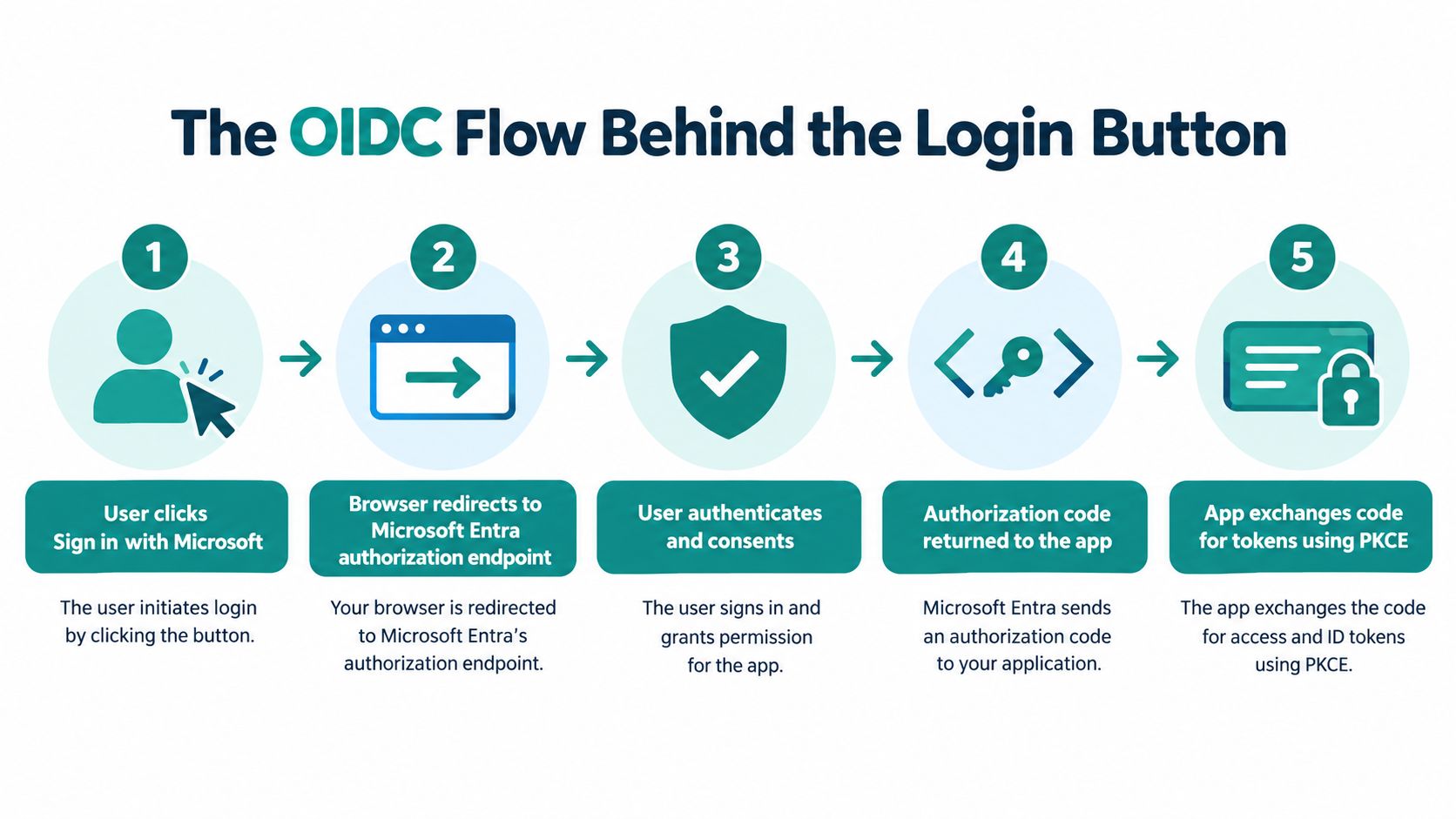
What the browser and server exchange
A typical authorization request includes values such as:
client_idresponse_type=coderedirect_uriscope=openidstatenoncecode_challengecode_challenge_method=S256
The user authenticates at Microsoft, possibly using a password, multifactor authentication, or a passwordless method allowed by the organization. Entra then returns a short-lived authorization code to the exact callback URI.
For a public browser client, use authorization code flow with PKCE. The application creates a code verifier, derives a SHA-256 code challenge, and sends the challenge in the authorization request. During the token exchange, it sends the original verifier. If another party intercepts the code, that party still lacks the verifier required to redeem it. Microsoft documents invalid_grant for invalid or expired codes and incorrect verifiers. OIDC implementation guidance
A server-rendered application exchanges the code server-side, validates the returned tokens, and establishes an application session. It should check the issuer, audience, signature, expiration, and nonce before accepting the identity. The ID token describes authentication. An access token authorizes calls to a protected API, so treating the two as interchangeable creates confusing and potentially unsafe behavior.
The useful mental model: The flow is a sequence of redirects, a signed identity response, a server-side token exchange, and a secure session cookie.
For a deeper look at the token boundary, see Azure AD authentication tokens. The implementation details vary between ASP.NET, Node, and a single-page application, but these protocol responsibilities don't disappear when a framework hides them.
Wiring It Into a Real Captive Portal Flow
A student joins the campus SSID from a phone. The Cisco Meraki splash page opens and offers an organization sign-in, a social login option, or an email-based guest registration. The student chooses Microsoft sign-in, authenticates with the campus account, and returns to the portal. The portal can now associate the approved identity with the access decision rather than treating the device as an anonymous MAC address.
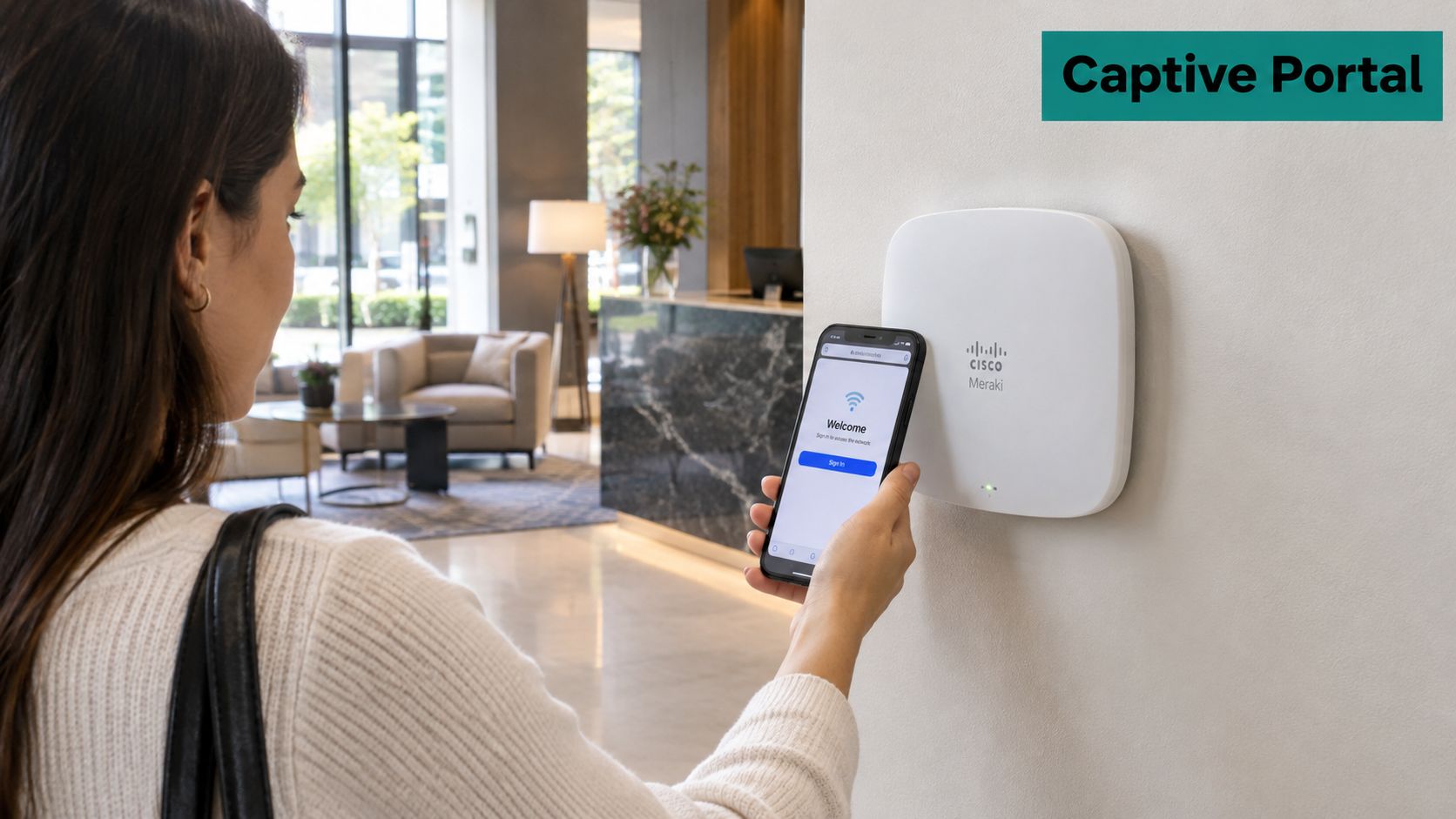
The same pattern works differently for different audiences. A hotel may offer social Wi-Fi for visitors and Microsoft sign-in for staff. A retailer may use a public guest flow while reserving Entra ID for store operations. A corporate BYOD network may ask an employee to authenticate before the portal provisions a private wireless credential.
Separate identity from wireless credentials
After the portal receives and validates the authentication result, it can apply the appropriate onboarding policy. An IPSK or EasyPSK workflow can provide a private pre-shared key tied to an individual, device, role, or approved access record. That key serves the wireless network, while Entra ID records who authenticated to the web workflow.
This separation makes the architecture easier to reason about:
- Network discovery: The user joins the Cisco Meraki SSID and reaches the splash page.
- Identity choice: The user selects Entra ID, social login, social Wi-Fi, or an approved registration route.
- Authentication: The selected identity provider returns a result to the registered portal callback.
- Policy decision: The application checks tenant, role, group, or guest status.
- Wireless onboarding: The system assigns the relevant access method, such as an IPSK or EasyPSK credential.
EasyPSK can reduce friction when each device needs a distinct onboarding path, while IPSK helps organizations avoid sharing one wireless password across a whole population. The portal still needs clear revocation behavior. If an employee leaves, a student loses eligibility, or a guest session expires, the web identity and wireless credential should not remain active indefinitely.
For a portal-oriented implementation, Azure AD Wi-Fi authentication shows how the identity layer can fit into a captive-portal experience. The important design decision is not whether every user should see the same login button. It is whether each audience gets an authentication method and network policy that match its risk and onboarding needs.
Choosing the Right Stack for Your Web App
The right implementation depends on where the application owns the session and where tokens must live. A server-rendered application can keep the client secret and token exchange on the server. A single-page application can't safely hide a client secret in browser code, so it should use authorization code flow with PKCE.
| Stack | Where the secret lives | Recommended flow | Common library |
|---|---|---|---|
| ASP.NET Core server-rendered app | Managed server-side secret store or certificate store | OIDC authorization code flow | Microsoft.Identity.Web and OIDC middleware |
| Node and Express | Server-side environment or managed secret store | OIDC authorization code flow | openid-client or Passport-based OIDC tooling |
| React single-page app | No client secret in the browser | Authorization code flow with PKCE | MSAL.js |
Server-rendered applications
ASP.NET Core is a natural fit when the application establishes a secure server session after the callback. OIDC middleware handles the challenge and callback, while Microsoft.Identity.Web can simplify Microsoft identity configuration and downstream API token acquisition. Node and Express follow the same protocol contract, although you must configure session storage, callback handling, and token validation explicitly.
For either server-side option, register the callback at the public application URL, preserve the original request state, and protect the session cookie. A reverse proxy or load balancer must forward the correct scheme and host information, otherwise the application may generate an HTTP callback or an incorrect redirect.
Single-page applications
A React SPA should use MSAL.js with PKCE. The browser can initiate the authorization request, but it shouldn't receive a client secret. Store tokens according to the library's security guidance, keep scopes narrow, and send access tokens only to the APIs that accept their audience.
Teams evaluating implementation support can use developers Brazil from HireDevelopers.com as a resource when they need additional engineering capacity. Authentication decisions should still remain with the project owner, especially around tenant restrictions, callback registration, and session policy.
Multifactor authentication changes the sign-in experience but not the basic OIDC contract. A concise explanation of the control is available in what multifactor authentication means.
Account Linking and Identity Lifecycle Done Right
A successful callback doesn't prove that the account-linking design is safe. Don't link an existing customer, employee, student, or guest record solely by email or preferred_username. OWASP notes that these claims aren't guaranteed to remain unique or stable, and recommends using the issuer plus subject combination as the federated identity key. OWASP Authentication guidance
At first sign-in, create a pending identity record, validate the token, apply the tenant allowlist, and then provision the local account or request an explicit link to an existing account. Bind any linking action to an already authenticated application session. That prevents a user from presenting a claim and attaching it to someone else's local profile.
Define lifecycle behavior before deployment:
- Provisioning: Decide which claims create a new user and which require approval.
- Roles: Map groups or application roles to local permissions, then enforce those permissions server-side.
- Tenant control: Accept only the organizational tenants intended for the portal.
- Offboarding: Recheck eligibility and revoke local access when the organization removes the account.
- Duplicates: Provide a reviewed resolution path instead of merging records automatically.
OIDC authenticates the user. OAuth access tokens authorize calls to APIs. A portal may accept an authenticated identity for a network decision, while a separate API still requires an access token with the correct audience and scope.
Troubleshooting the Most Common Azure AD Headaches
Most failures appear after deployment, not in the first localhost demo. Compare the exact HTTPS callback URI, including path and trailing slash, then verify the selected tenant and issuer. Inspect forwarded headers from the proxy or load balancer, confirm that cookies use appropriate Secure and SameSite settings, and correlate Entra sign-in logs with application logs.
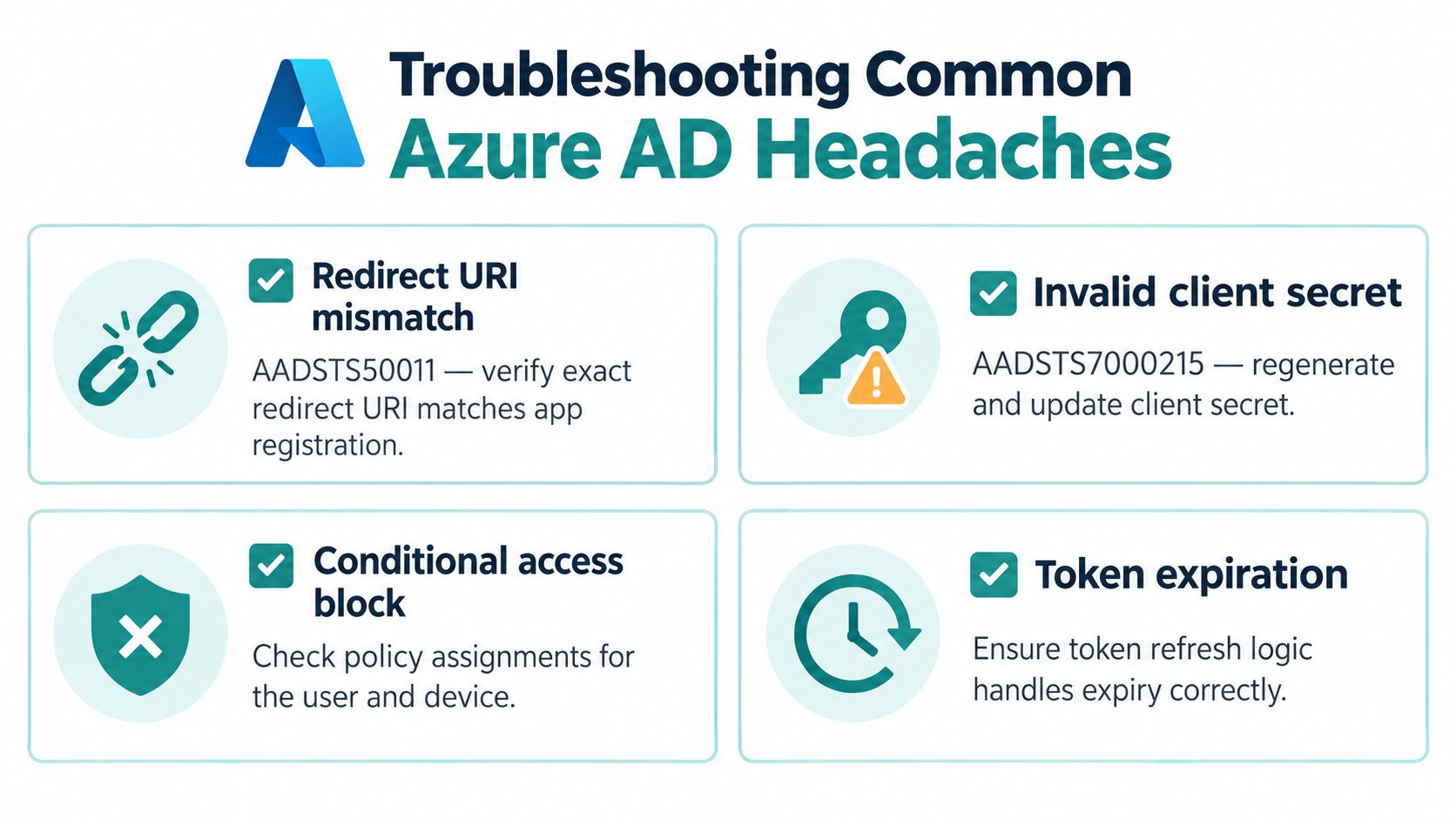
Use this runbook when a Cisco Meraki captive portal, BYOD application, or ordinary web app fails:
- Callback mismatch: Check that the registered redirect URI exactly matches the deployed request.
- Sign-in loop: Inspect cookie scope, proxy headers, session persistence, and callback processing.
- Token failure: Confirm issuer, audience, signature, expiration, nonce, and PKCE verifier handling.
- Environment drift: Compare tenant IDs, client IDs, credentials, callback paths, and runtime settings across environments.
- API denial: Separate browser authentication problems from missing scopes or an incorrect access-token audience.
- Partial deployment: Review application logs beside Entra sign-in logs instead of relying only on the browser error page.
Microsoft documents recurring failures that include infinite sign-in loops, a successful login followed by an unauthenticated return, and unhelpful error pages. The practical lesson is simple: authentication isn't operational until the deployed callback, cookies, proxy behavior, identity rules, and downstream authorization all work together.
Splash Access provides Cisco Meraki captive-portal workflows that can connect Microsoft Entra ID authentication with guest Wi-Fi onboarding, social login, SAML-based single sign-on, IPSK, and EasyPSK. Visit Splash Access to evaluate how its portal and authentication workflows can fit your education, retail, hospitality, healthcare, or BYOD corporate network.