A lot of hospitality IT managers meet Azure AD, now Microsoft Entra ID, in a very ordinary moment. A guest opens a laptop in the lobby, joins the WiFi, taps a splash page, and expects the internet to just work. From the guest's point of view, it's one click. From your point of view, that click can involve identity, policy, guest access rules, Cisco Meraki redirection, social login choices, and the difference between a harmless login prompt and a real access control system.
That's why Azure AD authentication and authorization matters so much in guest WiFi. It isn't only about whether someone can sign in. It's about whether your captive portal, your network, and your identity platform agree on who this person is and what kind of access they should get after the splash page clears. In hotels, retail, education, and BYOD corporate environments, that decision shapes onboarding speed, help desk load, and risk.
When a Hotel Guest Joins Your Wi-Fi and Meets Azure AD
A guest walks into the lobby, opens a laptop, joins the hotel SSID, and taps a room-ready splash page. Instead of going straight to the news site they typed in, they are briefly held at the network door while your Wi-Fi system checks identity and decides what kind of access to grant.
On the screen, that moment looks simple. Behind it, Cisco Meraki, the captive portal, and Microsoft Entra ID are coordinating a small chain of decisions.
A helpful way to frame it is this: the splash page is your front desk for network access. It greets the user, asks for the right proof, and passes that proof to the system that can verify it. If the person signs in with a Microsoft account, Entra ID confirms who they are. Then your Wi-Fi flow uses that result to decide what happens next, such as internet-only access for a guest, broader access for staff, or a different policy for an event attendee.
That connection between identity and network access is what makes Azure AD authentication and authorization matter in hospitality. The sign-in itself is only one step. The bigger operational question is whether the result of that sign-in can be translated into the right outcome on the network, fast enough that the guest barely notices the handoff.
The splash page is part of access control
In a hotel, the captive portal can offer more than one route. A business traveler may choose a Microsoft sign-in tied to a work account. A staff member may use the hotel's own Entra tenant. A conference guest may arrive with an invited partner identity. Someone else may choose a lighter guest option instead.
Those paths can lead to very different results:
- internet access only for standard guests
- a different VLAN or policy for staff devices
- time-limited access for conference users
- separate treatment for mixed environments such as hotels with retail, classrooms, or shared event space
That is why the splash page is not just branding. It is the point where identity starts affecting network behavior.
If you are planning hotel WiFi solutions, this is the practical question to keep in mind: after Entra ID validates the person, can your Meraki splash flow turn that identity signal into the correct access rule without adding confusion at the screen?
One claim in a token can decide whether the guest gets online in seconds or ends up calling the front desk.
Why Entra ID matters here
Microsoft Entra ID has become a common control point for sign-in, policy checks, and identity-based decisions across business apps and networks. For hospitality IT, that matters because guest Wi-Fi no longer lives in isolation. The same identity platform used for staff Microsoft 365 access, device posture, and sign-in reporting may also influence what happens on a captive portal.
Most articles stop at protocol diagrams. In a Meraki guest Wi-Fi flow, the practical version is easier to picture. The portal redirects the user, Entra ID verifies identity, a token comes back with claims, and your access platform uses those claims to decide whether the splash page clears and what level of connectivity the user receives.
That is the moment where Azure AD stops being a cloud identity term and starts acting like a real part of the guest experience.
Authentication Versus Authorization in Plain English
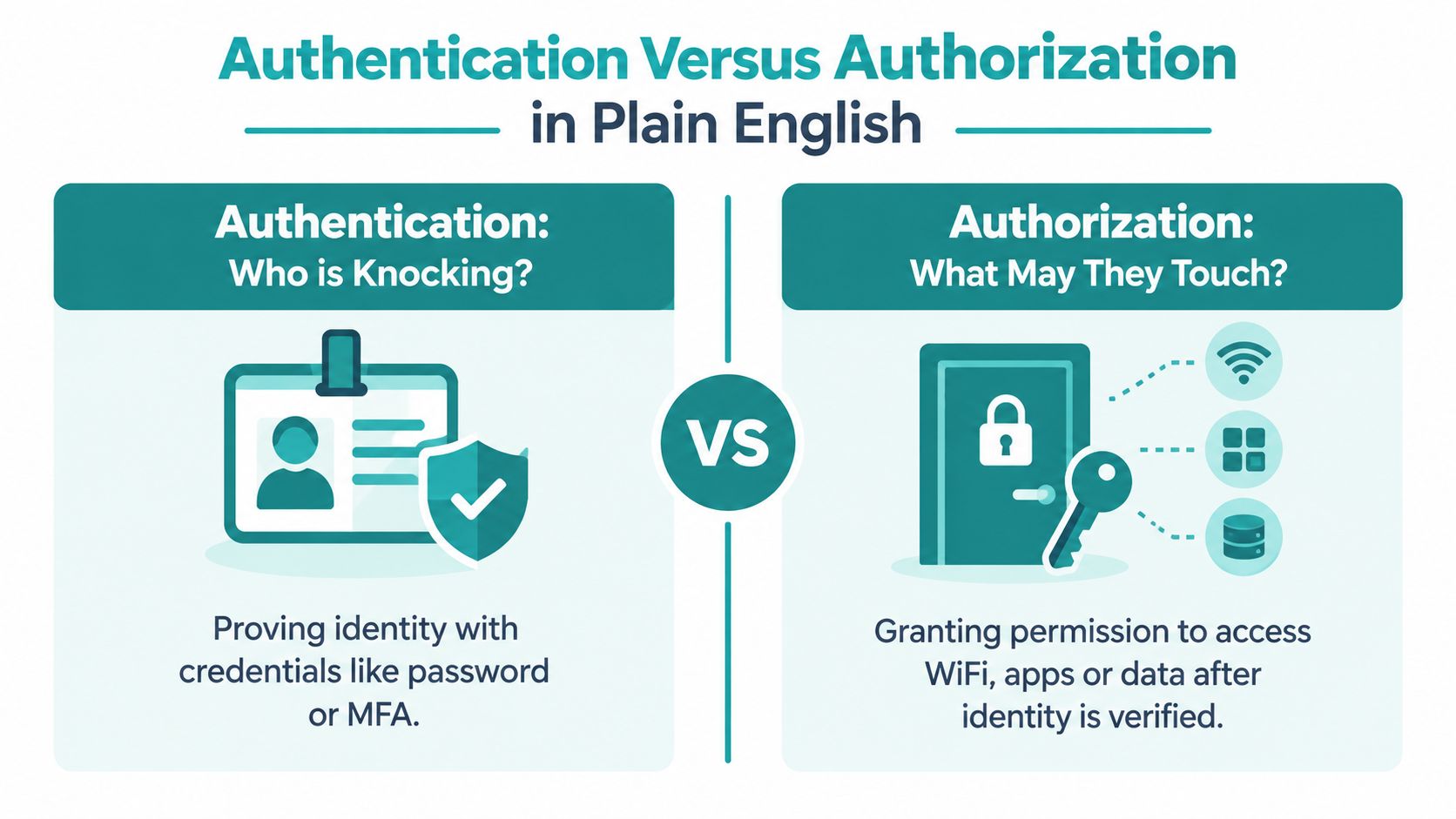
A guest reaches your Meraki splash page, signs in with a Microsoft account, and then waits to see whether the browser clears to the open internet. Two different decisions happen in that moment. One confirms who the person is. The other decides what that person can do on your network.
Authentication confirms identity. Authorization applies access rules to that identity.
A hotel example that maps to guest Wi-Fi
At a hotel front desk, checking a guest's ID answers one question: is this really the person tied to the reservation? Handing over a room key answers a different question: which room should they enter, and for how long?
Wi-Fi works in much the same way. A sign-in page can verify that the user is a real employee, student, event attendee, or approved guest. Your access platform then uses that result to decide whether the person gets basic internet, staff-only access, a specific VLAN, or a denial message.
That distinction matters because a successful sign-in does not automatically mean full network access.
For a broader plain-English grounding in AAA concepts, this explainer on authentication, authorization, and accounting gives network teams helpful background.
What each term means on a Meraki splash flow
On a Cisco Meraki captive portal tied to Entra ID, authentication is the identity check. The user enters a password, completes MFA, uses a passkey, or presents some other proof that matches an account.
Authorization starts after that proof succeeds. Your portal, policy engine, or integration logic looks at the identity details returned from Entra ID and asks practical questions:
- Is this person allowed onto guest Wi-Fi at all?
- Should they get internet only, or also reach internal resources?
- Do they belong on a staff VLAN, a student policy, or a time-limited guest policy?
- Should access expire after the event, class, or stay ends?
That is the part many high-level Azure AD guides blur together. In a hospitality or campus environment, authorization is the step that turns a token into a network outcome the user feels.
Where Entra ID fits
Microsoft Entra ID, formerly called Azure Active Directory, is the identity system that handles the sign-in side and returns the identity information your Wi-Fi workflow can use.
The name change matters mostly for terminology. Many IT teams still say "Azure AD" in day-to-day conversation, while Microsoft's current product name is "Entra ID." In practice, both labels usually point to the same sign-in and policy service.
The protocol names, without the protocol diagram
Three names appear often in these conversations, and they play different roles.
- OpenID Connect, usually shortened to OIDC, handles sign-in and identity information.
- OAuth 2.0 handles permission to access protected resources.
- SAML is an older single sign-on standard that still appears in many enterprise setups.
For a guest Wi-Fi splash page, OIDC is usually the visible part because it supports the redirect to Microsoft for sign-in. OAuth 2.0 matters underneath when your application needs to use granted permissions. SAML still shows up in some organizations, but OIDC and OAuth fit modern web-based captive portal flows more naturally.
How an Entra ID Sign-In Flow Actually Works
A guest has just checked in, joined the hotel SSID, and tapped Sign in with Microsoft on your splash page. From their point of view, it looks like one quick detour to a Microsoft login screen and back again. Underneath, your captive portal, Entra ID, browser session, and network controller are passing identity data back and forth to decide whether that device should stay blocked or move onto the internet.
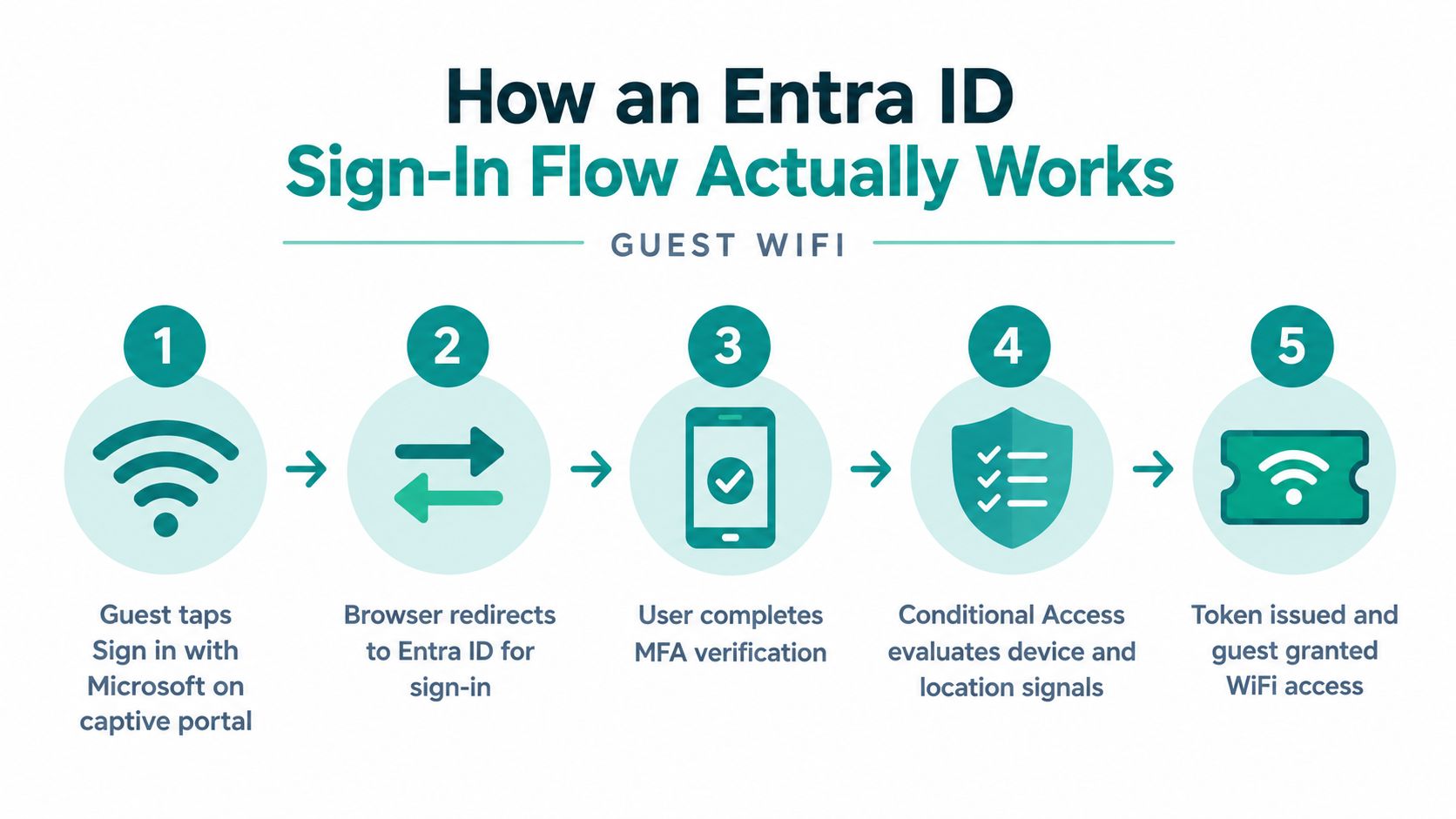
Microsoft Entra ID handles the sign-in step by using OpenID Connect for identity and OAuth 2.0 in the broader permission flow. In a typical browser-based sign-in, the user is redirected to Microsoft, policy checks are evaluated, and Entra returns tokens the application can use if the request succeeds (Microsoft explanation of Entra sign-in flow).
What the guest sees
The visible part is simple:
- The guest taps Sign in with Microsoft on the captive portal.
- The browser is redirected to Entra ID.
- The guest enters credentials and may complete MFA.
- Entra sends the browser back to the Wi-Fi workflow.
- Your portal or backend decides whether to open network access.
That last step is the one many non-developers never see, yet it is the part that affects the guest experience most.
What is happening in the background
A captive portal sign-in works a lot like a front desk check-in. The guest presents identity, the hotel system verifies it with a trusted source, and only then is a room key activated. In Wi-Fi terms, the "room key" is the network session your controller allows after the portal confirms the sign-in result.
Behind the login page, the flow usually looks like this:
- The captive portal starts an authentication request to Entra ID.
- Entra checks the user's credentials and any policies that apply, such as MFA or tenant restrictions.
- Entra returns token data to the application that started the sign-in.
- The application or portal backend validates that response.
- If the response is valid and matches your access rules, the Wi-Fi system moves the device from a restricted state to an allowed state.
This is why a splash page is never just a web page. It is part of an access-control path.
What your portal backend needs to understand
Three token types usually appear in this flow:
- ID token for sign-in identity
- Access token for calling protected APIs
- Refresh token for extending the session without asking the guest to sign in again right away
The operational mistake in guest Wi-Fi projects is treating "the user saw a Microsoft login and got back to the portal" as proof that access should be granted. Your backend still has to verify what it received. A token can be real and still be wrong for your use case. It may belong to the wrong tenant, be meant for a different application, or fail a policy check your network workflow depends on.
For a Meraki-style captive portal, that distinction matters. The sign-in page is only the identity checkpoint. The actual allow-or-block action happens when your portal or integration decides whether the returned identity should trigger a change in network access.
Why reliability and visibility matter
If Entra sign-in is part of your guest access path, identity availability becomes part of your Wi-Fi availability. A login dependency that fails can look to the front desk like "the internet is down" even when the WAN circuit is healthy. Microsoft publishes service commitments for Microsoft Entra services on its Microsoft Entra service level agreement page.
For a hospitality IT team, the practical lesson is straightforward. You need logs that show whether the guest reached Microsoft, whether policy checks passed, whether the application received tokens, and whether the captive portal changed the session state afterward. If you are planning a single sign-on implementation for a captive portal, design for that full chain, not just the login screen.
Tokens and Claims That Drive Authorization Decisions
A guest can complete Microsoft sign-in on your splash page and still not qualify for Wi-Fi access. The deciding factor is the token your portal receives and the claims inside it.
A token is a signed package of facts about the user, the app, and the permission being used. In many Entra ID deployments, that package is a JSON Web Token, or JWT. For a hospitality IT manager, the practical question is simple. Which facts in that token should your captive portal trust before it tells Meraki to keep blocking the session or let the device onto the network?
Why the claims matter more than the login screen
On a guest Wi-Fi splash page, the login screen is only the front desk check-in. The token is the room key packet behind the counter. It says who issued the key, which door it fits, and what level of access it should grant.
Microsoft draws a clear line here. ID tokens prove authentication, while access tokens authorize API access (Microsoft access token claims reference). If a captive portal treats any successful sign-in as approval to grant network access, it can make the wrong call. Your backend should base its decision on claims that show the token was issued by the right tenant, for the right application, and with the right permissions.
Claims a guest captive portal should care about
| Claim | What It Contains | Authorization Decision on the Splash Page |
|---|---|---|
aud |
The intended API audience | Accept only tokens meant for your portal or backend service |
iss |
The issuing tenant authority | Reject tokens from the wrong tenant |
tid |
The tenant ID | Map users to the correct organization or guest policy |
oid |
Immutable user object identifier | Correlate a returning user reliably |
scp |
Delegated permissions | Confirm the portal has the right delegated scope |
roles |
Application permissions or app roles | Apply higher-trust actions for approved roles |
groups |
Group membership data | Place users into policy-based access buckets |
acrs |
Authentication context or assurance detail | Require stronger proof before sensitive admin actions |
Those claims are what turn identity into a network outcome. A Meraki captive portal or a Splash Access workflow does not just need a name on the screen. It needs enough verified context to decide whether this person should receive guest access, staff access, partner access, or no access at all.
How that looks in a real splash access flow
Here is the plain-English version of what your portal checks after Entra ID sends the user back:
- A guest signs in, but the
audclaim points to a different application. Your backend should reject it because that token was not issued for your portal workflow. - A contractor signs in from a partner organization. The
tidclaim tells you which tenant owns that identity, so you can route that user into the right access policy. - A staff member belongs to a Guest-Wifi or Staff-Override group. Group or role claims can support different network rules on the same SSID.
- An administrator tries to approve a policy change tied to wireless access. The
acrsclaim can help you require a stronger sign-in before allowing that action.
For repeat visitors and multi-tenant environments, tid + oid is usually a safer way to recognize the same person across sessions than an email address alone. Email addresses can change. Object IDs are more stable inside the tenant that issued them.
Do not build your guest Wi-Fi policy around an email address alone. For access control, tenant and object identity are usually more dependable than what a user typed into a form.
One more point causes confusion. scp and roles are not interchangeable. scp usually shows delegated permissions used on behalf of a signed-in user. roles usually reflects application permissions or assigned app roles. Microsoft also explains group claims and app roles in its guidance on configuring tokens, group claims, and app roles.
If your environment uses SAML for enterprise sign-in rather than OAuth and OpenID Connect tokens, the access decision still follows the same logic. Trusted identity data must be mapped to a network action. A practical example is this Azure AD SAML integration for captive portal access, where the sign-in method changes but the policy question stays the same. Which verified identity attributes should cause the guest device to gain Wi-Fi access?
Conditional Access, Scopes and Consent Explained
A hotel guest taps your splash page, signs in with a work or school account, and expects Wi-Fi within seconds. Three separate policy layers can affect that moment. Conditional Access decides whether Microsoft Entra ID will accept the sign-in under the current conditions. Scopes state what the portal application wants permission to read or do. Consent records who approved those requested permissions.
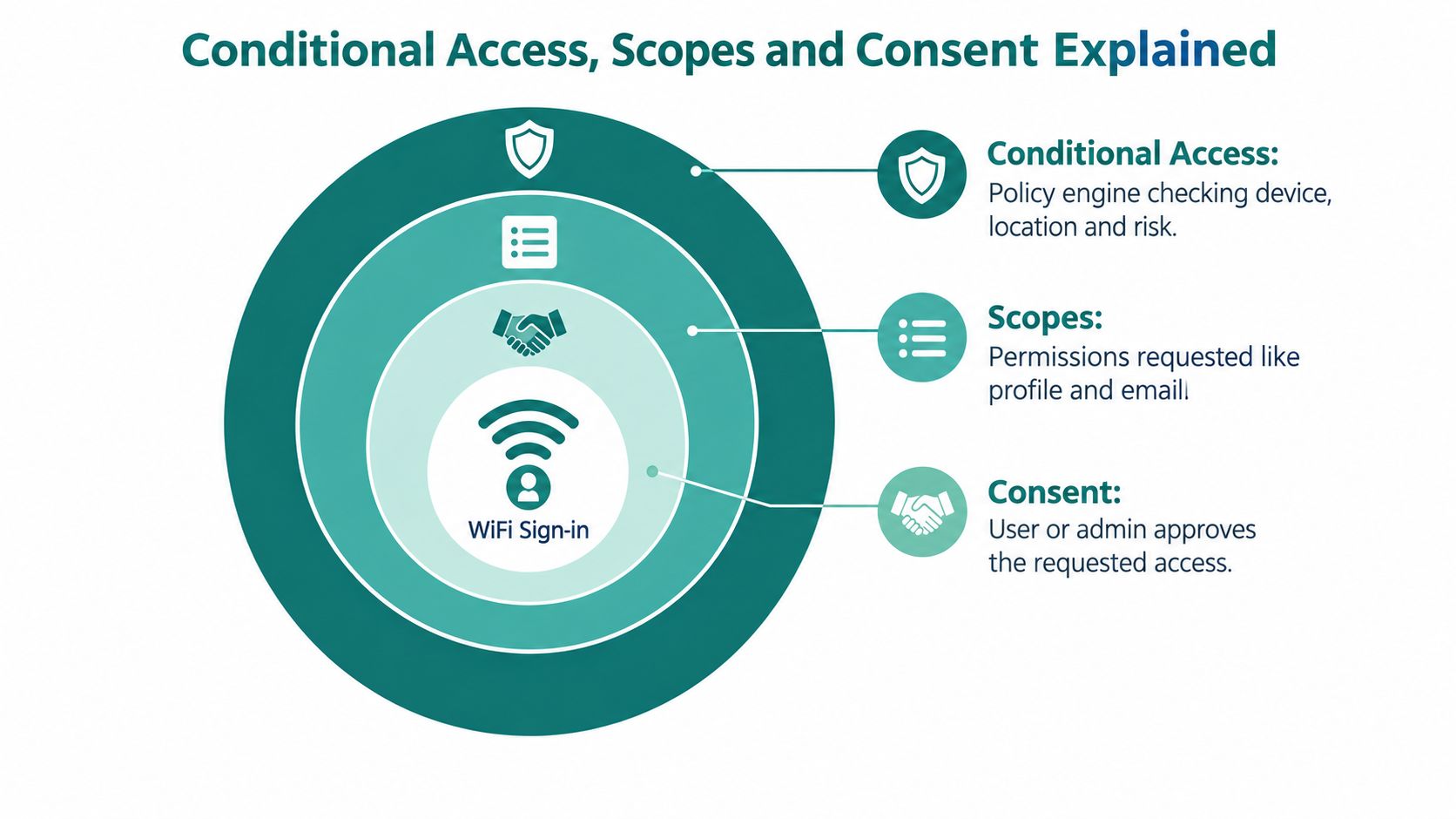
If those three controls blur together, captive portal projects become harder than they need to be. A Meraki splash page may look like one login box to the guest, but behind it Entra ID is answering three different questions. Should this sign-in be allowed right now? What information is the app asking for? Who approved that request?
Conditional Access works like the front-desk policy for issuing a room key. The guest may be a real guest, but the hotel still checks the situation before handing over access. In Entra ID, that situation can include the sign-in risk, device state, location, user group, or whether stronger verification is required. For a guest Wi-Fi flow, that matters because a successful username and password entry does not always mean the token should be issued. Your splash experience can still pause for multifactor authentication or block the request based on tenant policy.
Scopes are narrower. They describe what the captive portal app wants after sign-in. In a splash access flow, the app often needs only basic identity data to recognize the user and decide which network policy to apply. If you request broad Microsoft 365 permissions for a simple Wi-Fi check-in, the consent screen becomes harder to trust and harder to explain to a guest standing in a lobby.
Consent is the approval record tied to those scopes. Sometimes the individual user can approve the request. Sometimes the tenant requires an administrator to approve it first. That distinction matters in multi-tenant hospitality environments, because a hotel cannot assume every guest's company will let users grant app permissions on the fly. A short, clear permission request improves the odds that the sign-in completes without help-desk friction.
A practical related topic is consent management for guest Wi-Fi and identity flows, especially if your splash page combines privacy notices, social login choices, and Entra ID sign-in options.
Step-up authentication is where Conditional Access becomes very visible to operations teams. A guest getting ordinary internet access may pass with a low-friction sign-in. A staff member using the same splash infrastructure to reach an internal tool, change network settings, or approve a policy exception may trigger stronger requirements. The identity check changes because the action changes.
That distinction is easy to miss on a protocol diagram. It is obvious on a captive portal. One token can lead to basic guest internet access, while another token, issued under stricter conditions and with different approved permissions, can allow a very different network outcome.
Mapping Azure AD Onto Cisco Meraki Captive Portals
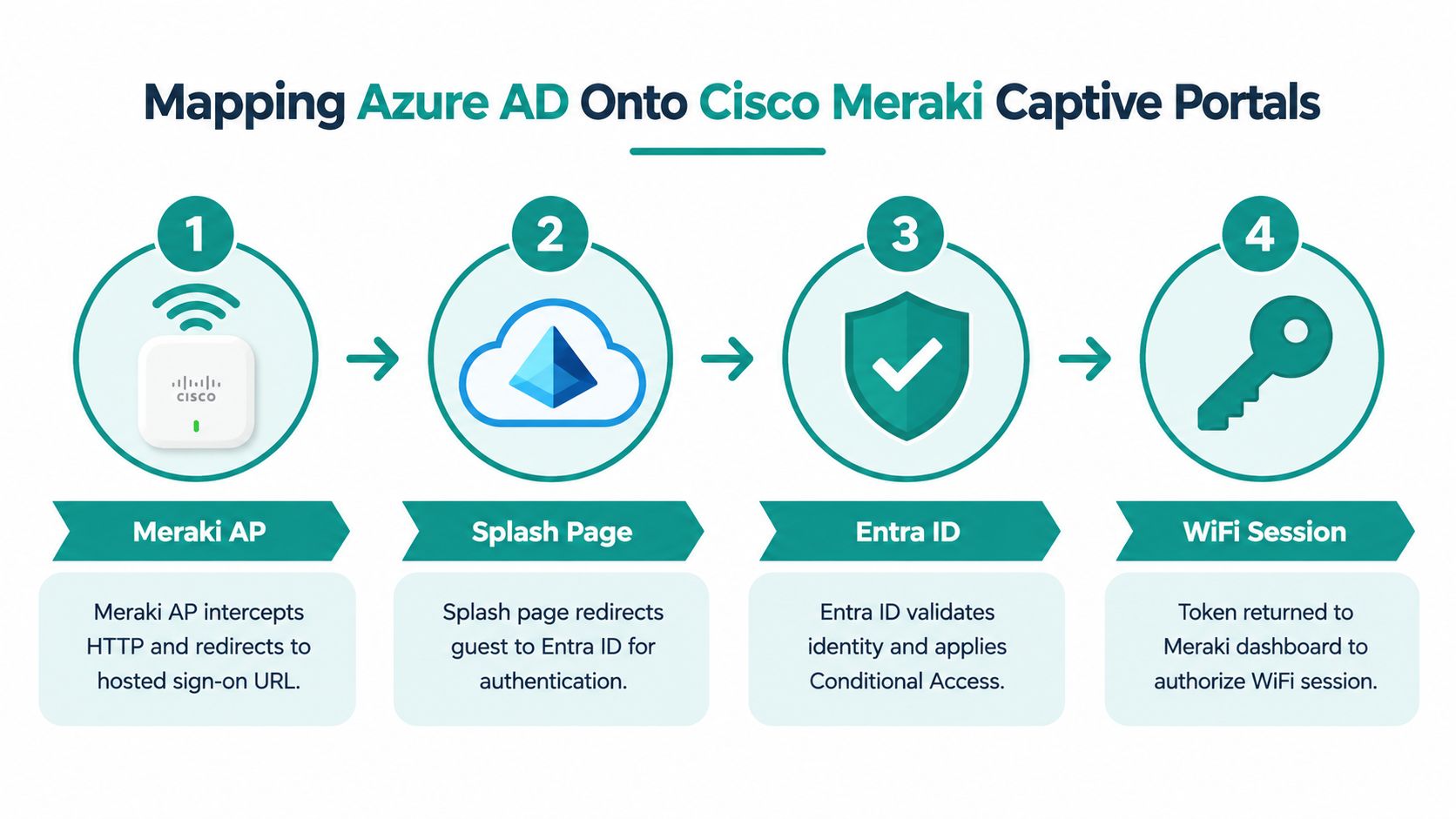
A hotel guest taps your SSID, opens a browser, and sees a branded splash page. They sign in with Entra ID, and a few seconds later Meraki either keeps them in the lobby of the network or lets them through to the internet. That decision depends on how identity data from Entra ID is translated into a network action inside the captive portal flow.
Cisco Meraki handles the network gate. Entra ID handles the sign-in. Your portal logic connects the two. Cisco Meraki explains that captive portal deployments can validate users through Meraki-hosted or customer-hosted RADIUS, Active Directory, or LDAP, while Dashboard manages splash-page and access-control settings and the Captive Portal API supports custom branded experiences (Cisco Meraki captive portal solution guide).
What happens inside a Meraki guest flow
The easiest way to read this setup is as a handoff between a front desk and a door lock.
Meraki is the door lock on the guest Wi-Fi. Entra ID is the identity check at the desk. The captive portal is the clerk that reads the paperwork and tells the lock what to do.
A common flow works like this:
- A device joins the SSID, but Meraki places it in a pre-auth state.
- Meraki redirects the user to a splash page or external sign-on page.
- The user signs in through Entra ID.
- The portal backend receives the identity result and reads the claims it needs.
- The backend returns an access decision, such as allow, deny, time-limit, or place on a specific VLAN.
- Meraki applies that result to the session.
That last step is the part many identity articles skip. A token by itself does not put anyone online. The token has to be evaluated by a portal or policy service that can turn identity information into a Meraki action.
What Azure AD data usually maps to in Meraki
In plain terms, you are matching identity facts to network outcomes.
If the sign-in shows the user is a guest, the captive portal might allow standard internet access for a limited time. If the claims show the user belongs to a staff group, the same splash system can place them on a different VLAN or apply a different policy. If required claims are missing, access can be denied or reduced to a registration path.
Typical mappings include:
- User identity to confirm a real sign-in occurred
- Group or role claims to choose guest, staff, contractor, or student access
- Tenant or domain information to separate local users from outside organizations
- Session attributes to apply time limits, bandwidth rules, or policy tags
- Portal business rules to decide what Meraki should do after sign-in
That is the practical connection between Entra ID authorization and a splash page. The claim is the evidence. The Meraki policy is the outcome.
Three environments, one pattern
Hospitality
In a hotel, this model often supports more than one audience on the same wireless estate. Guests may receive internet-only access after a browser-based Entra sign-in or a lighter guest journey. Staff using the same splash framework can be sent to a more trusted network segment based on role, group membership, or a separate SSID policy. The value for operations is clarity. A front-desk team can explain why one login leads to ordinary guest access while another leads to staff resources.
Education
A school or university can use the same pattern to separate students, faculty, visiting lecturers, and contractors. The sign-in experience may look similar on the splash page, but the policy result is different. A student token might map to one VLAN, while faculty users get broader access for teaching tools and campus systems.
Retail or corporate BYOD
Retail stores and offices often have the messiest device mix. Shoppers, associates, contractors, and personal devices all arrive with different trust levels. A captive portal gives you a browser-based entry point, while IPSK or EasyPSK can cover devices that should bypass the splash page after trust is established. That helps with scanners, shared handhelds, or other devices where opening a browser every day creates support noise.
The setup work that determines whether the flow is reliable
The technical pieces are straightforward, but they have to line up cleanly.
You need an app registration in Entra ID, a redirect URI that exactly matches the captive portal path, and a portal service that can read the returned identity data and make a policy decision. You also need a clear method for mapping that decision to Meraki controls such as VLAN assignment, group policy, or session authorization. Finally, someone has to test the whole path in Dashboard, not just the sign-in screen.
That last point matters in hotels, campuses, and stores because a successful Microsoft login can still end in a failed Wi-Fi session. From an operations view, the test is simple: did the right person land on the right network with the right restrictions?
One option in this space is Splash Access, which supports Cisco Meraki captive portals, Azure AD integration, social login, social WiFi, and onboarding models including WPA2 and IPSK. In mixed environments, a platform like that can sit between the splash page experience and the identity policy engine, so the claim coming back from Entra ID becomes a usable access decision inside Meraki.
Operational Risks Most Azure AD Guides Skip
A guest can complete the Microsoft sign-in screen, return to the splash page, and still fail to get Wi-Fi. That gap is where operations teams spend their time.
Policy changes can break onboarding without obvious warning
Entra ID does not stand still. Microsoft says custom controls are being retired by September 30, 2026 and fully end-of-life by May 2027. Microsoft also says Conditional Access is expected to be enforced more consistently during credential registration, SSPR is planned to require explicitly registered methods from November 2026, passkeys are expected to become the default Entra ID authentication experience from September 1, 2026, and SMS or voice is scheduled to be retired as a native capability on February 1, 2027, according to Microsoft's roadmap (Microsoft Entra ID security updates).
For a hotel, school, or store, those are not abstract identity changes. They affect the exact moment a person tries to get online. A front-desk tablet used to register temporary users may stop fitting the new flow. A lobby kiosk may send people into an MFA path it cannot complete. A captive portal tied to older assumptions about SMS or voice may still display correctly while the login journey fails before Meraki ever gets an allow decision.
That is the operational lesson many protocol diagrams miss. The browser page can look healthy while the access path behind it has already changed.
If your guest onboarding depends on a method Microsoft plans to retire, the splash page may still load while the actual access journey fails.
Authorization bugs are not always your fault, but they are still your problem
Identity teams often assume every access failure comes from a bad group, a missed role, or a wrong redirect URI. Sometimes the issue is deeper.
Recent coverage reported that Microsoft disclosed multiple severe identity issues in September 2026, including an authorization bypass in Azure AD B2C with CVSS 10.0 and an Entra ID elevation-of-privilege flaw rated 9.9 (coverage of Microsoft's September identity issues).
The practical takeaway for a Meraki captive portal is simple. Never treat a successful sign-in screen as proof that the user should get network access. Your portal or intermediary service still has to check tenant boundaries, validate token details, and expire sessions sensibly. In guest Wi-Fi terms, the claim is the wristband. Meraki should only open the gate after someone verifies that wristband belongs to the right venue, for the right time window, with the right level of access.
Where Wi-Fi teams usually feel the pain
These problems tend to surface in familiar places:
- Stale group memberships that keep internet access open after a guest, contractor, or student should have lost it
- Wrong-tenant consent that sends the user through Microsoft successfully but returns identity data from an organization you did not intend to trust
- Token replay exposure when portal sessions are handled loosely or left valid too long
- Passkey rollout confusion for staff, faculty, or temporary workers who expected older sign-in methods
- Guest and staff journey collisions when one SSID feeds different identity flows into the same splash process
Front desk staff usually see the symptom first. "The guest logged in but the Wi-Fi did not work" sounds like a network complaint, but the root cause may be an Entra policy change, a consent boundary mistake, or a stale authorization decision between the portal and Meraki.
That is why this part of the design deserves as much attention as the login screen. In a captive portal setup, reliability means the identity decision stays accurate after Microsoft changes, after sessions age, and after real users do unexpected things.
Your Guest Wi-Fi Authentication Checklist
A guest walks into the lobby, joins the Wi-Fi, signs in with Microsoft, and expects internet access in seconds. If the splash page accepts the sign-in but Meraki places that device on the wrong policy, the guest still experiences a failure. That is why your checklist needs to follow the path of access. Identity decision first, network result second.
Keep the design simple enough that your front desk, help desk, and network team can all explain it the same way.
Start with one access story per user type
Before you review settings, write down the access story for each audience. A hotel guest, employee, contractor, kiosk, and student should not all travel through one vague Microsoft login path. In a Meraki captive portal, each path should answer three plain questions: who is signing in, what proof do you trust, and what network access should follow?
If that story takes a full paragraph to explain, the design is already too tangled.
Identity design choices to confirm
Start with the trust boundary. In practice, this means deciding which Entra ID tenant and which app registration are allowed to speak for a user on your splash page.
- Choose the identity boundary carefully. Decide whether guest access should use a dedicated app registration, a separate tenant, or a tightly scoped integration inside your main tenant.
- Request only what the portal needs. Ask for the minimum claims and scopes required to identify the user and make the access decision.
- Define authorization rules clearly. Use app roles, group membership, or another documented method that your operations team can review without guessing.
- Separate guest and staff logic. If employees and guests share an SSID, make sure the policy path after sign-in still splits cleanly.
A good test is simple. Can your team explain, in one sentence, why one person reaches guest internet while another is blocked or sent to a different VLAN?
Token checks that protect the gate
A token is the badge presented at the splash page. Meraki or the portal should not trust the badge just because it exists. It should trust it only if the badge was issued for your app, by the tenant you intended to trust, and within the time window you allow.
Check these items every time:
- Audience matches your portal or API. Reject tokens issued for some other application.
- Issuer matches the tenant you trust. A successful Microsoft sign-in from the wrong organization is still the wrong result.
- Stable identity claims are used. Prefer tenant and object identifiers over editable fields such as display name or email alias.
- Roles or scopes support the access decision. Authentication alone does not grant the right network outcome.
- Session lifetime matches the risk. Shorter sessions reduce replay risk and stale access, but they can also create more reauthentication for real users.
That last point is where many hospitality teams feel the trade-off. Long sessions make the lobby experience easier. Short sessions reduce the chance that yesterday's authorization decision still controls today's access.
Confirm the network will honor the identity result
This is the part protocol diagrams usually skip. After Entra ID says who the user is, your Wi-Fi stack still has to turn that answer into the correct guest experience.
| Checklist Area | What to Confirm | Why It Matters |
|---|---|---|
| SSID policy | Guest, staff, contractor, and BYOD traffic follow distinct policy paths | Prevents one splash flow from applying the wrong rules to everyone |
| Meraki redirect behavior | The splash redirect URL is allowed and stays consistent | Reduces sign-in loops and failed returns to the captive portal |
| VLAN or policy mapping | Group or role outcomes map to the intended network placement | Turns token claims into actual Wi-Fi access |
| EasyPSK and IPSK planning | Known devices can use a lower-friction method where appropriate | Helps repeat guests, managed devices, and shared hardware connect reliably |
| Logging | Sign-in failures and authorization denials are visible to support teams | Speeds up troubleshooting when a user says, "I logged in and nothing happened" |
Keep one test account for each real path. Guest, staff, contractor, kiosk, and BYOD should all be validated separately, because each one proves a different part of the design.
Cutover checks before real guests see it
Run the rollout in stages. Start with a pilot SSID, a limited building, or a small user group so you can compare identity logs with Meraki behavior before the entire property depends on it.
Use this pre-launch review:
- Test different device types. Phones, tablets, laptops, and captive browsers do not always handle redirects the same way.
- Test the full return path. A successful Microsoft sign-in is not enough if the browser fails to return to the splash page cleanly.
- Review failed sign-ins and failed authorizations separately. One points to identity policy. The other often points to mapping, session handling, or Meraki policy application.
- Check front-desk recovery steps. Staff should know what to ask first: SSID used, sign-in screen reached, account type, and whether the device ever received internet access.
- Validate fallback paths. Social login and social WiFi solve a different problem than Entra-backed workforce identity and should be tested on their own terms.
The best checklist is the one your operations team will still follow six months from now.
Splash Access offers Cisco Meraki-focused guest WiFi workflows that connect captive portals, social login, IPSK, EasyPSK, and Azure AD or Entra identity into one operational flow. If you're trying to make guest access simpler without losing control of authentication and authorization, visit Splash Access and see how that model fits your hotel, retail, education, or BYOD environment.