A guest walks into a school, store, hotel, or corporate office, opens a phone, and joins the WiFi. The first screen asks for a shared password. The next asks for an email address. A third prompt may offer social login, but the IT team still has no reliable way to connect that session to a directory identity, device policy, or access lifecycle.
Azure AD SSO integration, now Microsoft Entra ID SSO integration, changes that experience. A Meraki captive portal can redirect users to Microsoft sign-in, apply the organization's authentication and MFA policies, then return the result to the guest network. At the same time, teams can use IPSK, EasyPSK, social login, social WiFi, vouchers, or QR-code onboarding for visitors who don't belong in the corporate directory.
This approach works best when SSO is treated as one part of a broader authentication solution. Identity claims decide who the user is, while Cisco Meraki network policy, private keys, and captive portal rules decide what the device can access.
Why Azure AD SSO Changes Guest WiFi for Good
A shared WiFi password looks simple until a classroom fills with students, a retail floor opens to shoppers, or a corporate meeting brings in outside devices. Someone posts the password in a group chat, a former contractor still knows it, and the help desk gets pulled into resets that don't improve accountability.
A Meraki captive portal with Microsoft Entra ID creates a more controlled path. The user joins the SSID, reaches the splash page, and is redirected to Microsoft sign-in. After authentication, the portal can authorize the session and associate the result with the device or MAC address. The user gets a familiar sign-in flow, while the network team gets an identity-based event instead of an anonymous shared secret.

One WiFi design can serve different audiences
Education environments often need separate experiences for students, staff, guests, and temporary event users. Retail teams may want social WiFi or social login for shoppers, while employees use directory authentication. Corporate BYOD networks need stronger identity checks without forcing every visitor to install a certificate or learn a private wireless key.
That's where IPSK and EasyPSK fit. A private key can be assigned to an individual device or user rather than exposing one password across an entire WLAN. Cisco describes Identity PSK deployments where each device receives a unique password, with WPA2/PSK, MAC filtering, AAA override, and an authentication server such as ISE used together for policy control. Cisco's IPSK deployment guidance provides the relevant model for per-device access.
SSO and private keys aren't competing ideas. They solve different points in the connection process. SSO verifies a directory identity, while IPSK or EasyPSK can give a device a controlled network credential. Social WiFi remains useful when the goal is low-friction customer access and marketing consent, but it shouldn't replace directory-based controls for staff or students.
Practical rule: Use Microsoft Entra ID for people who have an organizational identity. Use social login, vouchers, or EasyPSK for audiences who don't.
Splash Access supports Meraki-oriented captive portal workflows that bring these choices together, including SAML-based Azure AD authentication, social WiFi, QR-code onboarding, and WPA2 or IPSK access. Teams reviewing the wider access-control model can also use this Suby developer access guide as a useful reference for thinking about automated authorization beyond the initial login.
What to Prepare Before You Configure Anything
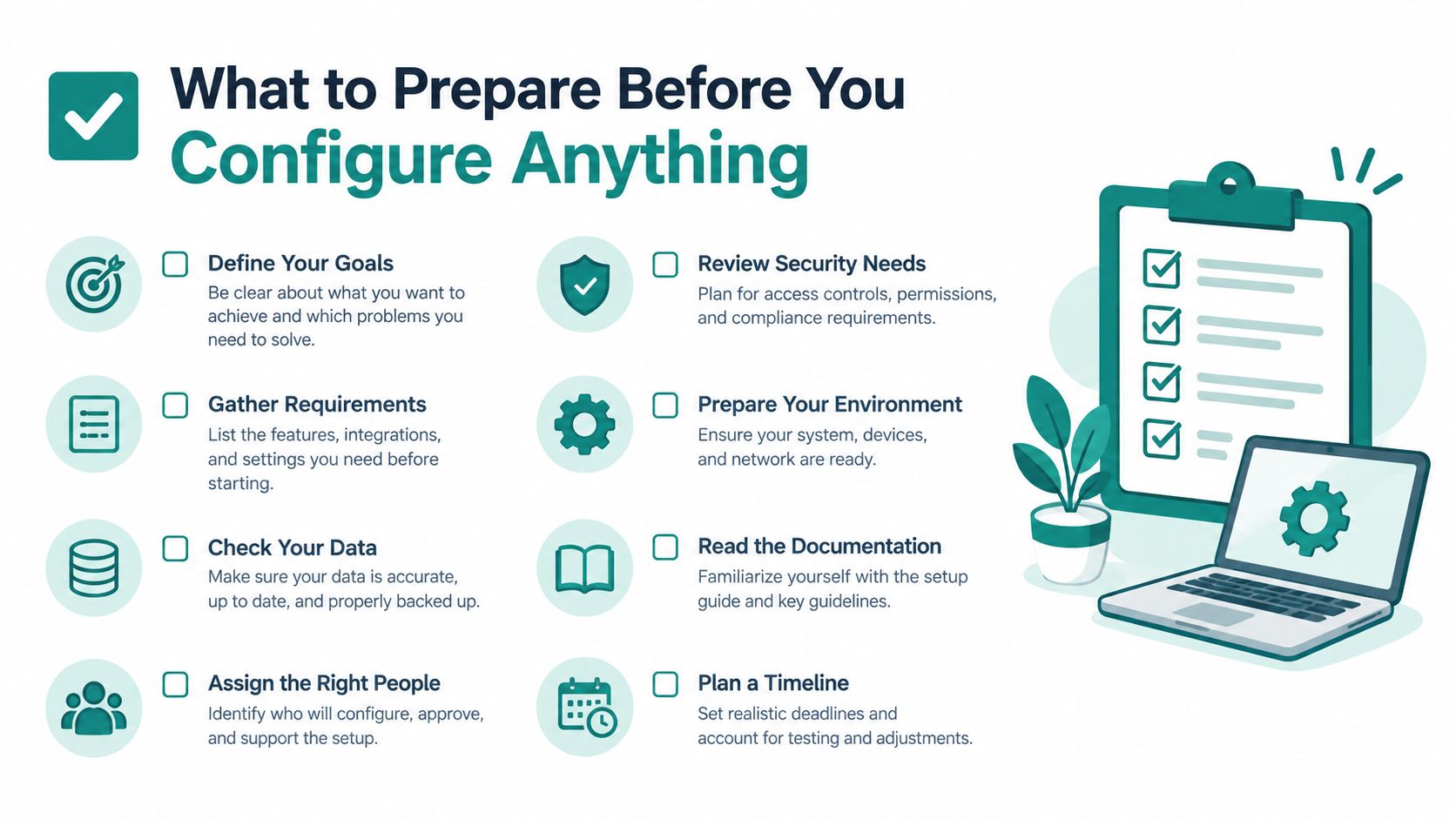
A school staff member, a retail customer, and a corporate BYOD user can reach the same Meraki splash page but require different access decisions. Staff and managed students may authenticate with Microsoft Entra ID. Shoppers may use social WiFi, while contractors and short-term visitors may need EasyPSK or a time-limited voucher. Record these paths before creating the application so SSO, social login, and private keys are assigned deliberately.
Confirm the identity side
Microsoft's guidance separates SAML for existing applications from OpenID Connect or OAuth 2.0 for new cloud or hybrid applications. OpenID Connect and OAuth suit newly developed applications because they support SDK-based configuration and Microsoft Graph access. SAML remains practical for existing portals that do not support OIDC or OAuth. Microsoft's SSO protocol guidance explains the SAML terminology and flow.
The Azure Active Directory name changed to Microsoft Entra ID in 2023. The enterprise application gallery, conditional access framework, administrator workflows, and integrated application model continued, so older Meraki and captive portal documentation may still use Azure AD.
Before testing, gather the details that connect identity policy to the wireless path:
- Tenant details: Confirm the Entra tenant, administrator access, application owner, and intended user or group assignments.
- Portal values: Obtain the captive portal Entity ID, Reply URL, ACS endpoint, and required redirect values from the portal provider.
- Authentication policy: Decide whether MFA, conditional access, first-time consent, and device limits apply to the WiFi application.
- Meraki access: Confirm dashboard permissions, target network, SSID, splash page mode, and whether the WLAN uses WPA2-Personal, IPSK, AAA override, or portal-controlled authorization.
- Operations: Assign responsibility for sign-in failures, certificate rotation, claim review, and access removal when a user leaves.
Keep the portal and network tasks together with the Splash Access deployment checklist. Confirm whether the portal requires SAML, OIDC, or both before configuration. A late protocol decision often forces changes to claims, redirect handling, and the Meraki captive portal workflow.
Configuring Your Azure AD App and Meraki Captive Portal Connection
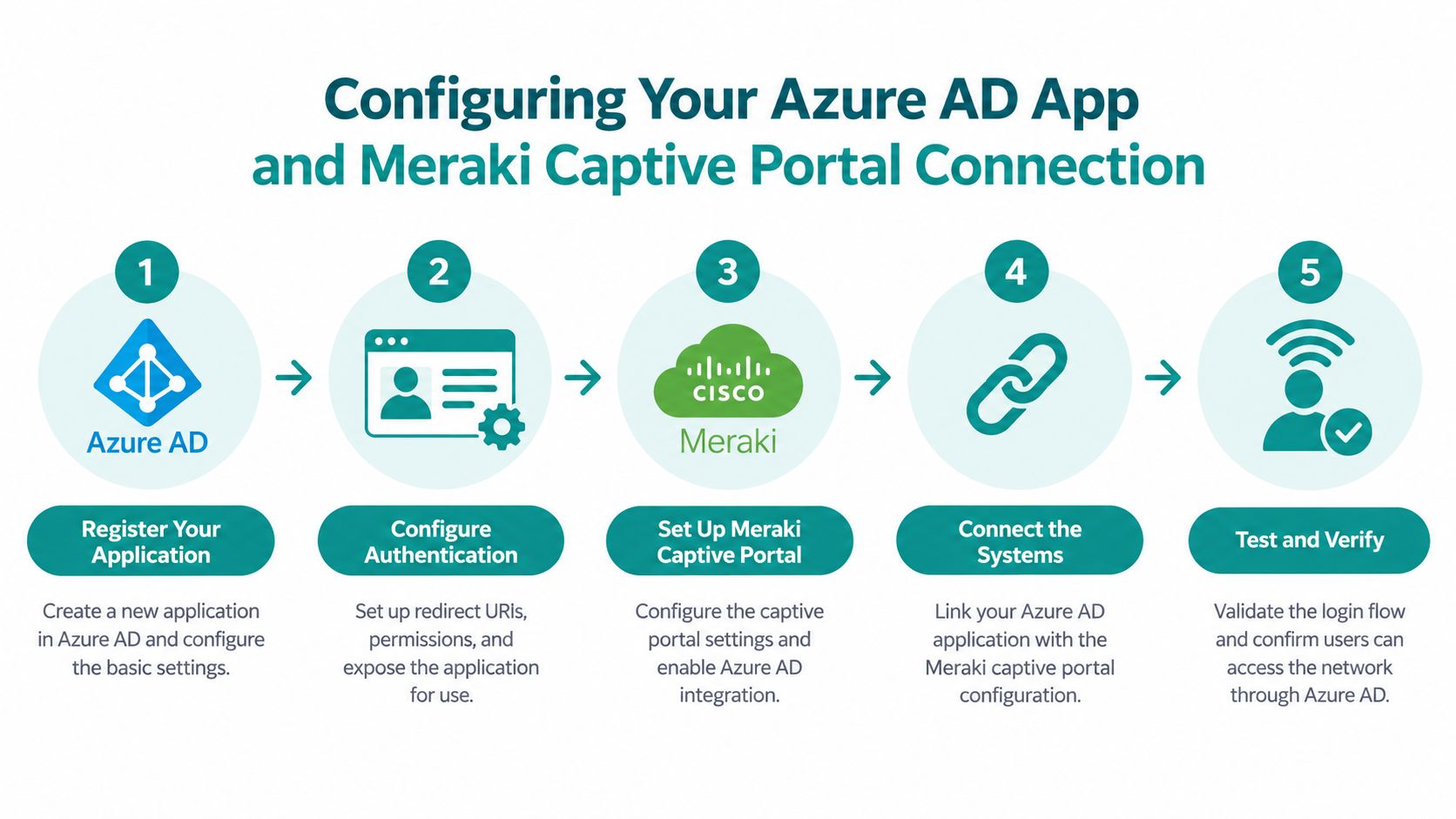
Build the connection in the same order that the browser will use it. The Meraki client reaches the splash page, the portal sends the user to Entra ID, Entra ID returns a SAML assertion or OIDC result, and the portal authorizes the client. If one URL or identifier differs between those systems, the redirect may work while authorization still fails.
Create the Enterprise Application
In the Microsoft Entra admin center, open Enterprise Applications, create or open the application used by the captive portal, and choose Single sign-on. Select SAML when the portal's integration expects SAML. For a newly developed portal that supports OIDC, use the documented OIDC application flow instead of forcing SAML into a modern token-based design.
For SAML, begin with Basic SAML Configuration. Enter the exact values supplied by the portal:
- Identifier, also called Entity ID: This identifies the service provider.
- Reply URL, also called ACS URL: This tells Entra ID where to send the assertion.
- Sign-on URL, if required: Use the portal's documented launch address.
- Relay state or optional parameters: Add these only when the portal documentation requires them.
Microsoft's SAML protocol documentation describes the service-provider-initiated flow, where the service provider sends an AuthnRequest using HTTP Redirect binding. The Entra identity-provider sign-in URL follows the format ` and Microsoft highlights exact Identifier and Reply URL matching as a primary troubleshooting point. Microsoft's Entra SAML protocol documentation is the reference to use when checking those values.
Exchange metadata and certificates
Download the Entra federation metadata XML and signing certificate. In the captive portal administration area, upload or map the identity-provider metadata, then confirm that the portal trusts the signing certificate and knows the Entra sign-in URL.
The reverse direction matters too. The portal supplies service-provider metadata or individual SAML values. Import those values into the Entra application rather than retyping them when the portal supports metadata exchange. Microsoft's implementation guidance emphasizes metadata exchange, signing certificates, user assignment, ACS or Reply URL accuracy, and attribute mapping as the points that determine whether the assertion can be consumed. Microsoft's application proxy SSO guidance covers the same implementation principles.
Attach the portal to the Meraki SSID
In the Meraki Dashboard, configure the guest SSID to use the selected splash page and external captive portal workflow. Make sure the portal receives the client correctly and that the authorization response can return to the Meraki network.
Don't mix up wireless encryption with portal authentication. WPA2-Personal protects the wireless association, while the captive portal controls access after association. IPSK or EasyPSK can provide unique per-device credentials, and the portal can still collect identity or consent information after the client connects. Cisco's guest WiFi material describes WPA2-Personal as a preferred PSK approach, while its marketplace description for Splash Access includes WPA2-encrypted guest WiFi, rotating keys, and QR-code login. Cisco's guest WiFi marketplace information is relevant when comparing portal and key-based onboarding.
A practical configuration resource is the Azure AD WiFi authentication guide, especially when the Meraki splash page and Entra application are being configured by separate administrators. Test with a single pilot group before exposing the SSID broadly.
Mapping Claims and Choosing Between SAML and OIDC for WiFi Access
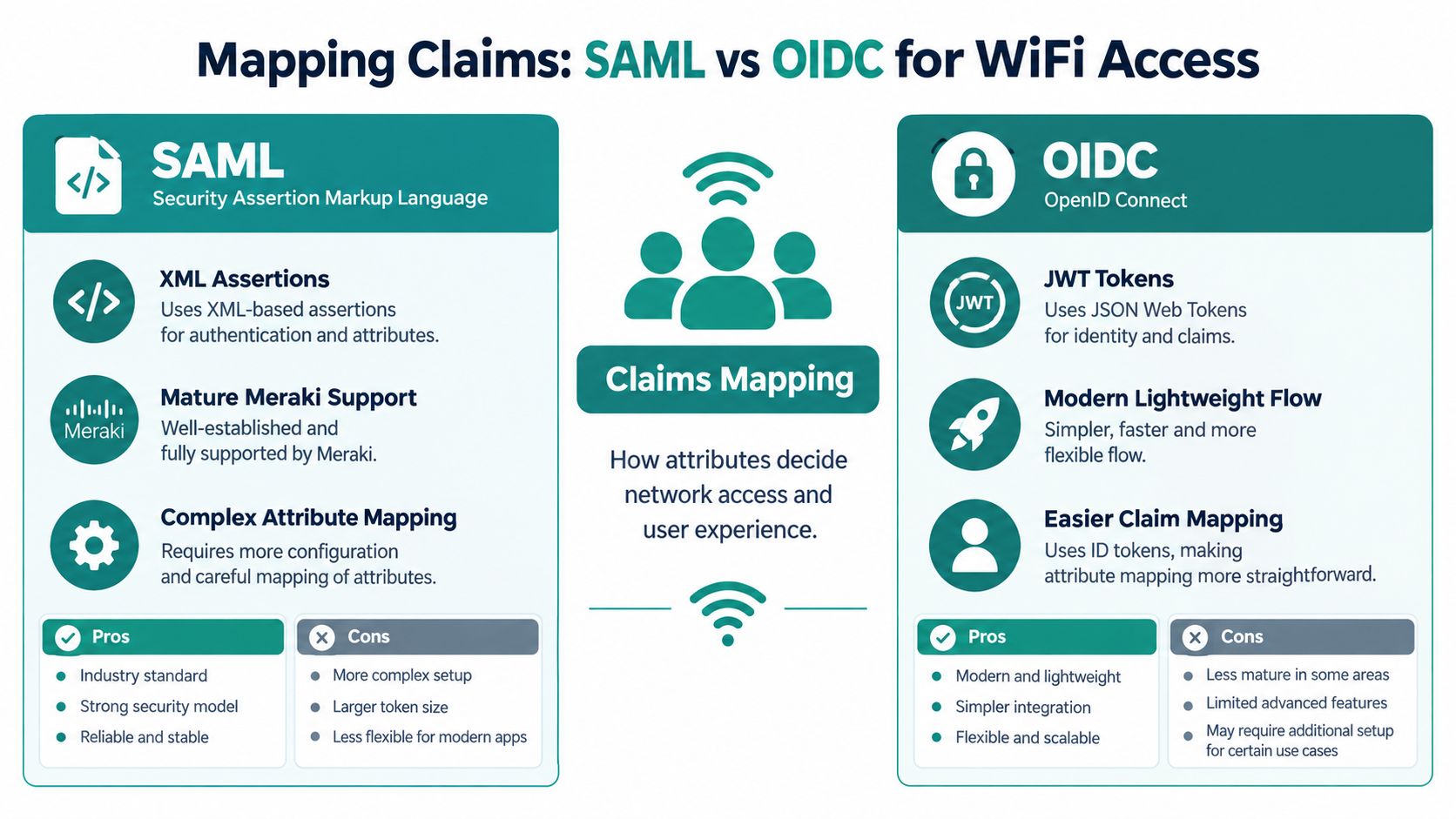
Authentication identifies the person. Authorization determines the network access that person or device receives. A Meraki captive portal needs both decisions before it can place a client on the intended network, assign an EasyPSK or IPSK policy, or send a visitor through social WiFi.
SAML returns an XML assertion. OpenID Connect uses OAuth 2.0 and returns JWT-based tokens. Microsoft Entra ID supports both. The practical choice depends on what the portal already supports, how the redirect flow is implemented, and who will maintain claim and token validation.
Choose the protocol by the portal workflow
| Criteria | SAML 2.0 | OpenID Connect |
|---|---|---|
| Typical fit | Existing enterprise applications and mature portal integrations | New cloud or hybrid applications |
| Main result | XML identity assertion | JWT-based token |
| Configuration style | Entity ID, ACS or Reply URL, certificate, claims | Client registration, redirect URI, scopes, token validation |
| Strength | Established federation model for enterprise applications | Modern application flow with SDK support and Microsoft Graph access |
| Common friction | Exact URL matching and complex claim mapping | Token, consent, scope, and redirect handling |
| WiFi use | Strong fit when the captive portal already supports SAML | Strong fit when the portal was built for OIDC |
For a Meraki captive portal with an established SAML connector, SAML usually creates fewer changes. A newly developed portal may suit OpenID Connect and OAuth better because its application flow and SDK support match current cloud development patterns. Microsoft's protocol selection guidance provides useful criteria for making that decision.
Keep claims purposeful
Begin with one stable identifier, such as the email address or directory identifier accepted by the portal. Add group, role, department, campus, store, or visitor-category claims only when each value drives a defined policy.
In a school, a student group can map to restricted internet access while a staff group receives a broader policy. A retailer can use employee claims for internal WiFi and route shoppers through social login. In corporate BYOD, a group claim can place approved users into an EasyPSK workflow, with a private key or device policy assigned afterward.
Keep authentication, authorization, and key assignment as separate decisions. The portal can use a small claim set to connect them without turning every directory attribute into network data.
Extra claims increase the troubleshooting surface and may expose information the network does not need. Check the exact claim name, value format, and capitalization expected by the portal. For SAML deployments, this Azure AD SAML integration reference helps verify Entra application values and portal-side mapping.
Testing Your SSO Flow and Validating With Real Sign In Data
A successful app registration proves very little by itself. A real test starts at the Meraki SSID, opens the captive portal, completes Microsoft sign-in, returns to the portal, and applies the intended network policy. Test that entire path with a private browser session, a phone, a laptop, and a shared or managed device that matches the site.
The portal should initiate the redirect. Entra ID should authenticate the user, including Conditional Access or MFA when required. The portal must then validate the assertion or token before authorizing the client.
Validate the user experience
Check each handoff:
- Redirect: The client reaches the splash page without a stale browser session bypassing the flow.
- MFA: Required Conditional Access and MFA prompts appear.
- Consent: A first-time user may be asked to approve a permission such as
User.Read. - Return: The browser comes back to the portal instead of displaying an error page.
- Authorization: The portal authorizes the device or MAC address only after validation succeeds.
- Policy: Access matches the user's group, role, IPSK, EasyPSK, or guest category.
An Entra captive portal example documents maximum concurrent devices and background re-validation options of 1, 6, or 24 hours. The Entra ID UniFi guest WiFi example shows why shared-device testing matters. A setting that works for a corporate laptop may create repeated prompts on a classroom tablet or retail kiosk. Test these controls alongside social login and private-key workflows rather than treating Microsoft SSO as the only access path.
Read the logs after every test
Review the Entra sign-in record and the portal event for each attempt. Microsoft provides sign-in logs, application-specific details, application activity reports, and Usage and insights through the admin center and Microsoft Graph. Microsoft's Usage and insights documentation describes the reporting views, while the Entra sign-in log documentation explains the sign-in records used to investigate failures.
Do not rely on a green browser result. Record the test time, user, device type, SSID, result, claim outcome, and portal response. Compare a successful student, employee, shopper, and BYOD test where those flows apply. If a portal error appears, use the error logging documentation to match the browser event with the corresponding Entra record.
This evidence distinguishes an authentication failure from a claim-mapping, authorization, captive-portal, or key-assignment problem.
Keeping SSO Reliable and Fixing Common Captive Portal Issues
A Meraki SSID can work perfectly during rollout, then fail after a password change, certificate renewal, group update, device replacement, or directory departure. Reliability comes from checking each dependency instead of treating every failure as an SSO problem.
SSO also differs from lifecycle automation. SAML and OIDC authenticate users, while joiner, mover, and leaver processes still need separate rules for assignment, revocation, cleanup, and temporary guest expiry. That separation matters in schools, retail contractor networks, and corporate BYOD. Coverage of SSO and provisioning differences explains the distinction.
Fix the failure at the right layer
- No redirect: Check the Meraki splash configuration and portal launch URL.
- SAML error after sign-in: Compare the Identifier and Reply URL character by character.
- Authentication succeeds, access fails: Confirm Entra assignment and group membership, then inspect returned claims.
- Assertion rejected: Check the signing certificate, issuer, audience, NameID, and attribute names.
- Silent sign-in fails: Review token timeout, Primary Refresh Token refresh, password changes, cached credentials, device registration health, and Kerberos tickets.
Hybrid deployments need a Kerberos change review. The July 2026 Windows Server update changes the default AD DS encryption type from RC4 to AES-256. Environments that still depend on RC4 may encounter authentication or SSO failures after that update. Include the applicable Windows Server update documentation in the change plan rather than relying on the Microsoft Seamless SSO guide used elsewhere.
For Education, review groups and devices around enrollment changes. For Retail, keep employee access separate from shopper social WiFi. For Corporate BYOD, record when each EasyPSK or IPSK credential is issued, rotated, disabled, and reassigned. SSO, social login, and private keys can coexist, but each path needs its own expiry and authorization checks.
If clients cannot pass the splash page, follow this captive portal troubleshooting guide after checking DNS reachability, browser behavior, portal logs, and Entra events.
Splash Access provides Cisco Meraki captive portals supporting Azure AD and Microsoft Entra ID SAML authentication, social WiFi, QR-code onboarding, WPA2, IPSK, and guest access workflows. Visit Splash Access to review options for Education, Retail, or Corporate BYOD networks.