The card taped to the front desk has been there for two years. Someone typed the guest password into a free generator, printed the code, laminated it, and stopped thinking about it. The password still works. So does the photo of that card that a wedding guest shared in a group chat last June.
Most guides end at the scan. The camera reads the squares, the join banner appears, the guest is online, done. That's the easy half. The calls I get are rarely "the code won't scan". They're "a stranger is streaming on our point-of-sale VLAN" or "the sign on the wall points at a login page nobody here built".
So treat a Wi-Fi QR code as what it really is: a printed password with a long memory. Get the payload right, size it for the room, then plan for the day it gets photographed, forwarded, or covered with a sticker.
What a Wi-Fi QR Code Actually Stores
Every guest code reduces to one line of text. Once you've seen it, you can debug one by eye.
The string behind the squares: WIFI:T:WPA;S:Lobby-Guest;P:Welcome2026;;
Four key-value pairs, separated by semicolons, closed with a double semicolon because the format wants an empty terminator. Read it left to right and the mystery disappears.
| Field | Holds | Example | Watch for |
|---|---|---|---|
| T | Security type | WPA | Use WPA for WPA2 or WPA3 personal; WEP and nopass are legacy or open options |
| S | Network name (SSID) | Lobby-Guest | Must match the broadcast name exactly, including case and spaces |
| P | Password | Welcome2026 | Stored as readable text, so anyone who photographs the code can read it |
| H | Hidden network flag | true | Include only when the network does not broadcast its name; leave out otherwise |
| Reserved characters | Symbols that break parsing | backslash before ;, : and backslash | Escape them before encoding or the code will fail to connect |
T is where first attempts go wrong. Use WPA for WPA2 or WPA3 personal, which is the same WPA2-PSK handshake your access point already runs. WEP and nopass exist for ancient hardware and open networks, and choosing one of those by habit produces a code that scans and then stalls.
This layout is a widely used convention rather than a universal formal standard, so decoders differ in what they accept, as this breakdown of how the Wi-Fi QR payload is built sets out. WPA and WPA2 personal networks are broadly supported. Enterprise networks need EAP identity and phase-2 fields that a simple generator won't add.
The password sits in that string as readable text, not as encrypted data, so the image deserves the same handling you'd give the credential itself. A photograph of the card is a photograph of the password.
Then the trap that eats more codes than anything else: reserved characters. A password like p@ss;word has to be written with the semicolon escaped, or the phone parses everything after it as garbage. Use a generator that escapes automatically, and keep guest passwords free of semicolons, colons and backslashes anyway.
Static Codes, IPSK and Captive Portals Compared
Three questions settle the choice faster than any feature list. How many people connect in a week? How long does each one stay? And can you cut one person off without disturbing everyone else?
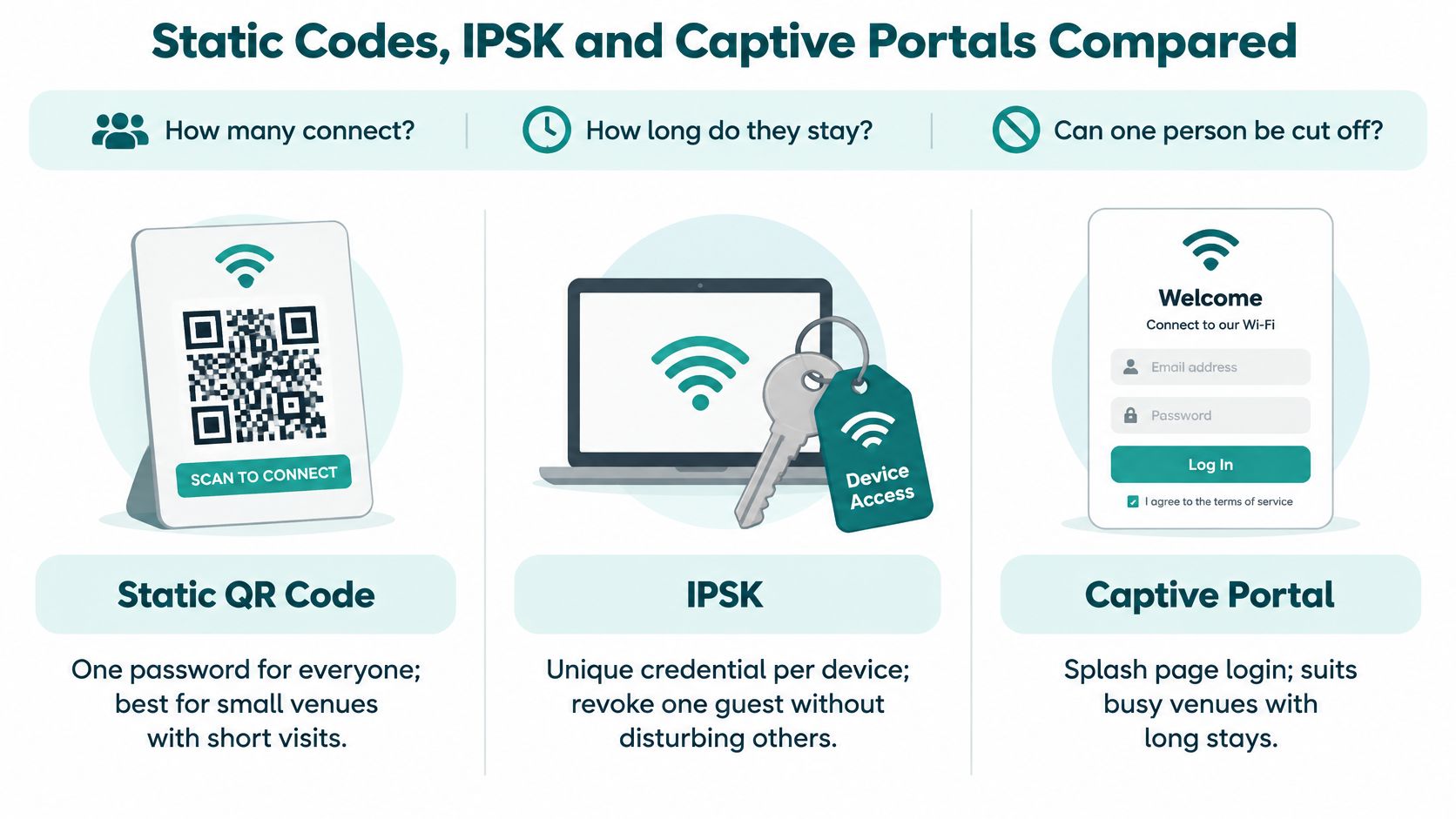
| Approach | Best for | Revoke one user? | Data collected |
|---|---|---|---|
| Static shared password QR | Cafés and short events | No, change the password for everyone | None |
| Captive portal with social login | Retail and hospitality marketing | Yes, per session | Social profile details the user allows |
| Captive portal with SMS authentication | Visitor venues needing a verified contact | Yes | Mobile number |
| IPSK QR on Cisco Meraki | Corporate BYOD and contractors | Yes, per individual key | Device or user identity |
| EasyPSK | Schools and student dormitories | Yes, per user | Student or campus account identity |
Revocation is the dividing line
A static password QR suits a café with forty covers and two-hour dwell times. It costs nothing and guests love it. The trade is revocation: when someone has to go, everyone's password changes and every printed card becomes waste paper. For a short event, that's fine. For a hotel with 200 rooms, it's a Tuesday afternoon you'll repeat every quarter.
IPSK on Cisco Meraki solves that by giving each device or person a separate key. Pull one key and the finance team never notices. This is the configuration corporate BYOD and contractors need, because the alternative is handing a three-week contractor the same credential the leadership team uses. EasyPSK applies the same logic in education, where dormitories and staff networks need per-user keys that survive a term change.
Social login, social wifi, and what you're trading
Social login on a captive portal turns onboarding into a marketing channel, which is why retail and hospitality venues gravitate to social wifi. The guest trades a profile for access and the venue gets a contact it can talk to again. If you don't want to collect that data, don't dress up a marketing portal as a convenience and call it done.
SMS authentication covers the middle case, visitor venues that need a verified mobile number before granting a session. More friction than social login, more accountability than a shared password. If you want the plumbing explained before you commit, this overview of guest Wi-Fi authentication shows how portals, keys and identity checks fit together.
NIST's guidance on wireless access is blunt about the wider picture: treat external devices as untrusted, place BYOD and third-party devices on a separate network rather than letting them reach internal systems, and authenticate each user before granting access, then limit them to what they need, as outlined in NIST's publication on wireless network security. That is the technical foundation every captive portal and authentication solution should sit on.
Managed platforms built on Meraki bundle portal, IPSK and bulk QR printing into one dashboard. Worth it if you'd rather not script the API yourself.
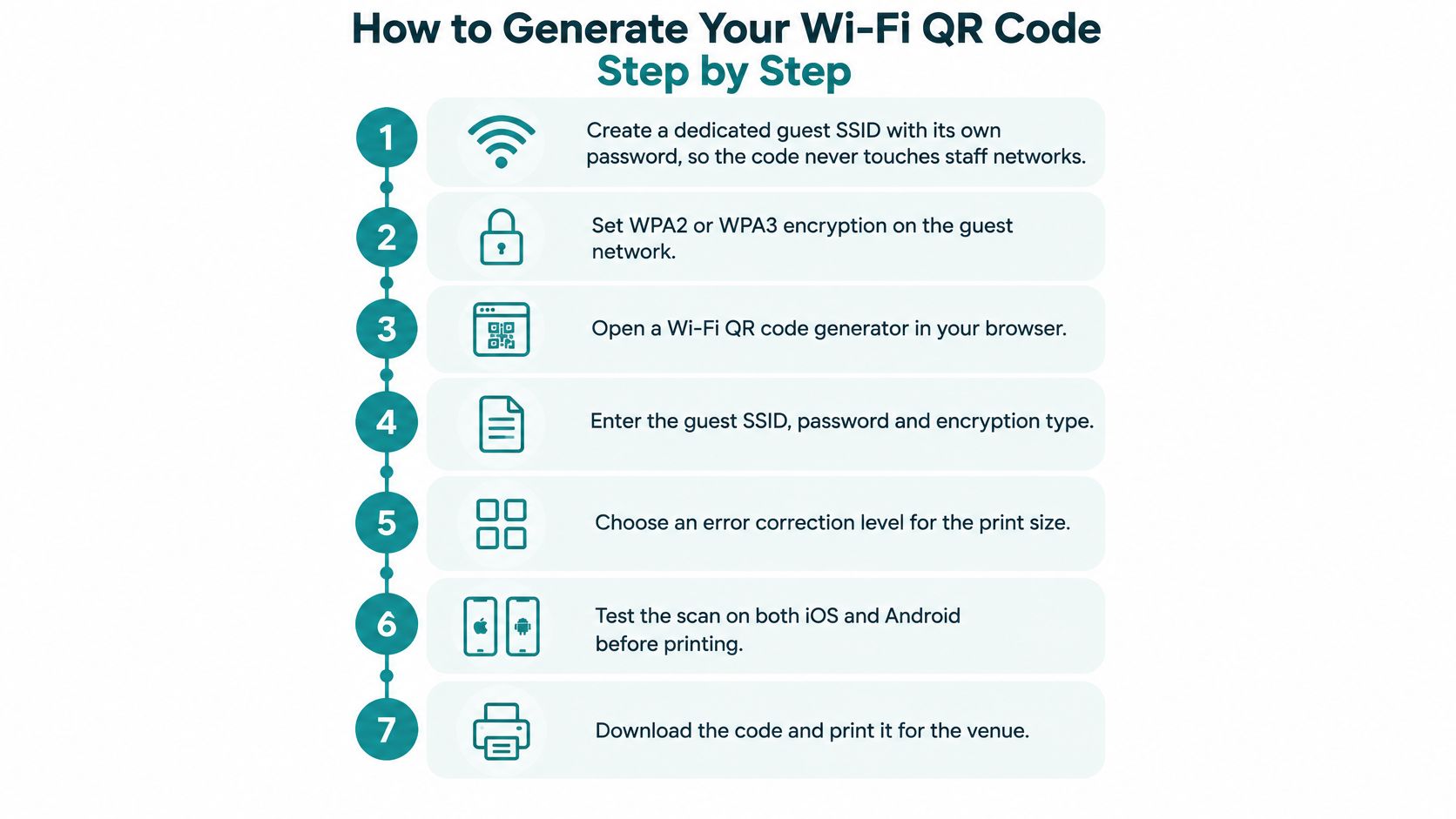
How to Generate Your Wi-Fi QR Code Step by Step
Twenty minutes of work, done in this order. The sequencing matters, because steps two and three are where most dead codes are born.
- Create a dedicated guest SSID with its own password. If your Cisco Meraki environment already segments traffic, use a VLAN-specific credential instead. Containment is the whole point: a leaked code stops at the guest network rather than wandering into staff shares.
- Enter the SSID exactly as it broadcasts, then set WPA2 or WPA3 personal. Copy the name from a phone's Wi-Fi list instead of retyping it, because case, spaces and hyphens all count. Set the security type explicitly as WPA, and if the venue runs WPA3-only, print that on the card so older handsets don't fail.
- Set the hidden flag only when the network hides. A wrong flag is the quiet killer: the code scans, the phone searches, and nothing happens. If your SSID broadcasts, leave the flag out entirely.
- Generate and export losslessly at final print size. SVG for anything going to a printer, high-resolution PNG for a screen or a welcome email. A resized screenshot has already lost the module grid you need.
- Decode the exported file on three real phones. A recent iPhone, a mid-range Android and the old handset in the drawer. Confirm the network name and password appear correctly before anyone attempts a connection, since you're checking the payload, not the camera.
- Connect on both 2.4 GHz and 5 GHz where both are offered. Note which band behaves differently, because a guest SSID missing from the 5 GHz radio profile is a common Meraki misconfiguration.
- Store the source file in a restricted folder and write the revocation plan. Name who can change the guest password, where the editable master lives, and how printed cards get replaced. A PDF scan of a printout is not a source file.
Here's the routine laid out for a wall poster or a staff handout.
A sharp-looking code on your monitor proves nothing. The only test that counts happens on a phone that isn't yours, at the distance a guest will stand.
Printing and Placing Codes So Every Phone Scans
Scanning reliability is geometry before it is data. A perfect payload printed too small fails exactly like a broken one. I would treat the printed code as a credential that stays in public after it is displayed, photographed and shared, so the print decision needs to account for both camera capture and later handling.
ISO/IEC 18004 defines the QR symbology, encoding methods, dimensions, error-correction rules and decoding requirements, and it sets out four Reed-Solomon levels with approximate recovery capacities of 7% (L), 15% (M), 25% (Q) and 30% (H) in the ISO/IEC 18004 QR code standard.
| Level | Approx. recovery | Best use |
|---|---|---|
| L | 7% | Clean screen displays with no wear or handling |
| M | 15% | Ordinary printed table cards and reception handouts |
| Q | 25% | Signage, lobby stands and codes that get handled daily |
| H | 30% | Codes with a logo overlay or a known risk of damage |
Higher correction is not a substitute for resolution. It adds redundant data and makes the symbol bigger, which helps with a scuffed card and does nothing for a tiny code on a crowded poster. Choose the level for the wear the code will face, then size it for the distance and lighting guests get.
The module size cliff
Module size is where clean artwork still fails. If each dark or light square is too small for the phone camera to resolve, the decoder has nothing reliable to work with, even when the file itself is perfect. A slightly larger code with a quiet zone beats a tightly cropped code with more correction every time.
Plain English: your error-correction choice protects against damage, and your print resolution decides whether the camera ever sees the pattern. Get the size right first, then pick the level. For screens, keep the export lossless. For print, work at final size and avoid shrinking the artwork inside the layout after export.
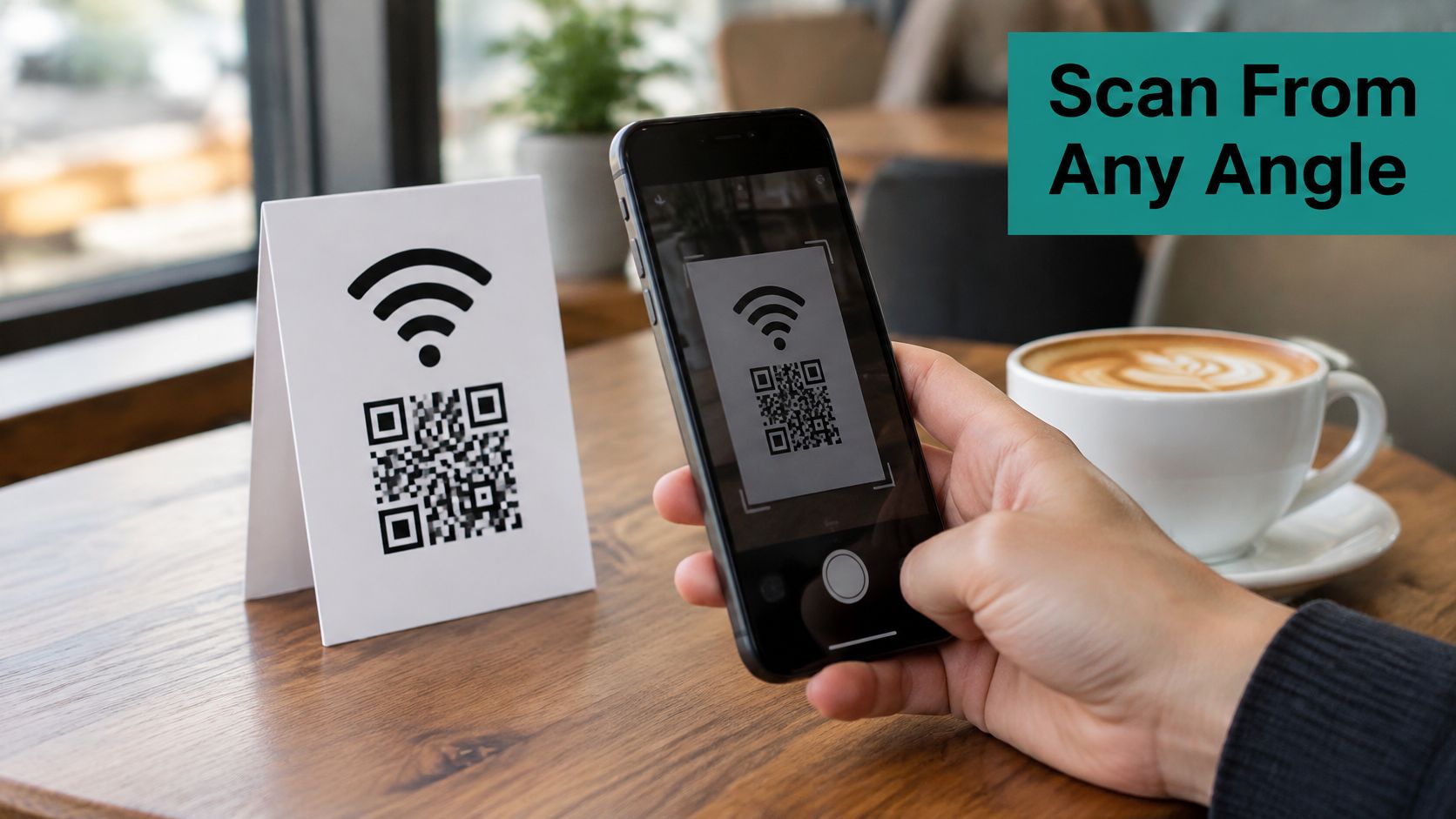
Keep the quiet zone, avoid rounded or distorted modules, tint with real contrast rather than two similar brand colours, and test at the longest expected distance and the worst lighting angle you can find. Placement matters as much as artwork. A code behind glass, under a glossy overlay, on a curved surface or beside a bright display gives the camera less to work with. Put it where a guest can stand naturally, without blocking a counter or inviting a crowd to gather.
If the code is going onto large-format signage, how the ink sits on the substrate affects fine detail more than you might expect, and the KLM Design & Prints Mimaki guide explains what to ask your printer for. That matters for entrance posters, wall panels and outdoor boards where the code may look sharp from across the room but lose its edges up close.
Do this once per location: print a single sample at final size, tape it where guests will stand, and scan it from that spot in the worst light of the day. Then throw it away and print the run.
Protecting the Password After the Code Is Shared
A photo of the code is a photo of the password. Access stays valid until someone changes it, and in most venues nobody has been named to change it.
With 89 million Americans scanning QR codes in 2025 according to ScanQueue data reported in QRCode.co.uk's QR code statistics, a printed code on a table will be photographed dozens of times a week by people you never see. Most are guests doing nothing wrong. Some forward it to friends in the car park.
The tampering side gets less attention and deserves more. A sticker placed over a real code sends guests to a convincing fake login page, and cloned or manipulated codes can also lead to phishing, malware, unwanted tracking and collection of device, IP and location metadata, as guidance on QR code risks and Wi-Fi onboarding sets out. Walk your venue once a season and once after every reprint, and look at each code as a stranger would.
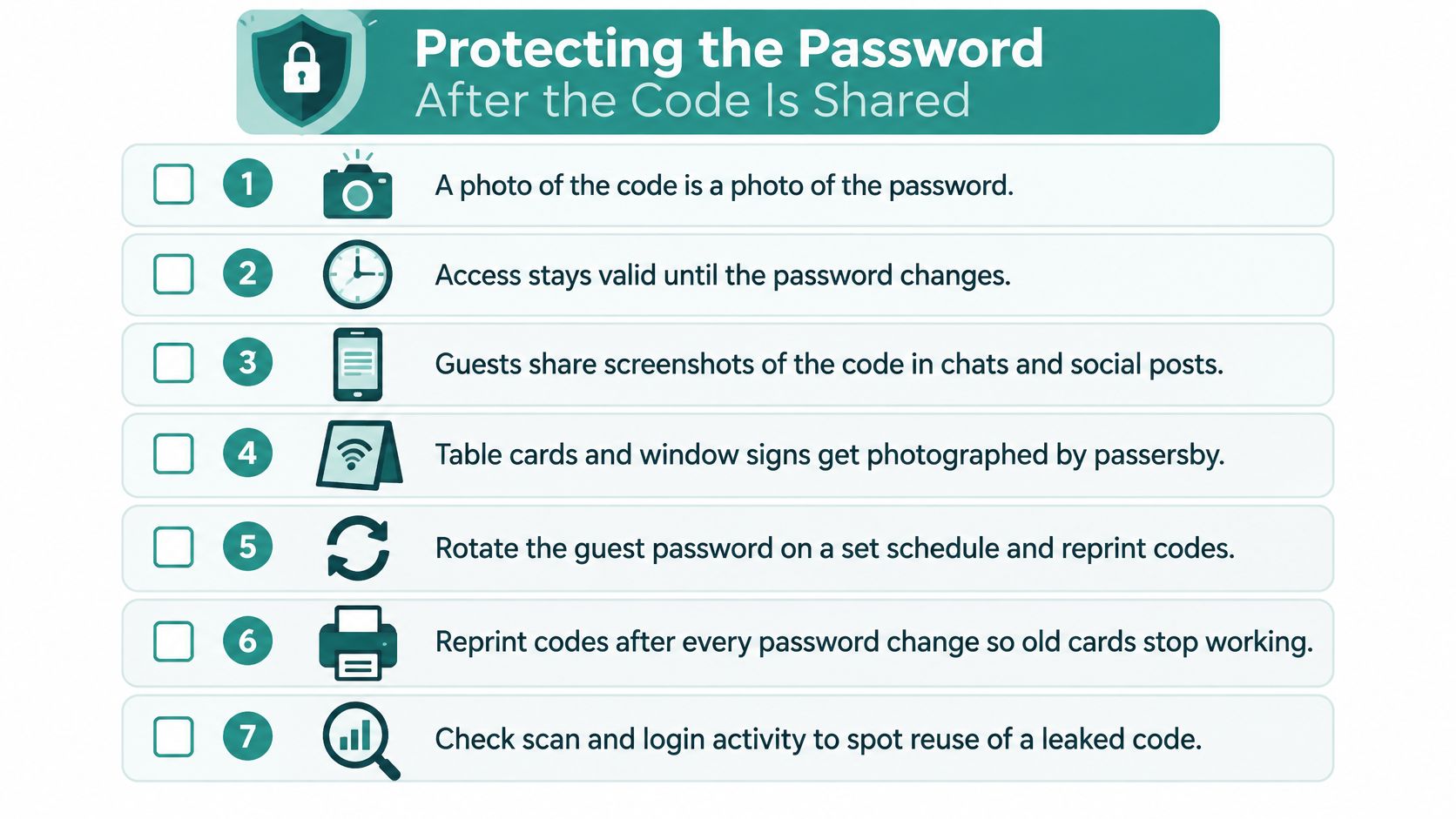
The checklist I'd run before printing
- Segment the guest SSID. Guests ride the guest network and nothing else. No route to the point-of-sale, the file server or the camera system.
- Rotate on a fixed schedule and after any staff departure. Monthly for hotels, quarterly for offices, immediately after a suspected leak.
- Move to per-user credentials where the venue supports them. The per-user Wi-Fi security keys IPSK and EasyPSK provide mean revocation is one action, not a reprint programme.
- Pair every rotation with a reprint. A card that still shows the old password is a support call and a wasted guest.
- Check scan and login activity. A code that suddenly generates traffic at 3am from the car park is telling you something.
- Harden the rest of the wireless estate. This guide on how to secure business wireless networks covers the firmware, admin access and monitoring basics that sit around the code itself.
Never let a code on a wall be the only thing standing between a guest and your internal network. It's a door handle, not a lock.
Fixing Codes That Scan but Won't Connect
A successful scan proves the camera read characters. It proves nothing about whether the phone can join.
Joining depends on how the receiving device interprets the payload, whether the generator got WPA2 versus WPA3 right, whether the network hides its name, and whether the operating system allows the profile change, as this analysis of Wi-Fi QR code compatibility and failures explains. That's why a venue with mixed iPhones, Android handsets, managed enterprise endpoints and older hardware needs a test matrix, not a guess.
| Symptom | Likely cause | Fix |
|---|---|---|
| Scan opens text or a web link | Missing WIFI: prefix or closing semicolons | Regenerate using the exact WIFI:T:…;; layout |
| Network appears, password is rejected | Reserved characters not escaped | Escape ;, : and backslash, then re-test |
| Works on iPhone, fails on Android | Parser handles security type differently | Set WPA2 explicitly and test on both platforms |
| Connects on 2.4 GHz only | Guest SSID missing from the 5 GHz radio profile | Check band settings for the guest SSID |
| Enterprise network will not join | Missing EAP identity fields | Use identity-based onboarding instead of a generic code |
| Older device or camera refuses to scan | Camera or app limitations | Print the short password beside the code |
Work the table from the top. The first two rows account for most of the tickets, and both are fixed in the generator rather than on the network.
The fallback nobody prints
Put the short password in readable type beside every code. It costs one line of design and covers the guest whose camera is scratched, the visitor with accessibility needs, and the 2016 handset that still works fine for everything else. Tell staff who to call when neither path works, and give them a second credential they can hand out.
If you're chasing a specific connection failure, this walkthrough of common Wi-Fi connectivity issues orders the checks sensibly, starting with the ones that cost nothing.
Confirm Your Guest Setup Before You Print
Run this as a go or no-go list. Anything short of a yes delays the print run, not the launch.
- Is the guest SSID separate from staff and internal networks? If it isn't, stop here.
- Is the password unique, and does it have a named owner? A credential nobody owns is a credential nobody rotates.
- Does the code decode correctly on three real phones?
- Does it connect on both bands where both are offered?
- Does the printed sample scan from where guests stand?
- Does a revocation plan exist, with a reprint budget attached?
Then match the method to the venue. A static QR is fine for a short-term café or a one-week event. Schools and dormitories fit EasyPSK. Corporate BYOD and contractors fit IPSK on Cisco Meraki. Hotels with returning guests, retail with marketing goals and visitor-heavy sites fit a captive portal with social login or SMS authentication. Healthcare, and anywhere with sensitive network neighbours, should default to per-user credentials.
That split is what we build for. WPA2 guest Wi-Fi lets a visitor scan a QR code and join through a simple, secure onboarding flow, and Visitor IPSK QR management goes further by putting an individual key inside each printed code. Both are delivered through captive portals that deploy straight into the Meraki Cloud, so the QR on the wall and the portal behind it are managed in one place rather than two.
Pilot at one site. Put the code up for a week, log every failed connection and every support call, fix what the log reveals, then roll out to the rest. One location teaches you more in seven days than a rollout across twelve teaches you in a quarter. Our own guide to setting up guest Wi-Fi covers the network side of that pilot if you want the order of operations.
Splash Access gives you a Wi-Fi QR code generator that sits inside a real access-control workflow, pairing branded captive portals and WPA2 guest onboarding with Visitor IPSK QR management where each code carries its own revocable key, all deployed directly into Meraki Cloud. If you're planning guest connectivity across hotels, campuses, shops or offices, you can run one pilot location and see how the codes, portals and revocation behave together before you print a single card. Start at Splash Access and build the guest code you won't have to apologise for.