You're in a hotel room, your laptop is open, and the Wi-Fi icon says you're connected. But the login page keeps spinning, your inbox won't refresh, and the front desk card only says “Guest Wi-Fi.” The problem usually isn't finding the network. It's completing the captive portal authentication that sits between your device and the internet.
That flow can involve a room number, voucher, QR code, social login, SMS verification, or a private key such as IPSK. A modern hotel network also has to account for randomized MAC addresses, VPNs, custom DNS, and browsers that prefer HTTPS everywhere. This guide covers the traveler's connection experience and the operator's view, including how Cisco Meraki, EasyPSK, IPSK, and Splash Access can support a smoother guest Wi-Fi journey.
The Moment You Realize Hotel Wi-Fi Is Not What It Used to Be
A tired traveler in a robe clicks the hotel's guest network, waits for the browser window to appear, and gets nothing. The phone shows full bars. The laptop says “connected.” Still, every website times out.
That familiar scene exposes the main mistake in older hotel Wi-Fi guides. Connecting isn't simply selecting an SSID and entering a shared password anymore. Captive portals intercept a device's first network requests and redirect the browser to a welcome or authentication page before full internet access is permitted, as described in this overview of captive portal login behavior.
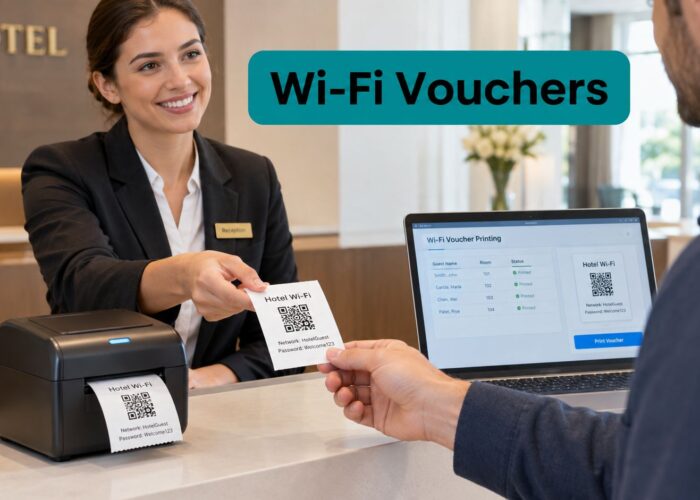
The page might ask for a room number and surname. It might accept a voucher from reception, offer a QR code, or present social login through Google or Apple. In a business hotel, a corporate visitor may encounter an identity-provider workflow instead. In a carefully designed Cisco Meraki deployment, the guest may use an IPSK or EasyPSK credential rather than share one network-wide key.
Industry coverage estimates that 68% of Wi-Fi connections at commercial venues pass through some form of captive portal authentication, while another survey places captive-portal use at about 60% of commercial Wi-Fi deployments globally. The same industry source reports that SMS or WhatsApp OTP portals typically convert 55–70% of guests who see them, compared with 15–25% for email-only forms and 30–45% for social login. These figures illustrate why the authentication choice affects the practical speed of onboarding, not just the appearance of the splash page. (Industry coverage of captive portal authentication methods)
For the guest, the useful question is, “What does this hotel require before I can browse?” For the operator, it's, “How can I make that requirement clear, fast, secure, and compatible with phones, laptops, tablets, and managed devices?” The broader hospitality technology context is covered in this guide to hotel technology trends.
Connecting as a Traveler From Lobby to Inbox
Start by checking the name of the network with reception or on the room information card. Hotels often separate guest Wi-Fi, conference Wi-Fi, and staff networks, so don't assume the strongest signal or the shortest name is the correct choice. A staff SSID may be restricted, while a conference network may use a different access code or bandwidth policy.
Select the guest SSID and wait for the device to associate. Some networks are open at the wireless layer and rely on the captive portal for access control. Others ask for a WPA password first, then open the portal. Either way, joining the network doesn't necessarily mean the internet is ready.
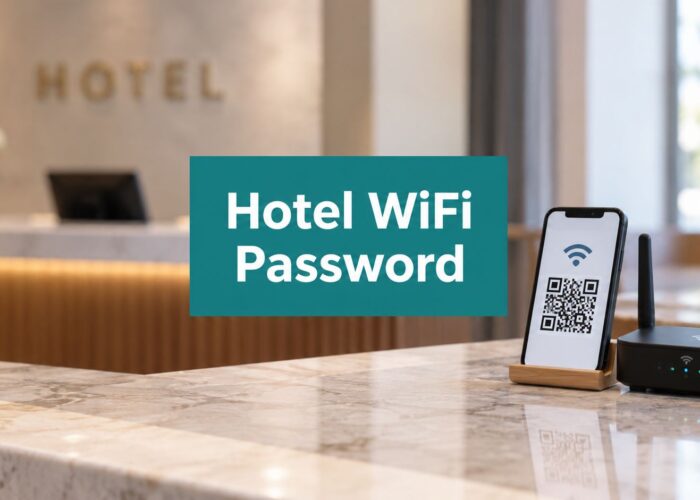
If the login screen doesn't appear, open a browser manually. The hotel may ask you to accept terms, enter your room number and last name, type a voucher printed at the desk, or use credentials sent in a confirmation email. Some welcome cards include a QR code that launches the onboarding page directly. QR-code onboarding is particularly useful when the hotel wants to avoid making guests type a long address or search for the correct portal.

Social login can make the process shorter for guests who prefer using an existing identity provider. A hotel might offer Google or Apple sign-in, while another property may send an SMS or WhatsApp one-time password. If the confirmation email contains a username and password, enter those exactly as provided, including any capitalization or spaces that the hotel has specified.
Practical rule: Don't judge the connection by the Wi-Fi icon. You're connected when a normal webpage loads, email refreshes, or the hotel's confirmation screen says access is active.
A portal-backed Splash Access deployment can also support QR-code onboarding, allowing a guest to move from network selection to an authenticated session without manually hunting for the login page. The exact screens depend on the property's configuration, but the underlying journey remains the same: select the correct SSID, complete the required authentication, and verify that the first real page loads.
Social Login, Vouchers, IPSK and the New Authentication Mix
The authentication method changes what the guest has to do and what the venue can associate with the session. Social login is often the most familiar option. It uses OAuth 2.0-style authorization, so the portal receives a token and approved profile attributes rather than the user's password. A guest can sign in with an identity provider such as Google or Apple, while the venue doesn't receive that password. (Social login for guest Wi-Fi)
A voucher takes a different approach. Reception can print a code, an event organizer can distribute one to attendees, or a marketing workflow can generate access tied to a campaign or loyalty offer. In a Splash Access workflow, the voucher can be presented as part of the guest experience alongside options such as social Wi-Fi, QR onboarding, or a form.
IPSK and EasyPSK are useful when a venue wants password-like simplicity without handing every guest the same shared key. An individual pre-shared key can be assigned to a person, device, room, or access policy, depending on the network design. In Cisco Meraki environments, this creates a practical middle ground between a public splash page and a more formal enterprise identity system.
SAML and Azure AD suit a different audience. A corporate visitor, student, contractor, or employee may already have an approved identity, so single sign-on can reduce duplicate account creation and keep access aligned with the organization's existing policies. Education networks may use identity-based access for students and staff, while BYOD corporate networks can separate visitors from internal resources without forcing everyone through the same guest workflow.
| Method | Typical user flow | Best fit venue | Data captured |
|---|---|---|---|
| Social login | Select Google, Apple, or another supported provider, then approve access | Hotels, retail, education, and social Wi-Fi campaigns | Approved profile attributes and session information |
| Voucher code | Enter a printed or issued code on the portal | Hotels, conferences, events, and short-term guest access | Voucher identity, session details, and any form data requested |
| IPSK | Enter or receive an individual pre-shared key | Cisco Meraki guest networks, BYOD corporate, and managed environments | Key assignment, device association, and session information |
| EasyPSK | Use a per-device or per-user key with a simpler password-style experience | Hotels, retail, education, and corporate guest access | Key and device relationship, plus configured session data |
| SAML or Azure AD | Choose organizational sign-in and complete the identity provider flow | Education, enterprise, and corporate visitor networks | Identity attributes approved by the organization and session records |
The right choice depends on the audience, privacy expectations, operational workload, and whether the venue wants a marketing interaction or a low-friction access decision. A broader breakdown of these options appears in this guide to Wi-Fi authentication methods.
Inside the Operator Playbook on Cisco Meraki
A reliable hotel deployment starts with separation. Create a dedicated guest SSID instead of placing visitors on the corporate or staff network. That boundary matters in hotels, retail stores, education environments, and BYOD corporate offices because guests need internet access, not visibility into internal systems.
The next layer is the portal policy. The operator decides whether the guest sees a branded splash page, a room confirmation form, a voucher field, social login, payment, or an identity-provider option. The network also needs a walled garden, which allows the portal, DNS, payment services, and social-login endpoints to work before authentication completes. Without that allowance, a guest can be redirected to a page that depends on resources the network is still blocking.
Designing the guest path
On Cisco Meraki hardware, the SSID and splash behavior provide the wireless foundation. A platform such as Splash Access can sit in the guest onboarding workflow to support branded pages, QR-code entry, vouchers, social login, and private IPSK authentication. The operator can choose one primary route and retain another as a fallback, which is valuable when a device struggles with browser-based detection.
EasyPSK helps simplify individual key assignment without requiring the operational overhead of full 802.1X for every guest scenario. IPSK can provide a more controlled alternative to a single shared password, especially where the operator wants to associate access with a particular device, visitor, room, or policy.
Azure AD and SAML belong where the visitor already has an organizational identity. A hotel hosting a corporate event might offer a company sign-in path for approved users, while a campus could use its existing identity provider for students, staff, or authorized guests. The operator shouldn't expose every method to every audience. Clear policy choices reduce confusion at the front desk.

Testing before guests arrive
Test the complete flow on both a phone and a laptop, as recommended in this practical captive portal setup guide. Check the first redirect, terms acceptance, voucher validation, social-login return path, and the moment full internet access begins. A mobile page filled with small text and tightly packed fields may work technically but still fail at the front desk because guests can't understand what to tap.
Operators should also consider how to protect your guest network as part of the wider deployment, not as an afterthought. The portal, SSID segmentation, access policy, and post-authentication controls should support one another.
For the configuration details, see this captive portal configuration resource. The practical target is simple: a guest should understand the next action immediately, and staff should have a clear fallback when the browser flow fails.
Why the Login Page Is Also a Security Moment
Hotel Wi-Fi is a security decision as well as a convenience service. In August 2026, Microsoft warned that attackers were targeting hotel Wi-Fi networks, and Malwarebytes advised travelers to complete portal authentication first and start a VPN only afterward. That sequence matters because the login stage can be a risk window. (Malwarebytes' hotel Wi-Fi security guidance)
A VPN can protect traffic after the device has authenticated, but turning it on too early can interfere with the captive portal redirect. Complete the hotel's legitimate access step first, then activate the VPN. If the portal presents a certificate warning, stop and ask the front desk to confirm the correct network and login process instead of clicking through automatically.
Room numbers, surnames, email addresses, and other details deserve the same care as any other credential. A portal that uses an HTTP-only sign-in page can expose information during the login exchange, and a convincing fake SSID or lookalike page can make the problem worse. Don't enter a password you reuse elsewhere into an unfamiliar page.
Safe-connect ritual: Confirm the SSID, authenticate through the expected portal, verify that a real webpage loads, then enable the VPN and continue with sensitive work.
The operator has responsibilities too. A branded portal should make the official network recognizable, explain what information it requests, use appropriate certificate trust, and avoid unnecessary collection. The guest shouldn't have to become a network security specialist just to check email from a hotel room.

Stuck on the Login Page and How to Get Unstuck
The most common failure is a captive-portal loop. The device joins the network, the page refreshes, and the hotel never records a completed login. This often happens because the browser begins with an encrypted HTTPS request, while the portal needs to see a fresh, unsecured HTTP request to trigger the redirect.
Open a plain HTTP webpage first, then return to the hotel portal. If that doesn't work, forget the Wi-Fi network and reconnect so the device starts a new session. Temporarily disable the VPN, ad blocker, filtered DNS, or privacy application that may be intercepting the redirect.
Private addressing features can also complicate detection. On iPhone and Android, randomized or private MAC settings may prevent the portal from recognizing the same device consistently. A Mac can have a similar issue with private Wi-Fi address behavior. Temporarily turning off the relevant setting for that hotel network can help, though it's sensible to restore the privacy setting after you leave.
A quick room-side rescue list
- Trigger a fresh redirect: Open a non-HTTPS page in the browser.
- Reset the session: Forget the hotel network, then join it again.
- Remove interference: Pause the VPN, ad blocker, or custom DNS temporarily.
- Check private addressing: Turn off randomized or private MAC behavior for the network if the portal keeps looping.
- Try another browser: A different browser can expose the splash page when the default one doesn't.
- Ask reception to reset access: The hotel may need to clear an old device session or confirm the correct SSID.
Older captive portals also used device fingerprinting and analytics in ways travelers rarely saw. A 2019 academic privacy study observed mandatory portal login at 19 hotspots, while 24 observed hotspots, or 35.8%, performed some form of fingerprinting. That historical context helps explain why modern privacy controls and browsers can be cautious around portal behavior. (Academic study of public Wi-Fi captive portals and fingerprinting)
If the page still won't redirect, use this hotel Wi-Fi login troubleshooting guide and contact the front desk with the device type, SSID, and exact screen message. That information is more useful than saying “the Wi-Fi is broken.”

Bringing It Together for Guests and Operators
For guests, the smoothest hotel Wi-Fi experience has a recognizable SSID, a portal that loads cleanly, and an authentication option that matches the situation. That could be a QR code, social login, voucher, or individual IPSK. The one habit that consistently helps is to finish the portal first, confirm access, and then enable the VPN.
For operators, the portal should feel like a front-desk greeting. Cisco Meraki provides the wireless foundation, while Splash Access workflows can support branded guest onboarding, social Wi-Fi, vouchers, QR access, IPSK, and EasyPSK across hotel, retail, education, and BYOD corporate environments. Azure AD or SAML can be added when visitors expect organizational single sign-on. Explore Wi-Fi solutions for hotels to map those choices to a practical guest journey.
The best connection is the one guests barely notice. They select the right network, understand the next screen, authenticate safely, and get back to their inbox.
If your hotel, retail site, campus, or corporate office needs a cleaner way to manage captive portals, social login, vouchers, IPSK, and QR-code guest Wi-Fi, review the available workflows with Splash Access. Start by documenting the guest journey on both mobile and laptop, then identify where Cisco Meraki, EasyPSK, Azure AD, or SAML can remove the friction.