It is Tuesday morning and your phone won't stop buzzing. Front-desk staff at one building say visitors can't get past the Wi-Fi login screen, a manager at a second site wants a departed contractor kicked off the corporate network immediately, and someone at a third location is asking why the lobby password stopped working. When you're running wireless across multiple buildings, keeping every access point, guest splash page, and user login in sync can quickly swallow your entire week.
A cloud managed network built on platforms like Cisco Meraki solves that daily juggling act by pulling configuration, monitoring, and firmware updates into one browser-based dashboard. Instead of logging into separate hardware boxes at each branch, you manage every site from one place. Still, moving management to the cloud raises practical questions that glossy brochures rarely answer, especially around captive portals, IPSK, EasyPSK, and social Wi-Fi.
You need to know what happens when things go wrong. Which staff and guest workflows keep running if a site's Internet link stutters or an identity provider goes offline, and which ones stall? Walking through the architecture step by step, comparing authentication models, and testing every failure point before rollout gives you a multi-site Wi-Fi setup that holds up under real-world pressure.
Cloud Managed Network vs On-Premises Control
Think about running Wi-Fi across ten separate buildings the old way. Every time you need a new guest SSID, a security patch, or a quick troubleshooting look, you either drive over with a laptop, juggle fragile VPN tunnels, or coordinate with someone standing in a dusty wiring closet. With a cloud managed setup, you open one web dashboard, change a setting once, and push it across all ten buildings in minutes.
In plain terms, a cloud managed network places the brains of your wireless setup in a cloud-hosted dashboard rather than inside a physical wireless controller sitting in a back room. Access points mounted on your ceilings still handle local Wi-Fi traffic on site, while the cloud dashboard handles configuration, alerts, firmware schedules, and policy templates.
Where Cloud Managed Networking Came From
This model grew out of cloud computing and software-defined networking (SDN), an architectural shift that separates a network's control plane (the software deciding how traffic should be handled) from its data plane (the hardware forwarding packets). According to the U.S. National Security Telecommunications Advisory Committee SDN report.pdf), cloud providers built SDN systems to link virtualized infrastructure on demand, enabling near-instantaneous service deployment, dynamic bandwidth allocation, and pay-as-you-go pricing before those same principles spread into telecommunications and everyday enterprise networks. For multi-site operators, that shift replaced manual, box-by-box device upkeep with centralized software control.
If you're still weighing hardware controllers against hosted platforms, our breakdown of cloud versus server Wi-Fi management explores the infrastructure trade-offs in greater depth. Financial planners comparing license renewals against hardware refresh cycles can also review TekRecruiter's perspective on cloud cost optimization for IT directors when building a multi-year budget.
On-Premises, Hybrid and Cloud Managed Networks Compared
Comparing the three operating models side by side makes it easier to spot where your current sites fit. Organizations running Cisco gear often encounter all three: pure on-premises deployments using local controllers such as Cisco Catalyst Center, cloud-first rollouts inside the Meraki dashboard, or hybrid estates bridging both.
| Factor | On-premises | Hybrid | Cloud managed network |
|---|---|---|---|
| Where configuration lives | Controller or appliance on site | Split between site and cloud | Cloud dashboard |
| Adding a new site | Install and configure locally | Configure locally, sync to cloud | Add from a template in the dashboard |
| Firmware and updates | Scheduled manually by IT | Mixed | Pushed from the cloud in set windows |
| Visibility across sites | Fragmented, site by site | Partial | One view across every location |
| On-site expertise needed | Local network administrator | Local plus remote support | Mostly cabling and mounting |
| Behavior during an outage | Local control continues | Local devices run while cloud sync pauses | Traffic can keep flowing while management pauses |
An on-premises controller still makes sense for a single, self-contained facility governed by strict air-gapped or local-only rules. A hybrid model works well when headquarters keeps legacy local appliances while branch sites adopt cloud dashboards. For multi-site venues like hotels, retail chains, schools, and distributed offices, a cloud managed network removes the daily friction of keeping every location aligned.
How the Cloud Dashboard and Access Points Work Together
One of the biggest misconceptions about cloud Wi-Fi is that all your browsing traffic detours through a remote cloud server before reaching the Internet. It doesn't. A helpful analogy is air traffic control: the cloud dashboard acts like the dispatch center planning routes and schedules, while your on-site access points are the runways where planes land. Even if the link back to the dispatch center gets shaky, planes already cleared for the runway keep landing safely.
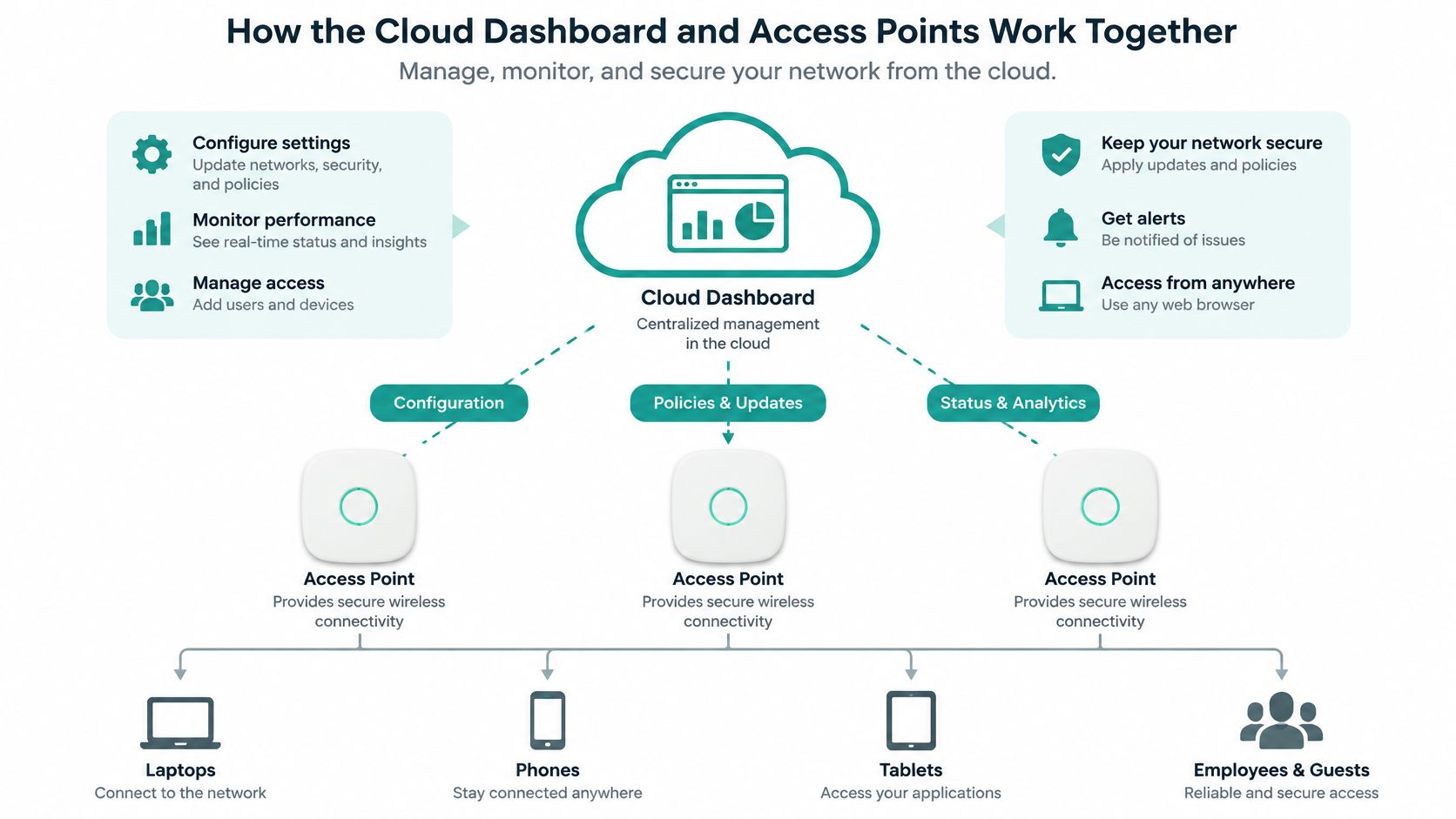
Breaking the architecture into three layers shows exactly where each workflow lives and what breaks when a link drops.
- Cloud dashboard layer: Stores SSID templates, firewall rules, VLAN tags, firmware schedules, and historical monitoring charts across every site.
- Local access point layer: Broadcasts Wi-Fi signals, enforces cached policies, and forwards client traffic directly across your local switch and broadband uplink.
- Supporting service layer: Hosts external workflows called at the moment of login, including your captive portal, identity provider, RADIUS server, and user credential records.
What Happens When an Access Point Boots
When a technician mounts a fresh Cisco Meraki access point and plugs in the Ethernet cable, the startup sequence follows three quick stages:
- The access point powers on over Power over Ethernet, grabs a local address, and opens an encrypted control tunnel out to the cloud dashboard.
- It downloads its latest site configuration, SSID settings, and cached security policies automatically from the assigned network template.
- It begins broadcasting wireless networks and forwarding user traffic locally on site without waiting on the cloud for every web packet.
Understanding how those stages behave helps you plan clean rollouts across distributed properties. You can dig deeper into day-to-day AP lifecycle tasks in our guide to access point management, and healthcare operators running sensitive clinical wings can see how RDE Technologies approaches managed Wi-Fi for nursing homes where local reliability is essential.
The Latency and Outage Trade-Off
Separating control from local forwarding keeps day-to-day traffic fast, yet it doesn't remove the network path between your buildings and the cloud. As NIST Special Publication 500-293 on cloud computing points out, cloud-consumer latency typically includes at least one Internet round trip between the site and the provider, and severe carrier latency or operational errors can mimic a denial-of-service event. NIST also advises teams to test round-trip latency, packet loss, jitter, DNS resolution time, and failover recovery from every major site rather than measuring solely from headquarters, especially when payment, authentication, or safety-adjacent tools depend on the link.
Say a hotel group pushes a redesigned guest splash page at 10 a.m. across twelve properties. Eleven sites receive the update immediately, while a remote lodge running on a congested cellular backup link sees the dashboard change stall for twenty minutes. Guests already logged in at that lodge keep streaming video and sending emails over the local data plane without noticing a blip, yet new guests arriving at the lobby may hit delays loading the external captive portal or authenticating against a cloud directory.
Engineering reality check: Management reachability and local user connectivity are two different failure domains. An access point can keep serving connected staff and cached WPA2 clients while live diagnostics, dashboard policy pushes, and external portal logins pause.
Recognizing that split early lets you document fallback rules for every workflow, rather than assuming "the Wi-Fi is up" means every login path is healthy.
Benefits for Multi-Site Wi-Fi Management
Consistency is the quiet superpower of centralized Wi-Fi administration. When your organization runs a single set of SSID names, firewall rules, and guest branding across every building, a visitor walking into a downtown shop gets the exact same onboarding flow as someone visiting a suburban branch fifty miles away. IT teams stop reinventing the wheel for every new floor plan.
Two groups feel that relief almost immediately. Multi-branch organizations and sprawling campuses cut hours of repetitive configuration work every week, while smaller businesses without a dedicated network engineer on payroll gain enterprise-grade visibility without hiring specialist staff at every site.
Consider a retail brand getting ready to open its fifteenth store. Instead of flying an engineer on site to configure switches, copy firewall lists, and rebuild the guest splash page from scratch, headquarters clones the existing store template in the Meraki dashboard before the access points even arrive in the mail. A local installer cables and mounts the hardware, the devices check in, and the store goes live with the exact same guest Wi-Fi experience and staff VLAN isolation as the other fourteen shops.
Why Cloud Managed Networking Is Now Mainstream
Adoption figures confirm that cloud administration has moved far beyond early experiments. According to the Grand View Research cloud-managed network market report, the global cloud-managed network market reached USD 31.1 billion in 2024 and is projected to climb to USD 39.7 billion in 2026 and USD 66.1 billion by 2030, an estimated 13.5% compound annual growth rate (CAGR) from 2025 through 2030. Large enterprises generated more than 61.0% of market revenue in 2024, reflecting demand across extensive branch and campus estates, while small and medium-sized businesses are projected to grow even faster at a CAGR above 14.0%.
That broad momentum spans hospitality, retail, education, healthcare, senior living, and corporate offices because every one of those sectors relies on predictable multi-site connectivity.
The Honest Counterweight
Centralized templates only pay off when each building has a stable broadband connection back to the cloud. If a rural warehouse or pop-up store drops its WAN link twice a week, remote troubleshooting and cloud-hosted captive portals will frustrate both your IT staff and your visitors.
Before committing to a rollout, run a five-minute dependency check on a notepad:
- List every physical site: Write down each branch, campus building, or store you plan to manage.
- Grade each Internet circuit: Mark whether the primary ISP is dependable and whether a secondary failover line (like dual-WAN fiber or cellular backup) exists.
- Weigh consistency against WAN risk: Confirm whether centralized templates and remote alerts outweigh adding a backup uplink at your weakest locations.
Captive Portals and Authentication Options Compared
Once your access points are online, the next question is how people get onto the Wi-Fi. Picking the wrong authentication method creates either helpdesk headaches (users locked out) or security gaps (untracked devices roaming on sensitive networks).
A captive portal is the branded web splash page that intercepts a new visitor's browser before the Internet opens up. It works like a polite doorman at a conference lobby: before letting you into the main hall, the doorman checks your pass, hands you the house rules, and notes who came through the door.
Moving Beyond One Shared Password
Many small venues start with a single shared WPA2-PSK password printed on a sign behind the counter. It takes two minutes to set up and works locally even if the Internet drops. The trouble begins the day an employee quits or the password leaks to the parking lot: changing that one passphrase kicks every single laptop, phone, and printer off the Wi-Fi at once, and you have zero visibility into whose device caused a security alert.
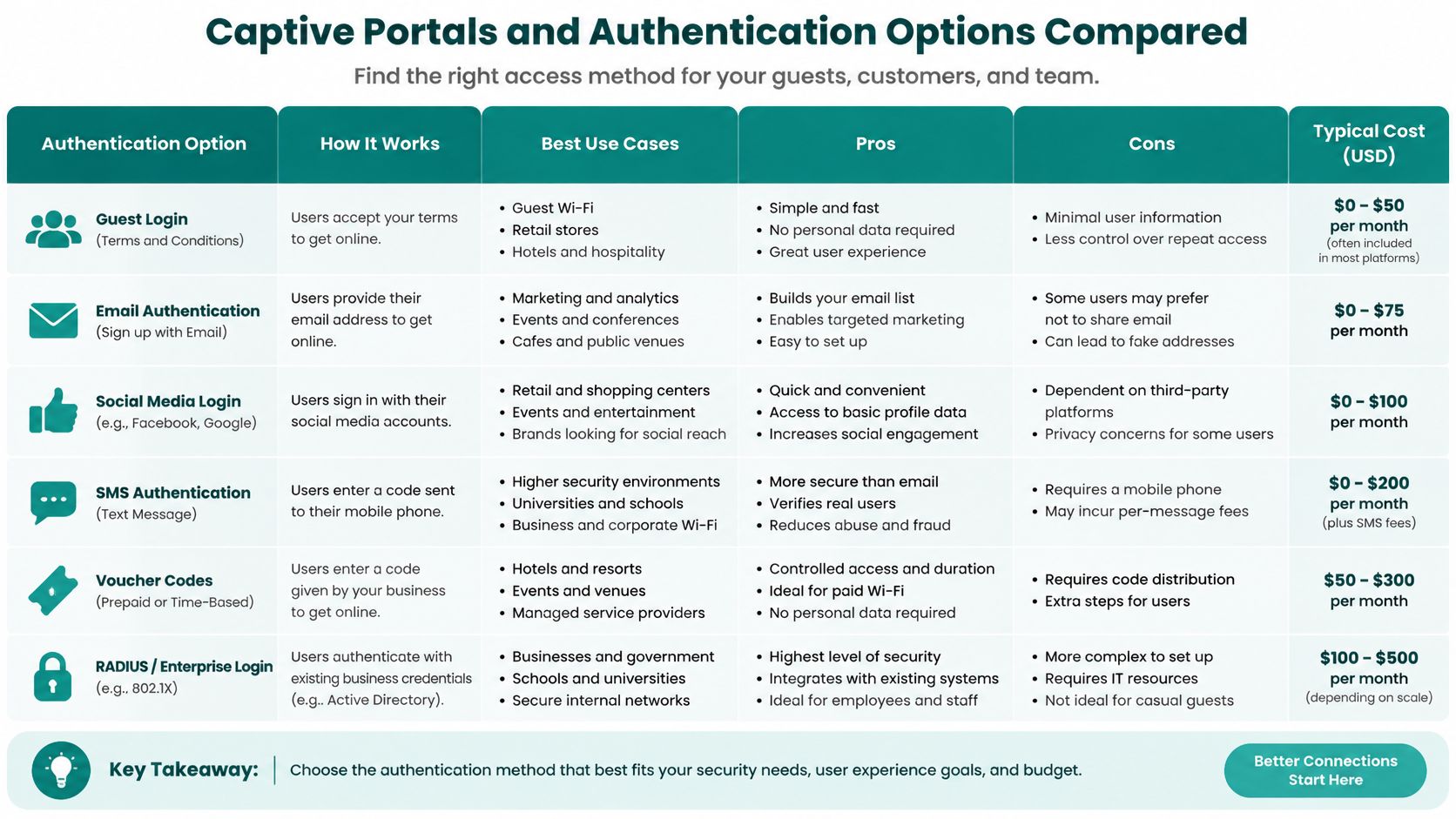
That's where Private Pre-Shared Key (PPSK), widely known on Cisco Meraki deployments as IPSK (Individual PSK), changes the game. As explained in the Wireless Broadband Alliance device identification whitepaper filed with IEEE 802.11, PPSK allows many users to connect to one encrypted WPA2-Personal SSID while giving each person a unique passphrase that serves as their network identity. When a phone connects, the wireless system matches the presented key against the stored user record, typically issued via email, SMS, or a captive portal. If a single person leaves the company or loses a tablet, you revoke that one key in seconds without touching anyone else's connection.
EasyPSK and Directory Login
Issuing unique keys by hand for hundreds of students or contractors quickly gets tedious, so EasyPSK automates the enrollment through a guided self-service flow. A user signs in once on a portal, receives their personal key, and connects their everyday devices onto the protected SSID, with exact workflow options matched to your deployment setup.
For corporate staff and campus users who already carry company or school logins, directory login connects Wi-Fi access directly to Azure AD (Entra ID) or SAML identity providers. Users sign in with the same credentials they use for email, and IT can map security groups automatically to specific VLANs or session timers. The key operational trade-off is resilience: if your identity provider or WAN path goes down, brand-new directory logins will fail until connectivity returns, whereas already-authenticated sessions or locally cached IPSK rules can be engineered for smoother continuity. You can compare how each protocol behaves under the hood in our overview of user authentication techniques.
Authentication Options for Cloud Managed Wi-Fi
| Method | How users get access | Best fit | Main trade-off |
|---|---|---|---|
| Open network with captive portal | Visitor accepts terms or details on a splash page | Public guest Wi-Fi | No per-user accountability |
| Shared WPA2-PSK | Everyone types one password | Small offices and single rooms | Changing it disconnects every device |
| IPSK (Individual PSK) | Each user gets a unique key on one secure SSID | Corporate BYOD and campus devices | Needs an enrollment process |
| EasyPSK | Individual keys issued through a guided flow | Large groups needing quick per-user access | Platform setup sets exact onboarding steps |
| Directory login (Azure AD or SAML) | Signs in with an existing staff or student account | Corporate staff and campus accounts | Requires live identity provider reachability |
Use an open captive portal for short-term visitors who don't need individual device tracking, choose IPSK or EasyPSK for personal devices on a protected SSID, and pick directory login wherever your organization already maintains staff or student accounts.
Social Login, Social Wi-Fi and Guest Onboarding
Walk into a busy coffee shop or shopping center and watch how people react when a Wi-Fi portal asks for twelve form fields. Half of them close the screen and switch back to cellular data. Social Wi-Fi and social login cut through that friction by turning a clumsy registration form into a tap-and-go experience that still gives venues consented guest insights.
Here is how a clean guest onboarding journey plays out in five steps:
- A visitor spots a table tent or entrance sign and scans a QR code with their phone camera, connecting straight to the guest SSID.
- A mobile-friendly, branded splash page pops up automatically without the guest hunting for a browser address.
- The visitor taps a social login button (such as Facebook or Google) or types a single email address rather than wrestling with a complex password.
- They review and accept a concise terms-of-use box and plain-language privacy notice.
- The cloud managed network provides Internet access immediately and recognizes the device on future visits so repeat guests don't fill out the form twice.
For retail and hospitality teams, this flow removes manual password sharing while building a clean, consented marketing list. You can explore specific provider options and branding flows in our look at wireless social login setups.
Privacy Expectations and Data Discipline
Easy onboarding shouldn't turn into a data grab. In the Wireless Broadband Alliance 2025 Annual Industry Report, 78% of respondents ranked Wi-Fi security and privacy as the most important Wi-Fi issue, while 81% planned OpenRoaming deployments to deliver smoother, more secure connections. Guests notice when a portal asks for intrusive details that have nothing to do with getting online.
Keep your splash page form short, tell visitors upfront exactly what data you collect, and retain consented guest records only for the period your marketing or analytics teams need. State that retention window right on the splash page, and review your consent wording for every region where you operate, because a chain spanning multiple states or countries may face stricter local privacy rules.
Guarding Against Fake Access Points
Captive portals control who gets onto your network, yet they carry an important security blind spot. According to IEEE 802.11 documentation on Opportunistic Wireless Encryption use cases, a captive portal can authenticate the client to the access point while failing to authenticate the access point back to the client. That one-way check means an attacker sitting nearby can broadcast a lookalike Wi-Fi name and serve a counterfeit splash page to phish logins.
You can shrink that risk dramatically on Cisco Meraki networks with four practical habits:
- Standardize SSID names everywhere: Publish clear, consistent guest network names on physical signage so visitors recognize the legitimate signal immediately.
- Never request sensitive credentials on a splash page: Your guest portal should never ask for a corporate password, a Wi-Fi passphrase, or payment card numbers unless it's a clearly separated, encrypted billing flow.
- Keep internal users off open guest Wi-Fi: Place staff and students on WPA2-protected IPSK, EasyPSK, or directory-authenticated SSIDs instead of letting them mingle on the visitor network.
- Brief frontline teams: Make sure receptionists, store associates, and campus desk staff know the exact official SSID name so they can reassure confused guests.
Before publishing any splash page, run one sanity check: would a first-time visitor feel surprised by anything this screen asks them to type? If the answer is yes, cut the field.
Sector Setups for Education, Retail and BYOD Corporate
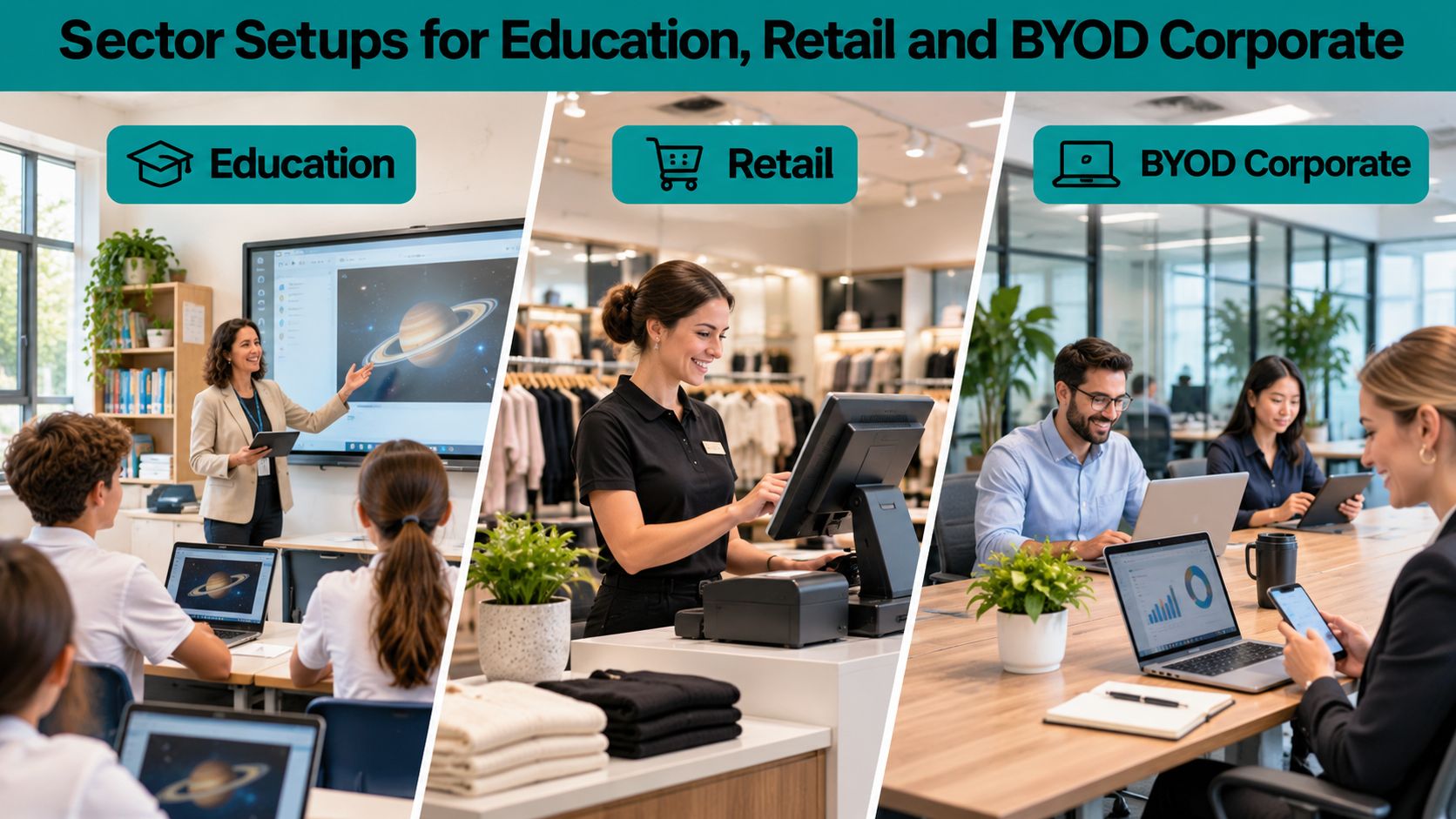
No single Wi-Fi template fits every building. A university dorm packed with gaming consoles and laptops has completely different traffic patterns and security risks than a high-street boutique or a corporate headquarters full of personal smartphones. Matching your authentication method and VLAN layout to the people walking through your doors saves months of rework.
| Sector | Typical users | Recommended login | First setup priority |
|---|---|---|---|
| Education campus | Students on personal devices | IPSK per student on a secure SSID | Separate VLANs for dorms and departments |
| Retail and shopping centers | Shoppers on guest Wi-Fi | Social login or splash page | Consent notice and data retention limits |
| BYOD corporate offices | Employees on personal phones and laptops | IPSK or directory login | Keep staff traffic apart from guests |
Education Campuses
Universities, boarding schools, and colleges face a predictable surge every term as thousands of students arrive carrying phones, laptops, smart speakers, and tablets. Students log in to the campus network with their unique SSID credentials through a simple captive portal, using any device, and their connection lands automatically on a specified VLAN so residence hall traffic stays cleanly isolated from administrative departments. Say an incoming freshman moves into a dorm in September, enrolls both a laptop and a phone with a personal IPSK key, and streams lectures all year without touching faculty servers; when that student graduates or transfers, IT revokes their single credential in one click and every associated device drops off immediately. First setup priority: build dedicated VLANs separating student dorms, classroom labs, and staff administration before handing out a single key.
Retail and Shopping Centers
Shoppers strolling through a mall or flagship store want instant connectivity to check reviews, redeem digital coupons, or message family. A branded guest Wi-Fi splash page with social login or a one-field email capture gets them online in seconds while feeding footfall insights back to retail teams. Say a regional shopping center launches a quick-connect visitor SSID that automatically routes shopper traffic onto a locked-down guest VLAN with client isolation enabled, keeping public browsers completely walled off from point-of-sale payment terminals and back-office inventory scanners. First setup priority: write clear consent language, configure automated data retention limits, and verify strict firewall separation from every payment system.
BYOD Corporate Offices
Modern offices rarely issue every single device that connects to the building's Wi-Fi. Employees bring personal phones, tablets, and sometimes home laptops, while visiting consultants need short-term access to meeting rooms. Pairing IPSK or Azure AD / SAML directory login on a protected corporate SSID gives every worker individual accountability while a separate captive portal welcomes lobby visitors. Say a freelance designer wraps up a six-week contract on a Friday afternoon: IT disables that contractor's individual key or directory account from the cloud dashboard in seconds, revoking access across every branch office without resetting a shared password for the rest of the company. First setup priority: lock staff and BYOD devices onto an isolated internal SSID that never shares a subnet with guest Wi-Fi.
Segment first, brand second: A gorgeous splash page cannot rescue a flat network. Separating guests, dorms, point-of-sale gear, and staff onto distinct VLANs is the safety net that stops one compromised phone from becoming a site-wide incident.
Confirm Your Cloud Managed Network Setup Before Rollout
Switching on a multi-site wireless estate shouldn't feel like crossing your fingers and hoping nothing breaks on Monday morning. Treating your network like a measured control system rather than a set-and-forget dashboard is what keeps tickets low. As NIST's cloud computing reference architecture highlights, ongoing monitoring and reporting are core cloud-service-management functions: operators need to monitor resources, track operational events, generate performance reports, and spell out measurable monitoring responsibilities in service agreements so blind spots never go unowned.
Before expanding across every branch, walk through these six go-live checks at a single pilot location and follow our full Wi-Fi deployment checklist to document each result:
- Measure the cloud path from every site, not just headquarters. Record round-trip latency, packet loss, jitter, and DNS resolution times from each major building so slow uplinks show up before guests complain.
- Pull the plug in a controlled failover drill. Disconnect the primary WAN circuit on purpose to verify failover recovery timing, and write down a short playbook for frontline staff explaining what pauses during a management outage (new policy pushes, live diagnostics, and external portal logins) versus what keeps running (existing local traffic).
- Wire up actionable alert thresholds. Configure alerts for access point reachability, authentication failures, DHCP and DNS latency, and WAN packet loss, assigning clear reporting intervals and a named escalation contact for each.
- Map every user workflow to an owner. List your splash page onboarding, social login, IPSK enrollment, and directory login paths, then pair each workflow with one technical owner, one health metric, and one escalation step so a broken login screen never gets hidden behind a green "99.9% AP uptime" chart.
- Audit SSID and VLAN boundaries. Confirm that staff and student devices sit exclusively on IPSK or directory-protected SSIDs, and verify that dorms, corporate departments, payment terminals, and guest traffic cannot reach each other across VLANs.
- Review splash page privacy and trust cues. Verify that consent notices appear before login, check that retention windows are documented and enforced, and confirm the captive portal never asks visitors for a Wi-Fi password or unexpected payment card details.
Putting It Into Practice at One Pilot Site
If you manage several buildings where visitors expect a smooth, branded login and staff need per-device accountability, a cloud managed network built on Cisco Meraki paired with integrated captive portals and IPSK gives you a dependable foundation. Because Splash Access works closely with Cisco Meraki, we offer a 100% cloud-managed Wi-Fi solution with fully integrated features under a single dashboard, including captive portals that deploy straight into the Meraki Cloud alongside IPSK, EasyPSK, social login, and voucher options you can test safely at a single location first.
Start small to move fast: list your locations, pick the sector setup that matches your users, and run all six go-live checks on one pilot building before cloning the template everywhere else.
Ready to see how captive portals, social Wi-Fi, IPSK, and EasyPSK come together on your Cisco Meraki network without guesswork? Our team helps education campuses, retail venues, and multi-site offices design, test, and launch centralized guest and BYOD Wi-Fi starting from a single pilot site. Explore your deployment options and request a personalized walkthrough at Splash Access.