You're sitting with a coffee, a laptop, and a phone that shows three networks with almost identical names. One asks for a password, one opens a browser page, and one doesn't seem to ask for anything at all. You tap something, it says connected, and then no page loads.
That's the part most guides skip. To connect to Wi-Fi network access properly, you need more than a password. You need to know which kind of login you're looking at, finish it in the right order, and check whether the connection is usable once you're on it.
Pick the Right Way to Connect to Wifi Network
At a café, your phone may show the shop name, the same name followed by Guest, and a third option with one letter changed. Each can lead to a different sign-in process. Choose the method by what the network asks you to do.
| What you see | What you do | Credential | Typical setting |
|---|---|---|---|
| Password field after the network name | Select the SSID and type the key | Shared WPA2 or WPA3 passphrase | Home or small office |
| Browser or system splash page | Accept terms or sign in on that page | Captive portal click-through or sign-on | Retail, education guest, hospitality |
| Social account button on the splash | Sign in with the offered social account | Social login or social Wi-Fi | Retail and events |
| QR code on a card, receipt, or poster | Scan and confirm the network name | Key or portal link from the code | Guest onboarding |
| Personal key issued to one person | Enter that user's key | IPSK or EasyPSK | Corporate BYOD, student housing, large sites |
| Organization username prompt | Sign in with work or school identity | 802.1X or directory login | Managed corporate and campus devices |
Read the credential, not just the name
A home or small-office SSID often uses a shared WPA2 or WPA3 passphrase. Everyone who joins uses the same key, which is straightforward for a small, trusted group.
Guest Wi-Fi in retail, campus, and office settings may use a captive portal. Your device connects to the access point first, then a browser or system page asks you to accept terms or sign in. The connection may show as active before the portal is complete, so finishing that page is part of joining. Readers who travel a lot and hop between venues, ports, and hotels run into this more than anyone, because every venue handles the splash a little differently. A travel-planning resource such as cruise lobster may help with the trip, while the venue's instructions explain its Wi-Fi sign-in.
Social login is one option a venue may offer on its guest portal. Social Wi-Fi describes that sign-in approach. It does not change the wireless network itself; it changes how you authenticate through the portal.
A QR code can provide a network key or open a portal link, saving you from typing. Check that the network name shown after scanning matches the venue's instructions.
IPSK and EasyPSK use a separate private key for each person or device instead of one shared password. This approach can suit corporate BYOD, student housing, and larger networks where access needs to be managed by user or device. For network roaming, Passpoint Wi-Fi and automatic secure joining explains how users can connect across participating networks with the same credentials.
Before you tap Join: Check the exact SSID on a printed card, receipt, or with staff. One wrong letter can send you to a different network.
The right method depends on the prompt: shared key, portal, QR code, personal key, or organization login.
Connect a Phone Laptop or Tablet
You don't need a different method for every device. One clean routine fits current phones, laptops, and tablets. Go in order, and don't skip the final check.
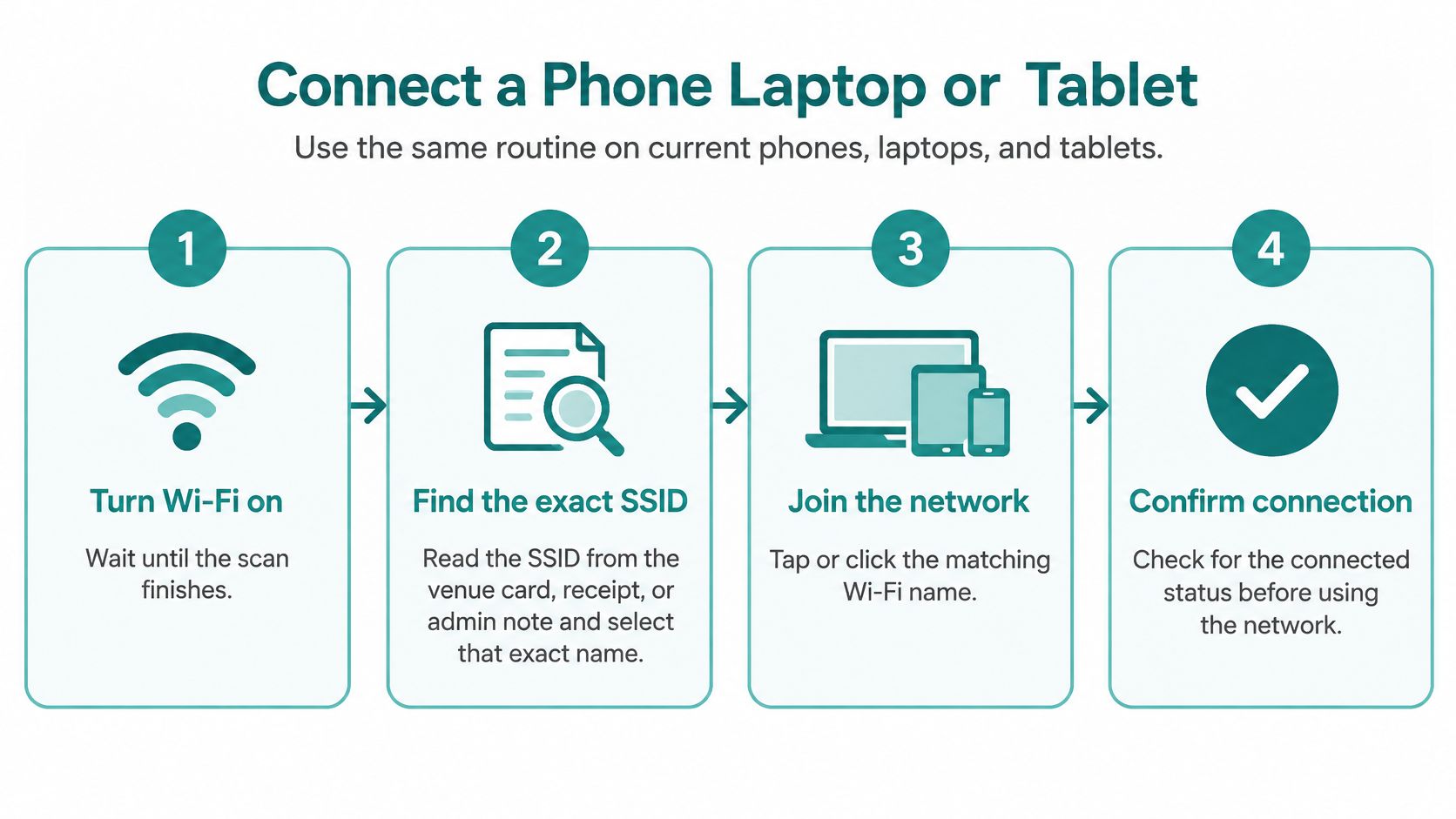
Turn Wi-Fi on and wait for the scan to finish. Networks appear in stages. Tapping the first similar name you see is how people join the wrong SSID.
Read the SSID from the venue card, receipt, or admin note and select that exact name. Match spaces, capitals, and suffixes like Guest or 5G. The name on the sign is the source of truth, not the strongest signal.
If a password field appears, type the WPA2 or WPA3 key exactly as given, then join. Capitals and symbols count. Don't let autocorrect or a trailing space change it.
If a browser sheet opens instead, stay on it and finish the captive portal. Accept the terms or sign in. Use social login only when that guest wifi button is what the venue offers, and don't switch apps halfway through, or the portal may restart.
If a QR code is printed, scan it with the camera and check the name before you accept. The code should name the same network as the sign. If it names something else, stop and ask.
On a laptop, use the system Wi-Fi menu, not a saved browser bookmark. The portal needs to intercept your first request. An old bookmark to a secure page can just spin and tell you nothing.
Confirm the status says connected, then load an ordinary page. Don't judge success by the splash screen alone. You're done when the portal stops intercepting and normal sites load.
For IPSK or EasyPSK, enter the personal key issued to you. Not a neighbor's key, not a previous tenant's, not last term's. Your key is tied to your access, and borrowing one can lock both of you out.
If a username prompt appears, enter your work or school identity and password. Check that the server certificate names your organization, then join. If the certificate name looks wrong, cancel and tell IT before you retry. This is the normal path for managed corporate and campus devices.
Two small things that trip people up
A private MAC address can make the portal ask you to sign in again, because the network sees your device as new. That's a repeat login, not a broken password.
Toggling airplane mode isn't part of a clean join. If you keep dropping off a phone after joining, the Used Mobiles 4 U Wi-Fi guide walks through phone-side disconnect causes in plain terms. Fix the join first, then look at dropouts.
Check the Network Before You Trust It
You're in a shop, on campus, or at work. Your phone shows a network name that looks familiar, but one character is different. Check the name against a sign or ask a staff member before joining. A stronger signal does not prove the network is genuine.
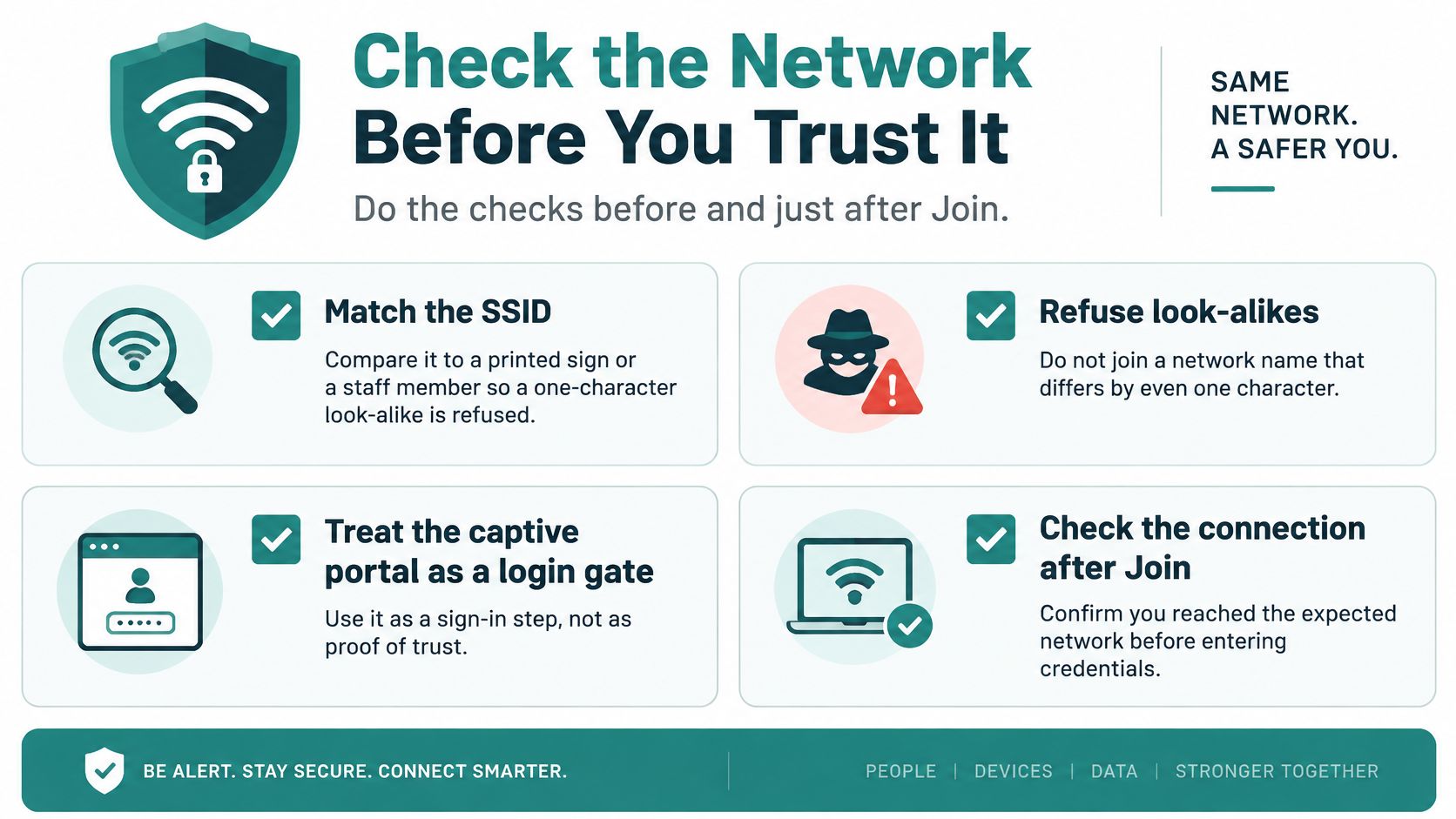
A captive portal is a login gate, not a trust badge. A polished page only shows that you have reached an onboarding step. It cannot confirm that you chose the right network or that the connection suits the task you're doing.
Treat unfamiliar public Wi-Fi as untrusted until you've checked it. Use HTTPS sites, and avoid entering banking or medical details on a guest network you don't know. If a task can't wait, switch to mobile data. For work accounts, secure business accounts with MFA before you travel.
The connection method also matters. A company may issue a personal IPSK, EasyPSK, or directory login for BYOD. These options are different from a shared password on a noticeboard. Learn how Wi-Fi security keys differ so you can recognise which key or login method the network expects.
In education and retail, keep personal network keys private. Don't forward yours in a group chat. If the network name or login form seems wrong, disconnect and check with the venue before entering credentials.
Fix a Join That Still Has No Internet
Connected is not the same as usable. Your phone can hold a link to the access point while every page fails. Start from the symptom you can see, run one test, and work out who owns the fix, you or the venue.
This isn't rare. The Benton Institute summary of recent U.S. survey data found 68% of households experienced Wi-Fi issues during the previous 12 months, with 18% reporting daily problems and 20% reporting weekly problems. In a hotel, campus, office, or clinic you usually can't reboot the access point, so your job is to diagnose, then escalate clearly.
| Symptom | Likely cause | Next test |
|---|---|---|
| Connected but pages do not load | Unfinished captive portal, DNS trouble, or venue uplink | Open the splash again, then try a second device |
| Drops in one room only | Weak signal or roaming failure | Move closer, forget the SSID, and rejoin |
| Only one device fails | Wrong saved password or older radio support | Forget the network and try the 2.4 GHz or 5 GHz name if offered |
| Slow for everyone at busy times | Congestion and access-point capacity | Retry off-peak and tell staff if a second device is also slow |
| Portal appears again after it worked | Session timeout or a private MAC address | Sign in again and allow the device address for that network |
| Correct-looking name never accepts the key | Look-alike SSID or a rotated personal key | Check the exact name with staff and use only the key issued to you |
Run the test that matches the symptom
Connected but no internet usually means the portal was never finished, there's a DNS problem, or the venue's internet uplink is down. Reopen the browser to trigger the splash, finish it, then test a normal page. If a second device fails the same way, it's not your phone. Tell staff the SSID itself has no internet. Our breakdown of common Wi-Fi connectivity issues and their causes goes deeper on each failure mode.
Drops in one room only point to weak signal or a failed roam between access points. Move closer to where coverage is good, forget the network, and rejoin. Don't blame the password for a signal problem. If you drop at the same doorway every time, tell staff exactly where. That detail helps them find the weak spot.
Failure on only one device points to a saved wrong key or an older client. Forget the network on that device and join again from scratch. If the venue offers a separate 2.4 GHz or 5 GHz name, try that instead of a newer band your device may not handle well.
Slow service for everyone at lunch in a store or during a lecture is congestion. Retyping the password won't add capacity. Test a second device. If it's also slow, the venue owns this one, and staff should hear that the whole area is slow, not just your table.
A second device is your best test. One device failing is a device problem. Every device failing the same way is a network problem. Say which one you've found when you ask for help.
Guest Wifi Captive Portals and Private Keys
On managed Cisco Meraki guest wifi, the interesting moment happens after your device associates. You're linked to the access point, but you don't have internet yet. The portal and the key method decide what happens next.
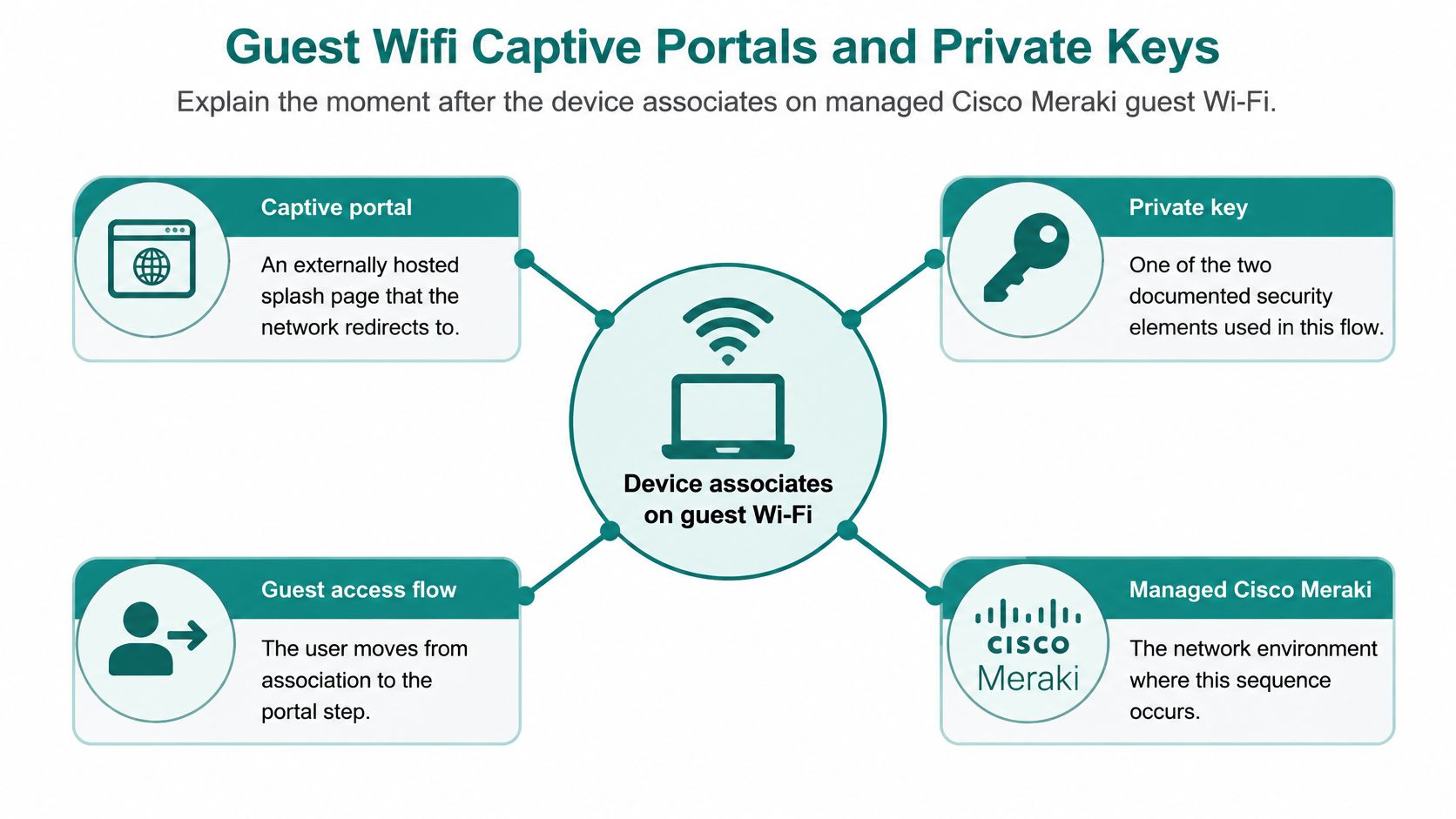
A captive portal is an externally hosted splash page that the network redirects you to. The Cisco Meraki Captive Portal Solution Guide documents two authentication workflows, click-through and sign-on, and explains that the API redirects a connecting client to that splash page, where the organization controls branding, terms acceptance, and authentication before returning the client to the Meraki network. That separation keeps the guest access workflow apart from the internal network.
Social wifi and social login sit inside the sign-on workflow. They're options on the splash page, useful when a retail guest would rather tap a social account than invent a password they'll forget by the till. If you run a venue, our guide to how a Wi-Fi captive portal works lays out the moving parts.
Three places, three different logins
A shop runs a branded portal with optional social login. A visitor picks the store SSID, the splash opens with the shop's name and terms, and they tap through or sign in with a social account. No shared password changes hands, and staff never read a key aloud across the counter.
A campus needs students online on their own credentials, on any device. A student signs in once through the portal with their school identity, then connects a laptop and a phone without a password taped in a hallway. When a student leaves, the school disables one identity instead of reprinting posters.
An office keeps corporate BYOD on its own network. Personal phones never share the internal policy used by managed laptops. Guest and visitor traffic stays logically separated from internal systems, and people who need more than guest access get identity-based access or a private key rather than a wider door.
Where private keys fit
IPSK gives each person or device its own pre-shared key, so one leaked password doesn't open the network to every client who hears about it. Revoking access means deleting one key, not resetting the whole building.
EasyPSK applies the same idea at scale, where handing out unique keys by hand would fail. Think student housing blocks or large sites where hundreds of keys need issuing, rotating, and retiring without a spreadsheet marathon.
So the login each sector should show is simple. Retail shows a branded portal with social login. Education shows a student sign-on. BYOD shows a private key or directory login on a separate network.
Match Onboarding to Education Retail or BYOD
Every onboarding choice answers one question. Who is this network for?
| Sector | Network type | Credential | Why it fits |
|---|---|---|---|
| Retail guest | Captive portal with optional social login | Social account or QR-issued key | Visitors go online without a shared password |
| Education students | Sign-on portal or 802.1X with student identity | Own school credentials | Works on any device |
| Corporate BYOD | Separate BYOD network with IPSK or EasyPSK | Personal pre-shared key | Keeps personal devices off internal systems |
| Managed corporate or campus devices | 802.1X with EAP | Directory login | Identity-based access and policy enforcement |
A retailer or event wants guest wifi with a branded captive portal and optional social login and social wifi, so visitors are online in under a minute without a shared password on a chalkboard. A campus wants student sign-on that works on any device. A corporate office wants BYOD kept off internal systems, with IPSK or EasyPSK when a private key is enough and stronger identity checks when company apps are in reach. Cisco Meraki is the wireless platform these authentication flows attach to.
For readers running the venue rather than joining it, our onboarding best practices for guest networks pulls these choices together. We provide captive portals that are instantly deployable Wi-Fi login systems integrated directly into the Meraki Cloud, including WPA2 guest access where a user can scan a QR code to get on a network through a simple, secure onboarding system. Our product set includes the Cisco Meraki IPSK Solution and EasyPSK for large deployments, alongside social wifi and DUO secure multi-factor authentication for Meraki WiFi.
If you only needed your own device online, you can stop at the step list and the symptom table. If you run the network, line up the portal and key method with your sector first. The login screen your guests see is the policy you've chosen.
If you're setting up guest access for a school, a shop, or a BYOD office on Cisco Meraki, we can help you pick the right captive portal, social wifi, IPSK, or EasyPSK flow and get it live from the cloud. Visit Splash Access to line up your onboarding with your sector and give every guest, student, and staff member a join that works.