Your guest Wi-Fi works, but the login page isn't doing much for the business. Visitors connect, accept a generic screen and leave, while your team still has no permission-based way to follow up.
WiFi email capture adds an email form to that connection process. Done properly, it gives guests a recognizable login page and gives your team usable contact records. The catch is that collecting an address, getting marketing permission and securing the wireless connection are different jobs. A good Cisco Meraki deployment handles each one deliberately.
Authentication Options Compared for Guest Networks
A shopper joins your guest SSID, sees your shop's splash page and enters an email address. They're online, but if the SSID is open, the wireless link still has no Wi-Fi encryption. The captive portal controls access, not radio encryption.
The FTC's public hotspot guidance says users can be confident a hotspot uses effective Wi-Fi encryption when it requires a WPA or WPA2 password, not merely a splash page or social login. It also recommends checking HTTPS on every page, because portal authentication doesn't protect information submitted to an unencrypted website.
Guest access methods compared
| Access method | Encryption | Data captured | Revocable per person | Best fit |
|---|---|---|---|---|
| Open SSID with terms-only portal | None on the air; HTTPS protects web pages only | Optional | No | Short visits and low-risk browsing |
| Open SSID with email capture portal | None on the air | Email address | No | Shops and cafes where capture is the goal |
| Social login or social WiFi portal | None on the air when deployed on an open SSID | Social account profile, subject to granted permissions | No | Venues wanting profile data with clear consent |
| Shared WPA2 key with captive portal | WPA2 with one key for all users | Optional | No, one key for everyone | Low-risk areas with steady guest traffic |
| Individual PSK (IPSK) | WPA2 with a unique key per user | Optional | Yes, per user | Corporate BYOD and student groups |
| Visitor IPSK via QR code | WPA2 with a unique key per visitor | Optional | Yes, per visitor | Events, contractors and short visits |
| EasyPSK per-user credentials | WPA2 with a unique key per user | Optional contact details | Yes, per credential | Campus and retail staff who need controlled access |
Choose by risk, not form design
Read the encryption and revocation columns before the data-capture column. Social WiFi describes an onboarding experience, while IPSK describes how you issue wireless credentials. Those aren't interchangeable authentication solutions.
CISA's wireless-security guidance recommends at least WPA2 encryption and restricting connections to authorized users. I would reserve an open capture SSID for low-risk shop-floor browsing, with payment and operational systems on separate network policies. Otherwise, use WPA2 with individual credentials.
Corporate BYOD benefits from an individual PSK or Visitor IPSK because you can withdraw one person's access without replacing everyone's key. EasyPSK-style credentials suit campuses where students need a straightforward connection process. Students log in to the campus network with their unique SSID credentials through a simple captive portal, using any device.
Use the guest Wi-Fi authentication options to match onboarding to the audience, then check the encryption settings independently.
Practical rule: The access method decides how much a stolen credential can do, not just who sees the splash page.
Set Up the Splash Page and Form in Order
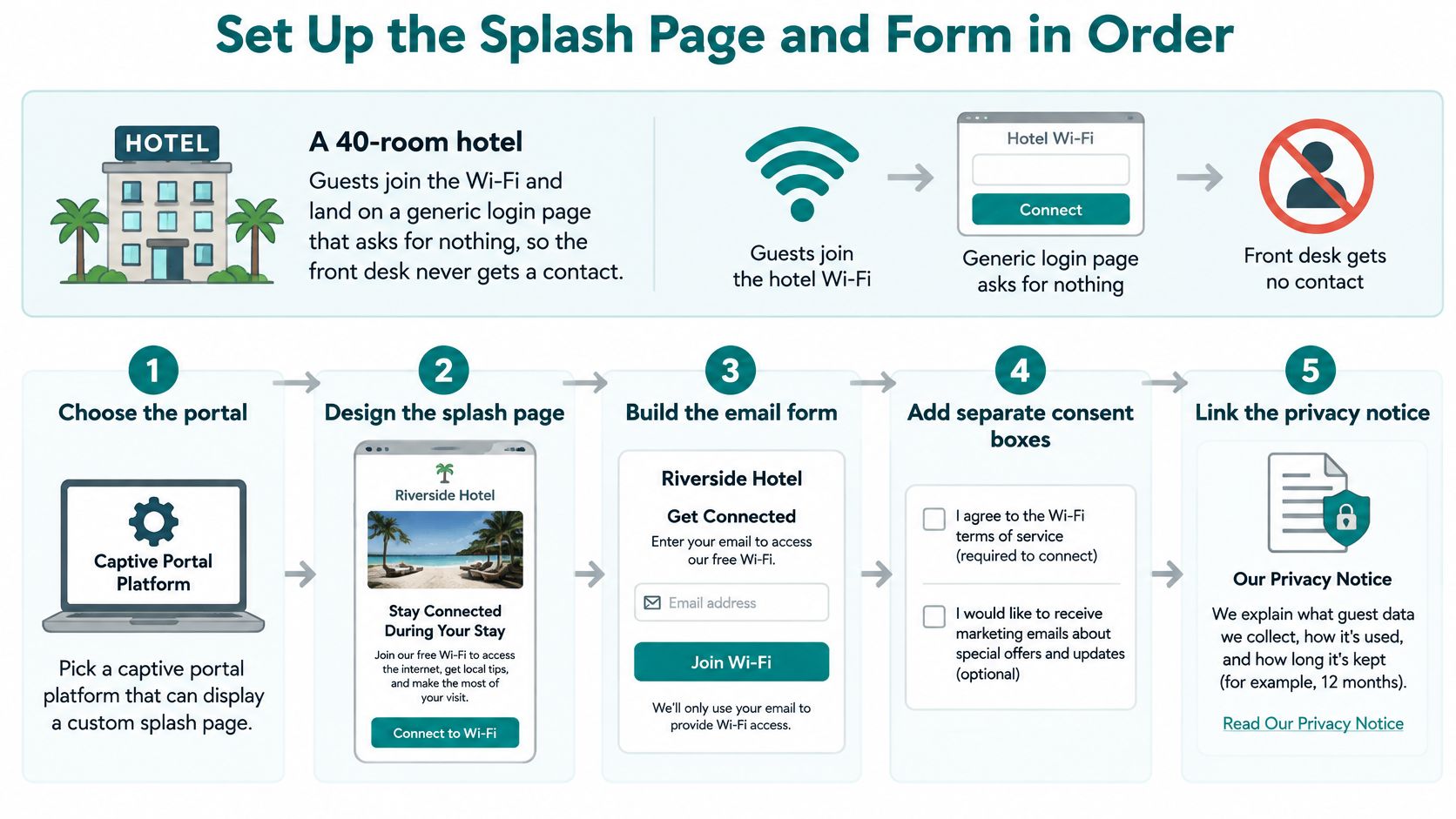
Say a 40-room hotel has reliable Wi-Fi, but guests land on a generic page that asks for nothing. Reception gets no contact from that interaction. Replacing the page is straightforward, provided you also configure consent, authentication and the destination for each record.
Build the connection flow
Choose the access method. Configure the guest SSID with WPA2 unless you've deliberately approved isolated, low-risk browsing. Keep guest traffic away from payment systems and internal services.
Brand the splash page. Configure the splash-page settings in the Meraki Cloud dashboard and connect the appropriate hosted or external portal. Show the hotel name, logo and a clear explanation of what guests need to do. The splash-page setup guide is a useful implementation companion.
Start with email only. Put a labeled email field above the fold. Validate syntax inline and flag disposable domains before submission, without claiming that a correctly formatted address proves ownership.
Separate the controls. Keep Wi-Fi terms apart from an unticked marketing checkbox. Use short explanatory copy and link to the full privacy notice.
Set the redirect. Send guests to the venue website only after authentication succeeds. Test the operating system's captive-network window as well as a normal browser.
Map the destination fields. Send the address and its permission state to the CRM, checking for duplicates before writing. A contact without marketing consent must not enter a promotional sequence.
Test real devices. Use a low-end Android phone and an iPhone, including slow-network and interrupted-session tests. The captive-portal best-practices guide recommends checking a 375-pixel-wide screen, loading within two seconds, and confirming the contact reaches the marketing system within 60 seconds.
Define failure handling. Decide whether guests still get internet access if the CRM write fails. Log the authentication outcome and integration error separately, and queue retries without creating duplicate contacts.
Keep field count accountable
The same guide reports the following completion figures. Treat them as directional vendor benchmarks, not a promise for your hotel.
Completion rate by form field set
| Field set | Reported completion | Use it when |
|---|---|---|
| Email only | 82% | Default for most venues |
| Name plus email | 74% | You need first names for personalization |
| Name, email and phone | 63% | You run an active SMS program with separate SMS consent |
Independent captive-portal research documents personal-data sharing through portal services. Check where every field goes, including third-party scripts. Instrument portal views, submissions and consent decisions separately so a successful connection never masquerades as a marketing signup.
Consent, Privacy and Retention Rules Across Regions
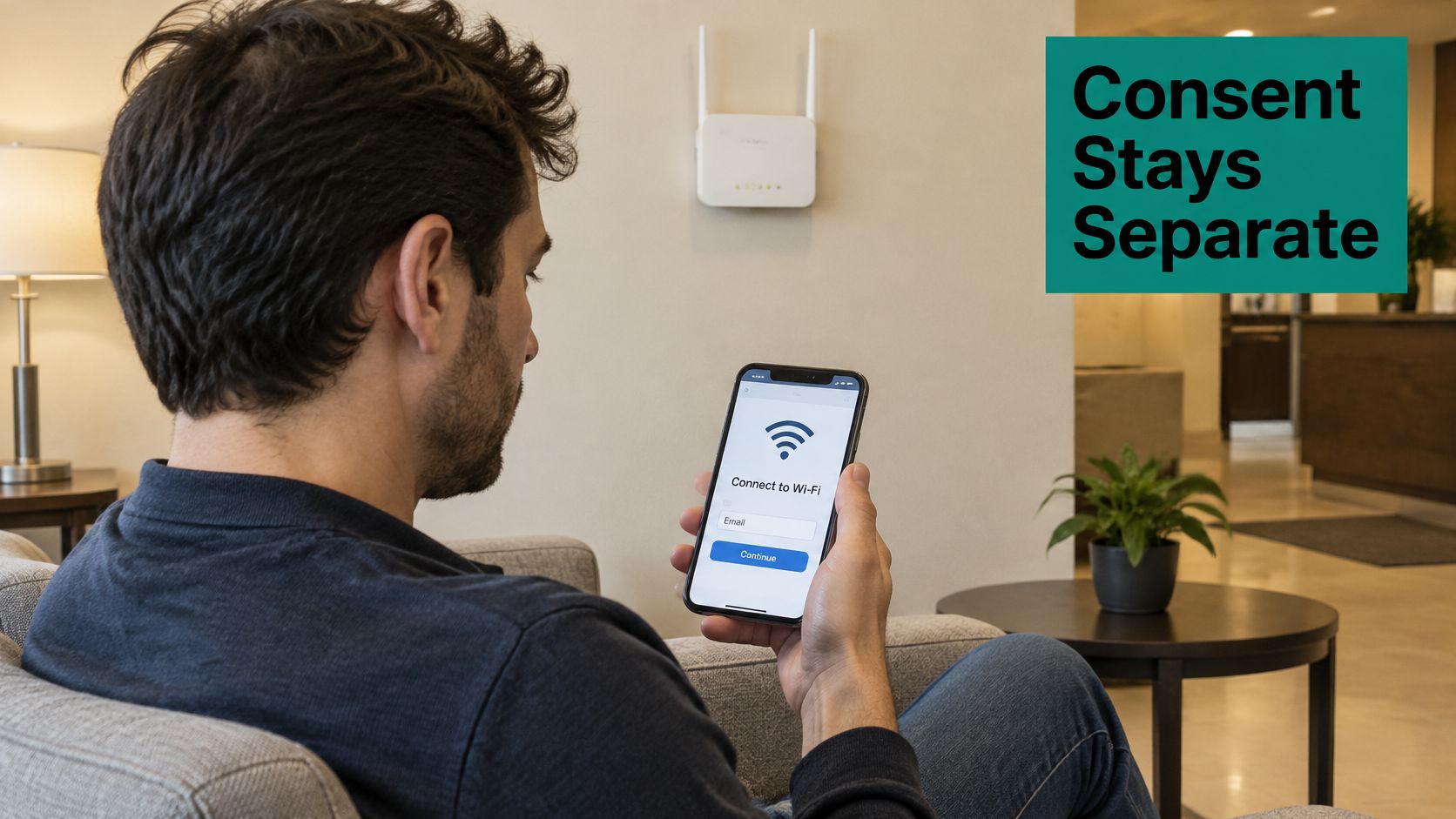
One checkbox shouldn't stand for Wi-Fi terms, privacy disclosure, email marketing and social-profile access. A guest agreeing to acceptable network use hasn't necessarily agreed to receive offers.
Under GDPR, consent must be freely given, specific, informed and unambiguous. The guest Wi-Fi GDPR compliance guide explains why marketing permission should remain separate from connectivity. Give guests a way to get online without subscribing, and don't assume network-security logging and marketing profiling share the same lawful basis.
Store the decision, not just the address
A useful consent record lets your team reconstruct what the guest saw and chose. Build the following fields into your consent-management workflow:
- Event timestamp: Record when permission was granted, declined or withdrawn.
- Notice version: Preserve the version shown, with retrievable wording.
- Purpose and channel: Distinguish email offers, SMS messages and social-data permissions.
- Source: Store the venue, SSID and portal version.
- Decision: Keep explicit states rather than treating a blank value as agreement.
For email, plain wording could be: Send me news and offers from this venue by email. Keep SMS permission separate, and explain what guests will receive rather than hiding the purpose behind broad references to partners.
Regional deployment needs a decision owner, not just a translated checkbox. Have the appropriate privacy adviser confirm applicable marketing rules, lawful bases, age-related requirements and international transfers before enabling a market. A reusable portal template helps, but it doesn't make every jurisdiction identical.
Make withdrawal and deletion operational
A withdrawal must reach the CRM, email platform and any queued campaigns, not stop at the Wi-Fi database. Retain only the suppression information needed to prevent accidental re-enrollment, under a documented policy.
Our policy deletes WiFi users' personal data if they don't log in to one of the WiFi venues for more than 24 months. That's a specific retention rule, not a universal legal deadline. Your written schedule should distinguish access logs, marketing records, consent evidence and suppression records.
Splash Access collects device information, including the MAC address of any connected network interface. Customers operating the venues configure the personal data collected through the service, and the venue's privacy policy applies to its use. Disclose device information as well as the visible email field.
A privacy notice should explain the system guests actually use, not just the form they can see.
CISA's public-wireless advice recommends confirming the official network name and login procedure. Publish the SSID on venue signage and use a recognizable portal domain.
Keep a non-email route available. The ITU estimated that 2.6 billion people, or 32% of the world's population, remained offline in 2024, a reminder that digital access isn't universal, although that figure isn't a forecast of your visitors. More directly, independent hotspot research found 59.7% allowed access without requesting explicit personal data. Terms-only access or a QR code for optional post-visit signup are practical alternatives to forced capture.
Connecting Captured Emails to Your CRM and Marketing Tools
Start with a field map your marketing and network teams can both understand. Use email as the contact-matching key, first name as optional enrichment, and venue, SSID and consent status as structured fields or tags. Keep detailed permission evidence in an auditable record rather than squeezing everything into a tag.
| Portal field | Destination | Handling rule |
|---|---|---|
| Contact email | Normalize and deduplicate | |
| First name | Optional contact field | Don't block access if unnecessary |
| Venue and SSID | Source fields or tags | Preserve the originating location |
| Marketing decision | Subscription status | Never infer from portal completion |
| Consent evidence | Audit record | Keep timestamp and notice version |
Sync permissions before campaigns
Normalize before writing. Trim accidental whitespace and use a consistent matching rule. Don't apply aggressive address transformations that might merge different people.
Propagate withdrawals promptly. Push unsubscribes and withdrawals to suppression lists the same day as an operational target. Ensure scheduled automations check the current permission state.
Send only eligible contacts. A platform such as Mailchimp should receive marketing subscribers only where the necessary permission exists. Access-only records belong outside promotional journeys.
Gate SMS separately. Create SMS marketing records only when you have separate SMS consent and an active program. Otherwise, a phone field adds friction without a useful destination.
Limit social-login attributes. Accept only the profile fields the visit needs. Social login doesn't guarantee that an email address will be returned or that marketing permission exists.
Build retries and error visibility into your marketing automation integration. An integration that silently stops writing contacts is harder to diagnose than one that clearly reports a rejected field or unavailable destination.
Segment by relationship
A retailer can tag contacts by store so local promotions reach relevant shoppers. A campus should keep prospective students, alumni and general visitors in distinct audiences, with permission appropriate to each relationship.
For corporate offices, keep authentication separate from marketing identity. Azure AD, SAML or Google Workspace, formerly G Suite, can authenticate staff; visitor records shouldn't enter the employee directory. A corporate visitor list may never need to reach marketing at all.
Aggregate footfall, dwell time and return-rate reporting can answer operational questions without attaching an email address to every visit. Define the business question first, then collect the minimum information needed to answer it.
Sector Setups for Education, Retail and Corporate BYOD
Choose the settings for the people and devices using the venue, not just the most attractive portal template. Education, retail and corporate BYOD need different credential lifecycles, even when their login pages look similar.
Education
Give students and staff individual credentials through IPSK or EasyPSK, and keep the portal on a recognizable campus domain. Make credential revocation part of the leaver process so a departed student's access doesn't remain active until someone changes a shared password.
Test onboarding with phones, laptops and devices that don't have a convenient browser. Document an alternative route for those devices rather than assuming every connection can complete the same email form. Keep prospective-student marketing separate from the identity records used to provide enrolled students with network access.
Retail
An open capture SSID belongs only in a deliberately approved, low-risk shop-floor environment. Put point-of-sale terminals, stock systems and staff devices on separate network policies, and test that shopper devices can't reach them.
Print the official SSID on signs where customers connect. Keep the portal recognizable and avoid requesting sensitive information just because a custom field is available. Store-level campaign tags are useful, but shoppers shouldn't have to disclose unrelated personal details to browse while waiting.
Corporate BYOD
Assign a unique IPSK per staff device where that matches your identity design. For contractors and event guests, use Visitor IPSK QR codes with credentials configured to expire when the visit ends.
Keep personal devices within the access policy appropriate to their trust level. A successful guest login shouldn't automatically permit access to internal applications, shared storage or administrative interfaces.
Before opening access: Test from a guest device, not an administrator's laptop that already has trusted credentials.
Across these sectors, check the actual configuration rather than relying on the portal's appearance:
- Credential ownership: Avoid a shared guest password where individual accountability matters.
- Permission controls: Keep network terms and optional marketing choices separate.
- Directory boundaries: Keep visitors out of employee identity stores.
- Audience eligibility: Exclude visitors from marketing unless they've opted in.
- Revocation testing: Verify that removing a credential ends the intended access.
Measure Results and Run a Two-Week Pilot
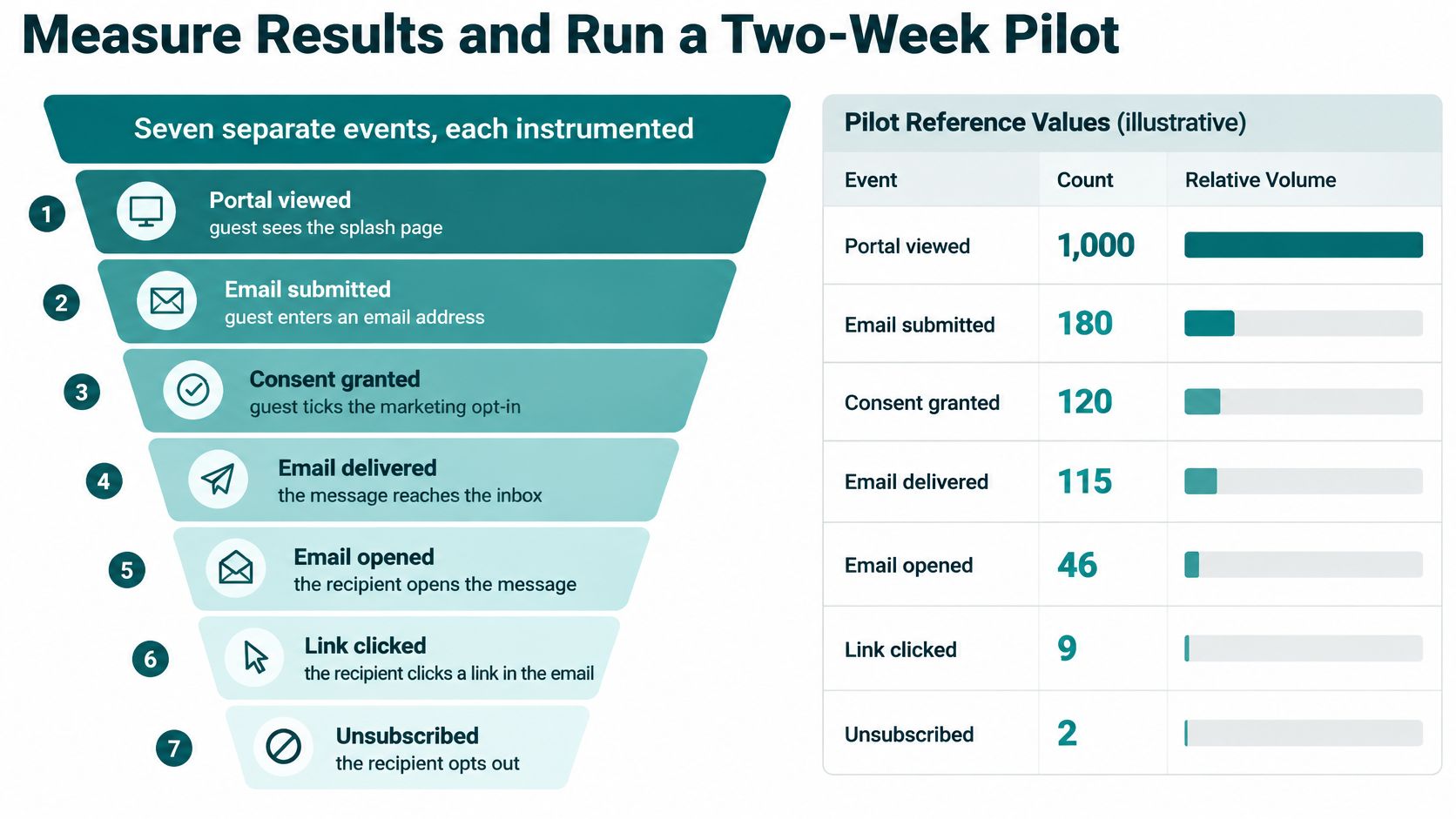
Instrument portal viewed, email submitted, consent granted, email delivered, opened, clicked and unsubscribed as separate events. Each answers a different question. A submission tells you the form worked; a consent event tells you whether that contact is eligible for marketing.
The reference values below come from other populations, not a controlled test of your venue. Mailchimp's cross-industry dataset through December 2023 reported an average unique open rate of 35.63%, a click rate of 2.62% and an unsubscribe rate of 0.22%, as summarized in the email benchmarking material. The DMA also cautions that open rates are becoming a less reliable primary success metric.
Reference values for email capture results
| Metric | Reference value | Context |
|---|---|---|
| Average unique open rate | 35.63% | Cross-industry benchmark through December 2023 |
| Average click rate | 2.62% | Cross-industry benchmark |
| Average unsubscribe rate | 0.22% | List-quality signal |
| Opt-in rate, branded captive portal | About 50% higher than other channels | One vendor's 2024 internal comparison |
| Opt-in rate, guest Wi-Fi marketing | Over 90% | Self-reported 2024 to 2025 results from 1,847 venues |
Treat the vendor opt-in results as self-reported reference ceilings, not targets. Definitions, guest populations and consent presentation can differ. Someone entering an address to get online may behave very differently from someone deliberately joining a newsletter.
The funnel illustration is an example of event accounting, not a forecast or a benchmark for your site.
Define success before collecting contacts
Weight clicks, conversions, complaints and revenue above opens. Track delivery acceptance, but don't confuse a receiving server accepting a message with the recipient seeing it in their inbox.
Before sending the pilot campaign, run an email inbox placement test from MailGenius to check how test messages are placed. Use the result to investigate sending issues, not as proof that every future message will reach the inbox.
Give each metric a clear denominator. Connection-to-form rate should compare portal displays with eligible connection attempts; form completion should compare submissions with form displays. Consent rate should identify whether you mean consented contacts per submission or per portal view.
Useful engagement metrics also need deduplication rules. A returning guest who reconnects repeatedly shouldn't look like a stream of new subscribers. Separate visit events from unique contacts and new permissions.
Run a controlled pilot
Use this as a test schedule, not an industry performance standard:
Choose one SSID at one site. Pick a venue with steady traffic and a team that can report login problems. Avoid starting during an unusual event that changes the audience.
Record a seven-day baseline. Measure the existing portal or open-access experience, including connection failures and support questions. Note opening hours and any promotions that affect who visits.
Launch email-only capture for 14 days. Keep the marketing control separate. Hold the SSID, venue, offer and traffic source constant, and use a controlled email-only versus email-plus-name comparison if traffic supports it.
Review against pre-agreed targets. Examine completion, consent, valid-email rate, unsubscribe rate and revenue per opted-in guest. Include authentication and redirect success so marketing gains don't hide a worse Wi-Fi experience.
Choose whether to extend, change or revert. If consent is strong but valid addresses are weak, fix validation before changing the offer. Add fields only when their downstream value is measurable.
A short pilot can reveal technical and permission problems quickly, but it may not establish long-term return-visit revenue. Keep that distinction clear when reporting results to the venue manager.
Diagnose the weakest event
Low form completion points toward usability, page speed or an unnecessary question. Strong completion with weak consent suggests guests wanted connectivity but didn't find the subscription attractive. Don't “fix” that by making the checkbox less clear.
If permission and delivery look healthy but clicks are weak, review message relevance and store-level segmentation. If complaints rise, pause the sequence and inspect the wording guests saw, the source of those contacts and the timing of the message.
A smaller, explicitly opted-in list can be more useful than a larger list of people who only wanted internet access.
For Cisco Meraki deployments, we provide instantly deployable captive portals integrated directly into the Meraki Cloud. Our Visitor IPSK QR Management gives each guest secure access through a QR code carrying an individual key, within a 100% cloud-managed Wi-Fi solution with integrated features under a single dashboard.
Before the pilot starts, put the consent log and deletion workflow through a demonstration using test records. Confirm who can retrieve the notice version, who handles a withdrawal and how the connected marketing system receives it. Scale only when the connection experience, permission evidence and downstream contact quality all hold up.
Splash Access offers Cisco Meraki captive portals, customizable Wi-Fi login pages and individual-key authentication to connect email capture with the right access controls. Visit Splash Access to discuss your venue's authentication method, consent workflow and CRM integration, then plan a focused pilot before rolling out across your sites.