You're standing behind a hotel reception desk with a line of tired travelers, or maybe you're crouching behind your living room sofa with a phone flashlight aimed at a faded router sticker. Either way, you've typed the same string of letters and numbers three times, and the screen still says the password is wrong. When someone asks for a Wi-Fi login and password, they usually think they're asking for one thing. They aren't.
Most connection headaches happen because wireless networks rely on two completely separate credentials that look nearly identical on paper. One lets a phone or laptop join the radio signal. The other opens the settings panel where you control the router or cloud dashboard. Add a hotel, campus, or retail guest sign-in page on top, and you've got three distinct gates that get lumped under one phrase.
Even worse, when guest Wi-Fi fails in a business, office, or school, the password usually isn't the culprit at all. The captive portal sitting in front of the internet connection is where most sign-ins stall. Sorting out which credential does which job takes five minutes, and once you see the split clearly, troubleshooting stops feeling like guesswork.
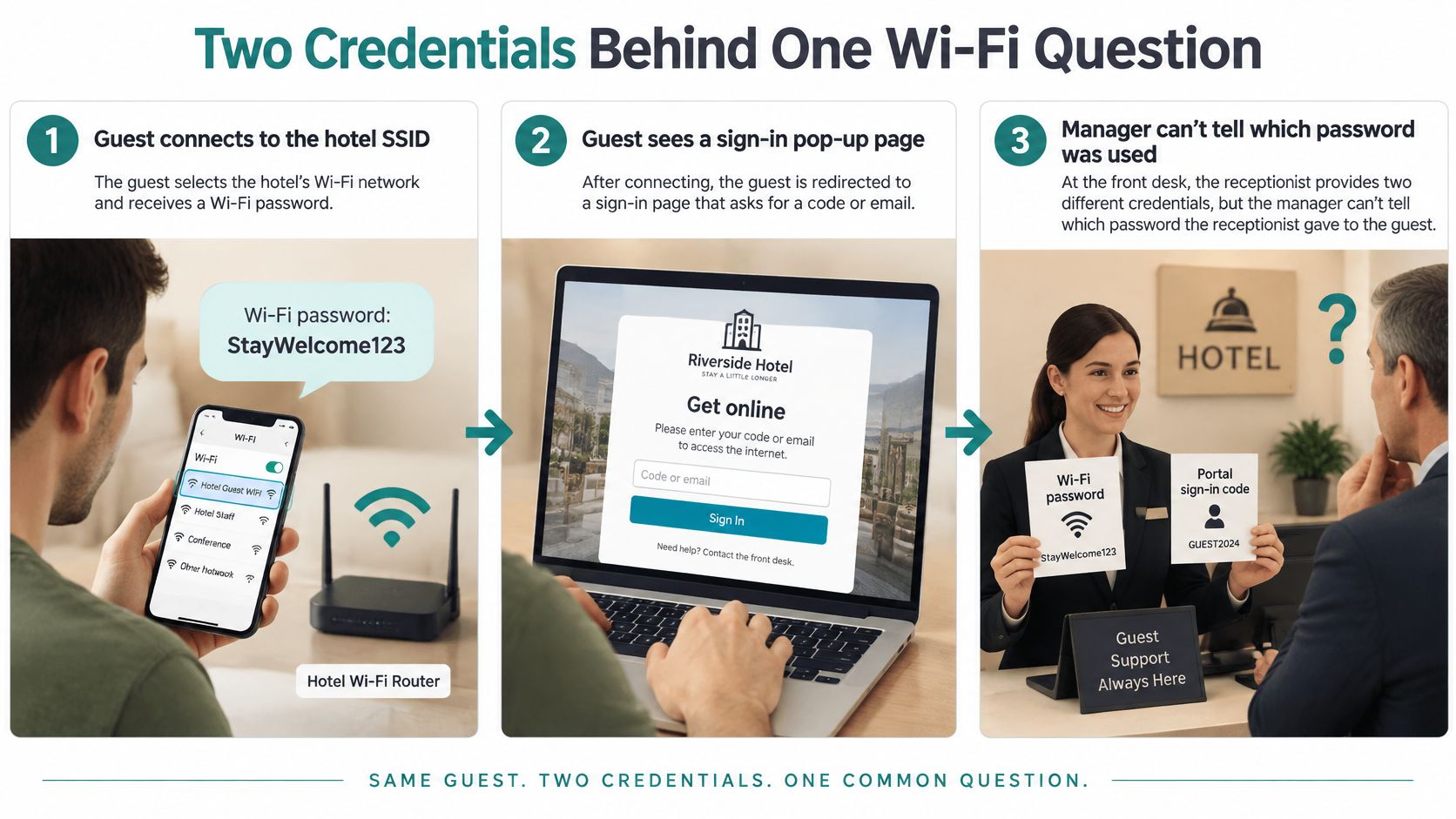
Two Credentials Behind One Wi-Fi Question
Say a guest checks into a hotel, taps the property's network name, and types the key printed on the welcome folder. The phone connects, then immediately pops up a branded web page asking for a room number, email address, or voucher code. Ten minutes later, the guest is back at the desk saying "the Wi-Fi password doesn't work," and the duty manager isn't sure whether reception handed out the wireless key, the portal code, or the router's management login.
That mix-up comes down to one simple boundary between joining a network and managing it.
If a browser page or app asks for a username and password to open your router's settings, that's the router admin login. If a phone or laptop asks for a password to join a wireless network, that's the Wi-Fi network password.
The Wi-Fi network password (often labeled Wireless Password, Network Key, WPA2 key, or pre-shared key (PSK)) is the door key your device uses to connect to the access point. The router admin login is a separate username and password that opens the router's configuration screen or vendor cloud app so an owner or IT administrator can change settings, rename the network, or lock out devices. On enterprise hardware, checking your default Cisco login credentials before making changes keeps you from accidentally locking yourself out of management access.
Before changing anything, match the screen in front of you against the credential types below.
| What it is | Where it is set | What it lets you do | Where to find it | Who should have it |
|---|---|---|---|---|
| Wi-Fi network password (WPA2/WPA3 key, PSK) | Router wireless settings or network controller | Join the wireless network | Router label, welcome card, or admin dashboard | Everyone authorised on that network |
| Router admin login (username and password for the router page) | Router itself or vendor cloud account | Change every network setting, including the Wi-Fi password | Router label, vendor app, or installer handover | Only the network owner or IT admin |
| Captive portal sign-in (venue guest page) | Portal or authentication platform | Get internet access after joining | The page that opens on first browse | Each guest, often per device |
| Individual pre-shared key (IPSK / EasyPSK on Meraki) | Management dashboard, assigned per person or device | Join with a personal key that can be revoked alone | Issued by the network admin | One key per person or device |
| Router SSID | Router wireless settings | Identifies the network in the device list | Device Wi-Fi menu | Shared by everyone, never secret |
Common Credential Mix-Ups and Key Formats
Two mistakes show up constantly on both home and business networks. First, people type the router admin password into their phone's Wi-Fi prompt and wonder why it gets rejected. Second, small venues print the router admin login on a laminated lobby card by accident, handing every visitor full control over the network settings.
You'll also see both WPA2-PSK keys and newer WPA3-SAE passphrases entered into the exact same password box on a phone or laptop. A longer passphrase is much safer in either mode. When a copied key fails on a device that should accept it, check for a trailing space pasted from a message or make sure you tapped the right SSID before assuming the key changed.
Finally, there's that third gate guests see in hotels, retail shops, and campuses: the captive portal sign-in. It's neither the router admin login nor the wireless key. As the IETF RFC 8910 standard explains, wireless login separates network admission (IEEE 802.11 authenticating a device to the local wireless LAN) from application-layer identity (the captive portal authorizing internet access afterward). Under RFC 8910, networks can advertise a portal API URI directly inside DHCPv4, DHCPv6, and IPv6 Router Advertisement options while holding guest devices on a restricted VLAN and binding sessions to short-lived tokens until sign-in completes.
How to Find Your Wi-Fi Password or Admin Login
Where you look depends entirely on whether you're standing next to a home router or managing a multi-access-point business network. Guessing wastes time, so follow the path that matches your setup.
Home and Small Office Routers
- Inspect the physical label on the router. Flip the box over or check the back panel for a printed sticker. Look for Network Name (SSID) and Wireless Password or Network Key for joining Wi-Fi. Many labels also list a separate Admin URL, Username, and Admin Password in a different section of the same sticker.
- Pull the key from the router's settings page. If the sticker has peeled off or someone changed the defaults, plug a laptop into the router with an Ethernet cable (or use a device that's still connected). Open the router's local admin web page in a browser, sign in with the admin login, and open Wireless or Wi-Fi Settings to view the active Wi-Fi network key.
- Check your ISP's mobile app or customer portal. On internet-provider-supplied gateways, the provider app keeps the Wi-Fi password and the router admin login in clearly separated fields. If you've misplaced the admin login on ISP-managed hardware, calling ISP support can often reset that admin credential remotely without wiping your custom Wi-Fi name and key.
- Recover a forgotten admin password carefully. Always try the printed default on the router label before touching any buttons. If the label is gone and recovery fails, press and hold the recessed Reset button with a paperclip for 10 seconds to restore factory defaults. That brings back the original label credentials, though it also erases every custom SSID, password, and setting you previously configured.
Managed Venues and Cisco Meraki Networks
Walk into a school, retail chain, corporate office, or hotel running Cisco Meraki, and there's no sticker on a ceiling-mounted access point with the guest password on it. Every SSID, authentication rule, and guest policy lives inside the Meraki cloud dashboard behind a protected administrator account. If you're staff and don't have the credentials, contact your IT administrator or managed service provider rather than searching reception drawers.
To understand why managed networks handle keys differently, the NIST guide to enterprise wireless security draws a sharp line between Personal mode, which relies on one shared pre-shared key, and Enterprise mode, which uses IEEE 802.1X and Extensible Authentication Protocol for individual verification across partners, customers, and guests. Modern Cisco and Meraki deployments bridge that gap with Individual Pre-Shared Keys (IPSK) and EasyPSK. Instead of handing every student, resident, or contractor the same shared password, admins issue unique keys per person or device right from the cloud dashboard so a single key can be revoked without touching anyone else.
For organisations running Cisco Meraki, Splash Access offers the Cisco Meraki IPSK Solution, EASYPSK for Large Deployments, IPSK MDU Solution, and DUO secure multi-factor authentication for Meraki WiFi so IT teams can manage personal keys and protected admin logins cleanly from one place. Guests don't even have to type long strings by hand anymore. With WPA2 Guest Wi-Fi QR onboarding, visitors point their phone camera at a printed or on-screen QR code to join the network securely without copying a key at all.
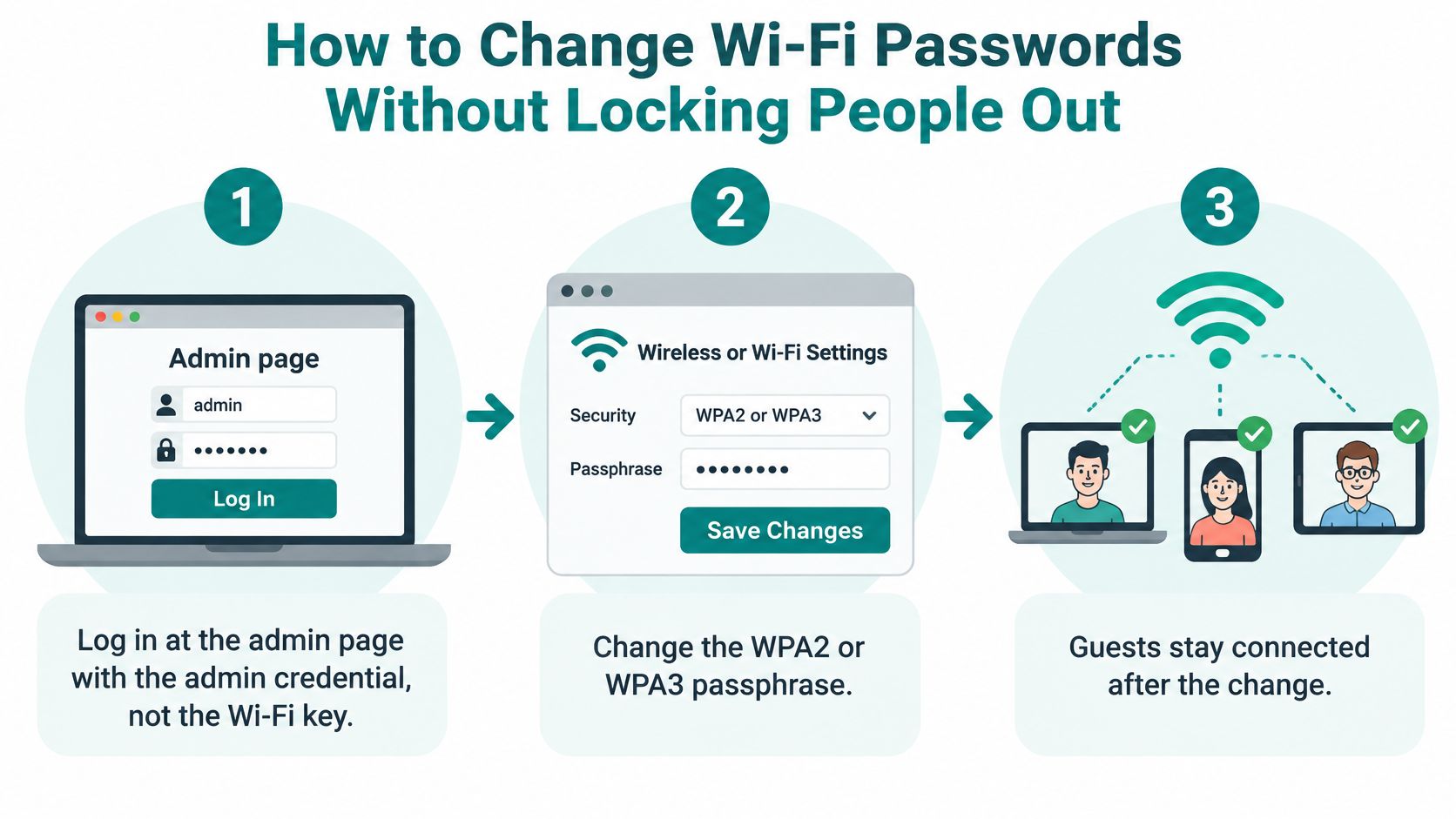
How to Change Wi-Fi Passwords Without Locking People Out
Changing a password on a home router takes three minutes and bumps a handful of phones off the air until you retype the new key. Changing a shared Wi-Fi password in a busy hotel, campus, or retail store is a different story. If you pull the rug out from under 200 active devices at lunchtime, the front desk phone won't stop ringing.
Updating a Home or Small Office Router
- Sign in to the admin panel with the admin login. Open your router's management page or vendor app and enter the admin username and password, not your current Wi-Fi key.
- Switch to a long passphrase in Wireless Settings. Open Wireless or Wi-Fi Settings, select WPA2 or WPA3, and replace the existing key with a memorable multi-word passphrase rather than a short tangle of symbols. Following the NIST SP 800-63B digital identity guidelines, user-chosen memorized secrets must be at least 8 characters long, systems should allow lengths of at least 64 characters, and verifiers should block common or breached values while storing secrets with salted, offline-attack-resistant hashing.
- Change the router admin password during the same session. Go to Administration or System Settings and set a fresh admin password that you never reuse on email, banking, or work accounts.
- Save your changes and reconnect your devices. Your phone, laptop, smart TV, and printer will drop off as soon as the router applies the new key, so update each one before walking away.
Only use a full factory reset when you're completely locked out of the admin login or retiring the hardware. Changing passwords inside the settings screen keeps your custom network name, parental controls, and device rules intact, whereas a factory reset wipes the lot.
The revocation rule: A single shared guest password can't tell one visitor from another, so changing it disconnects every legitimate guest at once while leaving the replacement key just as easy to photograph and share again.
That exact trap has plagued hospitality for years. A 2014 WatchGuard survey cited by Davis Wright Tremaine found that 71% of global hospitality organizations, including hotels and restaurants, did not require unique temporary passwords for guest Wi-Fi, and roughly half didn't monitor their wireless networks for suspicious applications or malware. When one key floats around on lobby signs and guest screenshots, revocation stops being practical.
Rotating Credentials Across a Managed Venue
- Question whether a shared guest password should exist at all. Before scheduling a rollover, decide if a guest portal or personal key model removes the need to broadcast a single static key.
- Move to scheduled rotation or individual IPSK and EasyPSK keys. On Cisco Meraki networks, per-user keys let you cut off a departing student, seasonal worker, or contractor without touching anyone else's connection. In residential buildings and student housing, a property manager can reset Wi-Fi passwords between lease agreements, schedule future move-in activation, and set service to deactivate automatically on a specific move-out date. When users travel across partner buildings, network roaming also lets them use the same personal Wi-Fi password to connect across multiple locations and networks without re-enrolling.
- Keep staff and payment systems on a separate SSID. Point-of-sale terminals, front-desk PCs, and back-office tablets should never share an SSID or credential with visitors, so guest password changes never touch operations.
- Replace every printed card, room binder, and QR sign on the same day. Leaving yesterday's laminated table tent on a single cafe table guarantees a wave of support complaints and invites unauthorized devices back onto the network.
Why the Wi-Fi Login Fails After the Password Works
A guest is in the lobby with full bars and a Connected label, and every page still spins. The wireless password already matched. The failure is the second credential: the sign-in the captive portal still requires before it opens the internet.
Phones blur those two jobs into one "Wi-Fi" status. The passphrase, or the QR code that delivers it, only lets the device join the SSID and take an address. The portal is a later checkpoint, like a front desk that still has to stamp a key after the building door has opened. When portal detection, the redirect, or the session handoff is unreliable, guests wait, abandon the attempt, or loop through login again after the password succeeded. A different password style, a passkey, or a social button will not rescue that handoff.
A Quick Diagnostic Check for Support Staff
Do not reissue the key as the first move. Open the device's Wi-Fi details and confirm it received an IP address. No address means the wrong SSID, a mistyped key, or a join that never finished.
If an address is there, force the login page. Type a plain HTTP address into the browser. Phones often open HTTPS first and skip the redirect the portal needs.
Turn off a VPN, iCloud Private Relay, and Private DNS for the test. Those features hide the probe the network uses to spot an unauthenticated client. If the page still stalls, try another browser, or forget the SSID and join again. Until the portal records a successful sign-in, the device stays on a restricted guest VLAN. An expired session usually needs a fresh login in the same browser tab. Patterns that keep showing up on phones and laptops are covered in this breakdown of Wi-Fi login authentication problems.
Smart TVs, streaming sticks, and game consoles have no browser, so they cannot draw that page. Those rooms need a staff-assisted join or a QR-code path that finishes onboarding off the TV. Once the set is authorized, frozen channels are a player problem, not a password problem. Staff can separate those glitches from a network block with step-by-step IPTV playback repairs.
Captive Portal Login Problems: Causes and Fixes
Front-desk staff can match the symptom to the first check before they touch the password again.
| Symptom | Likely cause | First fix | Escalate if |
|---|---|---|---|
| Connected but nothing loads | Portal page not triggered | Open a plain HTTP address to force the redirect | It loops back to the same page |
| Password rejected on a known-good key | Wrong SSID, case, or a space pasted in | Forget the network and rejoin | Other devices on the same key also fail |
| Connected, key rejected on a phone that worked yesterday | WPA3-SAE passphrase mismatch or pasted space | Forget the network, retype the key without spaces | The same key works on a laptop of the same model |
| Sign-in page never appears on iPhone or iPad | Private relay or private DNS blocking detection | Turn both off for the test | The sign-in sheet still never appears |
| Login succeeds, page reloads | Session not propagated or expired | Sign in once more in the same tab | It repeats on every device |
| Games console or smart TV cannot sign in | No browser to show the portal | Use the venue staff-assisted or QR path | No assisted path exists |
| Works at one venue, not another | Separate networks with separate policies | Check which SSID the device joined | The venue's other guests report the same |
| Very slow page loads after sign-in | Client on a restricted guest VLAN or throttled | Reconnect and retest on another browser | Speed stays low after reconnecting |
If two devices on the same SSID fail together, suspect the guest VLAN or the portal session store, not one guest's phone.
Credential Rules That Hold Across Sectors
A hotel that hands every guest the same Wi-Fi password for a year faces the same basic problem as a family that never changes its router key: nobody can say who still has access. The scale differs, but the credential rules do not. Whether you manage a 40-room boutique hotel, a student dormitory, a retail centre, a healthcare site, or a home network, start by separating the two jobs involved. The Wi-Fi password lets a device join the wireless network. The login or account credential decides who that user is and what they may do afterward.
Three rules hold up under pressure:
- A password performs one job inside a larger security model. Encryption protocol, network segmentation, monitoring, and fast revocation matter just as much as the key itself.
- Guest traffic belongs on its own SSID with client isolation. A shopper, student, or lobby visitor should never share a trust boundary with point-of-sale terminals, student records, or internal applications, a boundary reinforced by CISA guidance on securing enterprise wireless networks.
- Individual keys beat shared passwords whenever people come and go. Using IPSK or EasyPSK on Cisco Meraki lets you cut off one departing student, seasonal associate, or contractor without disrupting everyone else.
A shared password works like copying the same front-door key for every visitor. You can change the lock eventually, but until then every copy remains valid. Individual credentials reverse that position: each person receives a separate key, and losing one copy does not require everyone else to relearn the network.
Matching the Credential Model to the Environment
Every sector balances guest convenience against data risk differently. Use the table as a starting point, then look at who needs access, how long they need it, and what systems sit behind the wireless network.
| Environment | Main risk | Credential model | Why it fits |
|---|---|---|---|
| Home or small office | Default router login and reused key | Long WPA2 or WPA3 passphrase plus a unique admin password | Simple to run, closes the default-settings gap |
| Hotel or guest house | Shared key circulated and never revoked | Rotating guest key or time-limited vouchers, portal consent | Access ends with the stay |
| Student campus and dorms | Former students retained on the network | Personal IPSK keys or account-based sign-in | Revocation is one person at a time |
| Retail and shopping centre | Guest key reused and no audience data | Social Wi-Fi login under a disclosed purpose | Marketing opt-in plus a revocable key |
| Corporate BYOD and co-working | Employee-owned devices on the staff network | Separate BYOD SSID with individual keys or Azure AD Entra ID sign-in | Isolation from internal applications |
| Healthcare and senior living | Sensitive data on a flat network | Separate guest SSID, strong authentication, no shared key | Guest access never reaches clinical systems |
The right column matters more than the product name. Ask what happens when access should end. If the answer involves changing one shared password and contacting every remaining user, the credential model creates unnecessary disruption.
How Each Sector Applies These Rules
Education campuses and student housing: Schools issue personal keys tied to student accounts while keeping staff and BYOD laptops on enterprise or Azure AD Entra ID sign-in. In multi-dwelling dorms, a Wireless Private Network (WPN) lets each resident onboard all of their own devices with one personal Wi-Fi key and keeps them inside a private bubble on the wider wireless network. A laptop, phone, games console, and smart speaker can therefore share the resident's private network space without opening that space to neighboring flats.
Retail and shopping centres: Stores can treat social Wi-Fi or guest login as a clearly disclosed marketing opt-in rather than a hidden data collection exercise. Optional guest access can authorize users onto a Meraki network and collect details such as name and email address when required. Pair that sign-in with rotated guest access and strict separation from checkout hardware.
Corporate BYOD offices and coworking hubs: Employee-owned phones and visitor laptops belong on a dedicated BYOD SSID with individual credentials or directory authentication, so unmanaged devices never touch internal file servers. The choice between WPA2 Personal and Enterprise authentication often decides whether IT continues distributing one shared key or assigns access to identifiable users and devices.
Hotels, healthcare, and senior living: Hotels tie access to rotating keys or stay-length vouchers, while clinics and senior living communities keep visitor Wi-Fi separate from clinical networks. That separation lets patients reach appointments, personal health records, and prescription requests without exposing staff systems. A 100% cloud-managed Wi-Fi dashboard also gives multi-site venues one place to apply consistent policies without local server hardware.
Home networks are simpler, but default habits leave the same kind of opening. An ISPreview report on a 2025 survey of 3,242 UK internet users found that 69% had never changed their Wi-Fi password, 47% had not changed any router default settings, and among those who kept defaults, 73% said they did not understand why they should, while 22% did not know how. Replacing the factory router admin login and setting a long wireless passphrase removes much of that exposure. The admin password protects the settings; the Wi-Fi passphrase protects network access. Changing one does not automatically change the other.
At the protocol layer, enable WPA3 wherever your devices support it and keep WPA2 available only as a fallback for legacy hardware. WPA2-PSK depends heavily on passphrase strength because captured authentication material can be exposed to offline guessing. The NSA cybersecurity technical report on WPA3 explains how WPA3's Simultaneous Authentication of Equals resists offline brute-force attacks and how WPA3-Enterprise can provide 192-bit security for sensitive institutional networks. In practice, a long unique passphrase remains important even with WPA3, because protocol improvements cannot compensate for a key that is short, reused, or widely circulated.
Where the Guest Sign-In Page Fits Over the Password
A guest types the correct Wi-Fi password, their phone shows full signal bars, and yet nothing loads. In most venues, the culprit is a captive portal, the branded web page that appears after joining the Wi-Fi and before the open internet becomes available. Depending on how you configure it, that page can ask for a voucher code, a name and email address, acceptance of terms and conditions, or a social login. The three layers work in sequence like doors in a corridor: the Wi-Fi key or IPSK controls who joins the wireless radio, the captive portal controls who gets internet access and on what terms, and the cloud admin dashboard holds the policy behind both. Each door has its own key, and the password your guest typed only opens the first one.
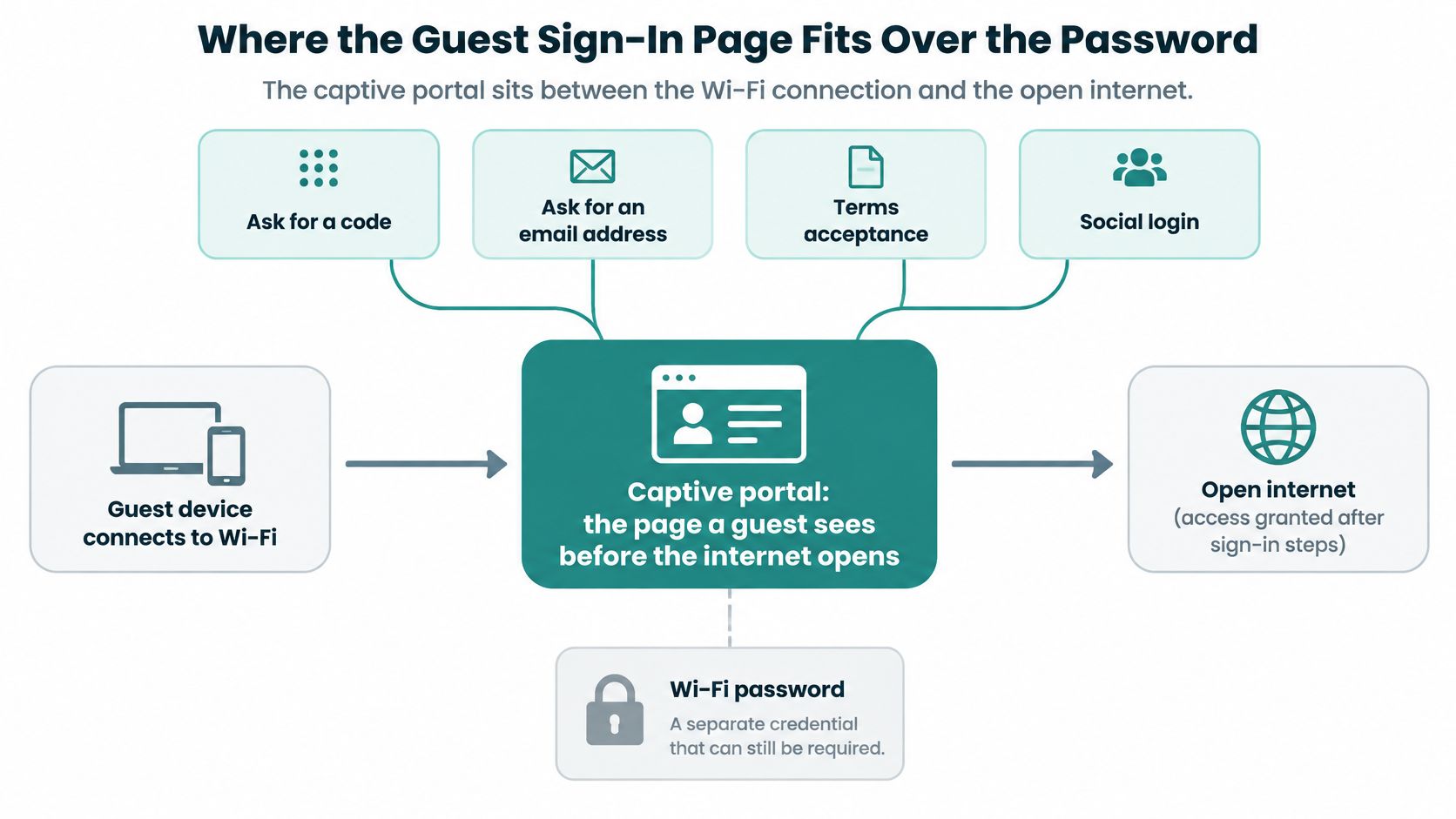
A portal can even authorize visitors without making them type a shared wireless password at all. As the Wi-Fi Alliance Enhanced Open technology overview describes, airports, hotels, and stadiums often let a device join the advertised SSID and redirect straight to an HTTPS authorization page for guest Wi-Fi onboarding, social WiFi, or consent collection. Pairing that open onboarding with Wi-Fi Enhanced Open, which the Wi-Fi Alliance notes uses Opportunistic Wireless Encryption (OWE) to give each user individual over-the-air encryption without requiring credentials, separates wireless encryption from the portal's job of verifying identity and policy. Encryption protects the traffic. The portal decides who passes.
Choosing the Right Portal Flow for Your Visitors
Different venues need different front doors. Knowing how a captive portal login works helps you pick the lowest-friction option that still protects your network:
- Rotating keys and printed or QR vouchers: Ideal for cafes, hotels, and event halls that want quick access tied to a room stay or a receipt without collecting personal profiles. WPA2 Guest Wi-Fi systems can hand out access through a scanned QR code, so the front desk never reads a password aloud.
- SMS or email one-time codes: Helpful when you want optional guest access that quickly authorises users onto a Cisco Meraki network while collecting customer data such as name and email address as required, or verifying a real phone number through SMS authentication.
- Social Wi-Fi login: Built for retail stores and hospitality venues that want to turn guest Wi-Fi into a transparent, opt-in audience with verified visitor details.
- Campus and directory sign-in: In education, students log in to the campus network with their unique SSID credentials through a simple captive portal on any device, while staff and BYOD corporate users sign in through Azure AD Entra ID or SAML so employee-owned phones never cross into the corporate trust boundary.
The flow you choose shapes how visitors judge the venue itself. A hotel or coworking space where sign-in works cleanly on both laptop and phone earns loyalty from remote workers, the same audience comparing destinations through resources like St Christopher's coworking and nightlife rankings across Europe.
Keeping Portal Detection Reliable and Privacy-First
Because almost all modern web traffic runs over HTTPS, relying on old-school HTTP interception alone causes blank screens and security warnings. Reliable venues advertise their portal metadata through DHCP and IPv6 router advertisements while keeping a clean fallback landing page ready for older devices that don't understand the API. When a guest reports "the Wi-Fi is broken," check whether their portal page even loaded before touching anything else.
Privacy deserves just as much care as uptime. A captive portal collects consent and personal details configured by the venue operator, and the venue's own privacy policy governs how that data is used. Captive portals can also introduce third-party trackers if configured carelessly, so the smartest design collects only the fields needed for network access, legal compliance, or a clearly disclosed service. Ask for less, and fewer guests abandon the page halfway through.
Your Next Step After the Wi-Fi Login Check
Now that the wireless key, the router admin login, and the captive portal sit in three separate boxes in your head, fixing your setup takes a short, focused audit rather than a weekend overhaul. Pick the checklist that fits your network and work through it top to bottom.
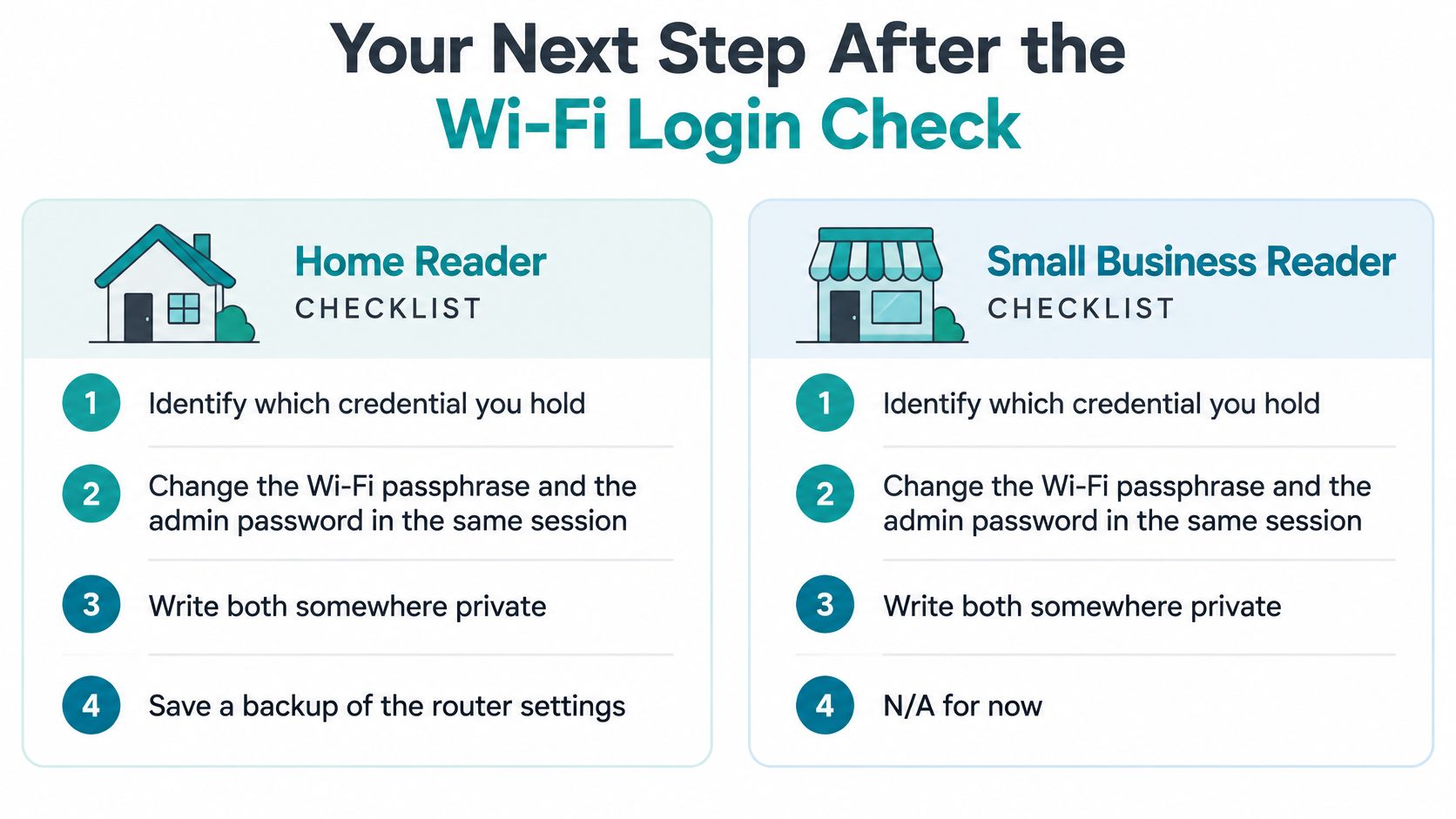
Home User Action Checklist
- Identify which credential you hold. Confirm you have both your Wi-Fi network password and your separate router admin login before touching any settings.
- Update both passwords in the same session. Set a long WPA2 or WPA3 passphrase for your devices, then replace the factory admin password on the router management page.
- Store both credentials somewhere private. Keep them in a password manager or a private home folder, never taped to a window or shared in group chats.
- Stop reusing the router admin password anywhere else. Make sure no email, shopping, or banking account shares that credential.
Venue and IT Operator Action Checklist
- Audit whether your guest password is still shared. Check every reception desk, classroom, lobby sign, and staff handbook for static keys that have been circulating for months.
- Pick one change that ends key reusability. Move to scheduled key rotation, printed or QR-code vouchers, or individual IPSK and EasyPSK credentials per guest, student, or BYOD device.
- Retire old signs and room folders the same day. Pull every outdated card and wall poster immediately so guests aren't typing dead keys.
- Test the captive portal across all four platforms. Verify sign-in on iOS, Android, Windows, and macOS before your next peak check-in, semester start, or weekend retail rush.
When you evaluate an authentication platform for Cisco Meraki, look for instantly deployable captive portals integrated directly into the Meraki Cloud, DUO multi-factor authentication for administrators, per-user keys for large deployments, Azure AD sign-in for staff and students, and a transparent social Wi-Fi login for retail.
The strongest Wi-Fi login is one a guest completes on any device, in under a minute, without ever seeing a shared key.
If you run guest, student, retail, or BYOD corporate Wi-Fi on Cisco Meraki and want to replace sticky-note passwords with reliable captive portals, IPSK and EasyPSK keys, QR onboarding, social login, or Azure AD sign-in, everything sits inside one cloud dashboard. You can see how these authentication workflows connect directly to your Meraki network and deploy without extra local hardware by visiting Splash Access.