Ever find yourself holding your breath for a second before handing your phone to a friend or jumping on a public Wi-Fi network? That's where Android Guest Mode comes in, my friend. It's like having a temporary, clean version of your phone on standby, creating a private space that keeps all your personal stuff completely separate and secure.
Why Android Guest Mode Is Your Go-To for Wi-Fi Privacy
Our phones are basically extensions of ourselves, so sharing your device can feel a lot like sharing your diary. The guest mode android feature acts as a digital wall, building an isolated environment for anyone who isn't you. This is a massive advantage when you need to securely connect to guest Wi-Fi networks, whether you're in an Education setting, a Retail store, or in a BYOD Corporate sector.
This feature really shines when you're faced with a Captive Portal—you know, that login page that pops up at the coffee shop or airport before you can get online. Hopping into Guest Mode first means you're using a clean browser without any of your personal history or saved logins. It makes getting through those portals much smoother and a whole lot safer.
The Power of Keeping Things Separate
Think about a student on a sprawling university campus or a shopper connecting to the in-store guest wifi. These places often use advanced Authentication Solutions, sometimes running on powerful hardware from companies like Cisco or Meraki. Using Guest Mode ensures that a user's personal data is never at risk on these shared networks.
It also simplifies the connection process, no matter how the network is set up. This includes:
- Social Login: You can use your social media account to get Wi-Fi access without exposing the primary accounts already logged in on your phone, making social wifi a breeze.
- IPSK and EasyPSK: It helps you connect safely to networks that give each device its own unique key, a standard practice in many corporate BYOD environments.
The core idea is simple: Guest Mode stops any data from leaking over. Your apps, photos, and accounts stay locked away behind your profile, while the guest gets a fresh, out-of-the-box Android experience.
With Android holding a massive 72.47% of the global smartphone market share, this privacy feature is more important than ever. It's especially relevant when you consider our daily habits—a whopping 77% of people use their phones in restaurants, often in public settings where privacy is a real concern.
To get a better handle on data handling and your rights as a user, it's always a good idea to review general privacy policies, which pair well with the security that Guest Mode provides.
Guest Mode Benefits at a Glance
To quickly see why Guest Mode is such a useful tool, here's a breakdown of its key advantages when sharing your device or connecting to public networks.
| Feature Area | Primary Benefit | Best Use Case |
|---|---|---|
| Personal Data | Complete isolation of your apps, accounts, and files. | Handing your phone to a child or friend. |
| Public Wi-Fi | Prevents exposure of browsing history and saved logins. | Connecting to a captive portal at an airport or café. |
| App Usage | Guests can download and use apps without accessing yours. | A colleague needs to quickly check their email. |
| Device Reset | The guest session can be deleted, leaving no trace. | After a guest has finished using your device. |
Ultimately, Guest Mode provides peace of mind in a variety of common, everyday situations. It’s a simple yet powerful feature built right into your Android device.
How to Quickly Enable Android Guest Mode
Firing up Guest Mode on your Android device is incredibly easy—it honestly takes just a few seconds. I like to think of it as creating a temporary, secure bubble on your phone for someone else to use. It’s a lifesaver in all sorts of situations, especially in places like a school campus running on Cisco hardware or a shop using a Meraki-powered guest wifi network.
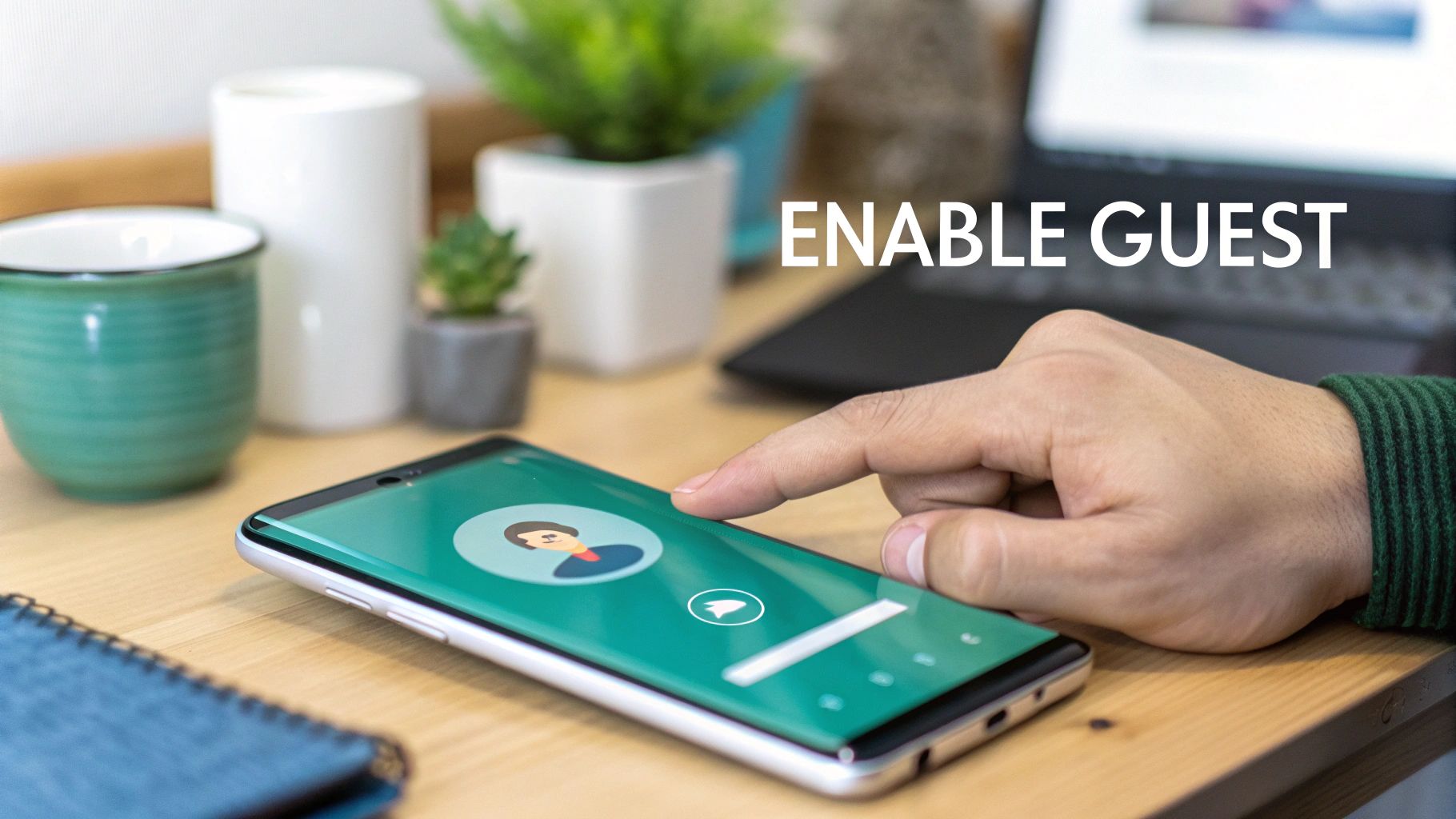
Just swipe down from the top of your screen to pull down the Quick Settings panel. Among the usual suspects like Wi-Fi and Bluetooth, you’re looking for a small user profile icon, typically tucked away near the settings gear. Tap that little avatar, and you're in.
A menu will appear showing your main user profile along with an "Add guest" option. The moment you select it, your device switches over to a completely fresh, stock Android interface. It really feels like a factory reset—all your personal apps, accounts, and notifications are securely hidden from view.
Navigating Different Android Versions
While the basic steps are pretty much the same across the board, the exact placement of that user icon can shift a bit depending on your specific Android version. Thankfully, Guest Mode has been a standard feature since Android 5.0 Lollipop, so it’s available on the vast majority of devices out there.
This wide availability is huge when you consider Android's massive market share. As of November 2025, devices running Android 12 or newer account for over 61.4% of the ecosystem. So, whether you're on the still-popular Android 13 (14.99% share) or the more recent Android 15 (26.24%), you can almost certainly count on having this privacy feature built-in. You can dive deeper into the latest figures by checking out the Android version distribution on gs.statcounter.com.
For any organization managing a BYOD policy, this consistency is a godsend. IT teams can confidently instruct users to enable Guest Mode when implementing Authentication Solutions like IPSK or EasyPSK, knowing the feature will be there.
Pro Tip: When you launch Guest Mode, Android will ask if you want to start fresh or continue a previous guest session. For the best security, always choose "Start again." This completely erases any data from the last guest, giving the new user a truly clean slate.
A Smart Move Before Connecting to Guest Wi-Fi
Switching to Guest Mode is the perfect first step before you even think about connecting to a network with a Captive Portal—those login pages you always see at airports, hotels, and cafés. Using a guest profile means you’re connecting with a clean browser, without any of your personal cookies or saved logins getting in the way.
It’s a simple but effective security habit, whether you’re using a quick social login for social wifi or dealing with a more complex corporate network. This keeps your personal browsing history completely separate from the public network.
For anyone managing these guest networks, streamlining the user experience is everything. If you're looking for pointers, our guide on how to set up guest Wi-Fi is a great place to start.
When your friend or colleague is done, just swipe down, tap that user icon again, and hit "Remove guest." Their session and all its data will be securely wiped, and you’ll be right back in your own private profile.
Navigating Captive Portals and Guest Wi-Fi
This is where Android's Guest Mode really shines in the real world. Think about every time you've needed to jump on a guest Wi-Fi network—a coffee shop, a university library, or a client's office. Guest Mode makes those connections far simpler and much more secure.
You know that login page that always pops up before you can actually get online? That's a Captive Portal, and it's the gatekeeper for the network. Guest Mode is the perfect tool for these situations because it opens a completely clean, isolated browser. None of your personal cookies, saved passwords, or browsing history will get in the way of the login process.
Connecting in Different Environments
Let's break down a few common scenarios where this feature is a lifesaver.
In a busy Retail store, you might be offered free Wi-Fi in exchange for a quick social login. Using Guest Mode ensures you're authenticating through that social wifi portal without ever exposing the personal social media accounts already logged into your phone's main profile. It neatly separates your personal and public browsing worlds.
It's a similar story in Education. Students are constantly moving between different campus buildings, each with its own network access points. These networks, often built on robust Cisco or Meraki hardware, are locked down for security. By flipping to Guest Mode for a quick connection, a student can get to campus resources without co-mingling their personal device data with the school's network.
Using Guest Mode on a captive portal is like borrowing a sterile, brand-new key to open a public door. You use it to get in, and then you hand it back without leaving any personal fingerprints behind.
Advanced Authentication in BYOD Policies
The benefits are even more obvious in the BYOD Corporate sectors. These networks often rely on more sophisticated Authentication Solutions to control access. Instead of just a simple password, they might use advanced methods like IPSK (Identity Pre-Shared Key) or EasyPSK, which assign a unique credential to each device.
When you connect a device using Android Guest Mode, you're essentially presenting a "clean" device to the network. This sidesteps any potential conflicts from apps or settings on your main profile, paving the way for a smooth connection with these secure systems. It's a simple step that respects corporate security protocols while protecting your own privacy.
For anyone managing these networks, understanding that user journey is crucial. You can dive deeper into how these login pages are designed by exploring what makes a great Wi-Fi captive portal. Knowing both sides of the coin helps create a better, more secure experience for everyone.
Ultimately, whether you're a shopper, a student, or a corporate visitor, Guest Mode acts as a secure middleman, ensuring your connection to a guest network is both private and painless.
A Better Way to Onboard Guests: QR Codes
Captive portals get the job done, but hey, there's a much smoother, more advanced way to get visitors online. This is a game-changer if you're managing networks in busy places like Education, Retail stores, or any office with a bring-your-own-device (BYOD) policy. Using QR codes can completely transform the guest Wi‑Fi experience, especially when you’ve got high-performance gear like Cisco Meraki running the show.
Picture this: a visitor walks into your lobby, scans a QR code at the reception desk, and their Android phone—running in Guest Mode—is instantly and securely on your network. No fumbling with complex passwords or trying to get a clunky login page to load. The magic behind this is a unique Identity Pre-Shared Key (IPSK), which gives them a direct, secure connection that skips the captive portal altogether.
This simple process works beautifully across different environments, from a classroom to a coffee shop to a corporate headquarters.
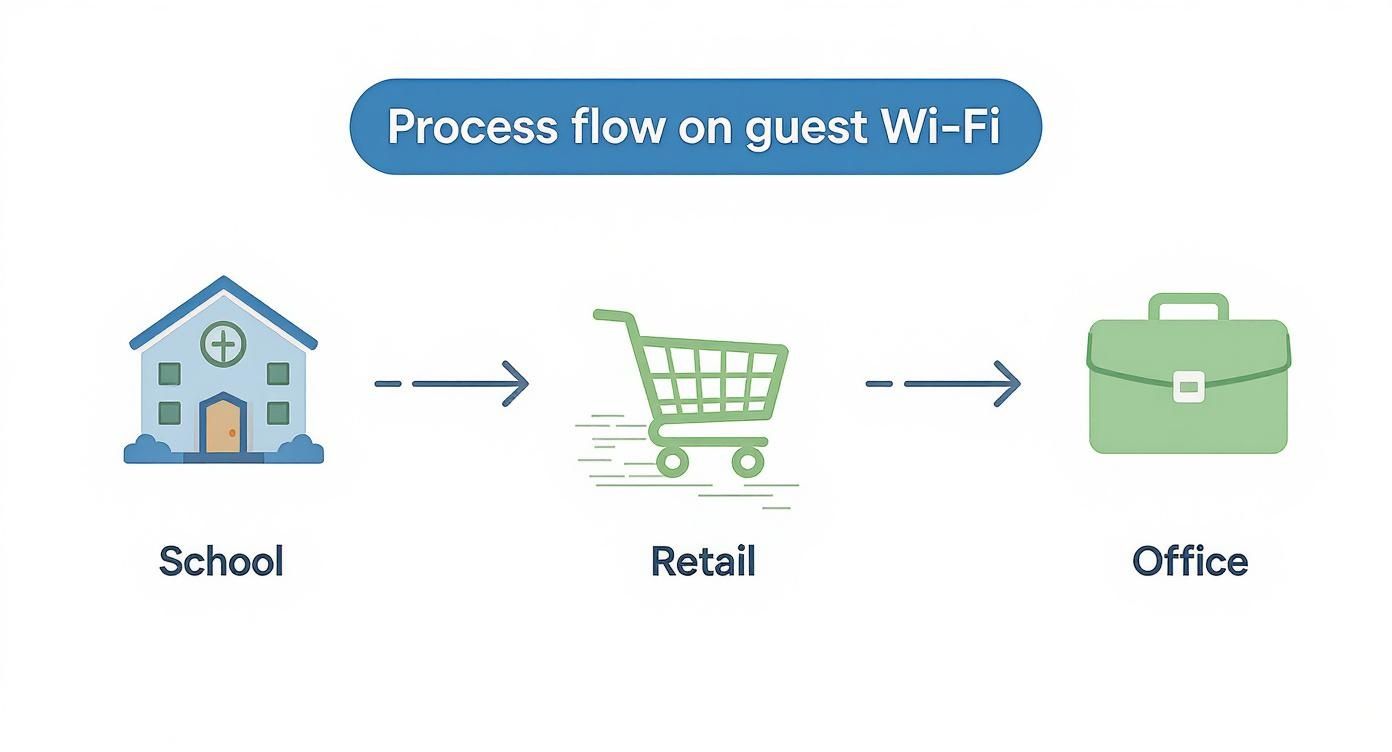
The real takeaway here is that you can use a single, unified onboarding method to simplify access for everyone while keeping your security locked down, no matter what kind of environment you're managing.
The Power of Unique Credentials
From a security standpoint, this technology is a massive leap forward for BYOD. By issuing a unique credential to every user via IPSK or EasyPSK, you create a far more accountable and controlled network. Think of it as giving each guest their own personal key to the Wi-Fi instead of handing out a master key that everyone shares.
For any network administrator, this approach brings some serious advantages:
- Granular Control: You know exactly who is on your network and can monitor their activity if needed.
- Simple Revocation: If a guest leaves or a device is lost, you can kill their specific key in a second without affecting anyone else.
- Enhanced Security: It completely removes the risk of a shared password getting leaked and used by someone who shouldn't have it.
This method turns Wi-Fi access from a potential security headache into a manageable, secure, and user-friendly experience. It’s one of the best Authentication Solutions for modern guest networks.
Platforms like Splash Access can generate these unique, time-limited QR codes that integrate directly with your Cisco Meraki infrastructure. If you're a network manager, it’s worth looking into how QR IPSK visitor solutions for Cisco Meraki could slot into your current workflow.
On the user side, Android’s Guest Mode provides an extra layer of privacy. When people feel they have more control over their data, they tend to be more engaged. It's no surprise that Android push notifications see a 5.3% click-through rate; users trust the platform because it gives them tools to manage their privacy. And with Android dominating 93% of the smartphone market in massive regions like India, offering robust, privacy-first tools isn't just a nice-to-have—it's essential.
Security Practices for Shared Devices and Networks
Using guest mode on an Android device is a fantastic start, but let's build a complete security mindset around it. Real digital safety is a shared responsibility, falling on both the person lending their device and the administrators managing the network. This holistic view is absolutely critical in today's world, especially in environments like Education, Retail, and corporate BYOD programs.
If you're the one sharing your phone, get into one simple habit: always end the guest session the moment you get your phone back. Just swipe down from the top, tap the user icon, and hit "Remove guest." It’s a single tap that completely wipes the slate clean—browser history, downloads, any accounts they logged into—making sure no digital breadcrumbs are left behind.
Fortifying Your Network for Guests
For IT managers and network administrators, locking down the network side of the equation is just as vital. When you're setting up a guest Wi-Fi network, especially with a powerful platform like Cisco Meraki, there are a few non-negotiable best practices to follow. These steps help create a secure bubble for visitors to connect without putting your internal infrastructure or other users at risk.
Your first line of defense should always be client isolation. Turning this on within your Meraki dashboard is a game-changer. It effectively prevents guest devices from "seeing" or communicating with each other. Think of it as giving each user their own private booth on the network, which dramatically cuts down the risk of malware spreading from one person's device to another.
Next, it's time to move beyond the old "one password for everyone" approach and adopt modern Authentication Solutions.
- IPSK and EasyPSK: These systems give a unique pre-shared key to each user or device. This makes access control far more granular and much more secure.
- Social Wi-Fi Login: Integrating a social login on your Captive Portal not only makes it easier for guests to get online but can also provide valuable (but non-sensitive) marketing insights.
If you want to dig deeper into how these keys work, our guide on using security keys for Wi-Fi is a great resource for strengthening your network's front door.
Remember, a secure guest network isn't just about keeping threats out. It's about creating a safe, trustworthy environment for everyone who walks through your doors, whether they're students, shoppers, or corporate visitors.
Red Flags on Unsafe Networks
Finally, everyone should learn to spot the signs of a sketchy Wi-Fi network. If you connect and the captive portal looks slapped together, asks for way too much personal information, or the connection is painfully slow and keeps dropping, don't hesitate. Just disconnect. A professionally managed network from a provider like Cisco or Meraki will always feel secure and look the part.
Common Questions About Android Guest Mode
Got a few nagging questions about how all this works in the real world? Let's clear them up. I've gathered some of the most common queries I hear about using Android's guest mode, especially when it comes to Wi-Fi access in places like schools, retail stores, and corporate BYOD environments.
Does Guest Mode Expose My Personal Apps or Data?
Not a chance. Think of Android Guest Mode as creating a completely separate, temporary sandbox on your phone. The guest can't see or touch any of your personal files, photos, messages, or apps.
What they get is a fresh, factory-default Android experience with just the basic pre-installed apps. Once you end their session, everything they did—browser history, downloads, anything—is wiped clean for good. It's a fantastic privacy shield.
Can a Guest User Access My Google Account or Make Purchases?
Absolutely not. A guest user is completely locked out of your Google account and any other accounts you're signed into. This means they can't hop into the Google Play Store and use your saved payment methods.
If they want to download apps or buy content, they'll have to sign into their own Google account within that temporary guest session. This strict separation is one of the biggest security benefits of using Guest Mode.
What If a Captive Portal Login Page Does Not Appear?
This happens sometimes, but it's usually a quick fix. If a Captive Portal from a Cisco or Meraki network doesn't pop up automatically, the simplest trick is to open a web browser inside Guest Mode.
From there, try navigating to a simple, non-secure (non-HTTPS) website, like example.com. This almost always forces the network to redirect you to the login page.
It's also worth a quick check to make sure Wi-Fi is actually turned on within the guest session itself. In some highly secure corporate or school networks, the IT admin might have intentionally restricted access using specific Authentication Solutions like IPSK or EasyPSK.
The most important thing to remember is that Guest Mode is a powerful privacy feature. It’s built from the ground up to put a secure wall between your personal stuff and a temporary user, making it perfect for connecting to guest wifi that uses social login or other public social wifi methods. Your digital life stays private.
For any organization managing a guest network, this feature is a huge help. Encouraging visitors to use Guest Mode creates a much safer connection for everyone, protecting both the user's device and your own network infrastructure.
Ready to create a better visitor experience with secure, seamless connectivity? At Splash Access, we build advanced guest Wi-Fi solutions for Cisco Meraki, from beautiful, custom captive portals to simple QR code onboarding. See how we can make your guest network work for you.