You're on Wi-Fi, you tap a link, and instead of the page you expect, you get a warning that says This Website Is Blocked by Your Network Operator. That usually feels like either the internet is broken or somebody is stopping you on purpose.
In managed Wi-Fi environments, both feelings are understandable, and both can be misleading. On a guest network in retail, education, hospitality, or a corporate BYOD environment, that message often comes from a policy somewhere between your device and the site you're trying to reach. It might be intentional. It might be a false positive. It might even be a captive portal or DNS issue wearing the mask of a block page.
We see this a lot on Cisco and Meraki deployments. The fix starts with one simple idea. Before you treat it as a website outage, treat it as a network path problem.
Why You Are Seeing That Website Blocked Message

The most important thing to know is this. “This website is blocked by your network operator” usually points to network-level filtering, not a global website outage. Practical diagnosis guidance recommends testing the same site on mobile data or a different Wi-Fi network. If it works elsewhere, the issue is local to the network policy, which is common on guest Wi-Fi and captive portals, as explained in this access blocked versus website down guide.
That's why the same site may open fine at home but fail on a school network, retail guest Wi-Fi, or a company's BYOD SSID. The website itself isn't necessarily unavailable. The network you're using may be enforcing content filtering, firewall rules, or authentication requirements.
Where the message usually comes from
On managed networks, blocks often come from one of these places:
- Content filtering policies that deny categories or specific domains
- Firewall or Layer 7 rules that stop traffic based on application behavior
- Captive portal flows that haven't completed yet
- Venue-managed security controls on public or guest access
- Authentication design choices that separate guest users from trusted users
In education, that can be about student safety and acceptable-use policies. In retail, it's often about reducing abuse on public Wi-Fi and protecting shoppers from risky destinations. In corporate BYOD, it's about keeping unmanaged devices away from sensitive resources while still giving visitors and staff usable internet access.
Why this matters on guest Wi-Fi
Guest Wi-Fi isn't just “internet with a password.” It often includes splash pages, social login, social WiFi flows, traffic shaping, and web filtering. If any part of that chain is incomplete or misconfigured, the user sees a block and assumes the site is the problem.
Practical rule: If a site works on one network and fails on another, start with the network policy before blaming the site.
For admins running Cisco Meraki, clear policy design matters. A clean Meraki web filtering setup can keep users safe without creating random-looking failures that are hard to explain.
Troubleshooting Steps for Guest WiFi Users

If you're the person staring at the error page, don't jump straight to “the site is banned” or “the venue Wi-Fi is useless.” On guest networks, the quickest fix is often much simpler.
A practical diagnosis sequence is to test the same URL on a different network, such as mobile data. If it fails on Wi-Fi but works on cellular, the issue could be local filtering, a captive portal, or a DNS issue. Guidance also notes that a VPN is often seen as a broad bypass method, but checking for the portal page first is the simplest move, as described in this ISP blocking breakdown.
Start with the captive portal
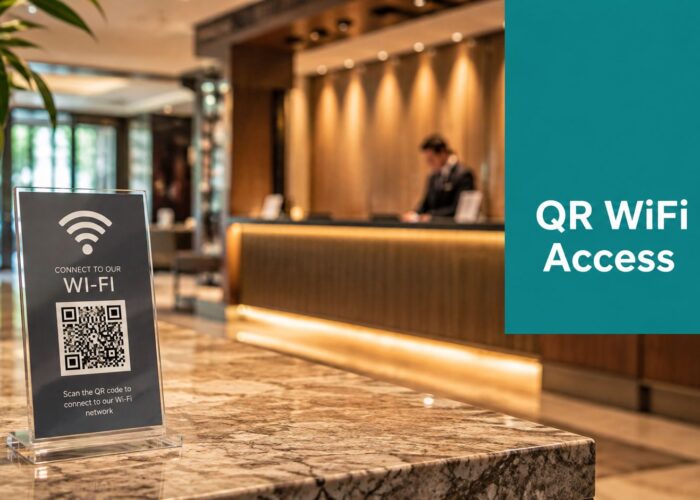
Many public and venue networks don't grant full access until you finish sign-in. That sign-in page may be a branded splash page, a voucher screen, or a social login flow using platforms like Google or Facebook for social WiFi access.
Try this in order:
Disconnect and reconnect to Wi-Fi
This often forces the login page to reappear.Open a browser and visit a plain website
A non-secure page can sometimes trigger the captive portal more reliably than jumping straight to an app or saved bookmark.Check whether the network wants acceptance or sign-in
You may need to tap accept, enter an email, use social login, or complete another authentication step.Try a different browser
Guest portals sometimes behave differently across browsers, especially if one is carrying old cookies or aggressive privacy settings.
For users who are stuck in a loop, this captive portal detected guide covers the common pattern where Wi-Fi connects but browsing doesn't complete normally.
Quick checks that save time
Not every fix is glamorous. Some are boring and effective.
- Clear cached browser data if the sign-in page never loads correctly.
- Try another device on the same Wi-Fi. If your phone works and your laptop doesn't, the issue may be local to that device.
- Turn Wi-Fi off and test on mobile data. That's the fastest way to separate a venue network problem from a wider internet problem.
- Restart the device if the portal has half-loaded or keeps redirecting.
If the site opens on mobile data but not on guest Wi-Fi, you've learned something valuable. The website is reachable. The block is happening somewhere on the Wi-Fi path.
What not to assume
Users often read “network operator” and assume the mobile carrier or ISP is censoring the site. Sometimes that's true. Often it isn't.
On guest access, the block may come from the local venue network, a security filter, or an incomplete login flow. If the venue combines public Wi-Fi with a captive portal and authentication controls, the local system has far more influence than people realize.
If you've tried the basics and still can't load the site, tell support exactly what you saw. The exact message matters. “Blocked by operator,” “certificate error,” “page reset,” and “login required” point to different causes.
Guidance for Network and Venue Operators

For admins, this message is rarely just a support nuisance. It's evidence that your policy stack is doing something. A key question is whether it's doing the right thing.
Web filtering is a multi-layer control problem involving DNS blocking, IP blocking, and Deep Packet Inspection. Guidance on blocking checks notes the same layered model, and Meraki troubleshooting mirrors that approach by having admins verify blocked domains, URL categories, and IP-level rules separately in environments with managed security controls, as described by the Open Rights Group discussion of filtering checks.
What admins should inspect first
On Cisco Meraki, don't treat every block page as a content filter issue. In practice, you need to inspect multiple layers.
| Area to review | What to look for |
|---|---|
| Content filtering | Category matches, blocked domains, allow-list gaps |
| Firewall policy | Layer 3 and Layer 7 rules affecting app behavior |
| Authentication path | Splash page redirects, social login dependencies, trusted destinations |
| Device segmentation | Different treatment for guest, staff, student, and BYOD traffic |
| Logs and events | Evidence of URL blocks, resets, or partial-page failures |
That last point matters more than many teams expect. In Meraki environments, the event view often tells you whether the traffic was denied by policy or failed before policy evaluation completed.
The balancing act in education, retail, and BYOD
The same configuration that protects one audience can frustrate another.
- Education networks often need tighter category controls and clearer exceptions for legitimate academic resources.
- Retail guest Wi-Fi needs simple access, low-friction onboarding, and protection against obviously harmful destinations.
- Corporate BYOD needs separation. Personal devices need internet, but they shouldn't inherit the same trust as managed endpoints.
That's why broad deny rules often backfire. A clean policy model usually works better than a huge list of one-off fixes. Segment users by role, keep guest access predictable, and review what your portal and filter chain require to function.
A block page without context creates repeat tickets. A block page tied to clear policy and usable logging creates faster support.
Security teams should also think beyond browsing controls. If you're reviewing broader cyber hygiene, resources on protecting businesses with dark web monitoring can help frame where network controls fit inside a larger risk program.
When you need to tighten or troubleshoot traffic handling on Meraki, the practical place to start is your Cisco Meraki firewall policy, not just the visible block page.
Configuring Your Cisco Meraki Network for Better Access

A badly tuned policy causes more pain than a strict one. Users can handle a clear rule. They struggle with inconsistent access, looping sign-ins, and social login pages that never finish.
A common operational reality is that access problems often come from the organization's own Wi-Fi or filtering stack rather than the carrier. The key for administrators is to separate a carrier-level issue from a locally managed policy, especially in venues that combine captive portals with security controls, which is reflected in this community discussion of network-operator blocks.
Build the access flow before you tighten the filter
On Meraki, start by mapping the user journey:
- Join SSID
- Reach splash page
- Complete authentication
- Receive internet access under the right policy
If any dependency in that chain is blocked, users don't experience “secure access.” They experience broken Wi-Fi.
For guest Wi-Fi using splash pages, branded portals, or social WiFi sign-in, make sure the domains needed for authentication are allowed. That includes anything your portal relies on to display, redirect, validate identity, or complete sign-in. If those dependencies sit behind a category block, users can get trapped in a half-authenticated state.
Segment users instead of overloading one SSID
In this context, authentication design pays off.
- Guest users should land on a simple captive portal with internet-only access.
- Staff or trusted users may need a different policy path.
- Students, contractors, or BYOD users often need identity-aware treatment that sits between full trust and open guest access.
For that middle group, IPSK and EasyPSK are practical tools. They let you issue unique credentials per user or device without pushing everyone through the same guest experience. That improves accountability and reduces the chance that trusted users get caught in guest restrictions that were never meant for them.
One practical option in this space is Splash Access, which supports captive portal workflows, social login, and secure authentication methods including WPA2 and IPSK on Cisco Meraki environments. In mixed-use networks, that can help separate guest onboarding from trusted-user access without flattening everything into one policy.
Tune for real environments
A school library, a retail floor, and a BYOD office don't need identical rule sets. They need the same discipline.
Review:
- Allowed destinations for sign-in and onboarding
- Content categories that produce false positives
- Role-based access paths for guests and trusted users
- Meraki SSID design and AP placement, especially if users roam between areas with different experiences
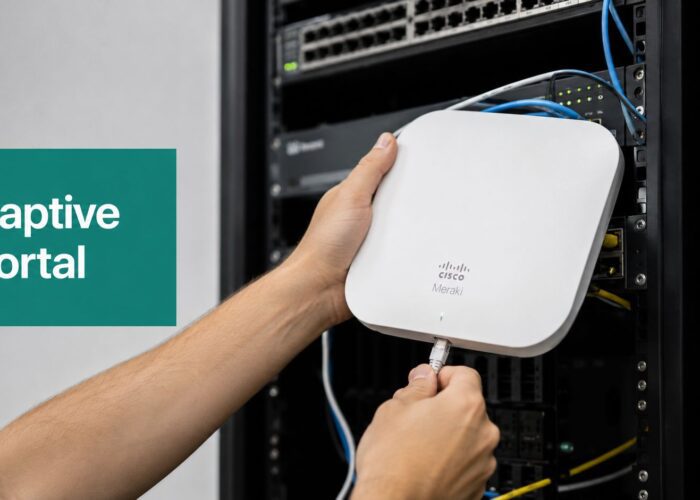
If your wireless design itself is messy, policy troubleshooting gets harder fast. A solid guide to Meraki access points helps frame the wireless side of the problem before you chase the wrong filter rule.
Advanced Troubleshooting and Best Practices
Some block messages aren't really block messages. They're the symptom users happen to see after DNS filtering, IPv6 behavior, ad-blocking, Safe Search enforcement, resolver conflicts, or other security features interfere with normal access.
An often-overlooked cause of access failure is false positives from DNS filtering, IPv6 issues, or other security controls. Guidance for managed networks notes that the “blocked by operator” message can mask a routing or name-resolution problem rather than an intentional content restriction, which is a familiar pattern on guest Wi-Fi, as outlined in this troubleshooting note on inaccessible websites.
Signs you may be chasing the wrong cause
Use symptom matching before you rewrite policy.
Only some devices fail
Look for device-specific DNS settings, browser privacy features, or IPv6 differences.The page partially loads, then resets
Check interception points, portal timing, and policy handoff.Changing DNS fixes the problem
That points more toward resolver behavior than transport-layer blocking.Users report random domains failing
Review security filters, Safe Search behavior, and false-positive categorization.
Record the exact error text, the SSID used, whether the issue appears on another network, and whether a DNS change alters the result. That gives support a real decision tree instead of guesswork.
Best practices that reduce support noise
A cleaner support model usually includes three things.
First, show users a clear message. If access is intentionally blocked, say why in plain language and tell them who to contact. Generic denial pages create confusion.
Second, log aggressively enough to trace the event. Meraki event data, captive portal logs, and DHCP or DNS context are far more useful when they line up. If you're troubleshooting resolver-related behavior, this DNS for DHCP reference is a useful starting point for reviewing whether clients are getting the resolver path you expect.
Third, separate trusted access from guest access wherever possible. The more your network tries to make one SSID serve every use case, the more often harmless traffic gets caught in rules intended for someone else.
Creating a Seamless and Secure Guest WiFi Experience
“This website is blocked by your network operator” is frustrating for users, but it's also a useful signal. It tells you the network is making decisions somewhere along the path. The job isn't to remove all controls. It's to make those controls predictable, explainable, and aligned with the people using the network.
In education, retail, and corporate BYOD, that means combining clear authentication with sensible policy. Guest users need a straightforward path through the captive portal. Staff and recurring users often need stronger identity methods like IPSK or EasyPSK. Admins need enough visibility to tell the difference between intentional enforcement, false positives, and plain old onboarding failures.
The best guest Wi-Fi experiences don't feel wide open or overly locked down. They feel understandable. Users know how to connect. Operators know what's being enforced. Support teams can trace what happened without turning every complaint into a mystery.
It also helps to guide users on privacy outside the Wi-Fi session itself. For people who want to reduce personal exposure during sign-up and verification flows, this expert guide on anonymous verification adds useful context around protecting personal information online.
If you're running guest Wi-Fi on Cisco Meraki and want fewer block-page complaints, clearer captive portal behavior, and stronger authentication for guest, education, retail, or BYOD use cases, take a look at Splash Access. It's built to help operators manage access flows, social login, branded portals, and secure user onboarding with less friction for the people connecting.