A hotel front desk calls because guests keep dropping off Wi-Fi during check-in. A university help desk sees student devices bounce between buildings and lose access right in the middle of a login. A retail team notices payment tablets reconnecting at the worst possible moment. Then the switch logs start filling with messages about the same client showing up on different ports.
That usually feels random when you first see it. It isn't.
A lot of these cases come back to mac address flapping. In busy Cisco and Meraki environments, especially ones carrying guest WiFi, BYOD traffic, social login flows, captive portals, IPSK, and EasyPSK, this problem shows up as the symptom that finally gets your attention. The underlying cause is usually lower down in the network.
That Unsettling Feeling of an Unstable Network
The pattern is familiar. Users say the network feels flaky, but only sometimes. The Meraki dashboard looks mostly healthy. Access points are online. Internet is up. Authentication works for some users, then fails for others when they move around or reconnect.

In a hotel, it often starts with roaming complaints. A guest connects in the lobby, walks toward the lift, and their phone stalls while the captive portal session tries to keep up. In a university, it may look like a student device that authenticates fine in one lecture hall and then starts acting strange in the next. In retail, it can hit handheld devices, signage, or IoT gear hanging off small unmanaged switches that nobody remembers installing.
The uncomfortable part is that the network can appear healthy in broad strokes while still behaving badly at Layer 2. That's why I treat these reports differently from ordinary Wi-Fi tuning complaints. If users are dropping sessions during movement, if guest onboarding feels inconsistent, or if a client seems to exist in two places at once, I start looking for switching behavior before I blame the SSID.
A good first clue is whether the problem lines up with peak movement. Busy check-in windows, class changes, store traffic surges, and conference breaks all create the kind of churn that exposes weak Layer 2 design. If you're already working through ways to improve WiFi performance, this is one of the hidden causes worth checking early.
MAC flapping is rarely the disease. It's the signal that your switch has stopped trusting where a device actually lives.
That matters more than many teams realize. Captive portals, social WiFi journeys, and authentication systems all depend on stable client behavior underneath. If the switch keeps relearning the same client on different ports, the user experience starts to break in ways that look like application issues, even when the actual fault is much lower in the stack.
What Is MAC Address Flapping Really
A switch keeps a map of which MAC address was last seen on which port. That map sits in the CAM table and helps the switch forward traffic quickly. When the same source MAC starts appearing on different interfaces in rapid succession, the switch keeps rewriting that map.
That's mac address flapping.
The simple way to think about it
Think of the switch as a mailroom clerk with a list of where every tenant sits. If the same tenant files two address updates back to back, first to one room and then to another, the clerk keeps correcting the list. For a while, mail still moves. Then delays start, mistakes pile up, and eventually the whole process gets messy.
Networks behave the same way. A switch expects one source MAC to arrive consistently from one place. When that stops being true, forwarding gets unstable.
What the switch is actually doing
On Cisco gear, the switch learns source MAC addresses dynamically and ages them out over time. Cisco notes that the default MAC aging timer is 300 seconds on Catalyst platforms, but when flapping happens the switch relearns entries repeatedly, and that churn can push CPU utilization to 80 to 100 percent in IOS logs. Cisco also ties this behavior closely to loops where STP is disabled or misconfigured, in its guidance on troubleshooting MAC flaps and switch loops on Cisco Catalyst.
That single detail explains a lot of “mystery” instability. The switch isn't confused because wireless is hard. It's confused because it can't build a reliable Layer 2 memory of where devices are.
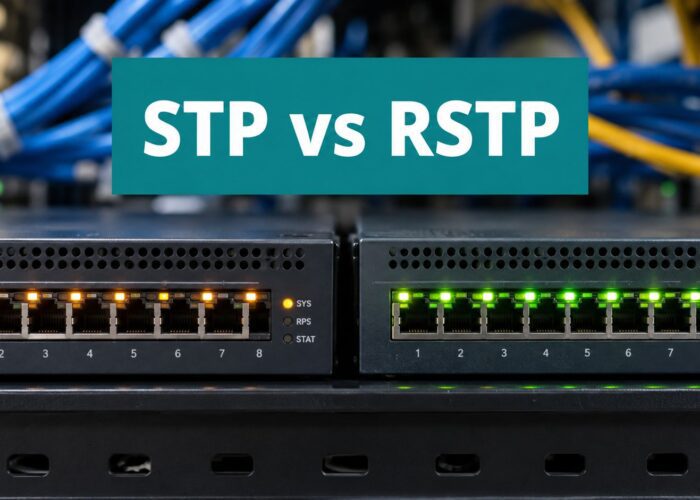
If you want the short version of why loop prevention matters here, Spanning Tree Protocol basics are directly relevant. STP isn't glamorous, but when it's wrong, MAC flapping is one of the first side effects you'll see.
Why this causes user-facing pain
Once the CAM table keeps changing, a few ugly things can happen:
- Traffic gets forwarded to the wrong place until the switch relearns again.
- Unknown unicast flooding increases because the switch stops having a stable answer.
- Applications time out even though internet connectivity looks fine at a glance.
- Authentication journeys become inconsistent because the client's session appears to jump around.
Practical rule: When a user reports “Wi-Fi connects but apps hang,” don't stop at RF. Check whether the switch is relearning that client over and over.
In Cisco Meraki networks, this is especially important in environments with roaming smartphones, tablets, dorm devices, POS systems, and BYOD clients. The wireless side may be doing exactly what it should, but if the wired edge or switching path introduces loops or bad port behavior, the symptom lands on the Wi-Fi team anyway.
Common Causes of MAC Flaps in Modern Wi-Fi Networks
MAC flapping isn't one root cause. It's a warning light. In hotels, education campuses, retail floors, and corporate BYOD spaces, the same alert can come from very different problems.

One useful data point comes from Meraki switching at scale. A 2018 Cisco Meraki report covering 50,000 MS switch deployments found MAC flap events in 8% of hospitality and retail networks monthly, often tied to guest Wi-Fi roaming where clients moved faster than the switch's aging behavior could comfortably track, as noted in this Broadcom-hosted troubleshooting summary.
MAC Flapping Root Cause Cheat Sheet
| Cause | Common Scenario | Quick Check |
|---|---|---|
| Network loop | Someone patches access ports together, or an unmanaged device creates a circular path | Look for repeated MAC movement between the same switch ports |
| STP issue | STP is disabled, blocked incorrectly, or edge settings are wrong | Verify bridge roles and review switch event history |
| Link aggregation mismatch | Uplink bundle is only correct on one side, or member ports don't agree | Compare LACP and port-channel settings end to end |
| Fast wireless roaming behavior | Clients move between APs quickly in dense guest WiFi or BYOD areas | Check whether the same client alternates between AP-related paths |
| Virtualization or bridging behavior | Shared MAC presentation from hosts, bridges, or special adapter modes | Inspect whether the device type legitimately reuses the MAC |
For teams troubleshooting odd floods at the same time, it's worth reviewing how floods and broadcasts behave in unstable networks, because the symptoms often overlap.
Loops are still the first suspect
The old-fashioned cause is still common. A loop can come from bad patching, an unauthorized switch, a tiny unmanaged IoT hub, or a cable plugged where it shouldn't be. In hospitality and retail, I've seen more trouble from “temporary” devices than from core hardware. Someone adds a small switch for convenience, then a second cable appears, and the edge starts misbehaving.
When loops are involved, the flap message is usually only part of the story. You may also see odd bursts of latency, unexplained multicast or broadcast noise, and clients losing portal sessions during busy periods.
Link aggregation mistakes create clean-looking chaos
Port-channels can fool junior engineers because the cabling looks tidy. But if the bundle isn't built the same way on both ends, the switch may treat one logical path like several competing physical ones. The result can look intermittent because traffic patterns decide when the fault appears.
This shows up a lot in campus and corporate networks where AP distribution switches uplink through aggregated links. If one side is using LACP correctly and the other side isn't aligned, clients may flap without obvious physical errors.
Wi-Fi roaming can be legitimate, or it can expose design issues
In high-density guest WiFi, phones and tablets move fast. A client can reassociate between APs while the switching side still has a previous location in memory. In Meraki-heavy hospitality and retail environments, that's a real trigger. It becomes more obvious when clients use captive portals, social login, or per-user keying like IPSK or EasyPSK, because any instability in the movement path feels like an auth problem to the end user.
Teams often get tripped up. Not every flap means the wireless network is broken. Sometimes the client is roaming aggressively and the switching path isn't handling the move cleanly.
Virtualization and bridge behavior can look suspicious even when intentional
Not every duplicate appearance is malicious or accidental. Virtual hosts, bridged adapters, and specialized network stacks can move a MAC around in ways that trigger alarms. You still need to investigate, but the goal is to distinguish “expected odd behavior” from “actual Layer 2 fault.”
If the MAC belongs to a host, hypervisor, controller, or appliance, don't assume the first flap alert tells the whole story.
How to Detect and Diagnose MAC Flapping
The fastest way to lose time on this issue is to guess. MAC flapping is one of those problems where a small amount of disciplined evidence saves hours of wandering.

In classic Cisco environments, you often start with logs and the MAC table. In Cisco Nexus 9000 deployments, MAC flapping accounts for up to 22% of Layer 2 instability incidents, and in Meraki MS hospitality deployments, 14% of networks were reported to experience monthly flap events, with clients showing moves like 31→32→31 within 10 seconds, according to the cited Cisco Tech Talk video reference. The big lesson is simple. This isn't a fringe alert. It appears often enough that your team should have a repeatable way to investigate it.
Start with the switch event story
On Cisco CLI platforms, the log message usually tells you the MAC, VLAN, and the two ports involved. That's enough to ask the right first questions:
- Is this the same pair of ports every time
- Does the VLAN make sense for that device
- Is one of the ports an uplink, AP, phone, or edge endpoint
- Does the timing line up with user movement or a change window
On Meraki, the dashboard usually makes this easier for junior staff because the event log is readable without deep CLI experience. Filter the network event log by switch, port, or client MAC and build a timeline. If the same client also shows reassociation events, failed auth moments, or repeated disconnects, you've got a stronger case that the switch alert is tied to the user complaint.
Then verify whether the client is moving or looping
This is the key fork in the road. A client can flap because it is roaming quickly, or because the network has created a bad path. Those are not fixed the same way.
Use a simple workflow:
- Identify the MAC and device type. If it's a phone, tablet, AP-facing client, or BYOD endpoint, roaming is plausible.
- Map the ports involved. If they are both edge ports on the same switch, suspect a loop or patching error first.
- Check whether one port leads to wireless infrastructure. If yes, review client movement history.
- Look for broader side effects. If multiple clients flap at once, think network problem. If one client does it repeatedly, think device-specific behavior too.
If you need packet-level confirmation, capturing packets with Wireshark can help validate whether frames are arriving from competing paths or whether higher-layer retries are creating confusion in the logs.
If a flap involves only one noisy client, stay narrow. If many unrelated clients start flapping across the same area, widen the blast radius and inspect the switch path first.
Don't ignore the physical context
The switch log tells you where to look, not what to believe. Walk the closet if you can. Check what is physically connected. In hotels and schools, the surprise is often a small unmanaged device, a daisy-chained phone, or a cable someone “temporarily” moved.
That physical sanity check still solves a lot of cases faster than staring at dashboards.
Fixing Flaps on Your Meraki Network for Good
The permanent fix depends on the cause, but the best results come from a layered approach. Start with the wired edge, clean up switch protections, then tune wireless behavior where roaming is part of normal life.

One data point is worth keeping in mind here. Practical mitigation such as enabling portfast on edge ports with BPDU guard, plus using Meraki Client Balancing and RF Optimization to reduce sticky clients, has been associated with 90% flap reduction in field deployments, according to the Training Camp MAC flapping glossary. I wouldn't treat that as magic. I would treat it as a reminder that fundamentals still solve most of this.
Fix the switching edge before touching SSID settings
When engineers see user complaints on Wi-Fi, they often jump straight into radio settings. That's understandable, but it's often backward.
Start here instead:
- Enable the right edge protections. On Cisco switching, portfast on user-facing ports and BPDU guard help stop accidental loops from becoming recurring incidents.
- Review Meraki switch port roles. A port facing a client device shouldn't behave like an uplink.
- Remove unknown unmanaged gear. Small switches, improvised extenders, and “temporary” IoT fan-outs create bad Layer 2 surprises.
If your switch baseline needs work, Cisco switch configuration guidance is a good place to standardize the basics before you chase edge cases.
Field note: The network doesn't need more cleverness when MACs are flapping. It usually needs fewer exceptions.
Clean up port-channels and uplinks carefully
If the flaps involve uplink-side ports, check aggregation consistency next. Don't just confirm that a bundle exists. Confirm that both ends agree on mode, membership, and intent.
What doesn't work is changing one side, waiting, and hoping the logs quiet down. What does work is treating the whole path as one object and validating every member link together.
For Meraki-connected access layers, this matters a lot in schools, co-working spaces, and retail chains where templates or repeated deployments can propagate a small mistake widely.
Tune roaming behavior where movement is normal
In hospitality, education, and BYOD corporate environments, clients move constantly. That's not a failure. But the network should steer them cleanly enough that the switching layer doesn't get hammered by sticky behavior.
Meraki features worth reviewing include:
- Client Balancing when clients cling to weak AP choices and create ugly handoff patterns.
- RF Optimization when channel use and client distribution encourage sticky roaming.
- SSID design choices that reduce unnecessary complexity across guest, staff, and device networks.
This matters even more when you rely on guest portal workflows, social WiFi, social login, WPA2 onboarding, IPSK, or EasyPSK. A flap doesn't just interrupt traffic. It can interrupt the identity journey tied to that device, which is why users often describe the issue as “login problems” instead of “network instability.”
Separate what should roam from what should stay put
One mistake I see often is treating every client like a mobile client. In reality:
- Student phones roam.
- Guest phones roam.
- POS tablets may roam a little.
- Printers, signage, kiosks, cameras, and many IoT devices should be stable and predictable.
When a device that should be stationary starts flapping, don't spend your first hour tuning wireless. Inspect the switch path, AP cabling, VLAN placement, and local patching around that endpoint.
What usually works and what usually doesn't
A few trade-offs are worth stating plainly.
What works
- Standardized edge-port settings
- BPDU guard on client-facing ports
- Correct LACP and uplink definitions
- Meraki RF tuning where clients are sticky
- Reducing odd bridge devices and unmanaged loops
What doesn't
- Treating every flap like a radio problem
- Masking the issue by rebooting APs and switches
- Leaving exceptions undocumented
- Assuming captive portal complaints are always authentication platform issues
The goal isn't just to clear a log. It's to make the network stable enough that guest access, social login, BYOD onboarding, and key-based authentication behave predictably every day.
Building a Resilient and Friendly Guest Network
MAC address flapping is frustrating because the alert looks small while the user impact feels broad. Guests blame the portal. Students blame campus Wi-Fi. Store staff blame the tablets. The switch is usually the first component telling the truth.
The main lesson is to treat mac address flapping as a symptom. Sometimes it points to a loop. Sometimes to a bad uplink design. Sometimes to roaming behavior that your Meraki network needs to handle more cleanly. The fix comes from identifying which of those worlds you're in, then changing the right layer instead of changing everything at once.
For hotels, universities, retail environments, and corporate BYOD networks, that discipline matters. Stable Layer 2 behavior keeps guest WiFi, social WiFi journeys, social login, IPSK, EasyPSK, and broader authentication workflows from feeling fragile. It also helps from a security angle. If you're thinking about the wider operational impact of unstable client behavior and weak edge discipline, TekRecruiter's security insights are a useful companion read.
For long-term reliability, build the network so edge mistakes stay small, roaming stays predictable, and odd client behavior is easy to isolate. That's what a more resilient network design really gives you. Fewer mysteries, faster troubleshooting, and a better experience for the people who just want the Wi-Fi to work.
If you're running Cisco Meraki guest WiFi and want a smoother experience for captive portals, social login, IPSK, and EasyPSK, Splash Access is worth a look. It helps teams deliver branded, reliable onboarding without turning every guest access issue into a manual support job.