Hey there! Ever had a guest try to connect to your WiFi, only to have their Android phone refuse to show the login page? You're not alone. It’s a common and incredibly frustrating headache for anyone managing a guest network, whether you're in a busy retail store, a sprawling university campus, or a corporate office with a BYOD policy.
Why Android Devices Struggle with Guest WiFi Portals
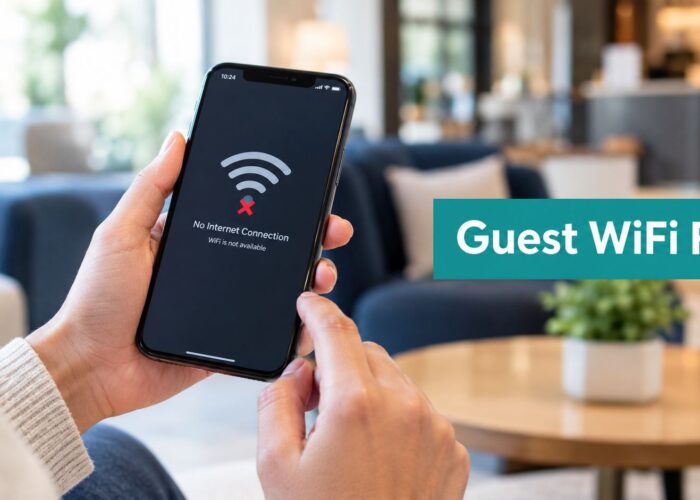
Let's walk through what’s really happening behind the scenes. A guest connects to your WiFi, their phone shows a solid connection, but the login or welcome page is nowhere to be found. This isn't just a random glitch; it’s a direct result of how Android’s operating system is designed to protect users.
To get a handle on this, it's worth remembering what guest WiFi portals do. They act as a gateway, forcing a user to take an action—like agreeing to terms, entering a password, or using a social login—before they’re granted full internet access.
The problem kicks in the split second an Android device joins the network. The OS immediately pings a Google-owned server to see if it can reach the outside world. It’s a clever feature meant to distinguish a real, working connection from a dead-end local network.
The Walled Garden Dilemma
This is where everything falls apart on networks managed by systems like Cisco and Meraki. Your captive portal, by its very nature, creates a "walled garden." Its entire job is to block all traffic until the user authenticates.
When Android's connectivity check hits this wall, it gets silence. The device’s logic is simple: "This network has no internet." So, it never triggers the mini-browser (the captive portal network sign-in) to load your beautiful login page. Your guest is left stuck in limbo—connected to WiFi but completely offline.
Key Takeaway: That blank login screen on an Android phone isn't a bug. It's often a feature working exactly as intended. The device detects a blocked connection, assumes the network is down, and prevents the portal from ever loading.
This isn't a minor issue. Android devices command a staggering 72.77% of the global mobile OS market, representing over 3.9 billion active devices. For any business with guest WiFi, optimizing for Android isn't just a good idea—it's essential for reaching the vast majority of your users.
The Non-Negotiable Role of HTTPS
Modern security standards have thrown another wrench in the works. Newer versions of Android are incredibly strict about security. If your captive portal login page isn't served over a secure HTTPS connection with a valid SSL certificate, the device might flat-out refuse to load it, showing a scary security warning instead.
This is a critical point. An insecure portal doesn't just look unprofessional; it will be actively blocked by the very devices you're trying to get online. This affects everything from simple splash pages to more advanced authentication solutions like social wifi or IPSK.
Before we dig into the solutions, it helps to quickly recognize the symptoms you or your users might be seeing.
Common Android Captive Portal Symptoms and Causes
This table breaks down the most frequent issues we see in the field. It’s a handy quick-reference for diagnosing what’s happening on a user’s device and connecting it back to a likely technical cause.
| Symptom on Android Device | Common Technical Cause | Business Impact |
|---|---|---|
| "Connected, no internet" notification | Android's connectivity check is failing because it's blocked by the firewall or walled garden. | User gives up, potentially leading to lost sales, poor reviews, or a support ticket. |
| Login page never appears automatically | The OS has decided the network is "down" and won't trigger the captive portal sign-in. | Guests can't access WiFi, leading to frustration and a negative customer experience. |
| Security warning page ("Your connection is not private") | The captive portal page is using an insecure HTTP connection or an invalid SSL certificate. | Users are scared off, and IT's credibility is damaged. It looks unprofessional and unsafe. |
| User is repeatedly disconnected from WiFi | Android may automatically drop the connection if it consistently fails the connectivity check. | Creates an unreliable and frustrating experience, making the WiFi network seem broken. |
Seeing these issues pop up repeatedly is a clear sign that your network configuration needs a tune-up to play nicely with how modern Android devices operate.
Configuring Cisco Meraki for Android Devices
Alright, now that we've covered the why behind Android's guest network headaches, let's roll up our sleeves and get it fixed. The key to giving every Android user a smooth connection—whether they're in a retail shop, a lecture hall in an education setting, or a corporate office—is fine-tuning your Cisco Meraki dashboard. The goal here is to make the login process so seamless, they barely notice it's happening.
The single biggest reason I see "captive portal android" connections fail is a misconfigured walled garden. Your Meraki network is just doing its job by blocking traffic, but it's often too good at it, preventing Android’s own connectivity check from ever getting through. The fix, thankfully, is pretty straightforward: you just need to poke a few very specific holes in that wall.
This flow chart nails the frustrating journey an Android device takes when the walled garden is locked down too tight. It's a connection dead-end.
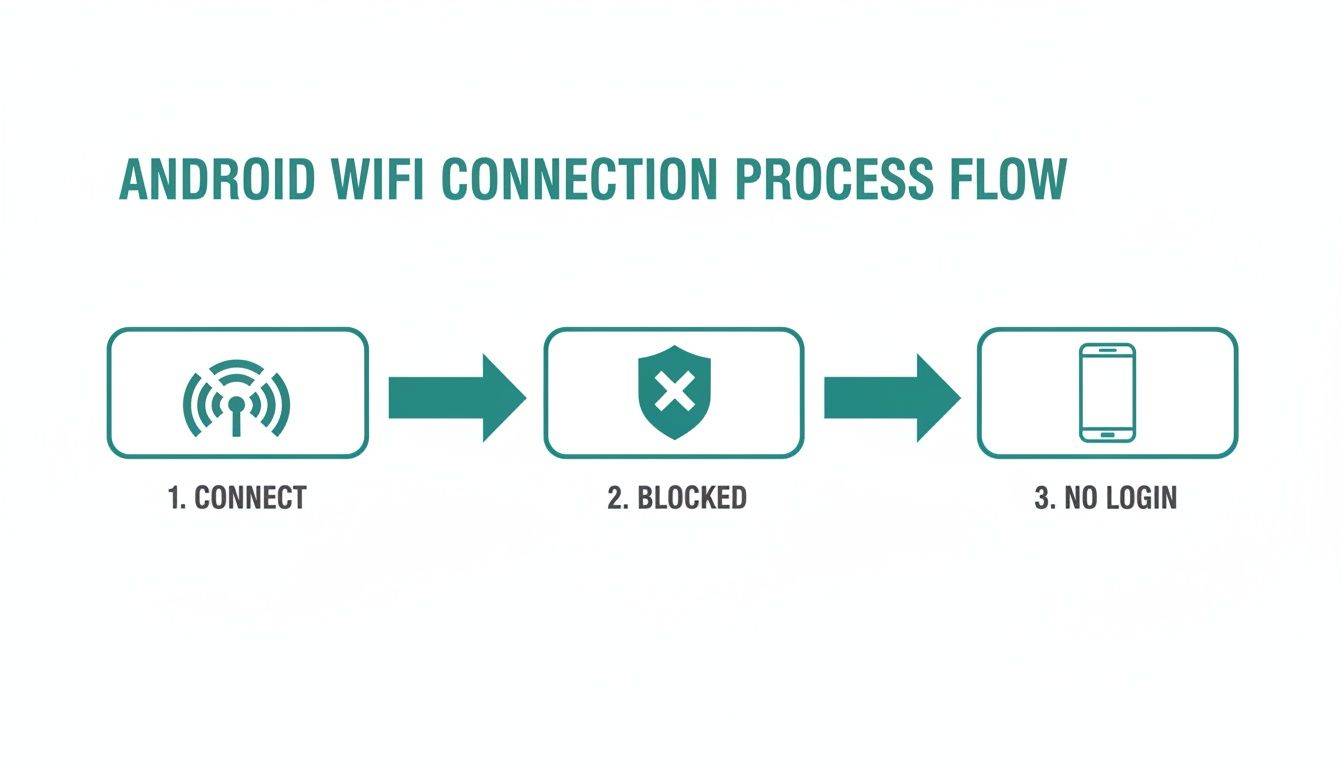
As you can see, the device connects, gets immediately stonewalled by the network's security rules, and never gets the chance to display the login page. The result? A confused user who thinks your WiFi is broken.
Mastering The Walled Garden
Hop into your Cisco Meraki dashboard and navigate to the splash page settings for your guest SSID. This is where you'll find the "Walled garden" configuration—your command center for solving this problem. You need to explicitly whitelist the domains Android uses to check if it has a real internet connection.
Here are the absolute must-haves you need to add to your walled garden range. This will cover the vast majority of Android devices out there:
- connectivitycheck.gstatic.com
- www.gstatic.com/generate_204
- google.com/generate_204
- play.google.com
Adding these domains allows the Android device’s initial "ping" to get a successful response. That simple handshake tells the OS, "Hey, there's a live connection here, but you need to log in first." That’s the trigger that finally brings your captive portal to life on the screen.
Pro Tip: When setting up your walled garden, less is always more. Only add what is absolutely necessary for the portal to work. That means the Google connectivity domains and, if you offer social wifi, any domains required for those specific social logins (like Facebook, Google, etc.).
Choosing The Right Authentication For The Job
Once the portal actually loads, the user's journey is just getting started. The authentication method you choose can make or break their experience, especially in high-traffic places like schools or retail stores. A basic click-through page is fine for simple access, but you can do so much better.
Think about a busy university campus—you can't have thousands of students wrestling with a splash page every single day. This is where more modern authentication solutions shine. Integrating your Meraki network with a system like IPSK (Identity Pre-Shared Key) is a game-changer. Solutions like EasyPSK let a user connect once with a unique key, completely bypassing the captive portal on every future connection. It's a perfect fit for corporate BYOD policies where you need a blend of tight security and dead-simple usability.
Real-World Scenarios
Let's put this into practice. In a retail store, the goal is fast access for shoppers and valuable marketing data for you. By setting up a social login on your Meraki splash page, customers can get online using an account they already have. No forms, no fuss. You get rich, permission-based data, and they get free WiFi. It’s a win-win that turns your guest network from a cost center into a powerful customer engagement tool.
Or, consider a large school in the education sector. You can combine a captive portal with IPSK. New guests and visitors get the portal, while students and staff are onboarded with EasyPSK for a password-free, portal-free experience. This segmented approach keeps your internal network secure while still giving guests the easy access they expect.
If you want more ideas on building great welcome experiences, you can learn more about crafting excellent Cisco Meraki splash pages. A little thoughtful configuration goes a long way in making sure every Android device connects without a hitch.
Modern Authentication Methods for a Better User Experience
Once you've dialed in your Cisco Meraki network to reliably show the login page on Android, the real work begins: making the sign-in experience itself as painless as possible. The old way—handing out a clunky, shared password—is a security nightmare and a massive headache for users.
Let's look at a few modern approaches that solve these problems for good.
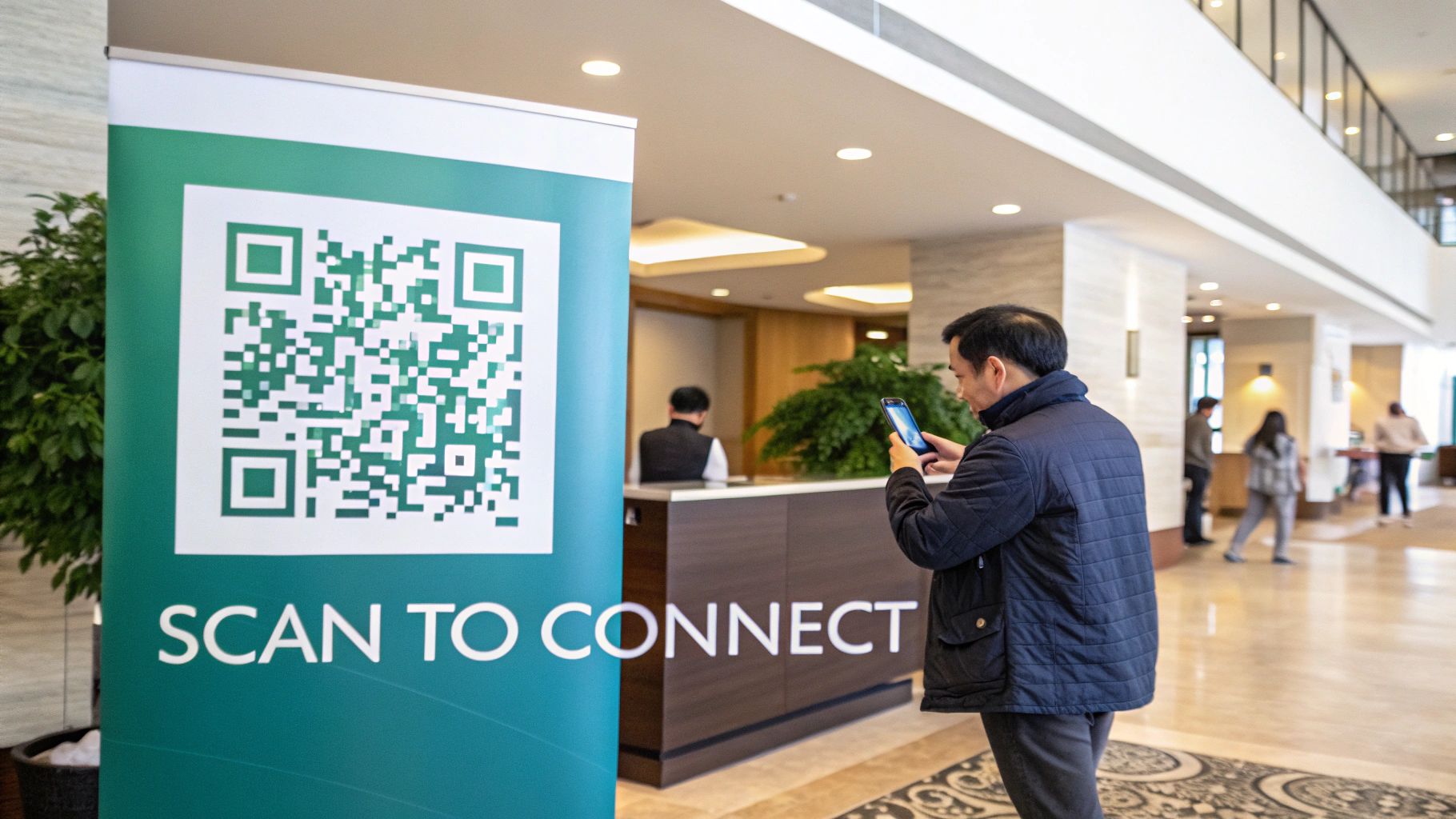
The ultimate goal is to move past the traditional captive portal, especially in places where people connect every day. In settings like education or corporate BYOD, forcing daily logins just creates friction and a flood of helpdesk tickets.
Revolutionizing Access with IPSK and EasyPSK
Imagine a new student or employee arriving on day one. Instead of digging through settings and mistyping passwords, they just scan a QR code. Boom. Their Android device is securely on the network, completely skipping the login page. This isn't science fiction; it's the reality of Identity Pre-Shared Key (IPSK).
This technology, especially when deployed with a solution like EasyPSK, is a genuine game-changer for managed networks. It works by giving each person their own unique key, almost like a digital fingerprint for their device. This is worlds more secure than a single shared password that inevitably gets leaked.
The onboarding is dead simple—usually a one-time QR scan or an email. After that initial setup, the captive portal android experience vanishes. It just works, like their Wi-Fi at home.
This approach is a perfect fit for corporate and education environments. It delivers the security of individual credentials without making people wrestle with a web portal every day, dramatically improving the user experience on Android and every other device.
Powering Retail and Hospitality with Social WiFi
IPSK is brilliant for trusted, regular users. But what about guest-heavy places like retail stores, cafes, or hotels? Here, the goal is often to provide easy access in exchange for a little marketing insight. That's where social login, or Social WiFi, shines.
Instead of making guests create yet another account, you let them connect using their existing social media profiles. For them, it’s a quick, familiar, one-click process. For your business, it’s a goldmine of information.
With the user's permission, you can gather valuable demographic data, build customer profiles, and hook into your marketing platforms. This turns your guest wifi from a simple cost center into a powerful tool for engaging with your customers.
Given Android's massive market share—powering 72.77% of the world's 3.9 billion mobile devices by late 2025—retail captive portals must nail the Android experience. The market itself is exploding from USD 2.25 billion in 2025 to USD 7.36 billion by 2034, growing at a blistering 14.08% CAGR. As detailed in this deep dive into the captive portal market, retailers using Splash Access on Cisco Meraki can use Wi-Fi analytics to convert browsers into buyers.
Enterprise-Grade Authentication with SAML and Azure AD
For larger organizations, tying guest access into existing identity systems is non-negotiable. Using an authentication standard like SAML lets you connect your Cisco Meraki network directly to identity providers like Azure AD.
This integration is powerful for a few key reasons:
- Single Sign-On (SSO): Employees use their familiar corporate login, creating a seamless experience.
- Centralized Management: User access is controlled from one place. When an employee leaves, their Wi-Fi access is revoked automatically along with everything else.
- Enhanced Security: It enforces the same robust security policies you already have in Azure AD, including multi-factor authentication (MFA).
This method perfectly bridges the gap between guest network convenience and enterprise-grade security, making it ideal for corporate BYOD policies.
Authentication Method Comparison for Android Users
Choosing the right authentication method depends entirely on your environment and your users. What works for a corporate office would be a disaster in a busy coffee shop. This table breaks down the pros and cons of each approach, specifically for the Android user experience.
| Authentication Method | Android User Experience | Security Level | Best For (Sector) |
|---|---|---|---|
| IPSK / EasyPSK | Seamless after a one-time QR scan. Feels like home Wi-Fi. | High | Education, Corporate (BYOD), Co-working Spaces |
| Social WiFi Login | Quick and familiar one-click login. Minimal friction. | Low | Retail, Hospitality, Public Venues, Restaurants |
| SAML / Azure AD | Familiar corporate SSO login. May require MFA. | Very High | Enterprise, Government, Healthcare (Corporate side) |
| Passpoint | Completely automatic and invisible. No user action needed. | Very High | Airports, Smart Cities, Large Venues, Carrier Offload |
Ultimately, the best solution is one that feels invisible to your users while giving you the security and control you need. For an even more seamless experience, it's worth looking into technologies that enable truly automatic and secure connections. You might be interested in our article explaining what Passpoint is and how it fixes Wi-Fi. By combining these modern methods, you can build an authentication system that users love and administrators trust.
Untangling Common Android Connection Problems
Even with a perfect setup, you're bound to run into issues. When a guest with an Android phone says the Wi-Fi isn't working, you need a solid plan to get them connected quickly. This isn't just about fixing a glitch; it’s about providing a smooth experience for your customers, students, or employees without a lot of back-and-forth.
Let's break down the most common "captive portal android" errors I've seen in the field and how to handle them, particularly in busy environments like retail stores, school campuses in the education sector, or corporate offices.
The Vanishing Login Page
This is, by far, the most frequent complaint. A user connects to the Wi-Fi, the signal looks great, but the login page is nowhere to be found. They're connected but completely stuck. Before you dive into complex diagnostics, your first stop should always be the Cisco Meraki dashboard.
Nine times out of ten, the problem lies with your walled garden configuration. Remember, Android devices need to "phone home" to a specific Google server to test for internet access. If your walled garden blocks that initial check, the phone assumes the network is dead and won't even try to launch the portal.
- Scrutinize Your Whitelist: Go back through your splash page settings and confirm that all the necessary Google domains are whitelisted. A simple typo or a forgotten entry is often the single point of failure affecting every Android user.
- Check DNS: The device can't reach those whitelisted domains if it can't resolve their names. Make sure your network's DNS is configured correctly and that the access points are successfully providing those settings to connecting devices.
A small oversight in the walled garden is the classic culprit. In a large school or a busy mall, getting this right can save you an avalanche of support tickets.
Defeating the Scary SSL Certificate Warning
So you’ve fixed the walled garden, and the portal page appears… but it’s behind an intimidating "Your connection is not private" error. This is a real user experience killer. It instantly makes your network look amateurish or, even worse, unsafe.
This warning pops up for one reason: your captive portal isn't being served over a secure HTTPS connection with a valid, publicly trusted SSL certificate. Newer versions of Android are incredibly strict about this.
A Pro's Advice: Never, ever use a self-signed certificate on a public-facing guest network. It might seem like a shortcut for internal testing, but it will be flagged as untrustworthy by virtually every modern browser and operating system, especially on Android.
Using a legitimate SSL certificate isn't optional anymore. It’s a hard requirement. This encrypts the connection between the device and your portal, satisfying Android's security checks and giving your guests the confidence to connect.
Breaking Out of the Redirect Loop
Here's another maddening scenario: a user opens their browser, gets sent to the portal, logs in successfully… and is immediately redirected right back to the login page. They're trapped in a loop with no way out.
This typically happens when the authentication provider fails to correctly signal back to the network that the device has been authorized. On a Cisco Meraki network, this often points to a communication breakdown between the access point and your external portal, whether it's a social Wi-Fi platform or an IPSK server.
As a quick first step, have the user completely forget the network. On their Android device, they can go to Wi-Fi settings, tap on your network's name (the SSID), and select "Forget." This clears out any bad cached data. Reconnecting fresh can often break the cycle. If you see this happening repeatedly, it's a clear sign of a deeper configuration problem between your APs and your authentication service that needs a closer look.
For a deeper dive into how these detection mechanisms work behind the scenes, you can read about the 'captive portal detected' message and what it means for your network.
Turning Your Guest Network into a Business Asset
Getting your captive portal to work flawlessly on Android devices isn't just about fixing a tech headache. It’s about unlocking the hidden potential of your guest wifi and turning it into a genuine business tool. Whether you're running a retail shop, a hotel, or a university campus, a smooth connection is the first step toward a much more valuable relationship with your users.
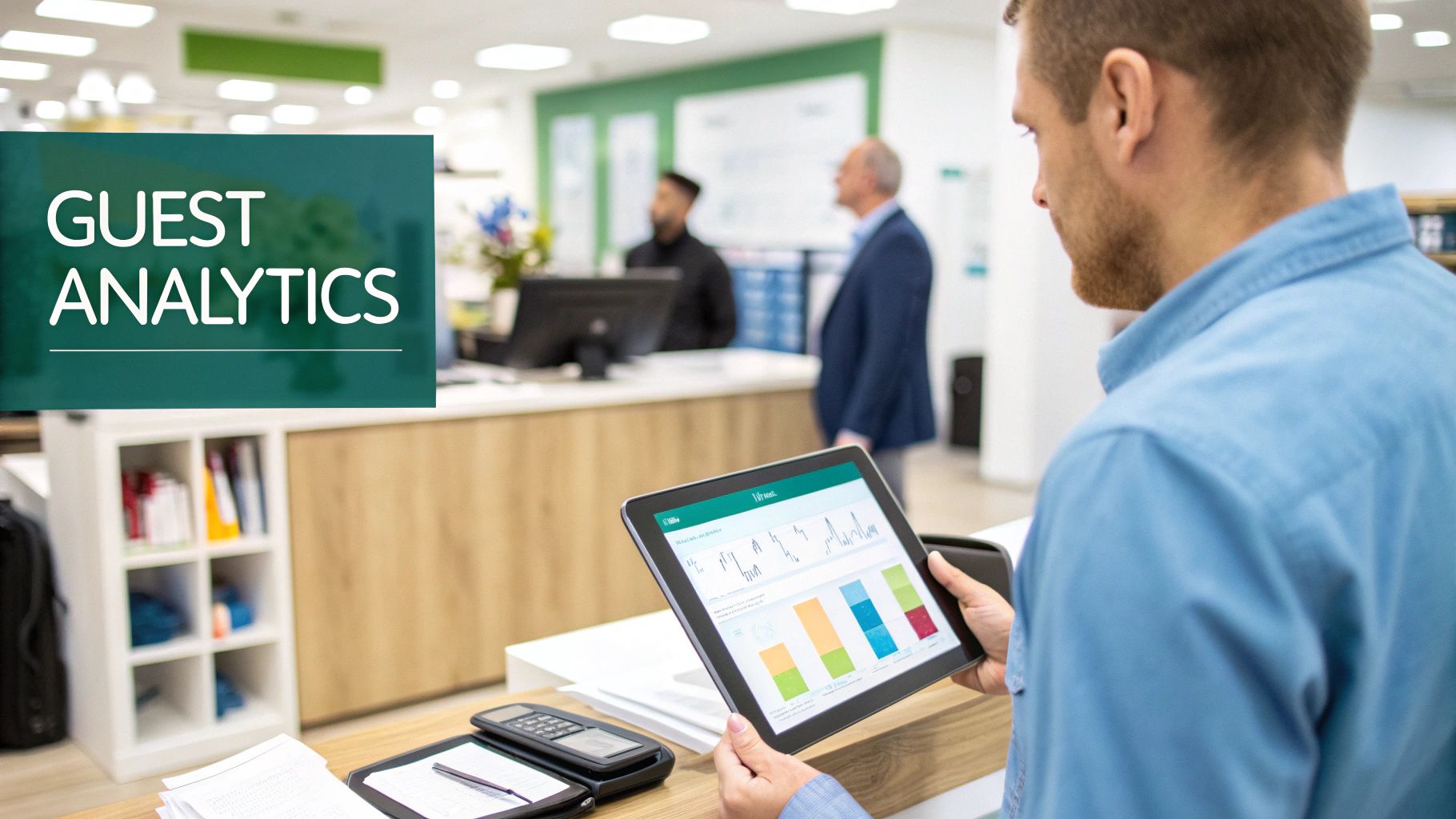
When your guest WiFi, built on a solid foundation like Cisco Meraki, simply works, it stops being a utility and starts becoming a powerful engine for engagement and insight. This is the point where your network shifts from a necessary expense to a source of real, measurable value.
From Cost Center to Revenue Driver in Retail
In a retail environment, your guest network is a direct channel to your customers. When you offer social wifi as a login method, you're doing much more than handing out free internet—you're opening a gateway to understanding who is in your store and what they care about. Each login can provide valuable, permission-based demographic data.
Think about what you could do with that information:
- Pinpoint repeat visitors and automatically invite them to your loyalty program.
- Push targeted promotions to shoppers right when they walk in, based on their visit history.
- Analyze foot traffic and dwell times to optimize store layouts and staffing schedules.
Suddenly, that free amenity becomes a rich source of business intelligence. A seamless captive portal android experience is critical here, ensuring you can actually capture data from the vast majority of smartphone users walking through your doors.
Elevating the Guest Experience in Hospitality
For anyone in hospitality, the guest journey is paramount. A clunky, frustrating WiFi login can set a negative tone for an entire stay. But when the system is configured correctly, it can make a guest's visit feel seamless and personalized.
The hospitality sector is already leading this charge, holding over 26% of the captive portal market revenue in 2024. With Android's staggering 72.77% global market share, most guests are checking in on these devices. The market itself, valued at USD 1.95 billion in 2024, is projected to hit USD 6.20 billion by 2033. Discover more insights about the captive portal market on Grandview Research.
Imagine a resort where a guest simply scans a QR code at check-in and is instantly connected. This isn't just about convenience; it's about making guests feel seen and valued from the moment they arrive. It’s a modern touch that removes friction and can genuinely set your property apart.
Boosting Productivity in Corporate and Education BYOD
In corporate offices and on school campuses in the education sector, the name of the game is productivity. Every minute an employee or student wastes trying to log in is a minute they aren't working or learning. In these BYOD (Bring Your Own Device) environments, a reliable network built on Cisco Meraki and fortified with smart authentication solutions like IPSK or EasyPSK isn't a luxury—it's essential.
The business benefits here are immediate and clear:
- Fewer Helpdesk Tickets: When users can self-onboard without a portal using IPSK, your IT team isn't bogged down with constant connectivity complaints.
- Increased User Satisfaction: Technology that just works without getting in the way makes for happier, more focused people.
- Enhanced Security: Giving each user a unique credential is far more secure than posting a shared password on the wall, protecting everyone on the network.
By solving the captive portal android problem with better authentication methods, you empower both your users and your IT staff to focus on what really matters. To take this a step further, you might be interested in our guide on how to improve customer experience through better connectivity. At the end of the day, a well-run guest network is a direct reflection of your organization's commitment to providing a great experience for everyone.
Your Top Questions Answered
Getting guest Wi-Fi to play nice with every device, especially Android, can be tricky. Over the years, we've helped countless clients in retail, education, and corporate settings tackle these exact challenges on their Cisco Meraki networks. Here are the answers to the questions that come up most often.
Why Won't the Captive Portal Login Show Up on My Android Phone?
This is, without a doubt, the most common headache we see. It’s not a bug—it’s actually a security check. Android devices are smart; they ping a specific Google URL to see if there's a real, working internet connection behind the Wi-Fi signal.
If your network’s "walled garden" blocks that check, the phone thinks the Wi-Fi is dead and never even tries to launch the login portal. The fix is to whitelist the essential Google domains in your access point settings (like gstatic.com/generate_204). This simple tweak lets the check pass, which is the signal Android needs to pop open the sign-in page.
How Does IPSK Make the Guest Wi-Fi Experience Better on Android?
Identity Pre-Shared Key, or IPSK, is a game-changer for BYOD corporate and education environments. Instead of a single, easily compromised password for everyone, each person or device gets its own unique key.
For an Android user, the process is incredibly slick. They just scan a QR code one time with a tool like EasyPSK, and that’s it—their device is onboarded for good. They never have to see a captive portal again, giving them a connection that’s as seamless as their home Wi-Fi but far more secure.
Can I Just Use a Free SSL Certificate for My Captive Portal?
Not only can you, but you absolutely must. Modern Android devices are relentless about security. If your portal tries to load over an unencrypted (HTTP) connection or uses a self-signed certificate, users will be hit with a big, scary security warning. More often than not, the page will just fail to load.
A free, trusted SSL certificate solves this instantly. It ensures the connection is secure (HTTPS), which keeps Android happy. More importantly, it gives your guests a professional and trustworthy login experience, which builds confidence in your brand and your network.
How Can Social WiFi Login Actually Help My Retail Business?
Social WiFi turns your guest network from a cost center into a powerful marketing engine. When customers log in using their social media accounts, you gain access to valuable (and anonymous) demographic data—with their permission, of course.
This insight helps you understand who your customers are, how often they visit, and how well your in-store promotions are working. Suddenly, your free Wi-Fi is no longer just an amenity; it’s a rich source of customer intelligence that can directly inform your business strategy. It’s a core feature of modern authentication solutions for a reason.
Ready to eliminate Android connection issues and turn your guest network into a powerful asset? Splash Access provides instantly deployable captive portals and advanced authentication for Cisco Meraki, ensuring a flawless user experience on every device. Learn more at Splash Access.