Ever been staring at your screen, only to be ambushed by that dreaded "IP address conflict detected" error? It's a classic network hiccup, and it’s especially common on busy Wi-Fi networks. Don't worry, we're here to help you sort it out!
So, what’s actually going on? Think of an IP address as a unique street address for every single device on your network. Your router, much like a mail carrier, needs that specific address to deliver data to the right place—be it your laptop, phone, or smart TV.
A conflict of IP addresses is what happens when two devices on the same network accidentally get the same address. It’s like two houses on the same street having the same house number. The network gets completely confused, data packets don't know where to go, and usually, one or both devices get knocked offline.
The Role of DHCP and Static IPs
How do two devices end up with the same digital address in the first place? It almost always comes down to how those addresses are assigned. Most networks today, including those running on Cisco and Meraki gear, use a system called the Dynamic Host Configuration Protocol, better known as DHCP.
Here’s the breakdown:
- DHCP Server: This is your network's friendly traffic cop. It has a pool of available IP addresses and automatically hands one out to each new device that connects.
- DHCP Lease: This IP address isn't a permanent gift. The DHCP server "leases" it to the device for a specific amount of time. Once that lease is up, the device has to renew it or get a new one.
Conflicts often crop up when the DHCP server goofs and assigns an IP that’s already taken. This can happen if a device disconnects or goes to sleep, its lease expires, and that IP gets reassigned—only for the original device to wake up and try to reclaim it. Another common culprit is having two DHCP servers on the same network (a big no-no) that are handing out addresses from overlapping pools.
Then there are static IPs. Unlike the dynamic addresses assigned by DHCP, a static IP is manually configured on a device and doesn't change. This is super useful for things like printers and servers that need a predictable address. The problem starts when an administrator assigns a static IP that happens to be within the range the DHCP server is allowed to use. Sooner or later, the DHCP server will unknowingly hand that exact same address to another device, and boom—conflict.
(If you want to brush up on these concepts, our guide on computer networking basics is a great starting point.)
Why This Is a Big Deal in Busy Environments
IP conflicts are more than just a minor annoyance; in high-density environments, they can cause serious connection chaos.
In places like Education, Retail, and corporate offices with Bring-Your-Own-Device (BYOD Corporate) policies, the constant flow of devices connecting and disconnecting puts a huge strain on DHCP services. A well-planned DHCP scope is your first and best defense against these conflicts.
Picture a busy university campus or a shopping mall with free guest wifi. Hundreds, if not thousands, of devices pop on and off the network all day. This is where a solid Captive Portal is essential. Features like social login or social wifi make it easy for users to connect, but behind the curtain, the network's DHCP server is working furiously to keep up with demand.
When you add Authentication Solutions like IPSK (Identity Pre-Shared Key) or EasyPSK to the mix, a stable IP assignment is even more critical. An IP conflict can break the authentication process, locking users out of the network entirely. The result is a frustrating experience for the user and a flood of support tickets for the IT team.
How to Spot an IP Conflict in Your Cisco Meraki Network
When your network starts acting up, the first step is to play detective. For an IP address conflict, the clues are usually hiding in plain sight within your Cisco Meraki dashboard, but you have to know where to look. It’s all about moving past a generic error message and understanding the story the data is telling you.
Spotting these issues quickly is a big deal in dynamic environments. Imagine a busy Retail store using guest wifi with social login. A shopper can't connect, gets frustrated, and leaves. That's a lost sale, all because two devices were fighting over the same digital turf. In a school or a BYOD Corporate office, a conflict can lock a student or employee out of critical resources, grinding productivity to a halt.
Your First Stop: The Event Log
The Meraki Event Log is your primary source of truth. Think of it as a real-time feed of everything happening on your network, from client connections to security events. When a duplicate IP is detected, Meraki is usually smart enough to flag it.
You'll want to navigate to Network-wide > Monitor > Event log and filter for "IP conflict" or look for other DHCP-related errors. The log will almost always pinpoint the MAC addresses of the devices in conflict.
Here’s a glimpse of what you might see:
This log gives you a timestamp and the specific event type, making it easier to line up user complaints with what's actually happening on the network. Having those MAC addresses is crucial—it's the unique hardware ID you'll need for the next step.
Digging Deeper with the Client List
While the event log tells you that a conflict happened, the client list tells you who is involved. Head over to Network-wide > Monitor > Clients. This view gives you a complete roster of every device on your network, showing its assigned IP, MAC address, and other connection details.
Here’s a practical tip from the trenches: sort the client list by IP address. If you see two different devices (with two different MAC addresses) sitting there with the exact same IP, you've found your culprits. This is often way faster than scrolling through pages of event logs, especially on a larger network.
This is also the perfect spot to investigate issues with your Authentication Solutions. If a user is struggling with an IPSK or EasyPSK connection, checking their client details here can quickly reveal if an underlying IP conflict is what's blocking the handshake. For a closer look at this, you can learn more about the importance of tracking MAC addresses in your network to keep things secure and orderly.
Inspecting DHCP Leases for Clues
Sometimes, a conflict isn't active right now, but the potential for one is brewing just beneath the surface. This is where checking your DHCP server's lease information comes in handy. On a Meraki MX security appliance, you can find this under Security & SD-WAN > Monitor > Appliance status > DHCP.
This screen shows every IP address your DHCP server has handed out. Keep an eye out for anomalies:
- A nearly exhausted DHCP pool: If your lease table is almost full, the server might start making mistakes or fail to assign new IPs, creating the perfect storm for conflicts.
- Unexpected static IPs: You might spot an IP address that you know is manually assigned to a server or printer sitting right in the middle of the DHCP lease table. This is a classic sign that a static IP was set within the dynamic range—a ticking time bomb for a future conflict.
The challenge of juggling a limited number of addresses is a direct consequence of internet history. When the initial pool of IPv4 addresses was created, its 4.3 billion addresses seemed endless. By 2011, however, the last blocks were gone, kicking off a period of "IPv4 exhaustion." This scarcity turned IP addresses into a valuable commodity, underscoring why efficient IP management is so critical for any modern network.
By combining what you learn from the event log, client list, and DHCP lease data, you can build a complete picture of the conflict. This multi-pronged approach helps you not only solve the immediate problem but also understand the root cause, which is essential for preventing it from disrupting your Captive Portals and user connections down the road.
Actionable Steps to Resolve IP Address Conflicts
Alright, so you've pinpointed an IP address conflict on your network. Now it's time to get it sorted out so your users can get back online. The good news is, most of these conflicts are pretty straightforward to fix with a few targeted steps.
The best approach is always to start with the simplest fix first before you start digging into major network changes. More often than not, the whole issue boils down to a single device that just needs a little nudge to grab a fresh, unique IP address. We'll start there and then work our way up to the more robust solutions for your Cisco Meraki infrastructure.
This flowchart gives you a solid visual of the detection process, starting from the initial log alerts and drilling down to specific DHCP lease information.
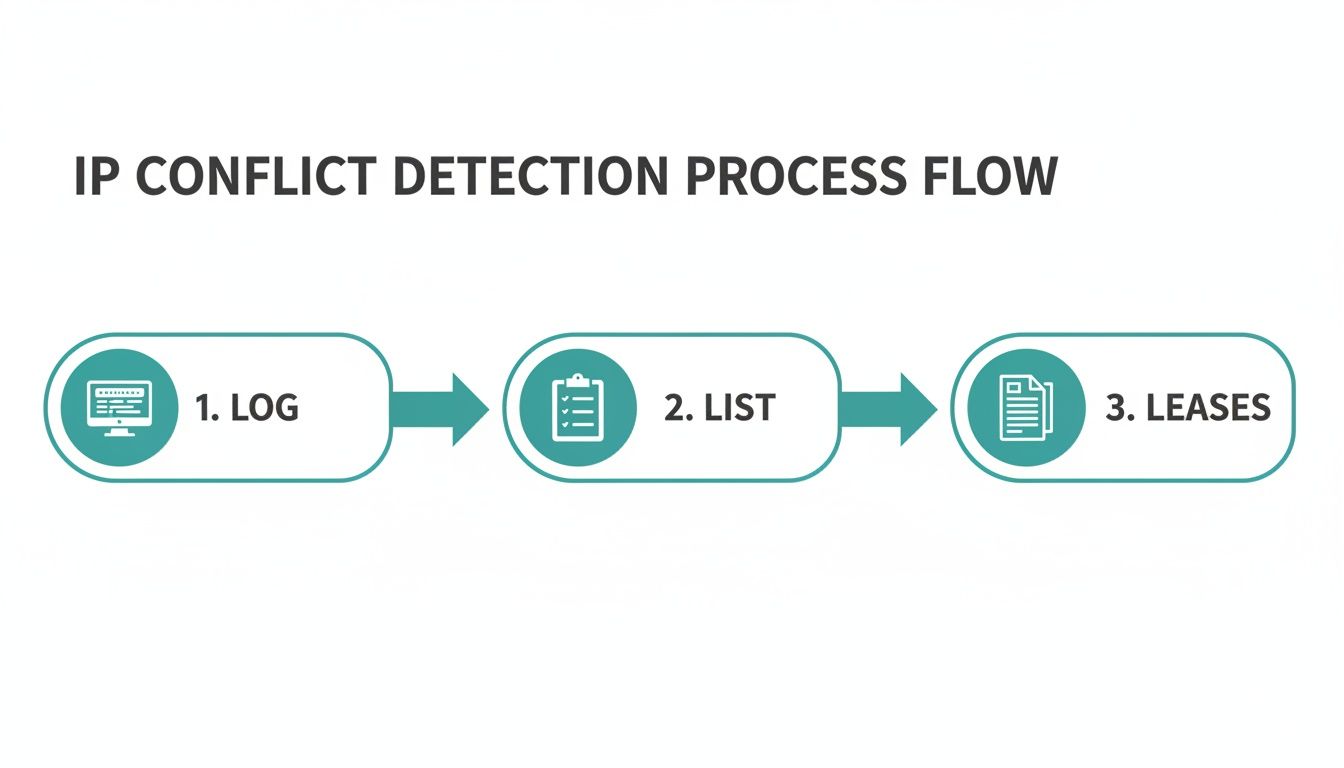
Following this path helps you quickly zero in on the devices causing the trouble and understand the nature of the IP conflict.
Quick Fixes for Individual Devices
Let's tackle the low-hanging fruit first. Once you know which devices are stepping on each other's toes, the fastest way to fix it is to force them to ask the DHCP server for a new address. This alone solves the problem most of the time.
The go-to method is the classic "release and renew." On a Windows machine, you just pop open the Command Prompt and run ipconfig /release followed by ipconfig /renew. The process is a bit different on a Mac or Linux system, but the goal is the same: ditch the conflicting IP and get a new one from the server.
In a lot of BYOD Corporate or Education networks, you can often just tell the user to disconnect from the Wi-Fi and reconnect a minute later. This simple action usually triggers the release and renew process automatically, empowering them to fix the problem without needing your help.
Pro Tip: When you're in a bind, just have the user reboot the device. It’s the oldest trick in the IT book because it works. A full restart forces the device's entire networking stack to start fresh, which includes making a clean DHCP request.
Investigating Static IP Assignments
If a quick release and renew doesn't do the trick, or if the same conflict keeps popping up, you've likely got a rogue static IP on your hands. This happens when someone manually assigns an IP address to a device—like a printer, server, or even their own laptop—that falls right in the middle of your DHCP server's dynamic range.
Your job is to track down that device. Once you find it, you can either change its static IP to something outside the DHCP scope or, better yet, switch it back to using DHCP. You can cross-reference the client list in your Cisco Meraki dashboard with your list of documented static IPs. If you spot a device with a static IP that isn't on your list, you've probably found the source.
This is a really important check, especially on networks that use advanced Authentication Solutions. A rogue static IP can throw a wrench in systems like IPSK or EasyPSK, preventing them from validating a user and blocking their access entirely until you resolve the duplicate address.
To help you quickly diagnose the situation, here's a quick rundown of common scenarios and where to start looking.
Common IP Conflict Scenarios and Initial Fixes
| Scenario | Environment | Likely Cause | First Step to Try |
|---|---|---|---|
| Random, infrequent conflicts | Corporate or Guest Wi-Fi | Device incorrectly held onto an old IP lease. | Release/renew IP on the affected client device. |
| Persistent conflict on one device | Any | A manually set static IP is inside the DHCP pool. | Check the device's network settings; change to DHCP or assign a static IP outside the pool. |
| Multiple conflicts appearing at once | Hospitality, Retail (high-turnover) | The DHCP pool is exhausted due to short-term visitors. | Shorten the DHCP lease time (e.g., 1-4 hours) in Meraki settings. |
| Conflicts happening at peak hours | Education, Large Corporate | DHCP scope is too small for the number of devices. | Review DHCP scope size and consider expanding it or segmenting with a new VLAN. |
This table should give you a good starting point for your troubleshooting before diving deeper into server and network architecture changes.
Optimizing Your Cisco Meraki DHCP Server
For a more lasting fix, you’ll want to look at your DHCP server settings. This is where you can be proactive and stop conflicts before they even start, which is a lifesaver on busy networks like a Retail guest wifi system.
A powerful setting to adjust is the DHCP lease time. This controls how long a device gets to keep its assigned IP address. The right lease time really depends on your environment:
- Retail & Guest Wi-Fi: These networks have a ton of device turnover. A short lease time—think 1-4 hours—is your best bet. It ensures IPs used by customers who've left are quickly recycled for new visitors connecting through your Captive Portal or social login.
- Corporate & Education: Here, devices stick around longer. A longer lease time of 8-24 hours makes more sense. It cuts down on unnecessary DHCP chatter, as employees' and students' devices will hold onto the same IP for the whole day.
You can tweak these settings right in the Meraki dashboard under the DHCP configuration for your specific VLAN or SSID. Getting this right can dramatically cut down on IP conflicts. If you're seeing persistent problems where the server just isn't handing out addresses, you might want to check our guide on what to do when your DHCP server is not responding.
Redesigning VLANs and DHCP Scopes
If your DHCP pool is constantly getting drained, no amount of lease time tuning is going to fix the core issue: you’re simply running out of available addresses. This is a classic growing pain for expanding networks. The real solution here is to properly segment your network with VLANs and give each one a big enough DHCP scope to handle the load.
For instance, you should always have separate VLANs for your corporate devices, guest Wi-Fi, and any other specialized equipment. This not only isolates traffic for security but also lets you create dedicated DHCP pools for each group. A Corporate VLAN might need a large scope for every employee's laptop and phone, while the social wifi network for guests needs a pool sized for the busiest day of the week.
When you thoughtfully design your network architecture this way, you make sure there are always enough unique IP "parking spots" for everyone, making the dreaded conflict of ip addresses a much rarer occurrence.
Proactive Strategies to Prevent Future IP Conflicts
Fixing an IP conflict after it's already brought down a user is one thing, but architecting your network to sidestep them entirely is the real win. It's all about shifting from a reactive, fire-fighting mode to a proactive mindset. This is how you build a resilient Wi-Fi experience, especially in places where network stability is absolutely non-negotiable.
This forward-thinking approach is crucial in high-traffic environments. Picture a university campus during finals week or a retail store on Black Friday—a stable connection isn't just a perk, it's critical infrastructure. The goal is to build a network that anticipates demand and gracefully handles every device that tries to connect.
Segment Your Network with VLANs
One of the most effective strategies I’ve used to prevent a conflict of IP addresses is network segmentation using Virtual LANs, or VLANs. Think of your entire network as a massive, open-plan office. A VLAN is like putting up walls to create separate, dedicated rooms for different teams or purposes.
In a BYOD Corporate environment, for example, you can create distinct VLANs for:
- Corporate-Owned Devices: This VLAN can have tighter security policies and much longer DHCP lease times, since these devices are always on-site.
- Guest Wi-Fi: A totally separate VLAN for visitors, funneling them through a Captive Portal and keeping their traffic completely isolated from your internal resources.
- IoT Devices: Another island for things like smart TVs, printers, and thermostats, which often have unique and sometimes less-secure needs.
This separation is a game-changer. Each VLAN gets its own dedicated DHCP scope, meaning the pool of addresses for your staff will never, ever overlap with the pool for your guest wifi. It dramatically cuts down the chances of a conflict and adds a serious layer of security. To really dig into this, take a look at our guide on https://www.splashaccess.com/network-segmentation-best-practices/.
Right-Size Your DHCP Scopes
With your VLANs in place, the next move is ensuring each one has a big enough pool of IP addresses. Underestimating the number of devices you’ll have is a classic recipe for disaster. Once your DHCP server runs out of addresses to hand out, you'll see failed connections and, you guessed it, potential conflicts.
Always plan for your busiest day, not your average day. For a Retail shop, calculate the maximum number of shoppers and employees you could possibly have during a holiday rush, and then add a buffer of at least 20-30% to be safe.
In an Education setting, remember that a single student might carry a laptop, a smartphone, and a tablet. A "one user, one device" assumption will leave your DHCP scope undersized every single time. By carefully calculating the potential device density within your Cisco or Meraki dashboard, you can make sure there’s always a fresh IP address ready for the next connection.
Upgrade Your Authentication Game
How users get onto your network also plays a huge part in its stability. A single, shared Wi-Fi password for everyone is not only a security risk but makes managing all those devices a total nightmare. This is where more modern Authentication Solutions really shine.
- IPSK (Identity Pre-Shared Key) or EasyPSK: These technologies are a world away from the one-size-fits-all password. Instead, each user or even each device gets its own unique key. This makes it incredibly easy to track devices on the network, revoke access for a specific person, and apply different rules to different groups.
- The Benefits: When you know exactly which device belongs to whom, troubleshooting becomes much more straightforward. If one person's device is causing trouble, you can isolate it without disrupting everyone else.
This level of granular control leads to a more organized, predictable network, reducing the kind of chaos that often breeds IP conflicts.
Use Smart Captive Portals
For guest networks, particularly in Retail or hospitality, a well-designed Captive Portal is more than just a login screen—it’s a powerful network management tool. By integrating options like social login or social wifi, you not only create a frictionless onboarding experience for visitors but can also gather valuable marketing insights.
From a network health standpoint, a smart captive portal system helps manage the flow of new connections. When you pair this with properly sized DHCP scopes and shorter lease times for guests, you ensure that IP addresses are efficiently recycled as people come and go. This keeps your network clean and ready for the next wave of visitors.
It’s also worth noting the broader security implications here. As IPv4 addresses have become a scarce resource, their rapid reuse makes it harder to trace malicious activity back to a source. The challenges of IP conflicts and shared infrastructure can complicate handling security incidents, as one public IP might represent thousands of users. This reality underscores why having a well-structured internal network with clear device authentication isn't just about preventing conflicts—it's fundamental to good security hygiene.
Maintaining a Healthy and Conflict-Free Network
Fixing an IP conflict is one thing, but building a network where they rarely happen in the first place? That’s the real goal. A healthy network isn't a "set it and forget it" project. It needs a little bit of ongoing care—a simple routine, really—to keep your Wi-Fi humming along. Think of it as moving from firefighting to fire prevention.
By leaning on the powerful monitoring tools baked right into your Cisco Meraki dashboard, you can keep a close eye on your network's vital signs. This is how you catch potential issues before they ever turn into a problem for your users.
Keep a Watchful Eye on Your Network
Your Meraki dashboard is your command center for network health. If you're going to watch anything, keep an eye on DHCP lease utilization and overall client activity. Just a quick glance at these gives you a fantastic, real-time snapshot of what your network is handling.
Let's say you notice the DHCP pool for your guest wifi is consistently hitting 85% utilization during peak hours. That’s a huge red flag. It’s a clear signal that you're getting close to capacity. All it would take is a sudden influx of new devices—maybe a tour group arriving at a school or a flash sale in a Retail store—to push you over the edge and start triggering a conflict of IP addresses.
A proactive monitoring routine is the difference between making a minor tweak and dealing with a full-blown network outage. Seriously, spending just 15 minutes a week in your dashboard can save you hours of troubleshooting down the road.
Set Up Smart Alerts
You can’t be glued to your dashboard 24/7, and that's where automated alerts are a lifesaver. Meraki lets you configure notifications for specific network events, essentially creating an early warning system for your network.
I'd strongly recommend setting up alerts for things like:
- DHCP Pool Exhaustion: Get an email when a DHCP scope is getting dangerously full. This gives you time to expand the pool or figure out why there's a sudden spike in devices before users start complaining they can't connect.
- Rogue DHCP Servers: This alert is critical. It can tell you immediately if some rogue device on your network has decided to start handing out its own IP addresses—a classic recipe for chaos.
- Excessive Client Roaming: While not an IP conflict itself, this can point to other Wi-Fi problems that are wrecking the user experience.
These alerts are especially vital in BYOD Corporate environments where the number of devices can swing wildly. They help you get ahead of issues that could otherwise disrupt critical Authentication Solutions like IPSK and EasyPSK. For a deeper dive into this, our guide on network monitoring best practices will help you build out a robust strategy.
Your Simple Network Health Checklist
You don't need a complicated process. A simple, repeatable checklist is all it takes to make regular maintenance feel like second nature. For busy IT teams in Education or Retail, a quick check once a week or every other week is usually plenty to keep things running smoothly.
Here’s what that checklist might look like:
- Review DHCP Lease Utilization: Take a quick look at each VLAN. Are any of the pools running hot?
- Scan the Event Log: Filter the log for any recent IP conflict messages or DHCP-related errors.
- Check for Firmware Updates: Make sure your Cisco and Meraki gear is on the latest stable firmware. You'll get performance boosts and important bug fixes.
- Audit the Client List: Scan for anything weird, like a device that's been connected for an unusually long time on a social wifi network that's meant for quick, transient use.
This kind of disciplined approach ensures your network is always ready to support every connection, whether it's a student accessing online resources or a customer using a Captive Portal with a social login.
Frequently Asked Questions About IP Conflicts
Let's dive into some of the questions I hear all the time when network managers are wrestling with IP address conflicts. Getting these concepts down can save you a ton of headaches down the road.
Can an IP Address Conflict Really Slow Down My Entire Wi-Fi Network?
It absolutely can. You might think the problem is isolated to just the two devices fighting over the same IP, but the side effects often create a network-wide traffic jam.
Your Cisco switches and Meraki access points end up in a state of confusion, trying to route packets to two different places at once. This causes a storm of re-transmissions and dropped connections, bogging everything down. For everyone else, this just looks like a slow, unreliable network—a real killer for user experience.
In a busy environment like an Education campus or a Retail store where solid guest wifi is a must, even one conflict can noticeably degrade performance for dozens of people.
Why Do I See IP Conflicts So Often on My Guest Wi-Fi Network?
Guest networks are a perfect storm for IP conflicts, especially in Retail or Education. Think about it: you have a massive number of devices constantly coming and going. This high-turnover environment, often managed by a Captive Portal with social login, puts immense pressure on your DHCP server.
The problem often comes down to DHCP lease times. If leases are too long, the IP pool gets exhausted because addresses are held for devices that have long since left the building. But if they're too short, a returning device might try to use its old IP, which has already been handed out to someone else. This constant churn of BYOD Corporate devices and personal phones makes social wifi a hotspot for these issues.
The core issue on guest networks is churn. Hundreds of devices join and leave daily. If the DHCP server isn't configured to handle this rapid recycling of addresses, conflicts are almost inevitable.
How Do Authentication Solutions Like IPSK Help Prevent This?
A Captive Portal on its own isn't designed to stop a conflict of IP addresses. Its job is to handle logins. However, when you pair it with modern Authentication Solutions like IPSK or EasyPSK, you bring a whole new level of order to the chaos.
Instead of one shared password for everyone, each user or device gets a unique key. This simple change allows for incredible visibility and control within your Cisco Meraki dashboard. You know exactly who is connected, can revoke access instantly, and apply specific policies to individual devices. While not a direct fix for DHCP misconfigurations, this level of organization dramatically improves network stability and makes troubleshooting IP conflicts a much faster, more precise process.
Ready to build a smarter, more reliable guest Wi-Fi network that prevents these headaches? Splash Access integrates seamlessly with your Cisco Meraki hardware to provide robust captive portals, advanced authentication like IPSK, and powerful management tools. Learn more and get started today.